
Understanding the Import status settings
Introduction
Import status settings define how PMI monitors incoming interface data and determines when warnings should appear for delayed, missing, or unsuccessful imports.
These settings help users understand when expected interface data has not arrived, could not be processed, or requires operational attention.
The settings support:
- warning management for delayed or missing imports
- expected file arrival monitoring
- data validation logic for hourly, daily, and monthly imports
- visibility into active and inactive interfaces
- interface tracking configuration
- mapping visibility management
- chain-level configuration management
- property-level override settings
- interface filtering by status, name, and data level
These settings support the logic behind Import status monitoring, helping users understand whether expected data has arrived, whether it was updated correctly, and when operational attention may be needed.
This helps operational teams and support users identify integration issues before reporting and forecasting are impacted.
Although only d2o users can modify the settings, all users can view the configuration to better understand import timing, interface status, and warning behavior within PMI.
Availability
Import status settings are available for interfaces configured through SIT (System Integration Tool).
- All users can view Import status settings
- Only d2o users can modify settings
- Settings are available on both Chain and Property level
Typical users reviewing Import status settings may include:
- General Managers
- Financial Controllers
- Operations Managers
- IT or Systems Coordinators
Navigation
Main menu > Advanced settings > Import status > Settings (gear icon)
How it works
Import status settings define the rules PMI uses to evaluate incoming interface data. These rules also determine whether an interface is tracked and displayed on the Import status page.
The screenshot below shows the Import status Settings popup. The numbered fields correspond to the explanations in the sections below.
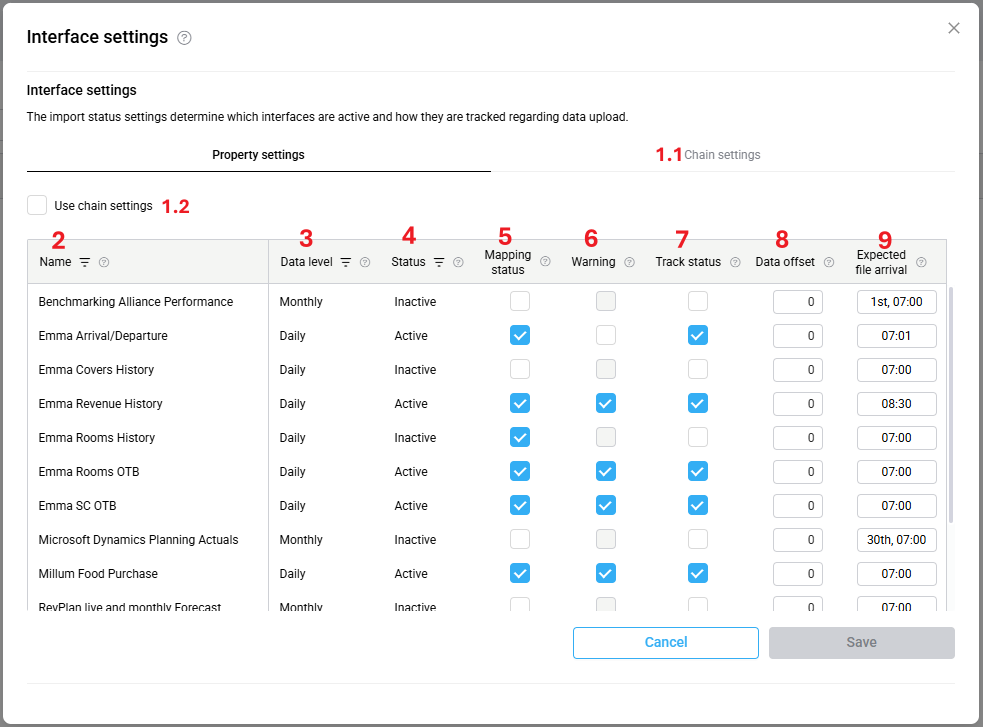
Image: Interface settings overview
1. Chain and property settings
Chain settings allow standardized monitoring behavior across multiple properties.
Properties can:
- inherit Chain settings
- use property-specific settings
When a property activates Use chain settings (1.2), it immediately inherits the Chain configuration for that interface and status type.
This supports consistent monitoring across large hotel groups while still allowing exceptions where needed.
Changes made under Chain settings (1.1) can affect multiple properties using the same inherited configuration.
Once a property uses its own property-level configuration, later Chain changes no longer affect that interface for the property.
2. Interface name
The Interface name helps users identify the source or type of imported data within Import status.
PMI displays:
- all active interfaces
- inactive interfaces within Import status Settings
Users can rename an interface by double-clicking the Interface name.
Interfaces are linked internally using the Interface code from the System Integration Tool (SIT), which acts as the unique identifier for synchronization and configuration behavior.
This means:
- interfaces with the same Interface code are treated as the same interface across properties
- changing the Interface name updates all matching interfaces within the chain, including different versions of the same interface
- interfaces with different Interface codes remain separate, even when their names are identical
To help distinguish similar interfaces, hovering over the Interface name displays additional interface information from SIT, including the Interface code.
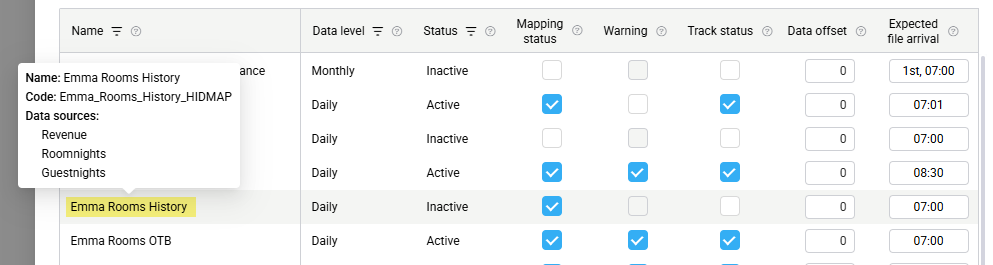
Image: Hover-over tooltip display integration details of the interface
On Chain settings, interfaces are displayed in aggregated form to reduce duplication across properties. However, interfaces with different Active or Inactive statuses are displayed separately so users can still distinguish monitoring behavior by status.
3. Data level
The Data level defines the scope of imported data:
- Hourly: Values are imported for each hour of the day
- Daily: Values are imported for each calendar day
- Monthly: Values are imported as a single monthly total
This helps PMI determine how imported data should be validated and monitored.
4. Status
Each interface has a Status:
- Active
- Inactive
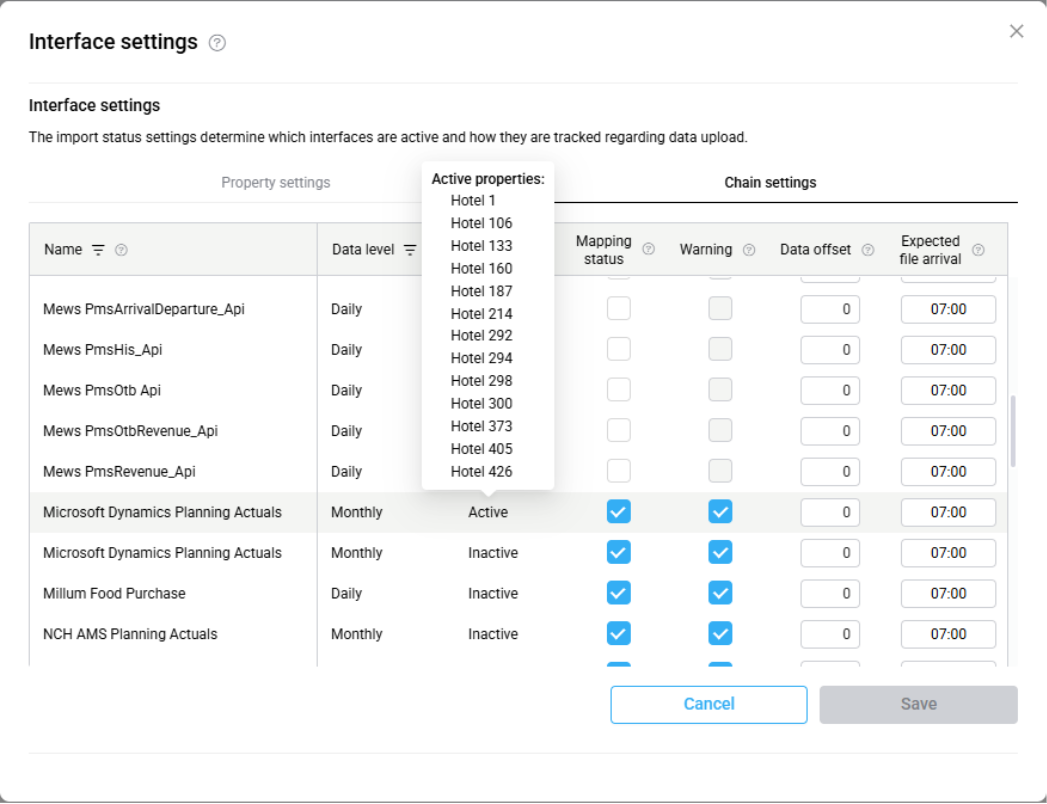
Image: Duplicated Active/Inactive interface entries and property hover tooltip
This status is controlled through the system integration tool (SIT).
Active interfaces with Track status enabled are monitored by PMI and displayed on the Import status page.
When an interface becomes inactive, it is automatically removed from the Import status main page. However, the interface remains visible in Settings to support troubleshooting and configuration review.
On Chain settings, the same interface may appear multiple times when different properties use different statuses for that interface. For example, one group of properties may have the interface marked as Active, while another group has it marked as Inactive.
To make this easier to understand, PMI displays separate rows for each status combination instead of combining them into a single entry.
Hovering over the Active or Inactive status value displays the list of properties currently using that status for the interface.
5. Mapping status
Mapping status determines whether an interface is available in the Mappings module for configuration and maintenance.
When Mapping status is activated:
- the interface is visible in the Mappings module
- users can create, review, or update mappings
When Mapping status is deactivated:
- the interface and its mappings are hidden from the Mappings module
- existing mappings are not deleted
- existing mappings remain valid and continue to function even though they are no longer visible in the Mappings module
When an interface becomes Inactive, Mapping status is automatically turned off. However, users can manually enable Mapping status again if they need to review or maintain mappings for an inactive interface.
6. Warning logic
The Import status page monitors tracked interfaces and displays warnings when expected data requires attention.
A warning can be triggered when:
- a file does not arrive by the expected time
- imported data is incomplete
- the property is missing from the source file
- the file cannot be processed because of an invalid file format
These situations result in one of the following statuses:
- Outstanding import
- Incomplete import
- Import failed – format issue
- Missing from source file
When one of these statuses occurs, the interface is highlighted in red. If Warning is enabled, a warning message is also displayed on the PMI homepage until the issue is resolved.
Warning behavior depends on the interface configuration:
- Warning can only be enabled when the interface is Active and Track status is enabled.
- When Track status is enabled for an Active interface, Warning is automatically enabled.
- If Track status is disabled, Warning is automatically disabled.
- When an interface is set to Inactive, Warning is automatically disabled and cannot be enabled until the interface is Active again.
7. Track status
Track status determines whether PMI monitors an interface and displays it on the Import status page.
When Track status is activated:
- the interface appears on the Import status page
- PMI evaluates the interface according to the configured monitoring rules
- homepage warnings can be enabled for the interface (if the interface is Active)
When Track status is deactivated:
- the interface no longer appears on the Import status page
- homepage warnings cannot be activated
For Active interfaces, enabling Track status automatically enables both Mapping status and Warning.
Track status can be manually enabled or disabled at any time without affecting the interface configuration in SIT.
8. Data offset
Data offset defines which operational date or month the imported file must contain for PMI to consider the import successful. Daily and Hourly interfaces use day-based offsets, while Monthly interfaces use month-based offsets.
Some GoGreen and Food Purchase interfaces support additional validation logic where PMI expects data for one or more days across a configured date range. This behavior is related to the Data offset configuration for those interfaces.
For more information, see Understanding advanced Data offset validation for GoGreen and Food Purchase interfaces.
Examples:
- Daily offset 0 means PMI expects data for today
- Daily offset -1 means PMI expects data for yesterday
- Monthly offset -2 means PMI expects data for two months back
If the expected data period is not found in the imported file, PMI may trigger a warning.
9. Expected file arrival
Expected file arrival defines when PMI expects the import file to arrive.
For Daily and Hourly interfaces: PMI expects a file every day at the configured time
For Monthly interfaces: PMI can monitor both the day of the month and the expected arrival time
This allows PMI to trigger warnings only after the configured arrival threshold has passed.
Image: Duplicated Active/Inactive interface entries and property hover tooltip
10. Saving changes
Changes to Import status settings are only applied after saving. If the settings window is closed with unsaved changes, PMI displays a warning before closing the popup.
Example scenarios
Example 1: Daily labor import
A labor interface imports data every morning at 06:00.
Configuration:
- Data level: Daily
- Data offset: 0
- Expected file arrival: 06:00
PMI expects:
- the file to arrive by 06:00
- the file to contain today’s labor data
If the file arrives late or contains incorrect data, PMI may trigger a warning.
Example 2: Forecast import with future dates
A forecasting interface imports data three days ahead.
Configuration:
- Data level: Daily
- Data offset: 3
If today is July 5, PMI expects imported data for July 8.
Example 3: Monthly financial import
A financial interface imports monthly data on the 1st day of each month at 07:00.
Configuration:
- Data level: Monthly
- Monthly arrival enabled
- Expected file arrival: 1st, 07:00
PMI only evaluates the warning logic once the configured monthly arrival point is reached.
Common misunderstandings
Does Data offset controls arrival time?
Data offset does not define when a file arrives. It defines which operational date or month PMI expects inside the imported data.
Are inactive interfaces removed?
Inactive interfaces are automatically removed from the Import status main page, but they remain visible in Settings for troubleshooting and configuration review. Mapping availability can still be activated for inactive interfaces if mapping maintenance is required.
Are my accounts unmapped when Mapping status is deactivated?
Deactivating Mapping status only hides the interface and its mappings from the Mappings module. Existing mappings remain valid and continue functioning unless they are manually removed.
Do Chain settings always apply to all properties?
Properties using property-level overrides do not inherit Chain changes automatically.
Why can’t I enable Warning?
Warning can only be enabled when both of the following are true:
- the interface is Active
- Track status is enabled
If either condition is not met, the Warning option is unavailable.