
Objective
Your automated forecasts are only as good as the data behind them. This guide shows you how to fine-tune your Express planner settings to ensure your revenue and labor targets are highly accurate and aligned with your property’s unique potential.
By configuring your data sources, rules, and exceptions once, you ensure Express planner generates reliable forecasts every time you run it.
Requirements
- Permission to run Express planner for your property.
- Access to the Budget & Forecast module.
- Forecast periods must be unlocked for the months you plan to update.
Estimated time to complete
10–15 minutes
Steps
Step 1. Navigate to Express planner
-
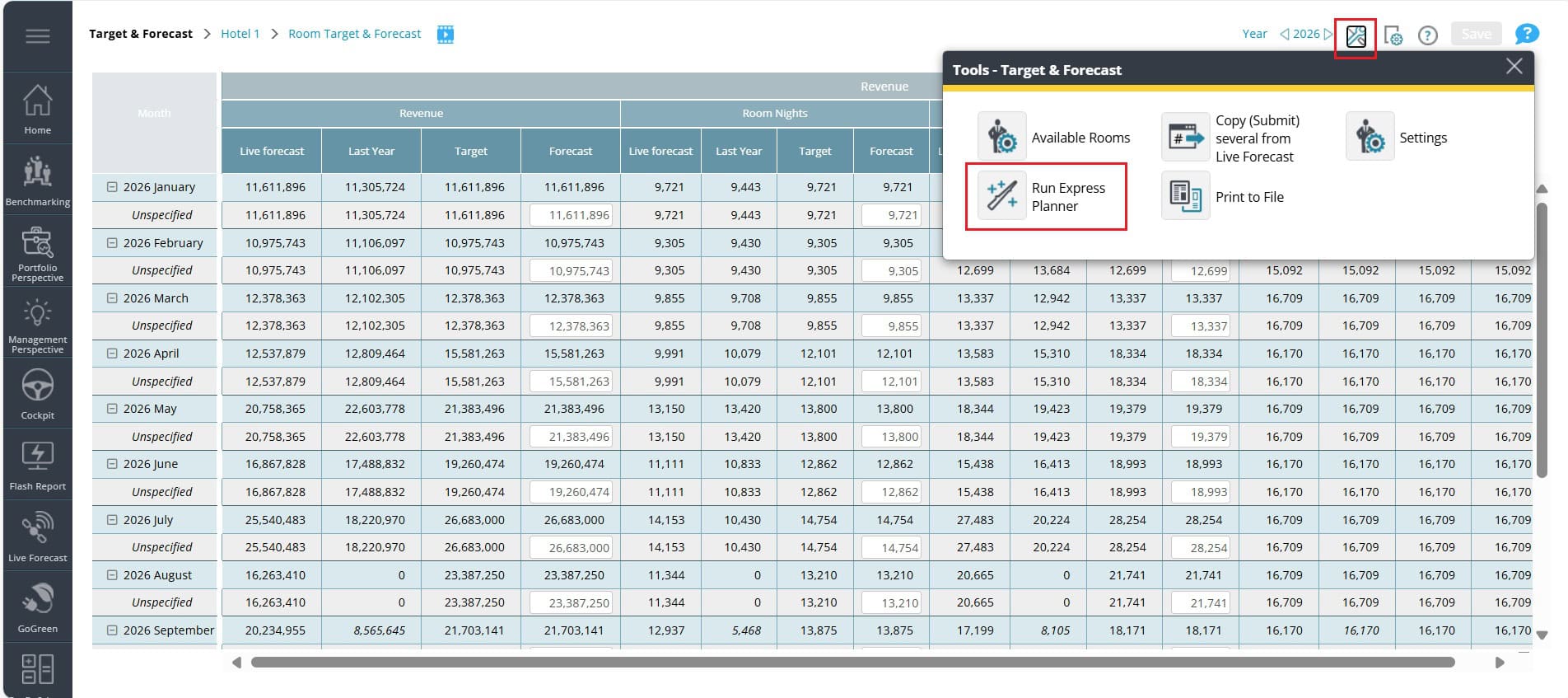
- Go to your Budget & Forecast (or Target & Forecast) page.
- Click the Run Express planner It is irrelevant which department page you are on.
- On the left navigation menu, click View and edit settings.
Step 2. Configure Plan settings (Your data baseline)
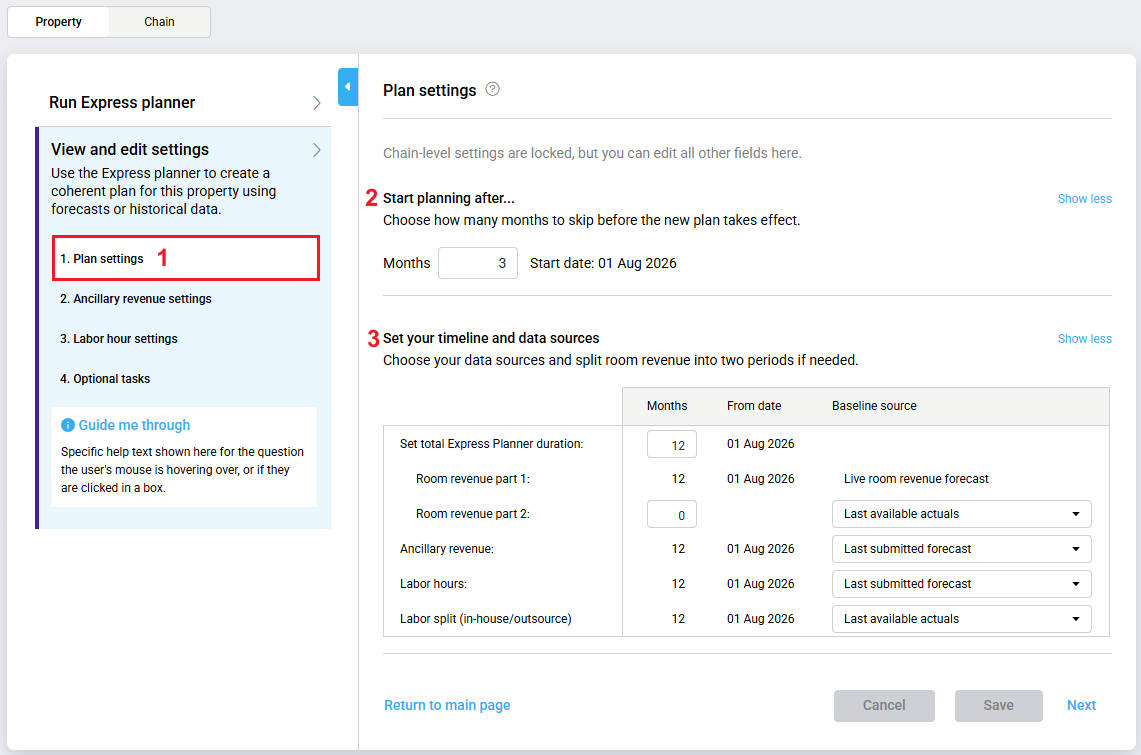
1. 1-Plan settings
Click to choose your timeline and the data sources that will power your forecast.
2. Set Express planner start month
Set a future start date (Optional): If you want to manually manage the near-term forecast and only automate the longer-term plan, use the Start planning after… setting.
- Months: Enter number of months from next month that Express planner must not overwrite.
- Start date: Updates automatically to show when Express planner begins updating the forecast.
Example: If you set the exclusion period to 3 months and today is April 15th, Express planner will count three full months starting from the next month — May, June, and July and starts updating the forecast from August.
3. Set your timeline and data sources
Specify the total length of planning period and data source for auto-planning:
- Set total Express planner duration (max 24 months).
- Room revenue part 1:
- Always uses Live room forecast (values) – your current forecast data.
- Room revenue part 2:
- Use Room revenue part 2 when your forecast extends beyond the period covered by your Live room forecast (used for Room revenue part 1) or if the data is less reliable.
- Set the number of months at the end of the forecast that you want to use the alternative source to determine room nights. (selection for # months for Room revenue part 1 will automatically update based on your choice)
- Select a source:
- Last available forecast (prior year)
- Actuals from the past 5 years
- Ancillary revenue:
- Choose a data source:
- Last submitted forecast
- Last available actuals
- Actuals from the past 5 years
- Choose a data source:
Best practice: Use Last submitted forecast for consistency.
Step 3. Configure Ancillary revenue settings
1. 2-Ancillary revenue settings
Click to open the settings
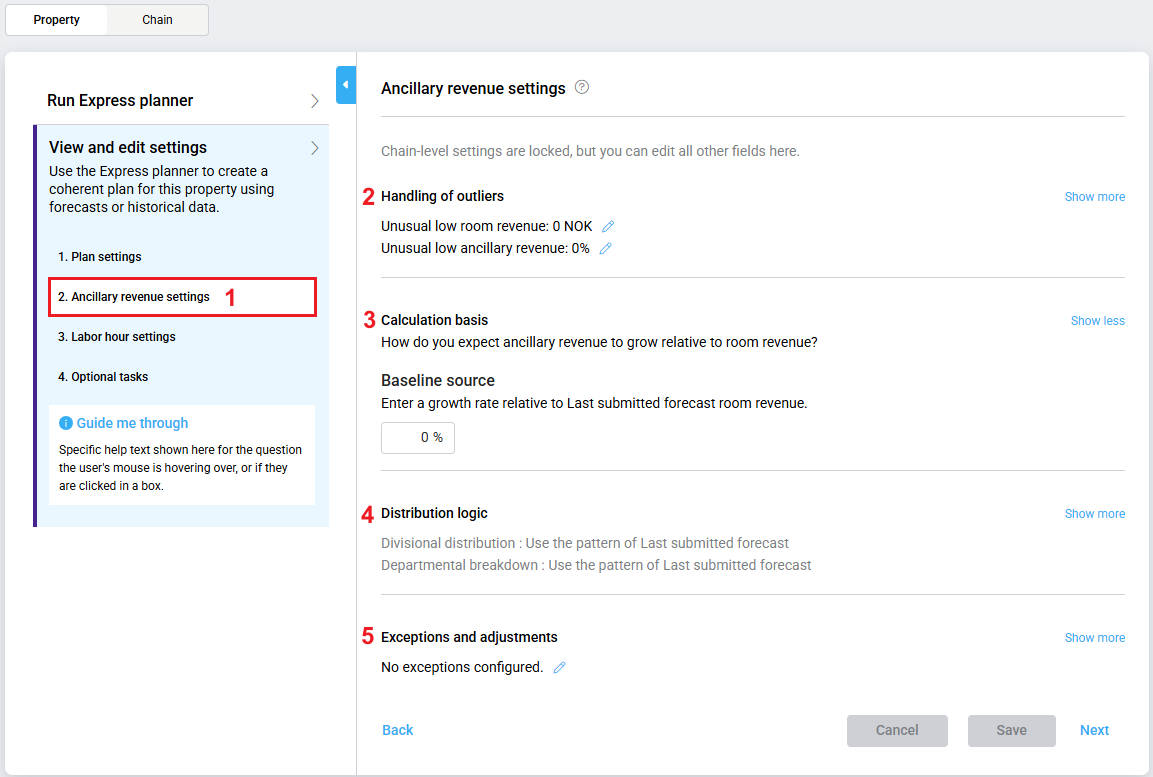
2. Handling of outliers
Set thresholds to control how unuasial values are handled:
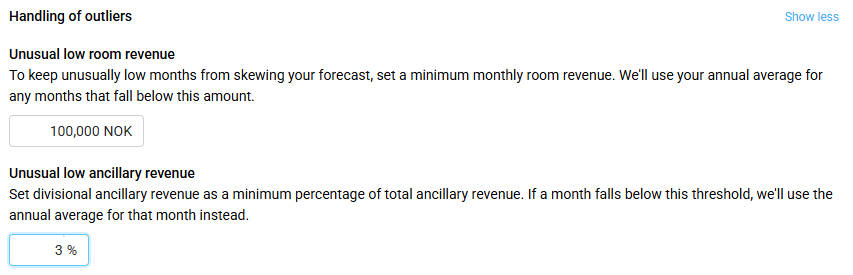
- Unusual low room revenue:
- Set the minimum monthly room revenue (based on your ancillary baseline source)
- Months below this threshold will use yearly source averages instead.
- Unusual low ancillary revenue:
- Set the minimum percentage threshold for ancillary revenue calculations.
- Months below this threshold use yearly averages instead.
Note: Enter 0 in both fields to accept all monthly values as valid, including unusually low values. Express planner will treat them as normal and include them in the forecast.
Example:
If you set room revenue threshold to $50,000, Express planner will ignore any months with room revenue below this amount and use chosen source averages instead. This prevents unusual events (like renovations or closures) from skewing your forecasts.
3. Calculation basis
Set your growth expectations:

- Use two decimal places for precision (e.g., 3.50% for 3.5% growth).
- Enter 0% to maintain the current revenue ratio compared to room revenue.
4. Distribution logic
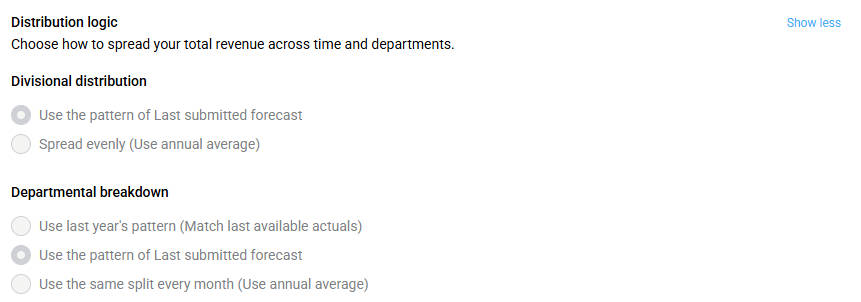
Divisional distribution – Distribute total ancillary revenue to divisions and months:
- Use pattern of Last submitted forecast (recommended)
- “Last submitted forecast”- Change based on baseline chosen for ancillary revenue
- Applies seasonal patterns from your selected data source.
- Best suited for businesses with consistent seasonal trends.
- Spread evenly (Use annual average)
- Distributes revenue evenly across all months.
- Recommended for businesses with little or no seasonal variation.
- Only available if Actual is chosen as a baseline for Ancillary revenue
Departmental breakdown – Split divisional revenue to departments
- Use pattern of Last submitted forecast (Recommended)
- “Last submitted forecast”- Change based on baseline chosen for ancillary revenue
- Maintains each department’s share of total ancillary revenue.
- Preserves seasonal variations by department.
- Alternative options available when using forecast baselines
5. Exceptions and adjustments
Exclude departments or adjust drivers (optional).
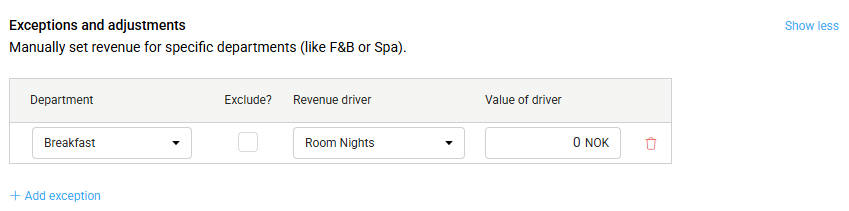
- Click + Add exception to customize specific departments
- For each department, you can:
- Department: Select from active revenue-generating departments
- Exclude: Check to exclude department from Express planner calculations
- Revenue driver: Choose what drives revenue (Guest Nights, Room Nights, Room revenue, Total revenue).
- Value of driver: Input the revenue per driver unit for the department.
- Eg: Room Nights: $150 per room night, Room Revenue: $0.10 per $1 room revenue, etc.
6. Save ancillary revenue settings
- Review all configured settings for accuracy
- Click Save to apply changes
Step 4. Configure Labor hours settings
1. 3-Labour hours settings
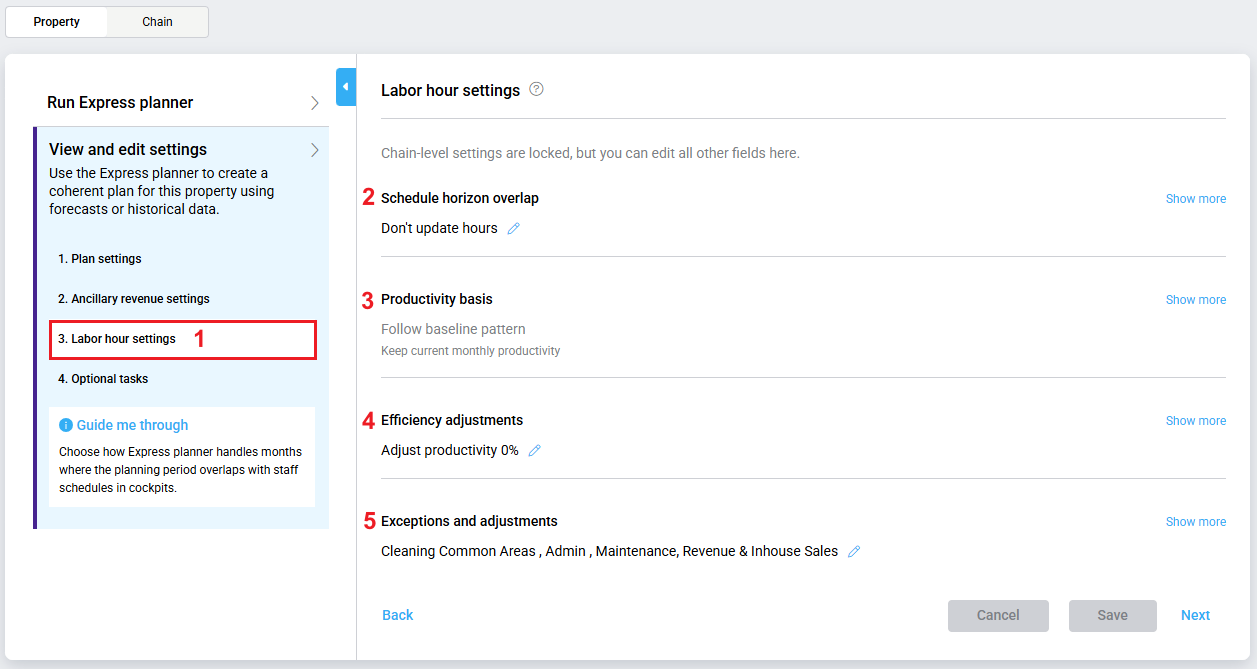
2. Schedule horizon overlap
When the Express planner planning period overlaps with existing staff schedules in cockpits, you can decide how labor hours for the overlapping period are handled.
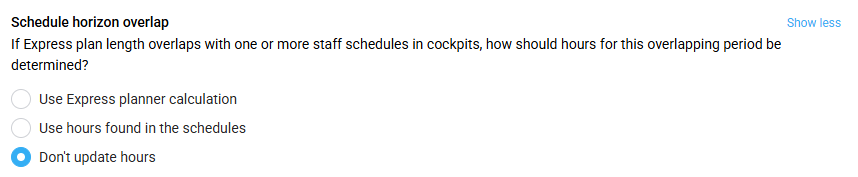
You can choose one of the following options:
- Use express planner calculation
Express planner recalculates labor hours for the overlapping period using the selected baseline and productivity settings.
- Use hours found in the schedules
Express planner updates hours using the hours already planned in staff schedules.
- Don’t update hours
Express planner keeps the existing hours for the overlapping period and does not make any changes.
This setting helps ensure Express planner aligns with your hotel’s planning and scheduling process.
This setting does not affect how future schedules are created or edited.
3. Productivity basis
Choose a method to determine productivity, select your approach:
2. Set revenue growth targets
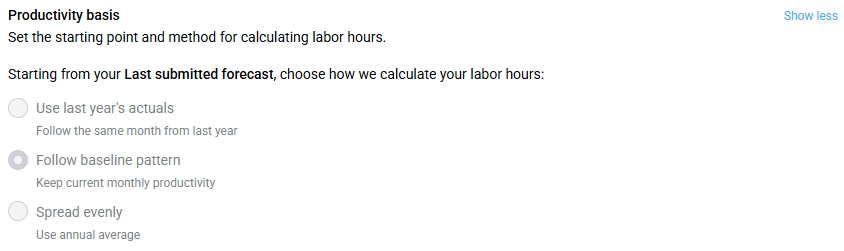
- Use last year’s actuals
- Uses actual productivity data from the most recent 12 months
- Ideal for capturing current operational efficiency improvements
- Follow baseline pattern (Recommended for most properties)
- Accounts for seasonal variations in productivity
- Spread evenly
- Applies the same productivity rate across all months
- Suitable for departments with consistent efficiency throughout the year
3. Efficiency adjustments
Adjust your labor productivity.

Enter percentage adjustment to reflect efficiency changes.
- Use 2 decimal places for precision.
- Positive values: Reflect efficiency improvements (fewer hours needed per unit of business)
- Negative values: Reflect increased service needs or temporary inefficiencies (e.g., training periods)
4. Exceptions and adjustments
Exclude departments or define fixed hours (optional)
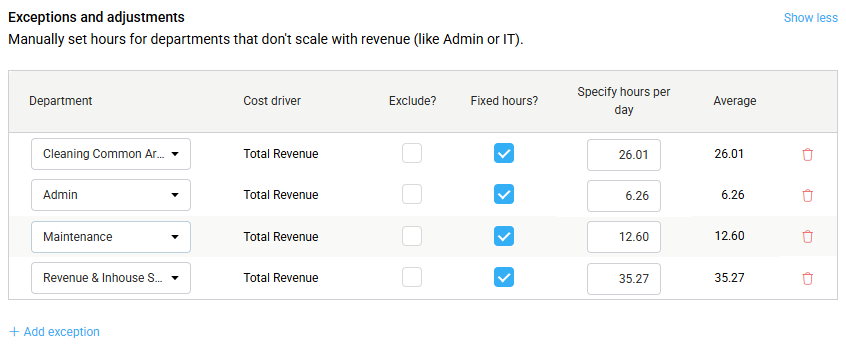
- Click + Add exception to customize specific departments.
- For each department:
- Department: Select from labor cockpit departments
- Cost driver: View the primary business driver
- Exclude: Check this box to exclude from Express planner calculations
- Fixed hours: Check to use predetermined daily hours instead of productivity-based calculations
- Hours per day: Set or adjust the average daily hours (defaults to the last 12-month average). The Average column shows the last 12-month average for reference.
6. Save labor hours settings
- Verify that all department configurations are appropriate for your operation.
- Click Save to apply labor hours settings.
Step 5. Configure optional tasks
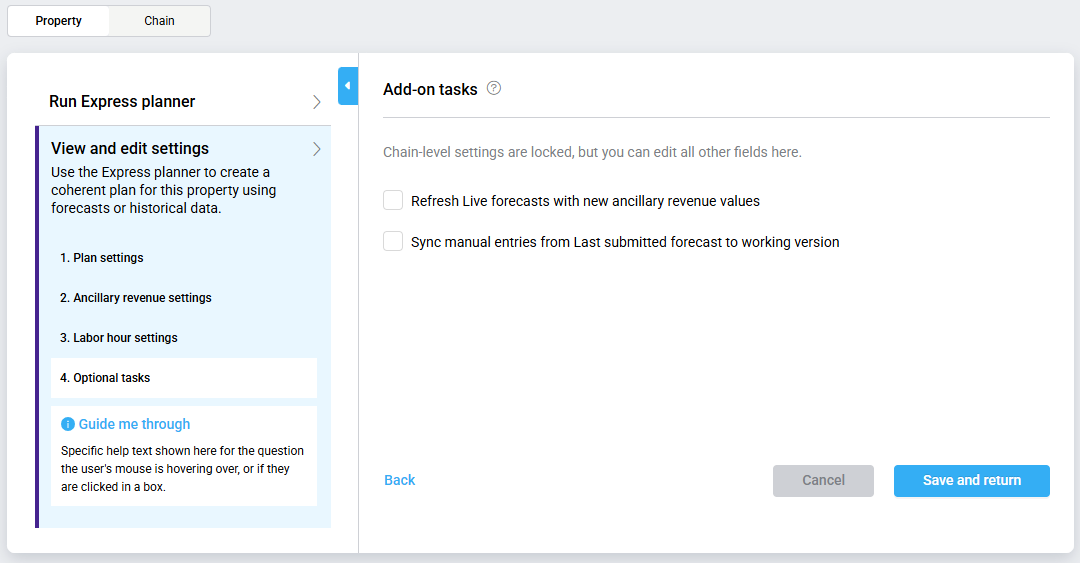
- Use Save and return to complete configuration and return to the main dashboard.
- This will:
- Refresh live forecast with new ancillary revenue values: EP will copy the new ancillary forecasts to live forecast when run.
- Sync manual entries from Last submitted forecast to working version: EP will copy any manually entered forecast value in P&L from the reference period to the new forecast period in P&L.
- Update latest head office costs from Profitbase (HQ refresh): EP will run HQ refresh.
Expected outcome
Once you’ve configured and saved your settings, Express planner will use your chosen sources, exclusions, and targets to generate accurate forecasts for room revenue, ancillary revenue, and labor hours. These forecasts will reflect your operational strategy and be visible in the Budget & forecast and Profit & loss modules after running Express planner.
Troubleshooting
- My settings didn’t save:
- Make sure all required fields are completed and that you clicked Save before exiting each section.
- The excluded department still appears in the plan:
- Double-check that you selected Exclude for the correct department under exceptions and that the change was saved.
- Room revenue part 2 didn’t apply:
- Ensure you defined how many months Room revenue part 1 should cover. Room revenue part 2 will only apply after that point.
Cross-references
- Express planner overview
- How to run Express planner
- Express Planner Calculation Explanation with Examples
Related features and modules
- Budget and forecast
- P&L Planning
- Staffing module
- Live forecast
- Cockpit
FAQ
Q: Can I change the baseline data later?
A: Yes. You can return to the Express planner settings and update your selections at any time before running the plan.
Q: What happens if I skip configuring a section?
A: Express planner will use the last saved settings or defaults. It’s best to review each section before running the plan.
Q: How do I handle departments with fixed staffing?
A: In the Labor hours configuration, add an exception and select Fixed hours, then enter the average daily hours.
Q: What happens if I select use hours found in the schedules and exclude a department?
A: During overlapping days, Express planner uses the hours from staff schedules for the excluded department. Outside the overlapping period, the department is excluded and no hours are updated by Express planner.
Q: Does the schedule horizon overlap setting apply to all departments?
A: Yes. The schedule horizon overlap setting applies to all departments, unless a department is excluded or configured with fixed hours in labor hour settings.
Q: What happens if there is no schedule for an overlapping period?
A: f no staff schedule exists for an overlapping day, Express planner follows the selected overlap setting. If you choose scheduled hours and no schedule is found, no hours are updated for that day.
Q: Will changing the overlap setting affect past Express planner runs?
A: No. The setting only affects future Express planner runs. Previously generated forecasts are not changed unless you run Express planner again.
Q: If I entered revenue directly in the P&L account without updating the Budget/Target and Forecast module, will Express Planner consider this when calculating hours?
A: No. Express Planner pulls data only from the Budget/Target & Forecast module. Revenue entered directly in the P&L is not flow to that module and therefore is not recognized by Express Planner
Q: When copy Express planner ancillary values back to Live forecast – how are the month values distributed to daily values?
A: Monthly → Daily Split:
The EP calculates a new monthly revenue total per department. To break it into daily values, it uses a split option configured per property/department:
- Rolling: uses the current Live Forecast daily shape as the proportional template
- Last Year: uses the same month one year prior as the template — if that date is in the past, it uses actual Revenue; if in the future, it uses the prior year’s Live Forecast values. If the reference pool is zero, revenue splits equally across all days.
Each day’s share = its reference day value ÷ month’s total reference.
Forecast → Live Forecast Copy:
Once daily forecast values are calculated, they are copied directly into the Live Forecast table, replacing the previous daily LF values. This updated Live Forecast then becomes the reference pool for the next EP run’s daily split — so each run’s output shapes the next run’s distribution.
Q: How is the default average hourly rate calculated on the Exceptions and adjustments table under labor calculated? Is it average last year or 12 last available month?
A: The average hourly rate is calculated on the last 12 actual months hours / number of days.