
What is its purpose?
View options allow you to control how data is displayed in P&L reports and focus on the figures most relevant to your analysis.
Navigation
P&L reports → Tools → View options
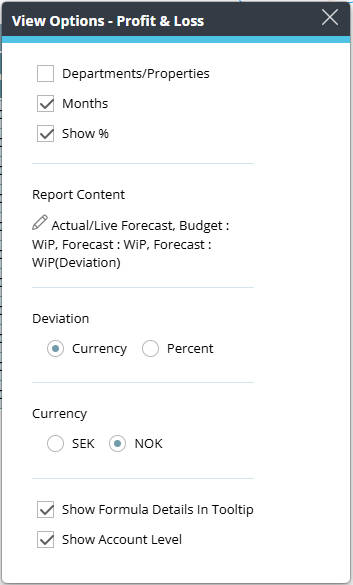
Departments/Properties
Shows additional detail within the report.
If connected to a chain and with the correct permissions, you can view multiple properties in one report.
Months
Displays each month in the selected period.
If not selected, only the total for the period is shown.
Show %
Adds a percentage column for comparison.
Report Content
Here you can add or remove columns (versions) in the report. Click the pen icon to manage the columns.
These will be listed at the top. See (a) on the screenshot
To add a version (column):
- From the list, open the preferred data option clicking on the arrow.
- Different options for the selected mode will be listed.
- Click on ‘Add’ to add the option as a column in the view.
To delete a version (column), click on the trash icon.
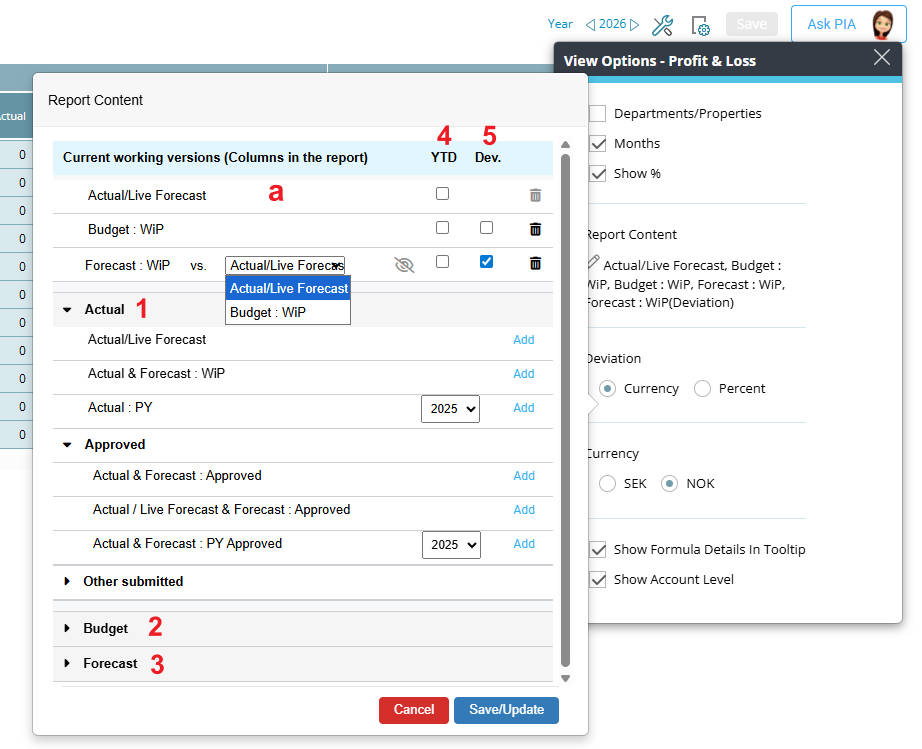
Visual image of the Report content options
You can choose different variations from the three different version types:
1. Actual:
-
- Actual/Live Forecast – Actual values on history months, Live Forecast on future months
- Actual & Forecast: WiP – Actual values on history months, WiP Forecast on future months
- Actual: PY – Actual Previous year, Make your year selection on the dropdown
- Sub-menu for Approved (Approved will only be the last approved version)
- Actual / Forecast: Approved
- Actual / Live Forecast & Forecast: Approved
- Actual / Forecast: PY Approved (Make you year selection in the dropdown)
- Sub-menu for Last Submitted
- Actual / Forecast: (Last submitted date in brackets)
- Actual / Live Forecast & Forecast: (Last submitted date in brackets)
- Actual / Forecast: (Prev Submitted) – this will be the submitted version before last submitted.
2. Forecast:
- Forecast: WiP
- Sub-menu for Approved (Approved will only be the last approved version)
- Forecast: Approved
- Forecast: PY Approved (Make you year selection in the dropdown)
- Sub-menu for Last Submitted
- Forecast: (Last submitted date in brackets)
- Forecast: (Prev Submitted) – this will be the submitted version before last submitted.
- Sub-menu for Approved (Approved will only be the last approved version)
3. Budget:
Same as Forecast above
NOTE:
- Version name (FCT5 2019 as an example) should be listed behind submit date on all submitted entries, where it exists (note that all WiP will not have a version name, but only a date).
- If a report runs for a group, identification should be VersionName from table Planning_Submited_Version, if version exists. Find the same version for the group hotels. If the version does not exist, select as today.
For each added version, you can add further information:
YTD
When an entry is selected and added under the Current working version, a tick box for YTD is available. If ticked should accumulate all months, as with YTD today. If not ticked, show monthly values as today.
Dev (Deviation)
Deviation shows the difference between values.
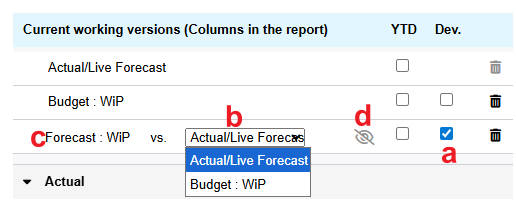
Image: Deviations settings
- Can only be applied from the second column onward
- Select the Dev checkbox for the column you want to compare (a)
- Choose which previous column to compare against (excluding other deviation columns) (b)
- The report will display:
- the selected data column
- a deviation column showing the difference
- The deviation is calculated as:
first column (b) – selected column (c) (e.g. Actual – Forecast) - Each deviation compares to the nearest previous non-deviation column.
- You can also hide the original data column and display only the deviation if needed by selecting the hide/eye icon. (d)
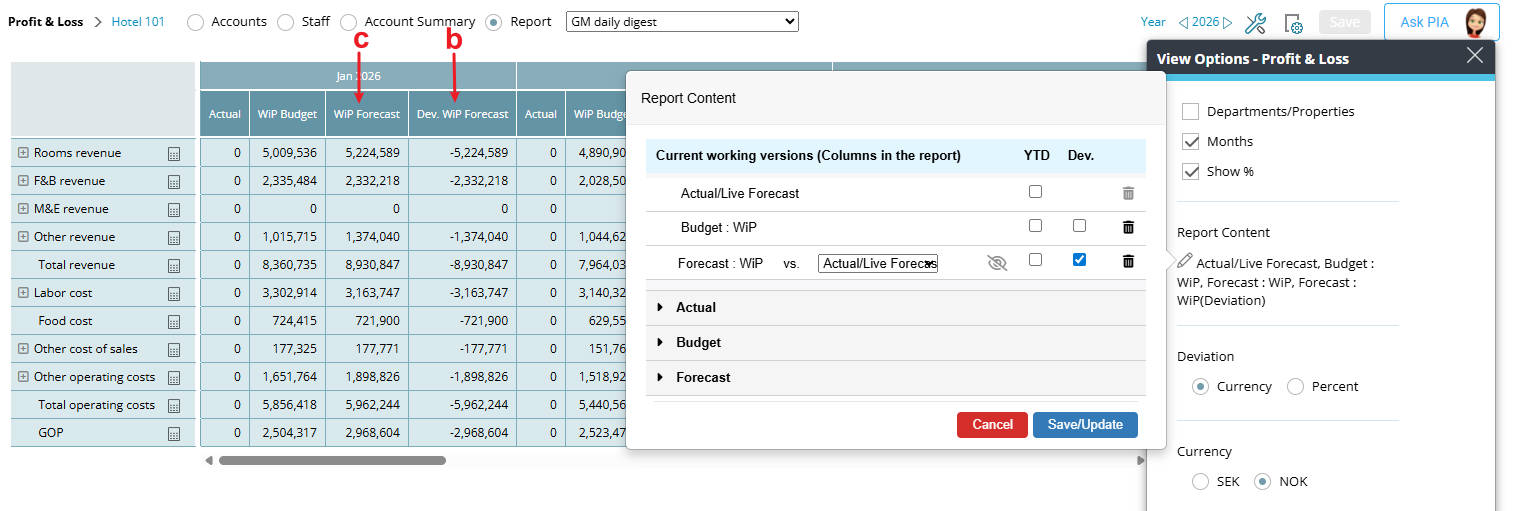
Image: Report with Deviation column activated
Deviation
This option will appear when you have chosen to compare by deviations in Report Content.
Deviation can be displayed in Currency or percentage.
Currency
Select the Currency that you want to view the report in.
Formula and account details
You can view both the calculation logic and the underlying account data directly in the report.
These features help you understand where values come from without navigating to other modules.
Two view settings are available:
- Show formula details in tooltip
- Show account level
Show formula details in tooltip
Displays how a value is calculated.
- A calculator icon (🖩) appears next to value rows in standard P&L reports
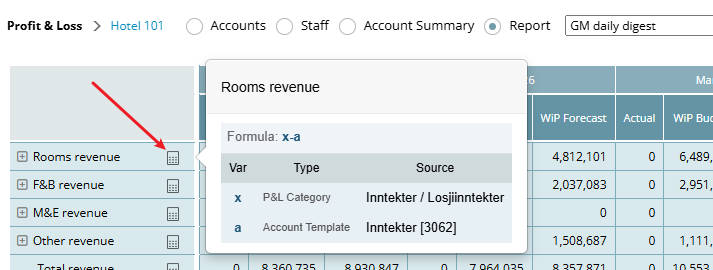
Image: Calculator icon with formula details
- Hover over the icon to see a quick overview of the calculation
- Click the icon to open the reports panel, where the full formula is already expanded
This allows you to quickly understand how a value is built up without manually opening the report definition.
Note: Not shown for HQ reports (e.g. P&L HQ), as calculation data from external systems is not available in PMI
Show account level
Displays the accounts that make up each value.
- Expand a row (➕) to view the underlying accounts
This allows you to validate values directly in the report instead of switching accounts.
Understanding totals in expanded rows
The account-level section shows all accounts used in the calculation for that report line.
In some cases, the total of the displayed accounts may not match the value shown on the main report row. This is expected behavior.
This happens when the report formula:
- combines multiple account groups
- uses additions and subtractions (for example: Revenue – Discounts – Adjustments)
- includes calculations across different levels or dimensions
The expanded section displays the underlying account values, while the main report line displays the result of the full formula.
Use with departments for best results
This feature works best when departments are enabled in view options.
- With departments enabled, account values align more clearly with totals
- Without departments, the account breakdown may be harder to interpret
Availability
- Must be enabled in personal view settings
- Not available in group views
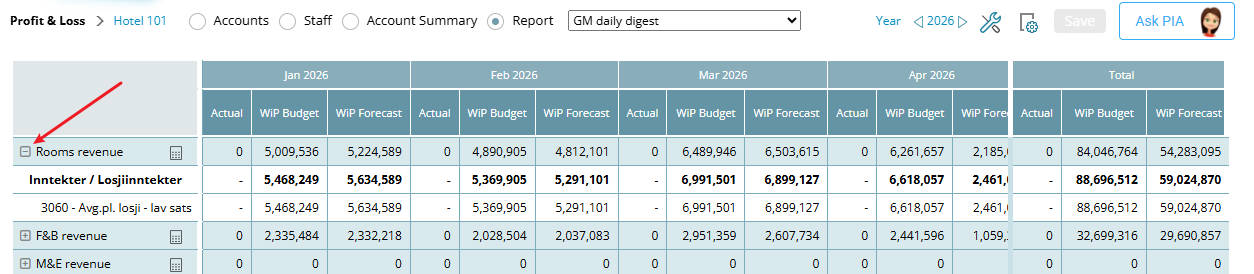
Image: An expand icon with account information for the relevant data row
Print to file
When using Print to file, you can choose whether to include account-level details.
This option is independent of your view settings, so account details can be included or excluded regardless of whether Show account level is enabled.
P&L Report:
- Headers should show version number if version exists, Approved, Last Submitted, Prev. Submitted. The date should only show in the tool tip.
- Always use Submit date when showing data, not Status date.
Account module, View Options, Versions:
- Show in brackets (Status, Submit Date, Version, Submit user), previously it was (Status, Status date, Status user).
- Show Reference, reference options should also have the above information in brackets.
Cross reference:
For more information to build a report, read How to build a P&L planning report