
Purpose
What is GoGreen Planning?
Planning is a new module that initially supports the GoGreen cockpits with financial elements for environmental targets.
- This module is prepopulated using the latest Live Forecast consumption from the GoGreen cockpit. It then calculates the associated costs based on historical financial (P&L) data. This version of data is called the ‘Live P&L‘
- The predicted Live P&L costs are automatically updated into the WiP forecast in Profit and Loss module ready to be submitted as part of the monthly forecast.
Use cases
If the Live P&L data does not match expected forecast values, it can be reviewed and – if necessary – edited in the GoGreen planning module.
This document gives detailed instructions on all the edit functions within the GoGreen planning page.
This article is geared toward department heads, controllers and GMs with budget and forecast editing rights and access to GoGreen.
For details of how to set up GoGreen planning for a property sett article ‘How to set up GoGreen planning for a property’
Other useful articles are referenced in the section ‘Cross-references’ at the end of this article.
How do I access GoGreen planning?
The planning screen is currently accessed from the Budget & forecast page when you select GoGreen in the department list.
Once in the GoGreen planning page, use the menu navigation to select the correct department/resource (based on user access rights). GoGreen resources are mapped to specific departments based on where the financial costs should be linked.
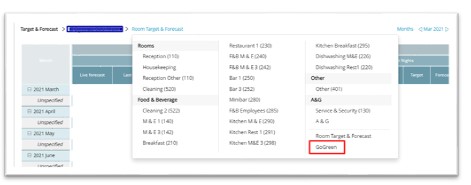
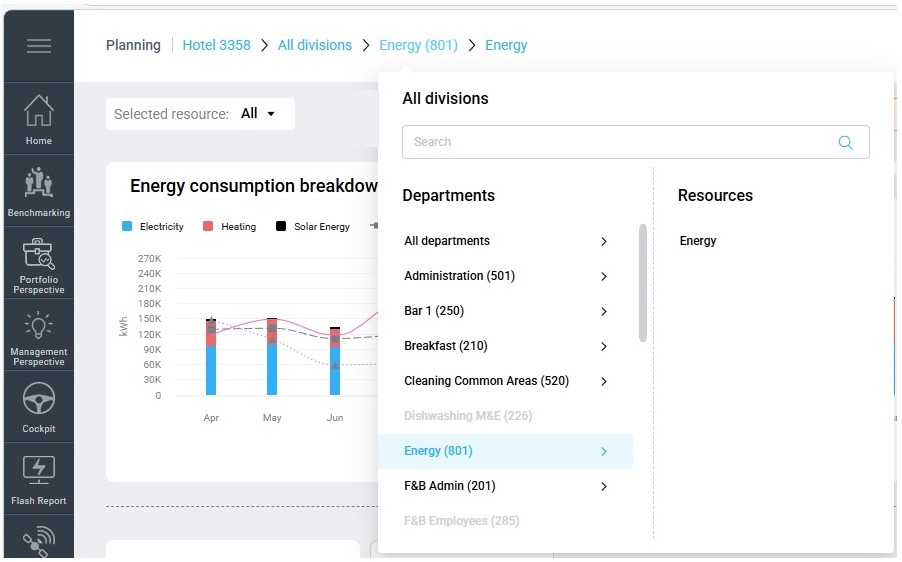
Image description: Main menu for navigation in the GoGreen planning page
- The search bar or option ‘All departments’ can help to quickly navigate to a new resource if you do not know which division or department it is in.
- Use the ‘Old PMI view’ switch on the top right of the screen to return to the traditional Budget & Forecast page.
- For Energy, the default page is the summary of all Energy resources. Use the filter below the menu to display the page for a specific Energy resource.
The page will open on the Live P&L version with the next 12 months selected in the dates. This version can be edited if required; forecast versions will take a snapshot of this data as part of the monthly forecast process.
TIP: See the article ‘Navigation and filters’ for more detail on all these functions
1. Review charts
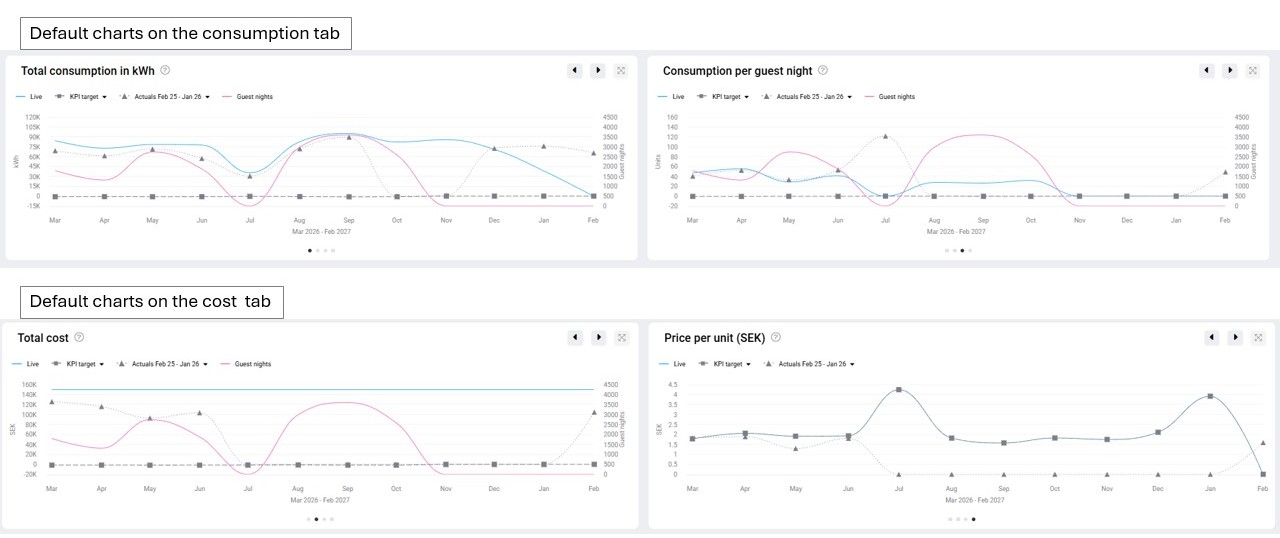
Image description: Charts in GoGreen planning page
The charts are intended to show you at a glance how the plan is looking and compared to other versions (eg past actuals or previously submitted forecasts). Look for a particular month showing values that do not fit the general pattern, or which indicate higher spending than previous years.
TIP: For more detailed information about the charts see the article GoGreen charts explained
2. Review the data tables
The data table is split into two tabs: Consumption and Cost. These are connected so that changes to consumption automatically re-calculate the cost.
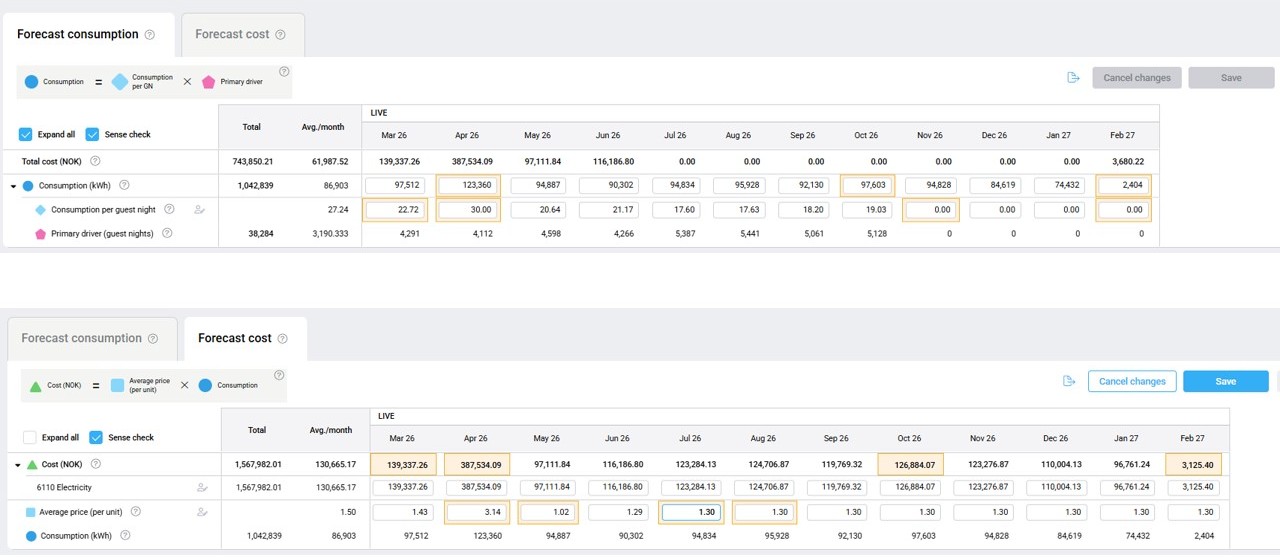
Image description: Consumption and cost tabs in the GoGreen planning page
TIP: See the article ‘GoGreenplan values explained‘for more detailed information on the sources and calculations used for the Live P&L version and how editing these values will affect this.
The article ‘Data tables explained‘ also gives more details on all the features of the data tables and comparative data.
If there is a discrepancy in the data that needs to be updated, this can be done using the Edit panel.
Edit the data
Use the Edit panel to make an edit on a cell
The edit panel is on the right edge of the data table and can be accessed by clicking the blue arrow (1a) or clicking into the cell that needs editing.
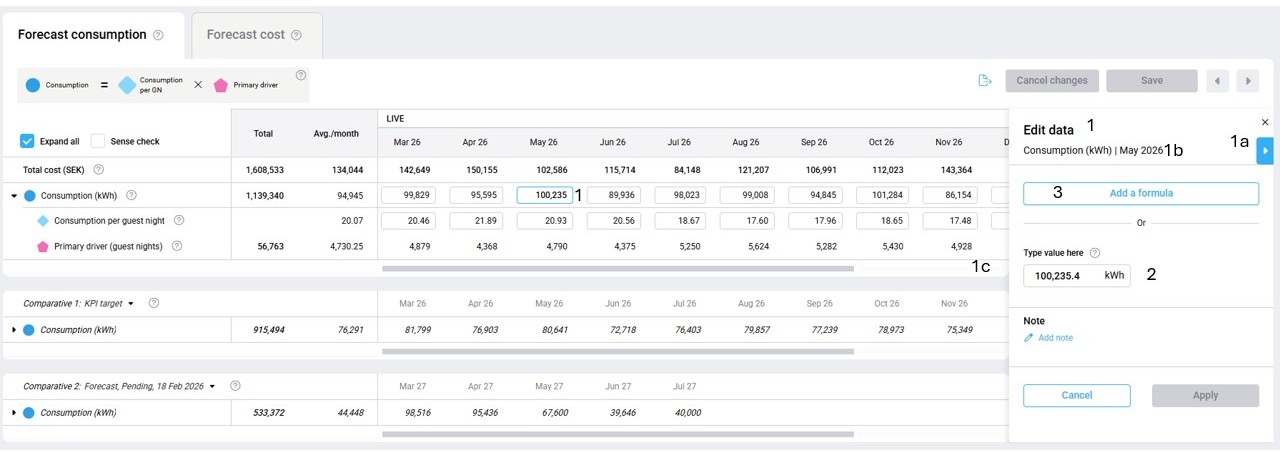
Image description: Edit panel on GoGreen planning data table when first opened
1. Click in the cell to edit it; the Edit panel will open to the right of the data table.
- The header will state which row of data and which month is being edited
- Click the X or arrow to the right to close or hide the panel again
- Some months may appear hidden behind the panel; use the scrollbar or navigation arrows to see these
2. Entering a value in the ‘Type value here’ cell will overwrite the data with a fixed amount for that cell only
- If this is used in ‘consumption’ or ‘cost account’ rows they will lose links to any other rows and will not update if other values change.
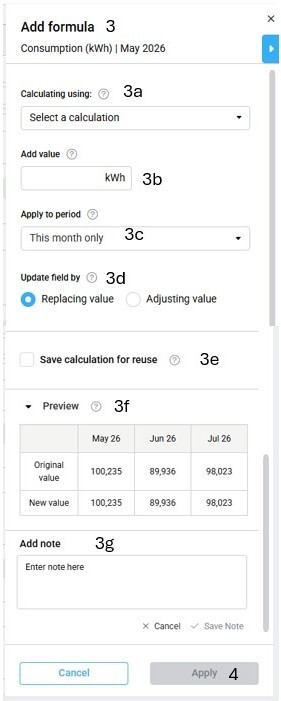
Image description: More options in the Edit panel if click ‘Add formula’
3. Click ‘Add formula’ for more options.
a. Select a calculation type for this cell: keeping the cell linked to other drivers will ensure the value also updates if other factors change. See section below for the calculation options available for each row
b. Enter the value required.
c. Default will be to update selected month only. To make this edit for all future months select ‘All remaining months’.
i. ‘All remaining months’ applies it to the next 24 months (from today), not just the months open on the page. This means it will continue to roll forward so you don’t need to remember to extend it.
ii. TIP: If the edit should only reply to a fixed number of months (say 6months), set it for ‘All remaining months’ on the 1st month it applies to. Then click in the 1st month that should not have the edit, select the option ‘Reset to original values’ and apply to ‘All remaining months’
d. Choose whether to replace the existing value with your edit or to adjust it
i. Replace will overwrite PMI’s calculated value with the edited value (or edited calculation)
ii. Adjust will add or take away the value or calculation (in 3a and 3b) from PMI’s calculated value. This will continue to adjust if the calculated value changes (due to changing Live forecast etc)
1. Note that previous edits are not remembered; adjust will always adjust from PMI’s calculation not from a previous edit.
e. Save calculation for re-use (see section below for more detailed information on re-using calculations)
f. Preview the change before applying to see how it affects the selected cell and next two months.
g. A note can be added to explain the change.
i. See section below for more information on adding notes
4. If happy with the change, click Apply. This will immediately put the update into the data table and any other linked cells will recalculate.
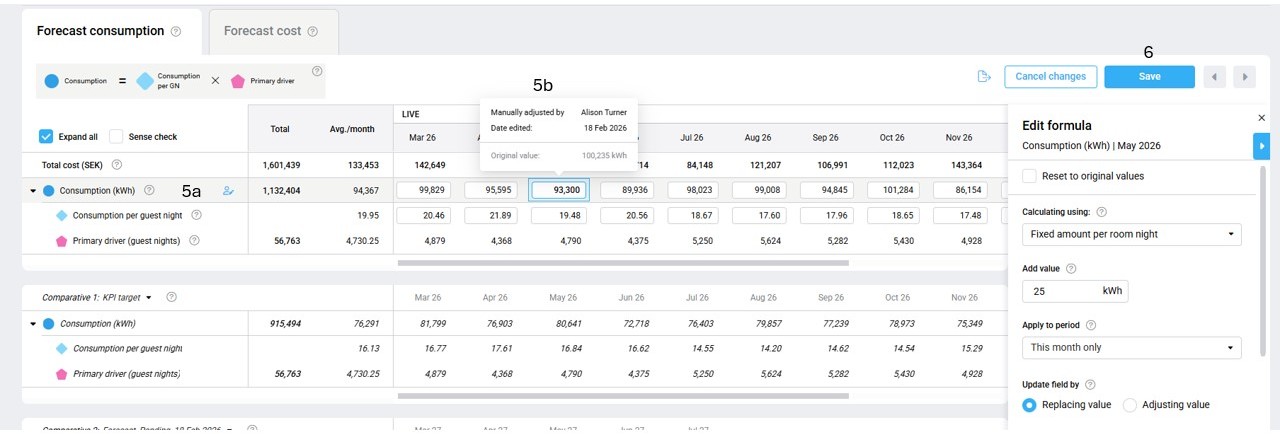
Image description: Manual edits shown in the data table after click Apply in Edit panel
5. The row has a ‘manual edit’ icon to indicate some values have been edited.
a. Hover over the row to see a blue highlight on all edited cells.
b. Tooltips on that cell – and related ones in the same tab – will show that the data has been manually edited and, in most cases, will show what the original value was.
6. The data will still need to be Saved in the page before leaving this resource. It does not need to be saved to switch between consumption and cost tabs.
To change or remove a previous edit on a cell
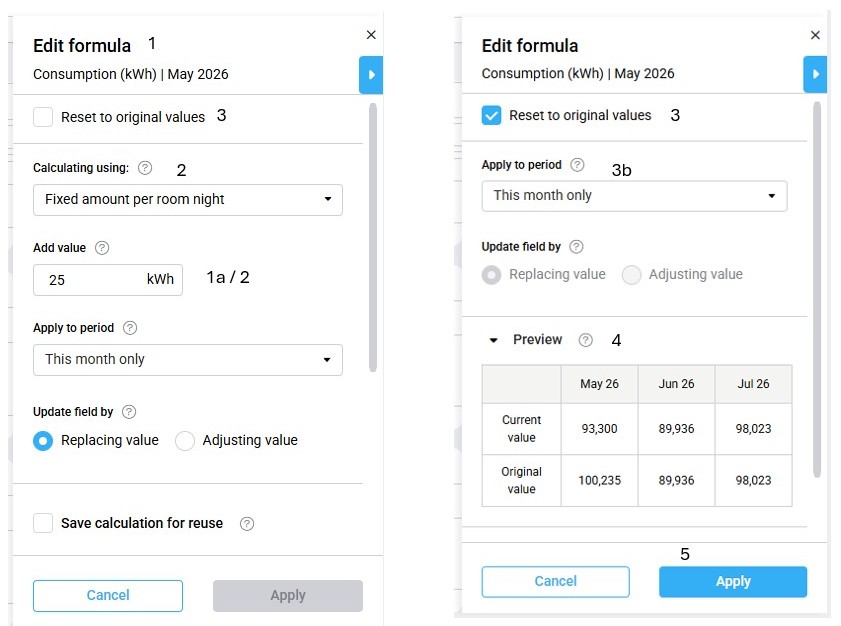
Image description: Options in Edit panel for changing or removing previous edits
1. Click in the cell to edit it; the Edit panel will open to the right of the data table.
a. The value currently in the cell will display in the edit box.
2. Change the value by over-writing it or select a new calculation type and value
a. The same options apply as before for editing a cell
3. Use the checkbox ‘Reset to original value’ to remove an edit from the cell and return it to the PMI calculated value.
a. The PMI calculated value will be the pre-populated value using current driver levels, Live forecast values but taking into account any other edits that may affect this cell.
b. Choose whether to revert just the selected month or all remaining months. A pop-up will warn if select ‘All remaining months’ as this will lose all edits in this row for all future months, not just the ones in the table.
4. The preview will show the original value that this cell will be reset to
5. If happy with the change, click Apply. This will immediately put the update into the data table and any other linked cells will recalculate.
6. If there are no edits left on the data row, the ‘manual edit’ icon will disappear.
7. The data will still need to be Saved in the page before leaving this resource. It does not need to be saved to switch between consumption and cost tabs.
Calculation options in the edit panel: standard calculations

Image description: Example of the calculation options in the edit panel for GoGreen planning
Fixed amount per month
- Available on rows: Consumption, Consumption per guest night, Average unit price and all cost account rows (incl subaccounts and Total cost row if there are no accounts)
- Will show the average monthly value for the Last 12 months (LTM) as a guide
- Can enter positive or negative values up to 2 decimal places
- If select the option ‘adjusting value’ this will add (or take away) the fixed amount from any PMI calculated value in this cell
- Using this option (with ‘Replacing value’) may remove links to primary drivers (guest nights) or other rows in the forecast so should be used carefully
% change to value
- Available on rows: Consumption, Consumption per guest night, Average unit price and all cost account rows (incl subaccounts and Total cost row if there are no accounts)
- Can enter positive or negative value up to 2 decimal places
- Will adjust the PMI calculated value by the percentage (%) amount in the box
- Example: if PMI consumption is 15000 and % change value is set to +10%, the consumption will update to 16500 NOK (15000 + 1500)
- If PMI later recalculates consumption to be 17000 the % change will be re-applied to show as 18700 (17000 + 1700)
- Using this option will keep links to primary drivers and other rows so that the value updates automatically with other changes
Fixed amount per guest nights
- Available only on Consumption
- Can enter a positive or negative value up to 2 decimal places
- This will keep the consumption value linked to changes in the Live forecast Guest nights
- This will remove the link to the GoGreen prediction (Live forecast) so that the planning page will not be the same as the GoGreen cockpit
Fixed amount per room night
- Available only on Consumption
- Similar effect as ‘per guest nights’ but using the Live forecast Room nights as a source
Fixed amount per unit
- Available only on cost accounts (or subaccounts) where there is more than one account mapped to a resource
- This is the equivalent of setting a unit price for this account, allowing different unit prices to be entered into different accounts
- This will retain the link to consumption so that if consumption changes the total cost will change, using the edited unit price value(s)
Saved calculations in the Edit panel
Calculations can be saved so that they can be re-used for the same row in other resources and departments.
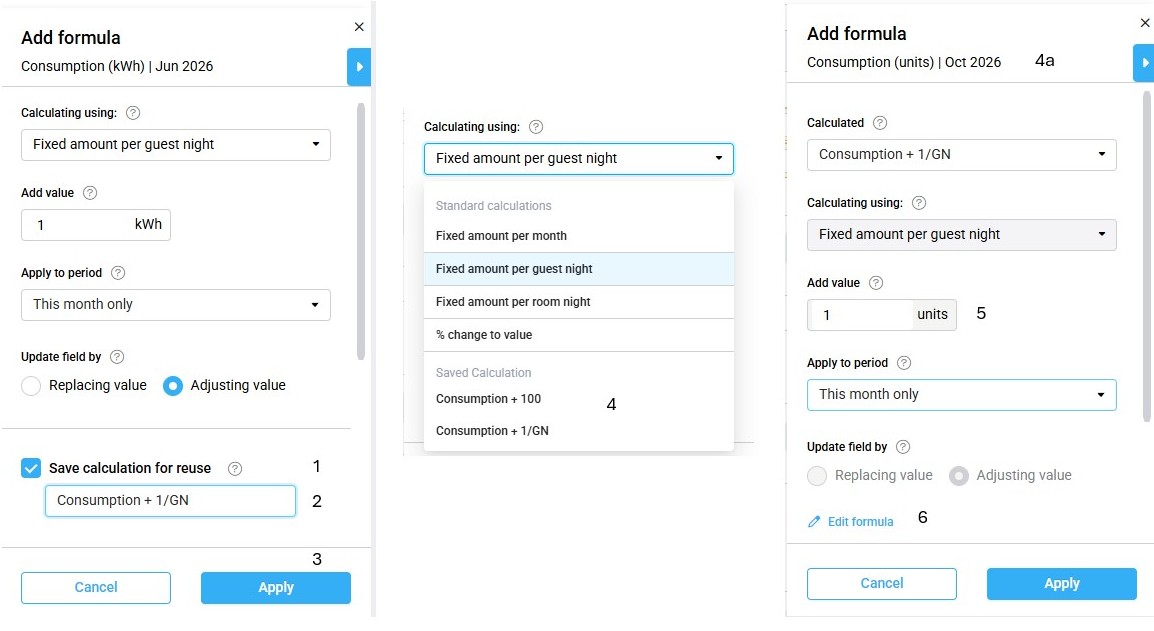
Image description: Different screens in the Edit panel when saving a calculation for re-use
1. After setting up the details of a calculation in the Edit panel, before clicking ‘Apply’ tick the box ‘Save calculation for reuse’.
2. Type a name into the field that appears. This should be enough info to know for future users to know what this calculation will do
3. Click Apply for the calculation to be applied to the cell being edited.
4. The saved calculation will now appear in the dropdown list of available calculations when adding or editing any formula of the same row in any resource for that property:
a. For example, adding a calculation in a consumption cell in Electricity will show the same calculation available to Towels & Linen consumption.
5. When selecting this calculation in the drop-down, it will put all the values into the fields in the Edit panel. The value can be changed first or just click Apply to save the same calculation to the selected cell.
6. If, after selecting a saved calculation, you need to adjust more than the value, click the ‘Edit formula’ link. This will allow you to change any other part of this formula for this cell only. It will not update the calculation itself unless you click the ‘Save calculation for reuse’ button
a. Give it the same name to over-write the old saved calculation
6. Give it a new name to save as a new saved calculation
Adding or editing notes in a plan
There are two main types of notes in the Planning pages:
Month note
A month note shows for the whole property for that month, not just for the resource it was entered in.
These should be used for information that applies to all departments and resources. An example would be information about a local event happening, or if part of the property is being renovated, that makes this month different to its usual patterns.
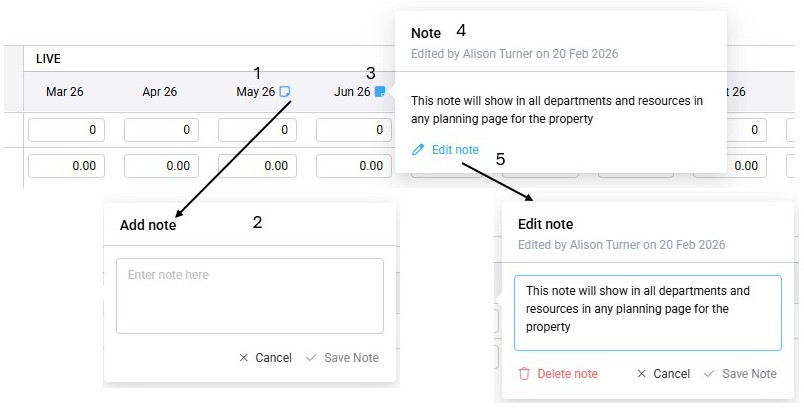
Image description: Different features of the month note in the table header on GoGreen planning
- Hover over the header row next to the month that needs a note. A light blue note icon will show.
- Click to open up the note box and enter the required text. Save the note
- The note will show in solid blue by the month and will appear on all departments and resources.
- Click on a note to read it. It will also show who last saved the note and when.
- Click on the link ‘Edit note’ to edit it. This also gives the option to delete the full note. Any changes will apply to this note in all departments/resources.
Cell note
This note is specific to the actual cell in the current department and version.
Notes are added via the Edit panel.
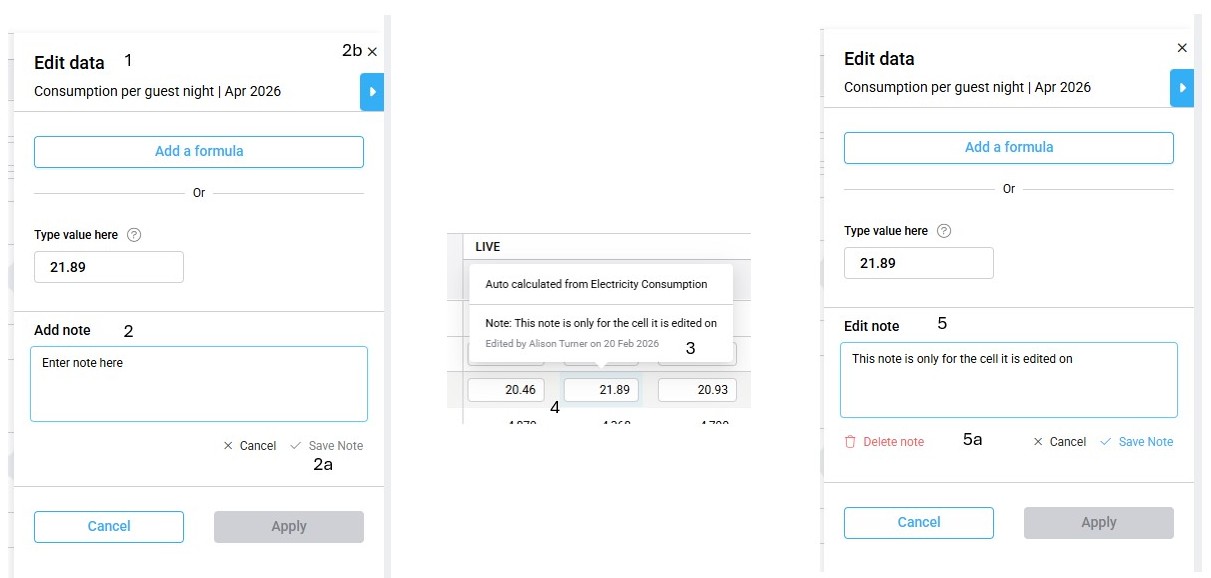
Image description: Different screens for adding, viewing and editing a note in a cell
1. Click in the cell to open up the edit panel. The cell itself does not need to be edited to add a note.
2. Click ‘Add Note’ in the edit panel to open a note box and enter the required text.
a. Click the save (tick) for the note. This is immediately applied to the cell.
b. If an edit to the cell value is not required close the Edit panel by clicking the X.
3. The note can be viewed by hovering over the cell to see the tooltip. It will also show who last saved the note and when.
4. To see if there are notes on a row, hover over the row; any cells with a note will show with a blue highlight.
a. If a note is added to a cost account, this will also show in the Profit & Loss page for that account and month.
5. To edit a note, click in the cell to open the Edit panel, then click ‘Edit note’.
a. The note can be edited or deleted from here. Save changes to the note separately to applying any changes to the cell value.
Expected outcome
Edits that are applied from the edit panel will update calculations in the planning page for that resource
- Changes on the consumption tab and/or unit price will also update the total cost
- Tooltips will be updated to show details of the edit
- The comparative version ‘Live P&L without edits’ will show today’s ‘PMI Prediction’ version of the data without any of the edits and can be used to compare the original total cost against the total cost after these edits
Edits made in the GoGreen planning pages may update the individual cost account(s) in the cost tab. Once the page is saved, these new values will be immediately seen in the WiP forecast in the Profit & loss module.
Edits that are removed in the GoGreen planning page (reset to original value) will update the plan using PMI prediction values with today’s calculations.
Troubleshooting
- Changes do not show up in the Profit & Loss module:
- Check that you are looking at the WiP forecast for the correct department; accounts are populated from the same department as the GoGreen planning module
- Check that the accounts have a link icon and open it to validate which departmnet it goes to
- Check that the cost accounts show in the GoGreen planning page for this resource/department
- Check that the changes made in GoGreen planning were saved (not just applied in the Edit panel)
- Live forecast consumption in GoGreen cockpit has updated for a month but this doesn’t show as updated in GoGreen planning:
- If the update was made today, it may not show until the next day when the Live P&L data is refreshed overnight
- If there is a manual edit on ‘consumption’ or on the ‘consumption per guest night’ rows, this will stop PMI from updating with live changes to consumption. If the Live forecast value is correct, the manual edit should be ‘reset to original values’ in the Edit panel.
- Cannot update the unit price for a month – it says it is locked for editing:
- If there are severeal cost accounts for a resource, and these have had manual edits on then the unit price is calculated from the cost and cannot be edited.
- If the cost edits are incorrect and there should be an edit on the unit price instaed, click on one of the edited cost accounts and select ‘Reset category to original values’ in the Edit panel. Read the warning in the edit panel: this will reset ALL the cost accounts in one go, not just the selected account. Once this is applied, the Unit price can be edited.
- I have applied changes in the Edit panel but now wish to undo those changes
- Click in the cell (if Edit panel not already open on that cell) and select the option at the top ‘Reset to original value’. This will clear that specific edit.
- If the changes have not yet been saved in the page, click the Cancel button to remove all edits that have been applied since the last save.
- I have made edits to the data and now there are a lot of sense check alerts.
- Sense check compares the selected version (in this case Live P&L) with the other 2 comparatives and highlights months with the biggest differences. It also checks months across the version for the biggest variations across the plan. Review the sense check messages to see if there are any further edits to make or if the data is still ok.
Cross-references
For further context see the following articles:
- Introduction to GoGreen planning
- Overview of GoGreen planning module
- GoGreen data values explained
- GoGreen charts explained
- Sense check explained
- How to do a monthly forecast for GoGreen
Related features and modules
Data is pulled into the GoGreen planning module from:
- GoGreen cockpit
- Profit & Loss module
- Live forecast module
Data from GoGreen planning updates:
- WiP forecast in Profit & Loss module
- Forecast consumption and costs in GoGreen cockpit once a forecast has been submitted