
Concept definition
When I am reviewing my GoGreen forecast in GoGreen planning, I want to easily spot months that I might need to look at more closely so that my monthly forecast costs are as accurate as possible.
The charts are a visual aid to the data table to allow you to spot months that need further review.
Key users and responsibilities
Heads of department with GoGreen user role may use the GoGreen planning module to review the monthly forecast consumption values.
Financial controllers or General managers may use the GoGreen planning module to review the monthly forecast costs associated with the consumption.
General functions of the charts
The charts in the GoGreen planning page sit in the top section of the page, above the data table.
TIP: Click the negative sign on the dotted line below the chart section to hide the whole chart section. Click the plus sign to show the section again.
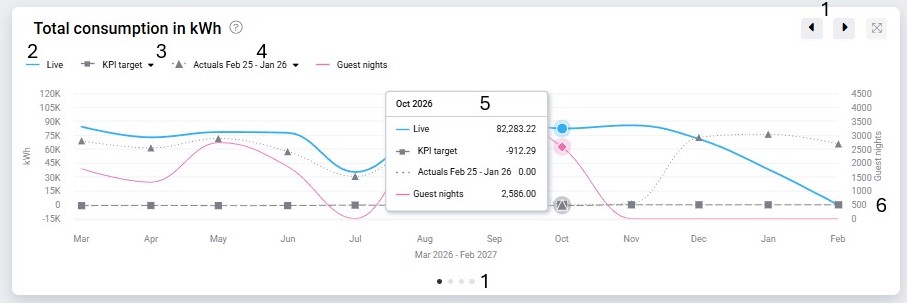
Image description: Features of the charts on GoGreen planning pages
Standard features of each chart:
- The charts will show a default set for each tab; use the navigation dots or arrows to scroll through them to select the other charts manually (1)
- The blue line (2) will show the data for the selected version (either Live P&L or a different version that is selected in the top right of the page). Editing the version will show immediately in the chart as well as in the data table.
- The grey lines (3) are for the comparative versions which are displayed in the data table. Select in the graph or the table to change which data you are comparing the forecast with; this will update the selection in both places.
- Hover over a line in the legend (4) to highlight its path in the chart; click on the legend to hide it or re-show it.
- Hover over a month (5) in the chart to display a tooltip with the values of all lines for that month.
- Some charts will have a pink line showing Guest nights; the scale for this is on the right of the graph (6)
Consumption chart and Consumption per guest night chart
These two charts show data relating to the consumption for the resource you are viewing month by month, with two sets of comparative data. They are the default charts when selecting the Consumption tab in the data table section.
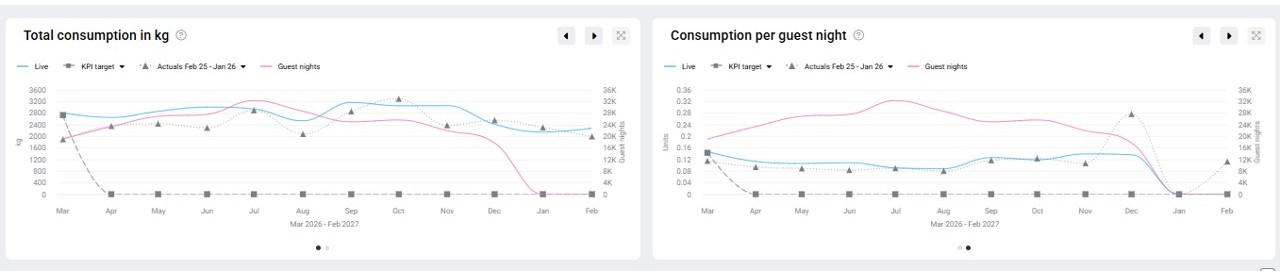
Image description: Charts which show consumption data for GoGreen planning
In the example image, the 1st chart shows that my consumption appears fairly stable with a slight rise between September and November (blue line). However my Guest nights (pink line) shows a drop in those months. In the 2nd chart I can see that my Consumption per guest night increases in those months, indicating a drop in efficiency.
I can compare this to the same month last year (grey line with triangles ‘Actuals Feb25-Jan26′) to see that my forecast consumption is slightly higher this year, but my consumption per guest night is more similar.
I also see that I am not reporting any KPI target consumption for this resource (comparative selection ‘KPI target’, grey line with squares).
Cost chart and Unit price chart
These two charts show data relating to the cost for the resource you are viewing. They are the default charts when the cost tab is selected and will not show if costs are not forecast for a particular resource,

Image description: Charts which show cost and unit price data for GoGreen planning
In the example image, the 1st chart shows that my total cost (blue line) is lower than previous years (grey lines) but follows the pattern of guest nights (pink line). This may be due to lower consumption compared to last year, or a change in the pricing.
In the 2nd chart I see that my unit price for each month is actually slightly higher than previous years. This indicates that the unit price has been edited – as the default price is always the same price as last year. I can check in the data table in the row ‘Average price per unit’ to validate this.
Energy breakdown charts
The two charts (Total consumption and Total cost) are replaced with ‘breakdown’ charts when viewing the Energy summary page with the resource filter set to ‘All’.
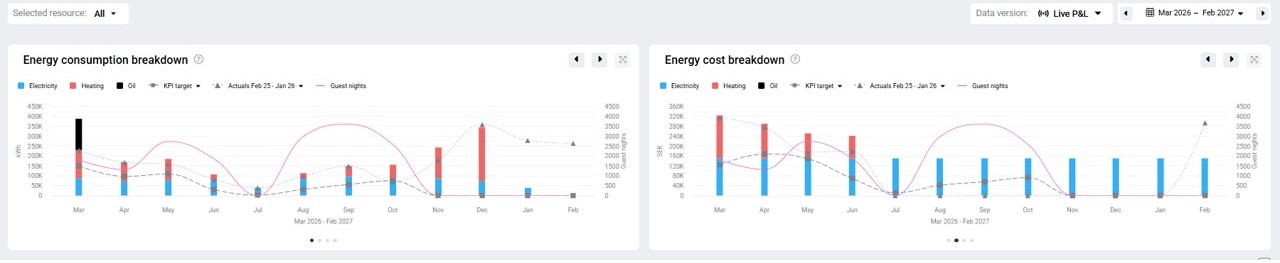
Image description: Charts which show breakdown of Energy consumption and cost into the different resources for GoGreen planning
The forecast line (blue) is replaced with bars showing the breakdown of the forecast total for the individual Energy resources (Electricity, Heating, Oil etc.). In the example, in the left chart, I see that Electricity consumption is more consistent with bigger changes in Heating and Oil. In the right chart I see that the costs are also very consistent for Electricity (indicating a fixed cost per month) with bigger variations in the other resources. I may want to look at the unit prices for each resource individually so that the forecast consumption is reflected in the cost.
Use cases
When reviewing the data, especially the total cost or unit price, it can help to look at the charts to see any months with an obvious variation from other months that may need further checking.
When comparing consumption or cost to a previous submitted version, or to previous years, the charts will quickly show where the forecast is different to the selected comparative version.
The charts show Guest nights for the property so it is easy to see how the forecast (consumption or cost) matches guest demand.
Cross-references
See the following articles for more information about the GoGreen planning page and the data in it:
Related features and modules
GoGreen planning charts are found in the GoGreen planning module