
Purpose
This article explains how to manually reload an API-based data import in the Import status page. This allows users to request updated data when the latest import has failed or is outdated.
When to reload an import
Reload is available when:
- The interface uses an API (not email, file, or agent-based imports).
- The status of the import is Outstanding Import, Infomplete imports or Import complete.
- You want to trigger a fresh import attempt for that interface and property.
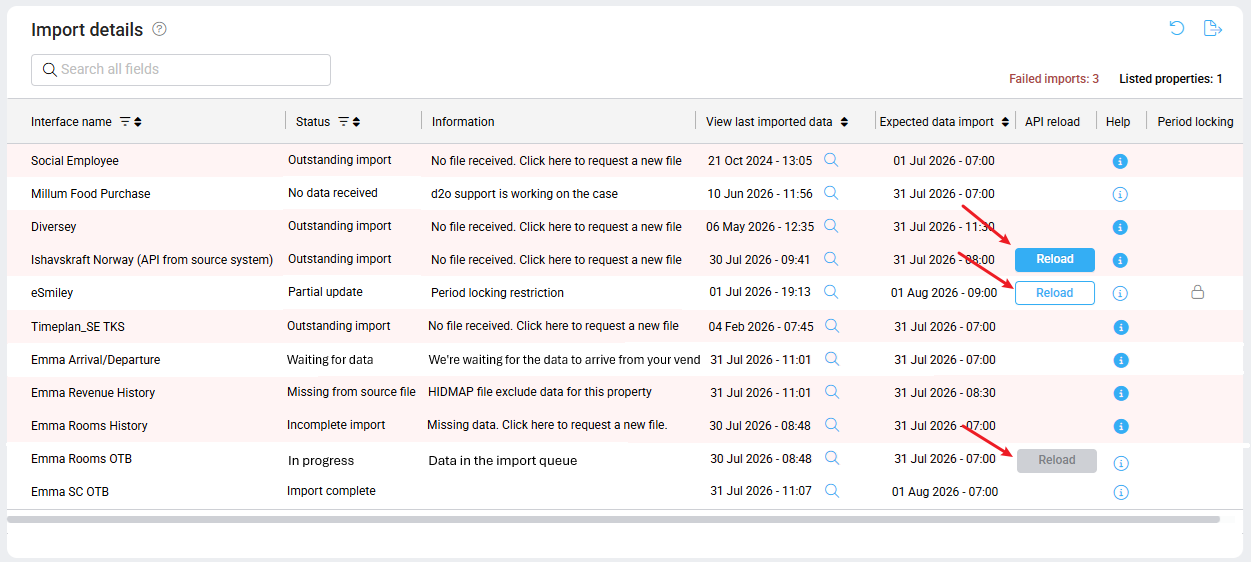
Image: Reload options available on interfaces with API
How to reload an import
- In the Import status table, find the row with the interface you want to reload.
- Look for the reload icon in the “API reload” column:
- Click the blue reload icon.
- Blue solid icon = ready to reload.
- Grey icon = cannot be reloaded (e.g., status is “Waiting for data” or “In progress”).
- Blue outline icon = completed import can still be reloaded.
- The status will automatically change to In progress, and a new import attempt will begin.
What happens next
-
- Once the reload is triggered, the status will update without needing to refresh the page.
- If the file is available and correctly formatted, the status will change to Import complete.
- If the data is still missing or invalid, the status may remain Outstanding data or Incomplete imports.
Tips and reminders
-
- Reload is only available for API-based interfaces.
- If the reload doesn’t resolve the issue, click the Help icon in the same row for further instructions.
- You can’t reload an interface that is already marked In progress or Waiting for data.