
What is Pickup and how is it used?
In the Live forecast there is a column called Pickup. This is the column used to make adjustments to your Live forecast at a daily level. For room/guest nights, a positive value indicates an increase to the OTB (or Driver Based, depending on settings), a negative value indicates a decrease. For Average Room Rate (ARR), it shows expected average selling rate for the forecasted units.
Edit the pickup as needed and save to change the Live forecast. When the OTB or Driver Based forecast changes, the pickup will also change. If the pickup follows the trend you expect, the pickup number will gradually move to zero until the day occurs, while Live forecast remains the same.
For historical dates, the pickup column displays the difference between the actual outcome and your last saved Live forecast. A negative pickup for historical dates tells you how much you missed compared to what was actually achieved that day. If there is a positive pickup figure in room/guest nights, you ended up with more than expected. For ARR, it shows the last saved Live forecast, enabling comparison with the actual result (see the Live forecast column for actual result).
How are pickups calculated?
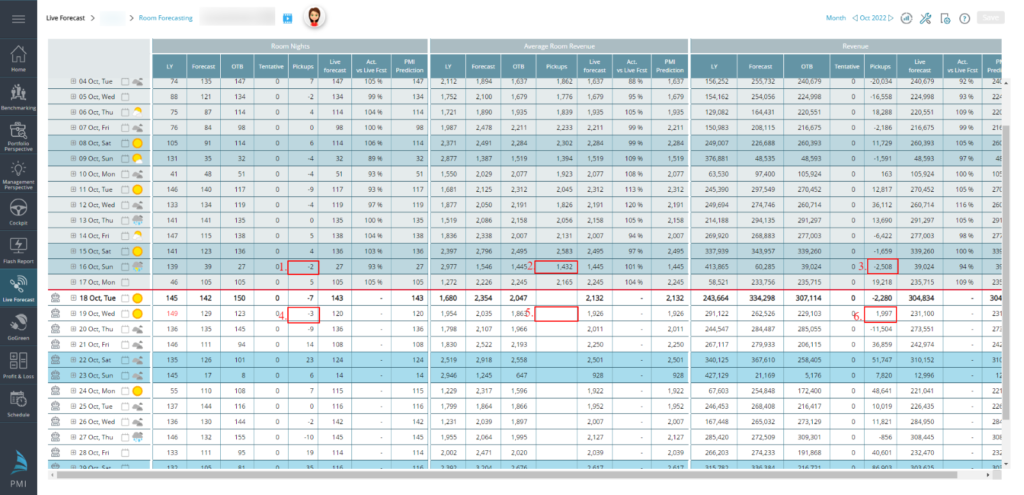
For historical days:
- Room nights/Covers/Units – The difference between the last saved Live forecast and the actual result. A negative number means the Live forecast was too high and a positive number means the Live forecast was too low.
-
- Remember – once a day has passed, the Live forecast column displays the actual result.
-
- Average Rate – The last saved Live forecast, enabling comparison with the actual result (see the Live forecast column for actual result).
- Revenue – The difference between the last saved Live forecast and the actual result.
For current/future days:
- Room nights/Covers/Units – The pickup for future days shows the difference between the last saved Live forecast and the OTB (or Revenue driver, depending on settings).
- Average rate – Shows the expected average selling rate for the forecasted units.
-
- If you prefer to input the ARR forecast directly in the ARR pickup field (disregarding the OTB value), the setting ‘Use ARR pickup calculator for manual forecasts’ can be disabled and the cell will open for editing in the Live forecast column instead of the Pickup column. More details are in this article.
-
- Revenue – The pickup for future days shows the difference between the last saved Live forecast and the OTB (or driver based, depending on Settings).
How to get an auto calculation of Pickups?
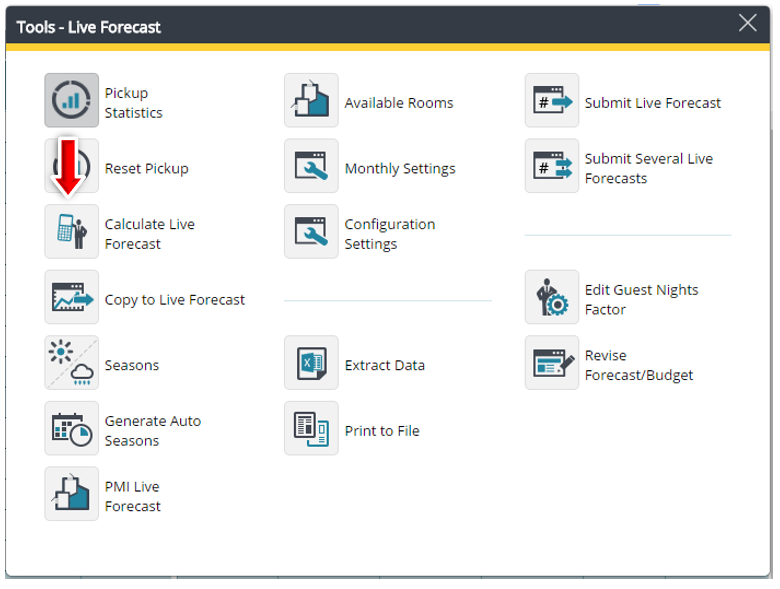
Use the tool ‘Calculate Live forecast’ for an auto suggested update to pickups.
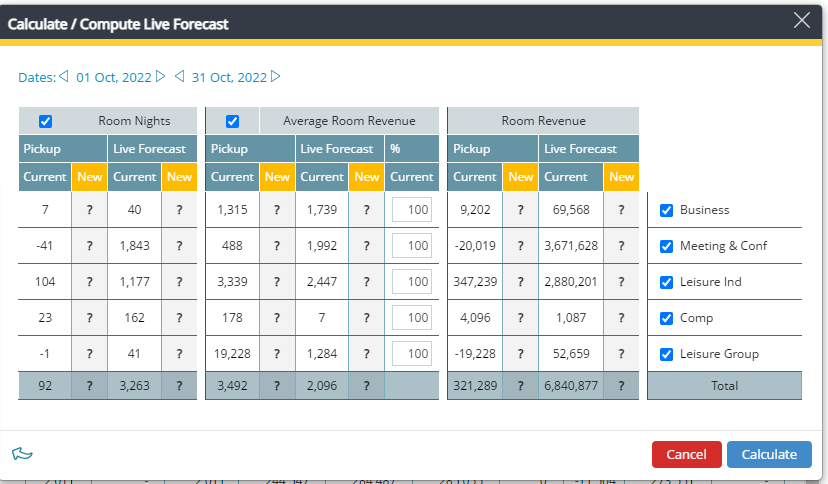
For the average room rate you can adjust the expected revenue by changing the percentage. This should only be done if there have been a significant increase/decrease in rates compared to history, otherwise PMI Prediction will take this into consideration and the values in the forecast file (see below) should already have been including normal rate changes. E.g., if your average room rates are up 50% from the same period last year, you change the percentage to 150%; or if it is 50% lower, then you enter 50%.
Click on Calculate, and then OK, if you want to use the suggested update from the grid. If PMI Prediction option is enabled, it will update the live forecast with the latest PMI Prediction (which will be regenerated if the values displayed are not up to date).
If the external forecast is enabled, it will import the forecast file values.
Note that the pickup value from this calculation is not a defined target, but a calculated pickup based on what you currently have as OTB, normal pickups, market situation and development, and booking pace. In other words, what you normally should be able to pick up.
Source – Should you use an external forecast file, you are able to have that integrated into PMI, and it will then be imported daily from that file into PMI.
When you have adjusted the percentage for the ARR, you click the Calculate button, and if the new suggestion looks good, choose Accept.
Why do I see negative values in my pickup?
First identify the screen, measure and dates. A negative Live forecast Pickup and a negative change in Pickup Statistics are different comparisons.
| Where you see the value | What to check |
|---|---|
| Live forecast, current or future units/revenue | Compare the saved Live forecast with OTB or the configured driver-based value. A negative difference can mean the forecast is below that reference; it does not by itself prove cancellations. |
| Live forecast, historical units/revenue | Compare actual outcome with the last saved Live forecast. The sign describes the outcome versus that earlier expectation. |
| Pickup Statistics | Compare the same stay dates and measure between the selected booking snapshots. A reduction may reflect cancellations, amendments or source corrections; inspect the source before deciding why. |
| ARR or another rate field | Check the field’s rate definition and configured calculator. Do not interpret it as a count of cancelled rooms. |
Illustrative example for a units calculation using Live forecast minus OTB: for a future date, OTB is 100 room nights and the saved Live forecast is 95. The units difference is −5. That says the forecast is five below OTB; it does not show that five bookings were cancelled between two dates.
In a separate snapshot comparison, OTB falling from 100 to 95 is a net reduction of five room nights. The numbers match, but the comparison and evidence needed to explain them are different. Check imports, dates, segments and source changes before deciding whether a negative value is an error.
How to use pickup statistics
Pickup Statistics helps you investigate changes in booked business over time. For the display options, Pace Days and snapshot dates, a worked example, and a step-by-step review workflow, see How to use Pickup Statistics.