
Legacy integration — existing installations only
The PMI File Agent is being phased out. This guide is retained for customers who already use it. For new integrations, use an API, SFTP or email, as agreed with d2o.
Explore the recommended transfer options or contact d2o to plan a suitable replacement for your existing Agent connection.
Existing installations: before reinstalling
- Send d2o the full path name to where source files are located, i.e. PMI File Outbox folder
- Filenames (according to agreed naming conventions)
The above information needs to be sent to d2o in order for the PMI File Agent configuration at the receiving end to be completed appropriately.
Legacy technical requirements
The requirements below document the existing Agent setup. Ask d2o to confirm the requirements for your installation before reinstalling.
- Operating system: Windows Server 2008 R2, Windows 7 and later.
- Windows Installer 5
- Microsoft.NET Framework 4.6 or later (you can also check this using File Explorer: enter C:\WINDOWS\Microsoft.NET\Framework)
- Allow outbound HTTPS (port 443) connections as part of firewall setup at customer’s end
- Customer’s system time (clock) must be set correctly according to local time zone (cannot differ more than 10 minutes)
- PMI Agent Outbox folder at client’s server must allow read and write permission for user “System”
- If an existing installation needs to be reinstalled, contact d2o support for the appropriate installer and configuration.
- Unzip the setup package and double click on the setup.exe file
- This installation will take you 10 – 20 minutes to complete
Reinstallation reference for existing customers
Use these historical installation steps only when d2o has agreed that reinstallation is needed for your existing connection.
The installation will download Microsoft.Net Framework 4.6 if it is not installed. If it does not exist, you should perform this step to install Microsoft.Net Framework 4.6 first.
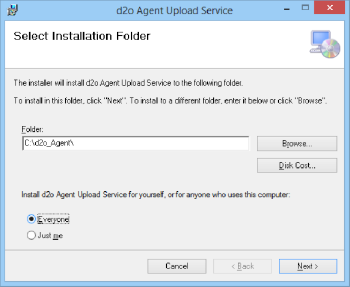
You will get the screen below.
- Select where you want to install the Agent. The default path is C:\d2o_Agent but you can change it to another location if need be.
- Always choose option “Everyone”.
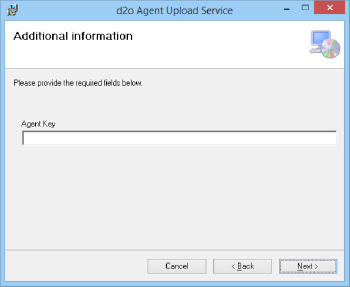
- The next step is to enter a unique Agent Key (which you should have received from d2o by now). Click “Next” to proceed.
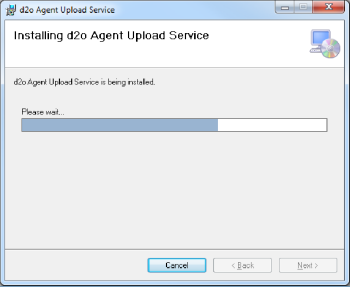
- The installer will now complete the set-up of the Agent service.