
Purpose of Sense check
When I am reviewing my Forecast values in the new planning pages, I want to easily see which values need further review.
Sense check mode can help minimize errors in your data. It highlights obvious errors and values that seem extreme so you can review, correct or validate as needed.
This feature is part of new PMI pages that have data tables and is currently available in:
- GoGreen Planning
Sense check features
- Sense check mode is enabled or disabled with a checkbox at the top of the data table.
- In some scenarios it will be enabled by default; users can click the checkbox at any time to turn it on.
- Sense check will always be enabled when trying to Save changes to the page so that any unusual values can be checked first.
- Hover over any highlighted cell to see the reason for the alert in the tooltip.
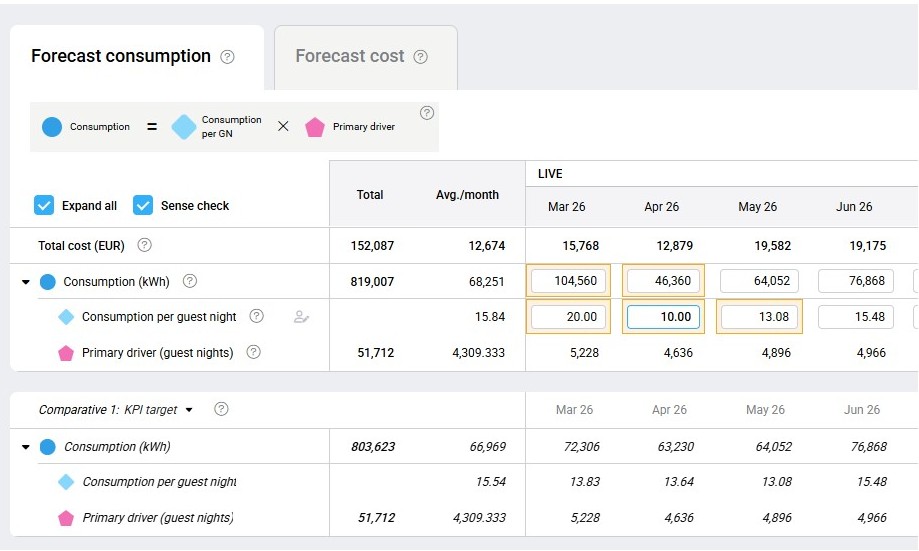
Image description: Data table in a planning page showing cells highlighted as sense check alerts
Sense check is split into two levels with amber or red warnings. Typically
- amber warnings alert you that the values may be higher or lower than PMI would expect.
- red warning alerts you of an action that needs to be carried out to fix an issue with the data (eg missing values) or where values may be an error.
Sense check often compares the forecast value to other PMI data and uses these to decide whether there should be a warning. There is some general logic that applies to sense check in all modules.
Amber warnings in all planning pages
Amber warnings will show when the value in the forecast is higher or lower than the same month in either of the versions selected in the comparative section of the table, or when compared to other months in the forecast
- It does not highlight all differences but shows the 2 values in that row that have the biggest difference against each comparative.
- It may also identify any negative values to be reviewed (depending on the module).
- There is a minimum threshold set for the Property in Planning setup; alerts will not show if the difference is less than this threshold, even if they are the biggest difference. This is typically set to 10%
Example A:
A consumption value of 3000 kWh is 8% higher than in the comparative KPI target value of 2777 kWh for the same month.
This is the largest difference in that row.
It is less than the threshold of 10% set for the property.
No amber alert will show.
Example B:
A user edits this value to 3100 kWh.
This is now 11% higher than the KPI target value
It is above the threshold of 10%.
It is also still the biggest difference in that row.
The amber alert will immediately show.
What actions are needed for amber alerts?
- Review amber alerts to decide if the forecast data is correct or if it should be updated.
- You don’t always have to change the values in the forecast because of amber alerts; it may be that the comparative data is unusual, not the forecast.
- Amber warnings are normally applied to all the main rows in the forecast section for future dates in Live P&L (active editable version).
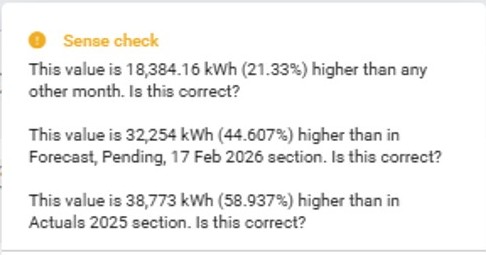
Image description: Example of an amber sense check alert in a planning page
Red warnings in all planning pages
Red warnings are normally specific to each module as they are used when there is missing data or a significant conflict in the forecast values that may need to be resolved before the monthly forecast process.
Example A:
As there is some missing data in past actuals for some costs, PMI cannot calculated a predicted unit price for a specific month for that resource.
A red warning will show on both the unit price and cost lines to highlight this.
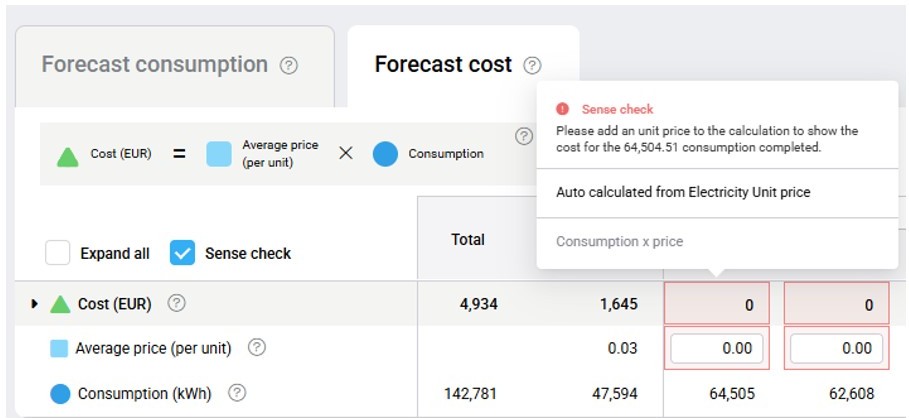
Image description: Example of a red sense check warning in a planning page; action is required.
What actions are needed for red alerts?
- Review red alerts carefully as some action may be needed to resolve them; the tooltip will recommend what action is needed
- Edit or add data that is missing or incorrect to fix the issue.
- Red warnings are normally applied to specific rows in the forecast section for future dates in Live P&L (active editable version).
- The rules for red alerts are specific to each planning page module.
Specific logic for each Planning page
Sense check logic in the GoGreen planning page
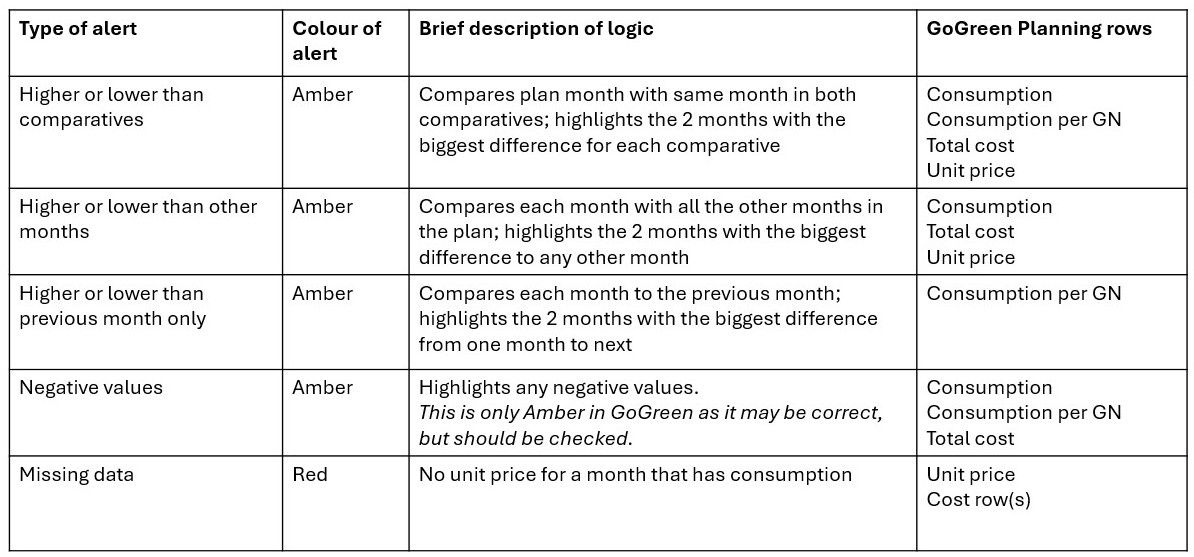
Image description: Table to show which sense check alerts show on which data rows in GoGreen planning
Use cases
The Live P&L version in GoGreen planning will be the basis for the next month’s financial forecast. Use the sense check warnings to spot months which may have missing data or unusual values which would give an inaccurate forecast. These can be adjusted in the Live P&L if necessary.
Related modules
Sense check is currently used in GoGreen planning module.
Sense check is also available in the new view of Rooms Live forecast. However, this uses a slightly different logic and thresholds so please see article Rooms Live forecast: Sense check mode explained
Cross-references
See the following articles for more information about the NextGen planning pages in general, or about specific planning modules:
Data tables in new planning pages explained
How to edit a GoGreen plan