
What is MAD/MAPE?
MAPE and MAD are forecast accuracy metrics calculated from daily forecast and actual values and averaged over the selected period. This article explains how they are calculated and how to interpret them.
What this measures
MAD and MAPE are forecast accuracy metrics. They show how close the forecast was to the actual results over a selected period and help you evaluate forecast quality.
- MAD shows the average forecast error in the same unit as the KPI.
- MAPE shows the average forecast error as a percentage.
In short:
- MAD = error in value
- MAPE = error in percentage
How the calculation works
Both MAD and MAPE are calculated using the same approach:
- The system compares the forecast and actual values for each day.
- The difference between forecast and actual is calculated for each day.
- The absolute values of the daily differences are used (negative values are ignored).
- The daily values are then averaged over the selected period.
Important: The calculation is based on daily values and then averaged. It is not calculated on the total for the period, as totals can hide daily forecast inaccuracies.
How to interpret MAPE
- Low MAPE (around 0–10%) → Forecasts are generally accurate; actuals are close to forecast.
- Higher MAPE (above 10–15%) → Larger typical forecast errors; forecast quality may need attention.
MAPE is useful when you want to understand the error in percentage terms and compare forecast accuracy across different KPIs or properties.
How to interpret MAD
- Lower MAD → Forecasts are generally close to actuals; typical misses are small in real terms.
- Higher MAD → Larger typical forecast errors; the forecast often misses the mark by a bigger amount.
MAD is useful when you want to understand the error in actual KPI values (for example RevPAR or currency), not percentages.
How to cross-check in Excel (optional)
If you want to validate the values outside the system, you can calculate MAD and MAPE in Excel using daily data.
MAD calculation in Excel
- For each day:
=ABS(Actual – Forecast)
- For the period (for example a month):
=AVERAGE(range)
MAPE calculation in Excel
- For each day:
=ABS((Actual – Forecast) / Actual)
- For the period:
=AVERAGE(range)
This calculation must be done on daily values, and then averaged over the period.
Summary
- MAD and MAPE measure forecast accuracy.
- Both are calculated using daily values, then averaged over the period.
- MAD shows the error in values.
- MAPE shows the error in percentage.
- Lower values indicate a more accurate forecast.
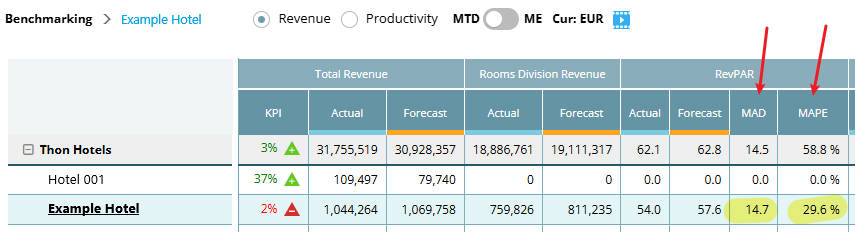
Image: RevPAR MAD & MAPE in Benchmarking
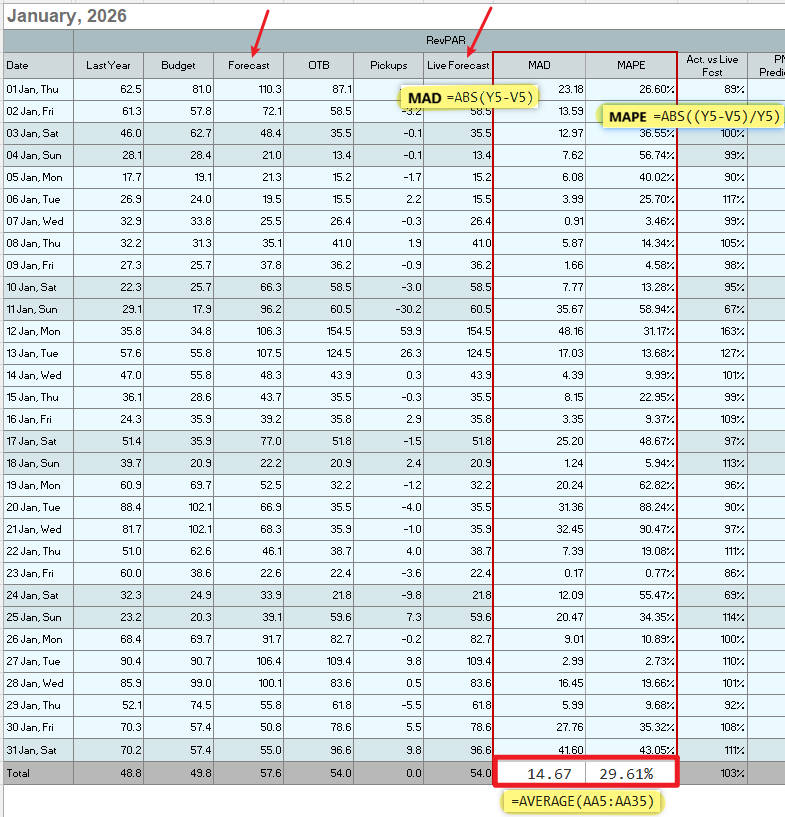
Image: Typical example in Excel with formulas to calculate MAD/MAPE for a month
Cross-reference
Benchmarking overview
Portfolio Perspective overview