
Your own PMI assistant!
What is PIA chat?
PIA chat is an intelligent digital assistant powered by AI, designed to help you manage your department more efficiently. It provides insights, recommendations, and tools to simplify your workflow.
Enhance Analysis with PIA chat
To analyze your current screen, open the query library and look for items with a camera icon on the “Run this query” button. PIA chat will review the content and provide actionable insights based on the displayed data. You can also take a screenshot using the camera icon at the bottom of the chat interface and ask a question. Additionally, you can upload an image (PNG, JPG) or txt, csv, pdf, xls and xlsx file for the PIA chat to analyze.
Can PIA chat assist with finding specific information?
Yes! Use the search feature in the knowledge base tab to type your query. PIA chat will search its semantically indexed database to find the most relevant articles for you.
What if PIA chat cannot resolve my issue?
If PIA Chat is unable to resolve your issue, you can create a support ticket directly from within the chat interface. If necessary, your request will be escalated to a human support agent.
To contact support, click the “Contact Support” link located in the bottom-right corner beneath each response. You can also simply ask PIA Chat to contact support on your behalf.
How does PIA chat handle complex queries?
PIA chat can handle complex queries efficiently by analyzing your screen’s context and providing accurate, relevant responses. For particularly complex issues, it may refer you to a human agent.
Is PIA chat multilingual?
Yes, PIA chat supports multiple languages, ensuring it can assist users from various linguistic backgrounds effectively. Simply Ask PIA to respond in another language.
Here’s a visual breakdown of the PIA chat interface:
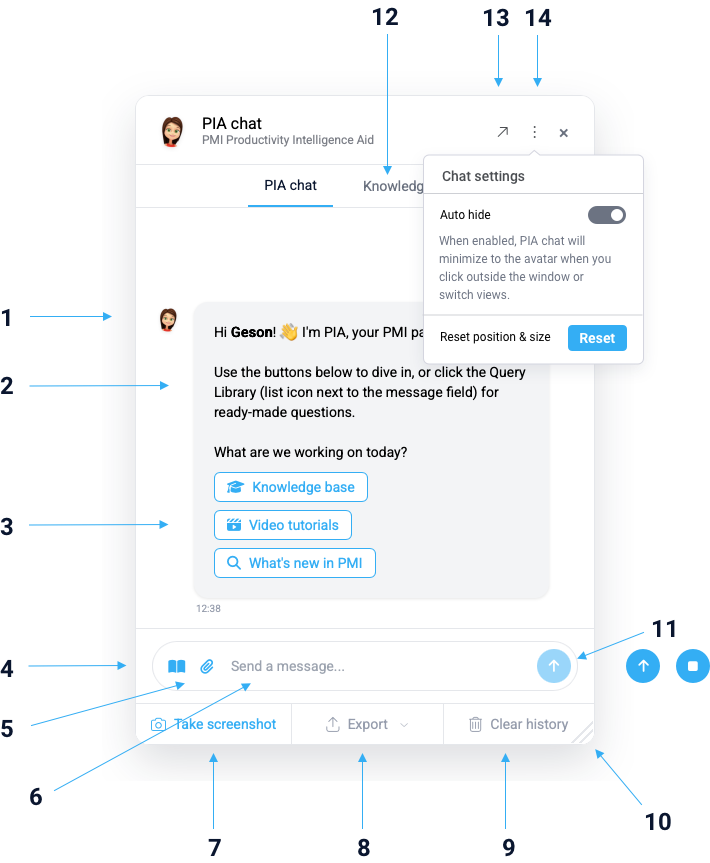
- PIA chat Avatar Icon: This represents your AI assistant.
- Welcome Message: PIA chat greets you and provides a brief overview of its capabilities.
- Quick Navigation buttons: Easily access key features.
- Query Library: A repository of common queries.
- File Upload button: Attach files directly within the chat.
- Input Text Message: Type your queries or messages here.
- Take a Screenshot: Capture the current browser window for context.
- Export options for all messages in the current chat.
- Clear history: Clearing the chat history resets the chat window and removes the AI’s memory of the conversation. Typically, PIA retains the last five user messages and its corresponding responses, using this history inform its replies. When you clear the chat history, this context is erased, and PIA will no longer reference those previous interactions in its responses.
- Grab toggle to customise the chat window size.
- Send Message Icon: Click to send your message. It changes to a stop icon when responding, allowing you to interrupt if needed.
- Knowledge base tab: Search and read articles from the Knowledge Base. The PIA chat will always add footnotes in its responses, directing you to more information on any specific matter or topic.
- Quick button to change the size of the chat window between compact and expanded size
- Chat window options: Enable show/hide feature if you want PIA chat window to minimize to the avatar when clicking outside the window or switch view. You can also reset position and size to defualt.
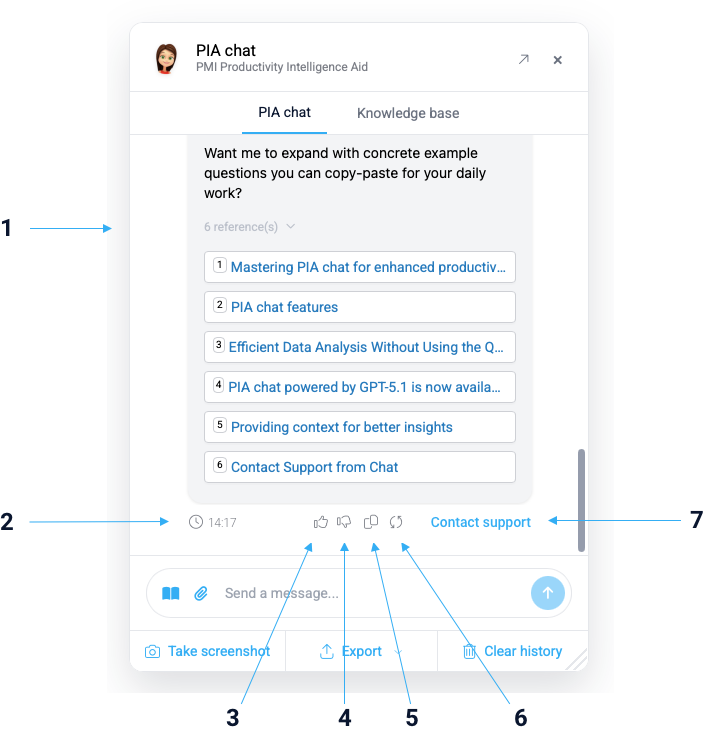
- References and Citations: When providing an answer, PIA will indicate the primary sources it consulted. While not all topics require citations, these references show where the key information came from, allowing users to explore the original materials for additional context or deeper understanding.
- Timestamp reference when the response was provided.
- Good response: Click here if you’re satisfied with the response.
- Bad response: Opens a feedback window so you can explain what was wrong with the prompt.
- Copy Text: Copies the last response to the clipboard for easy sharing or further use.
- Try again: Allows you to request a new response (or retake) on the provided answer.
- Contact support: Clicking this button starts the support process. PIA will first take a second look at the issue and attempt to resolve it. If the problem remains, PIA can forward the conversation history, including any shared screenshots, to the d2o Support team for further investigation and assistance.
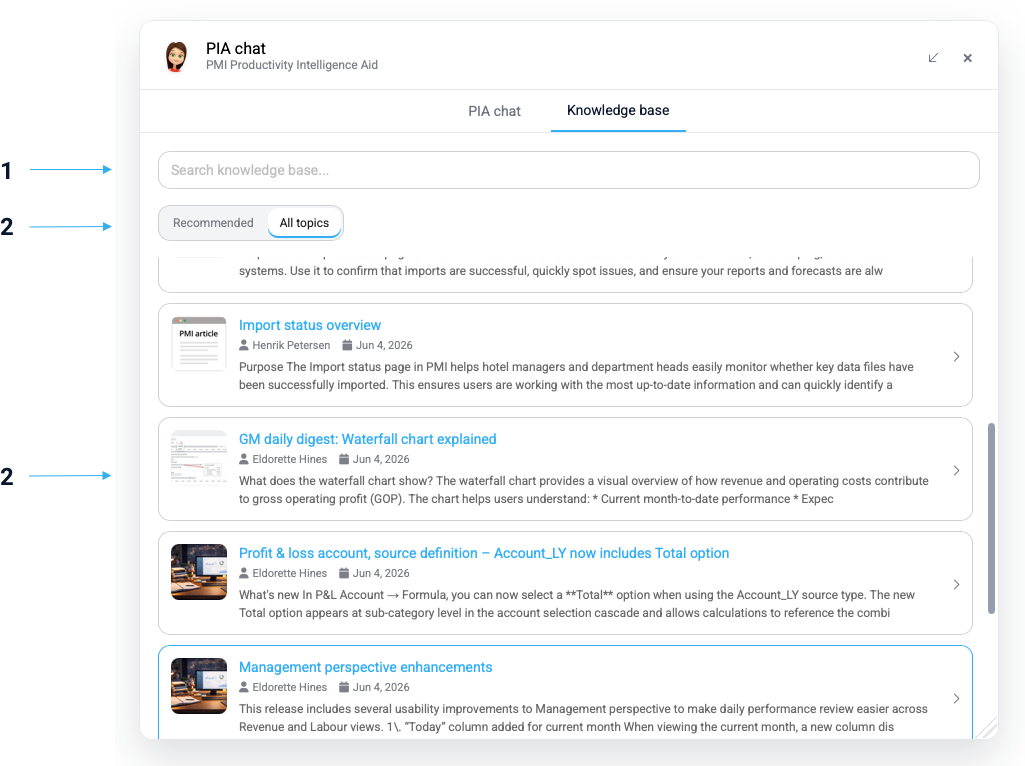
- Search Bar: Enter a search term to filter the article list. Matching text is highlighted in the results for quick identification.
- Article Filter: Choose Recommended to view articles relevant to the current PMI page, or All Topics to browse the entire Knowledge Base.
- Article List: Displays available articles based on the selected filter or search term. Search matches are highlighted within the article results.
For more detailed information and tips on mastering PIA chat, visit Mastering PIA chat for Enhanced Productivity.