What is the Data Upload Centre?
The Data Upload Centre is a module that allows you to upload various types of data to PMI. This data includes:
Budget & Forecast
- Upload Revenue
- Upload Room Nights, Guest Nights
- Upload Covers
- Upload Hours
- Upload Personnel Cost
Actuals
- Upload Revenue per day
- Upload Room Nights, Guest Nights per day
- Upload Covers per day
- Upload Hours per day
- Upload Hours as a lump sum – will be spread per day according to Cost Driver. The downloaded hours are NOT including TKS imported hours.
- Upload Personnel Cost as Total Salary Cost
- Upload Personnel Cost as Hourly Rate
Examples of tasks
- Via the upload tool, it is possible to upload both past ACTUAL labor cost to PMI and future BUDGET & FORECAST labor cost.
- It is also possible to use this function to ADJUST the number of HOURS per cockpit for past month. But be aware that the upload function does not affect the TKS imported hours. The adjustment needs to be calculated and the adjusted hours can be uploaded via this function.
Using the PMI Upload Template
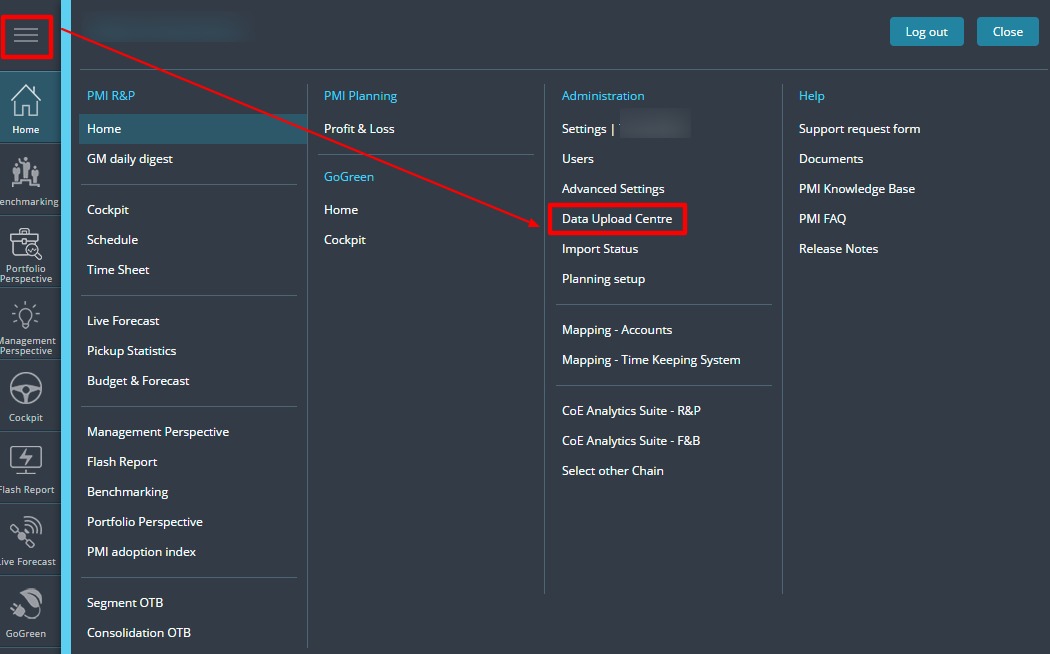
The Data Upload Centre is found in the Administration column in the main menu.
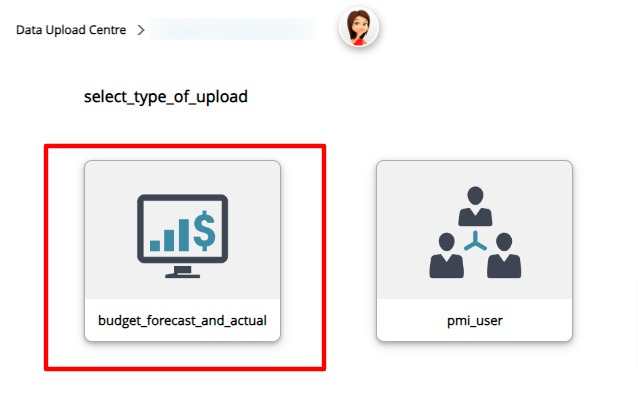
Select Budget, Forecast & Actuals.
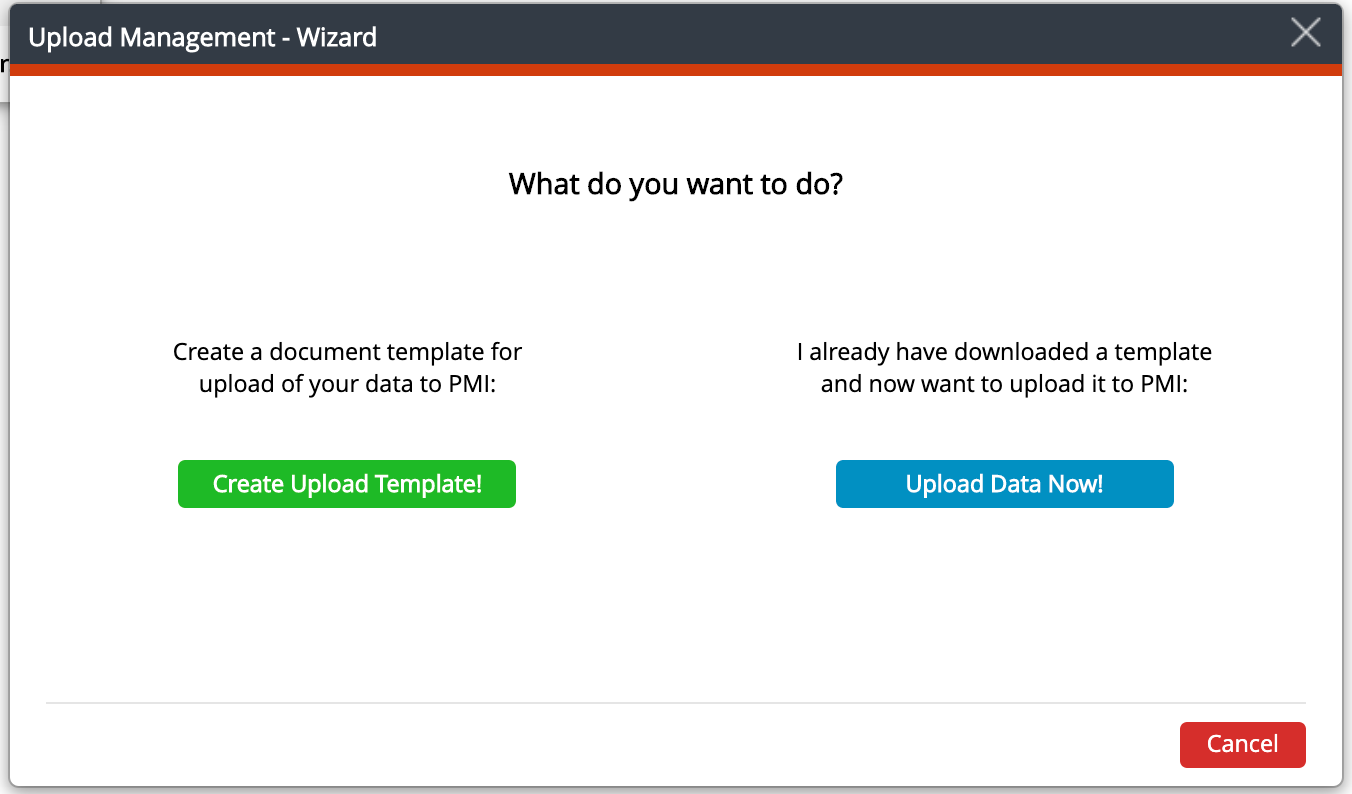
Here you can choose to create an upload template or upload data now, if you have already created a template.
Create Upload Template – Start here if you do not already have a template. Always download the latest updated document. Do not use an old template on your computer.
Upload Data Now – When the downloaded template has been updated with data, save it to your computer and then upload it here.
The Wizard will guide you through 5 steps:
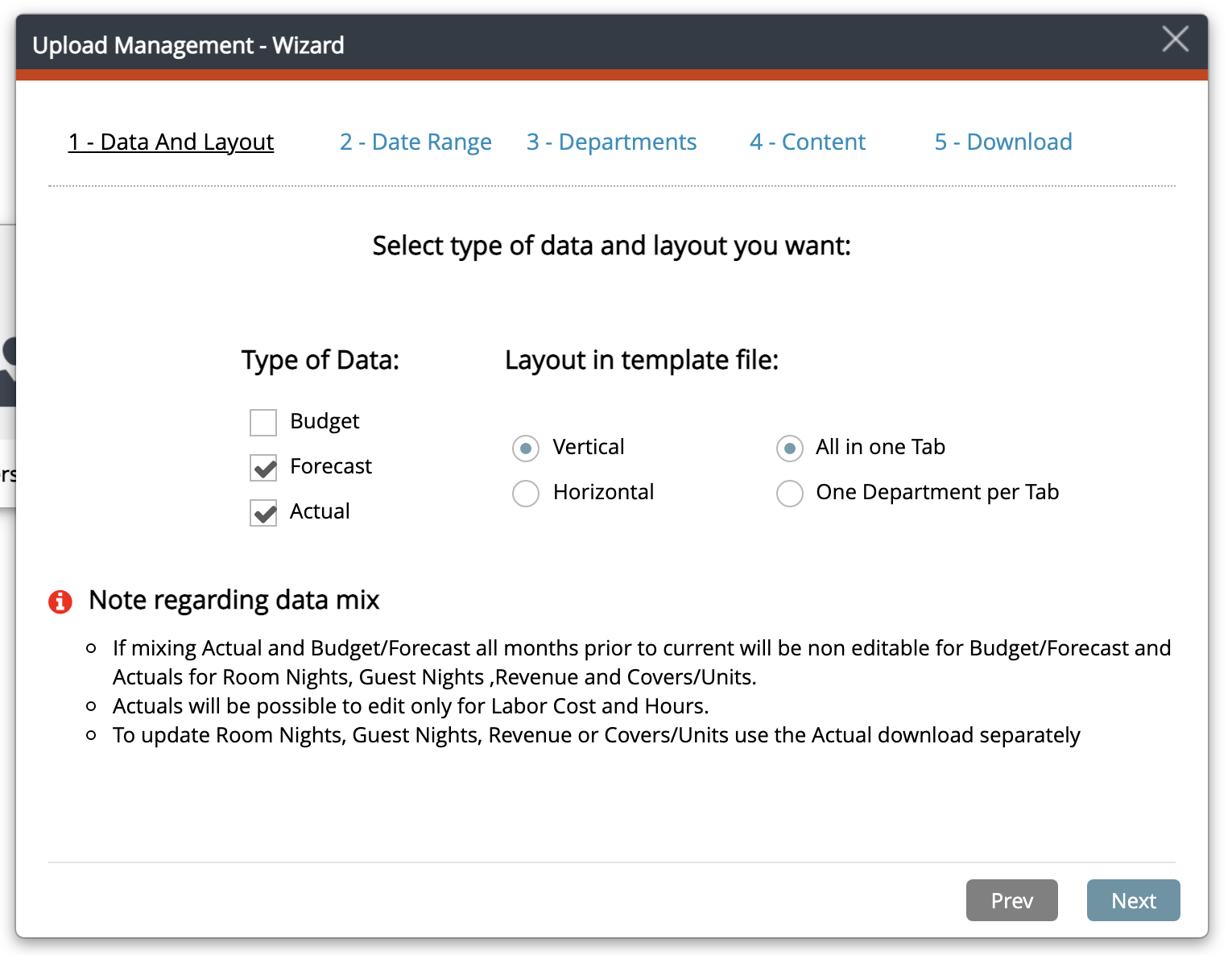
1 – Data And Layout
What data do you want to edit/upload?
- Budget
- Forecast
- Actual
Here you can mix as you like. The Note at the bottom appears when you mix Actual with Budget and/or Forecast.
You may also download the template in Vertical or Horizontal View as well as possibility to have all departments chosen in one tab or have one tab per department.
2 – Date Range
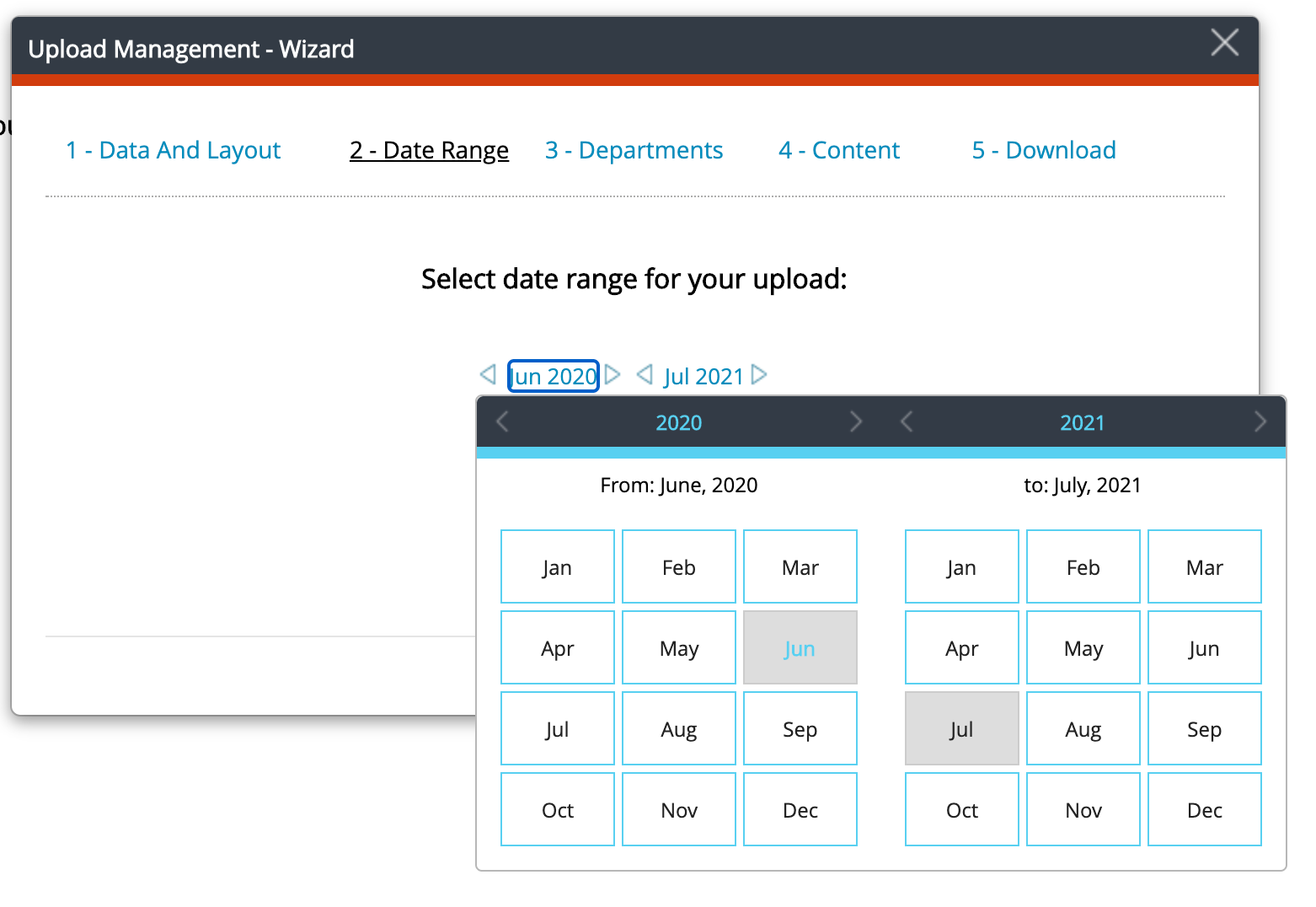
Date Range
Date Range options are as follows:
- Budget – only total month values, option to select past month and future months (if the lock function is activated in PMI you will not be able to upload data to locked months)
- Forecast – only total month values, option to select past month and future months (if the lock function is activated in PMI you will not be able to upload data to locked months)
- Actuals – if downloaded separately you have the option to select days in the past.
- Actuals – if downloaded together with Budget and/or Forecast the date range will only be available monthly, i.e you cannot upload Guest Nigths, Room Nights, Revenue and Covers/Units. This because these needs to be updated to PMI per day and not as a monthly sum.
3 – Departments
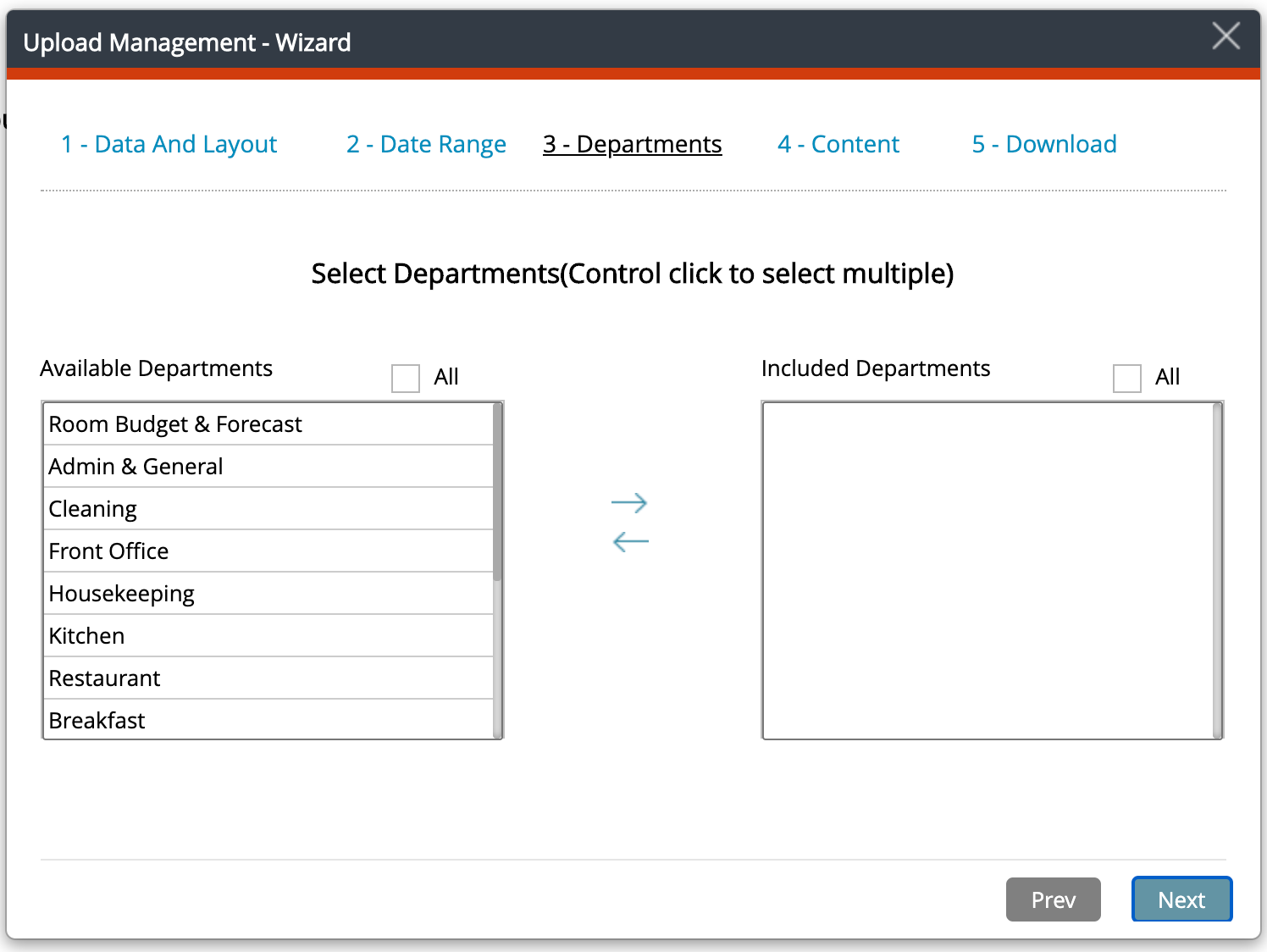
Select all or separate departments and click the arrow to move them to the right.
4 – Content
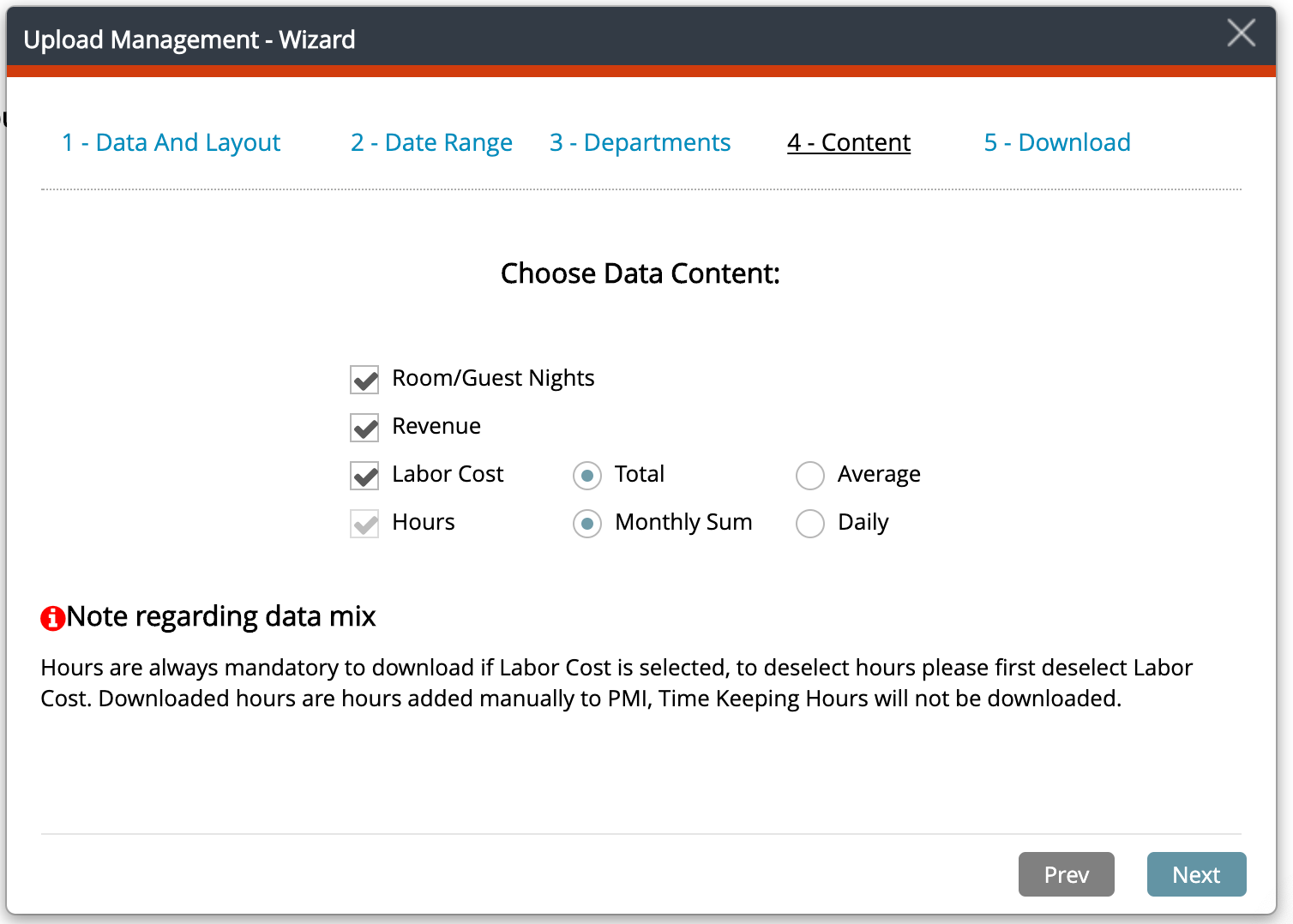
Content
Select the content you want to edit or upload.
- Hours cannot be deselected unless Labor Cost is deselected first.
- When Actual only is only selected in step 1 you get the option to edit hour either Monthly Sum or Daily.
- If select Monthly Sum the hours will be distributed daily according to Cost Driver.
5 – Download
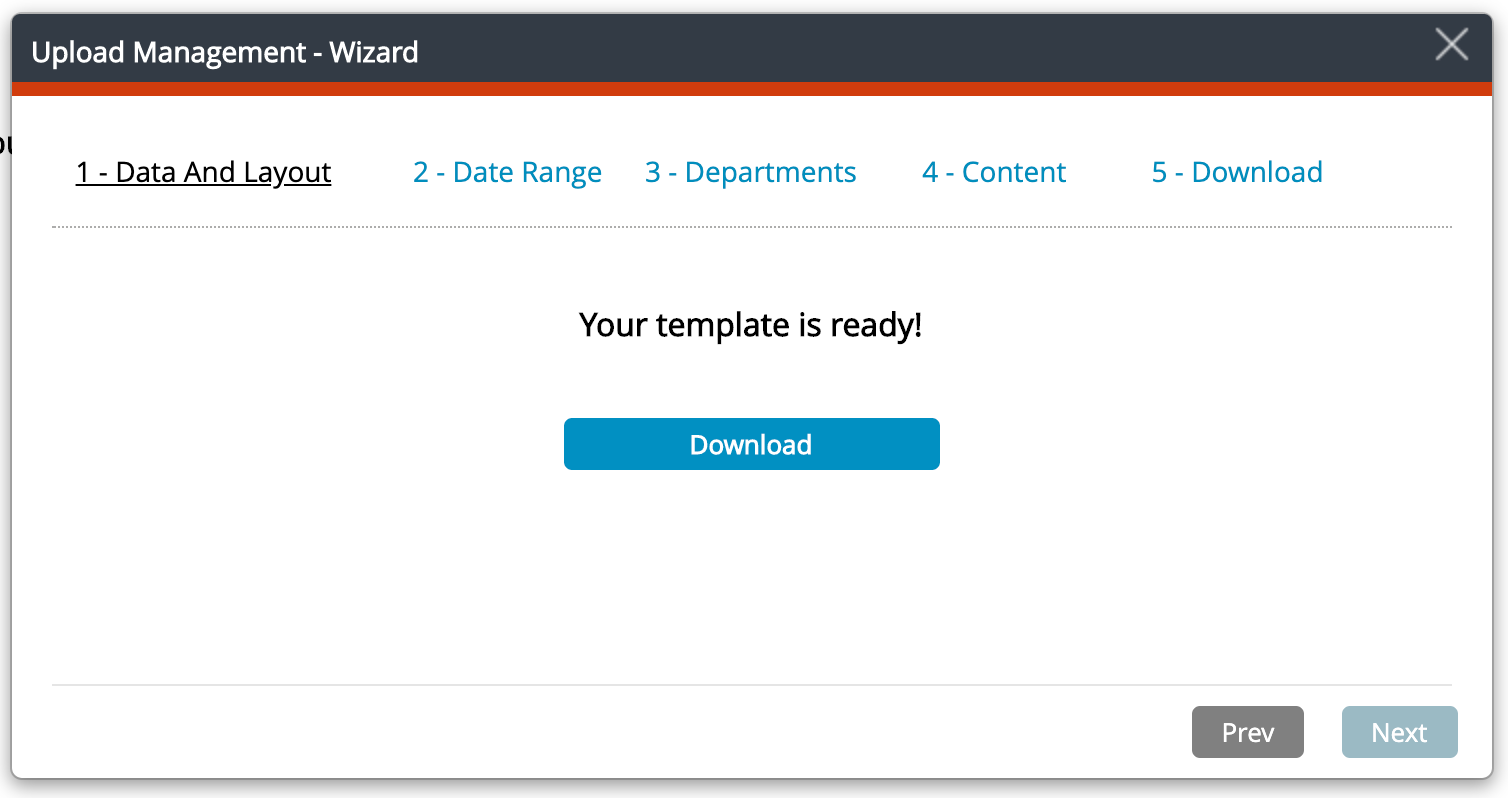
Select the content you want to edit or upload.
- Hours cannot be deselected unless Labor Cost is deselected first.
- When Actual only is only selected in step 1 you get the option to edit hour either Monthly Sum or Daily.
- If select Monthly Sum the hours will be distributed daily according to Cost Driver.
The file will be downloaded to your computer.
Edit the template
- The template can be edited in the open cells
- Do not create formulas in the template
- If paste is used, please use Paste Values
- Do not use CUT from another document and Paste into the file, then the file will not be possible to upload to PMI
Locked Budget – Forecast – Actuals
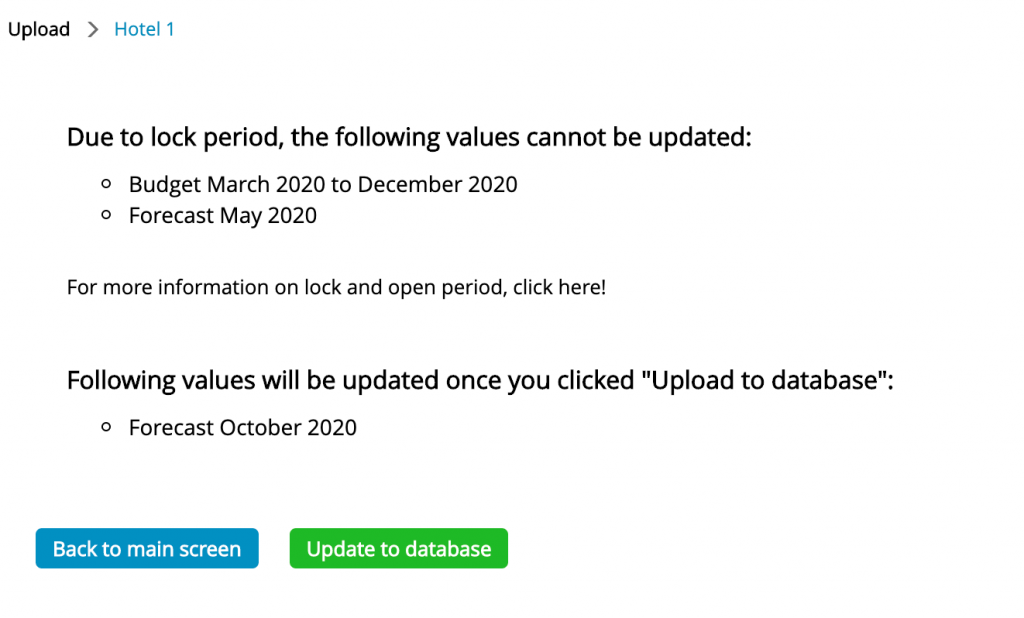
Even though cells are editable you might not be able to upload data, this is if PMI is locked. Read more here – Advanced Setting (heading Period Update). You will get a notification about this at the last step – see below.
Hours
Part of the hours you are budgeting/forecasting, may be fixed (minimum staff). PMI will then distribute these hours first. The Hours column should include the total hours and the Fixed the part of the total hours that are fixed.
Actual hours can only be added/edited as Productive and/or Non Productive.
Upload Data
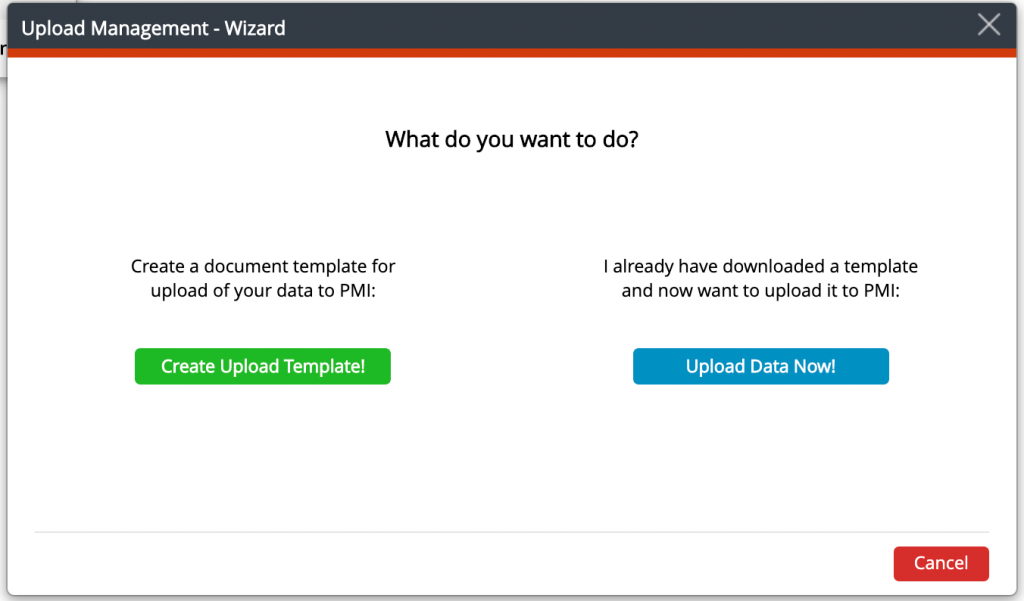
Select Upload Data Now!
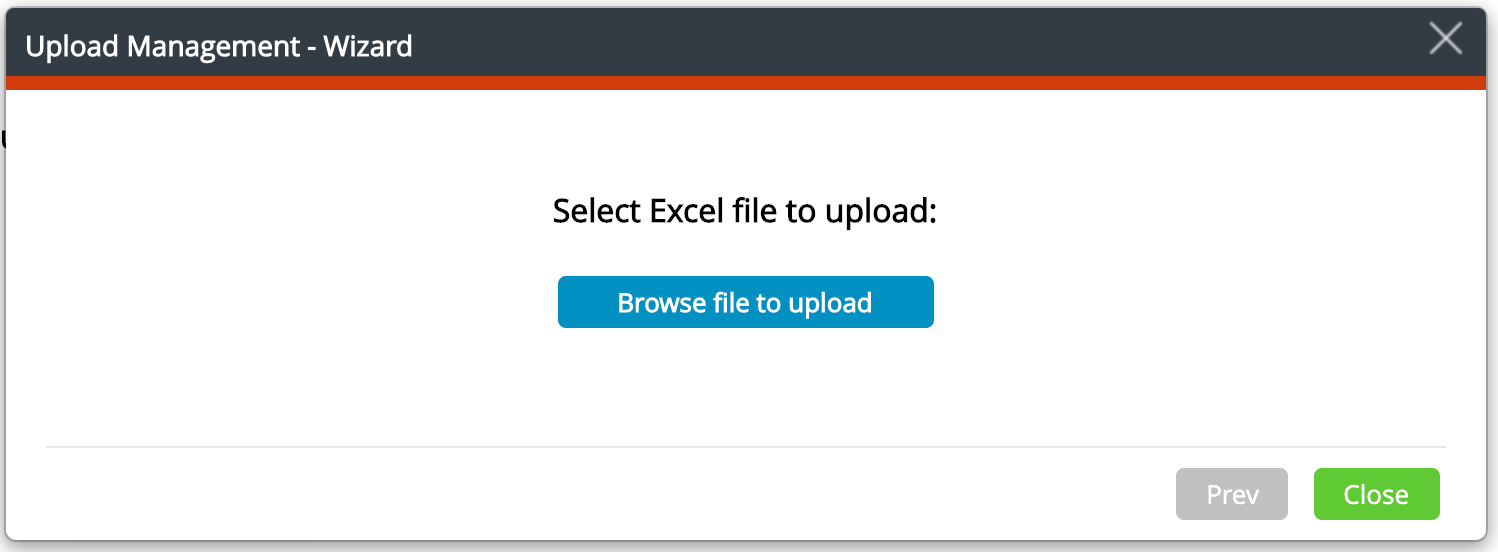
Select excel file
Browse the saved file and upload.
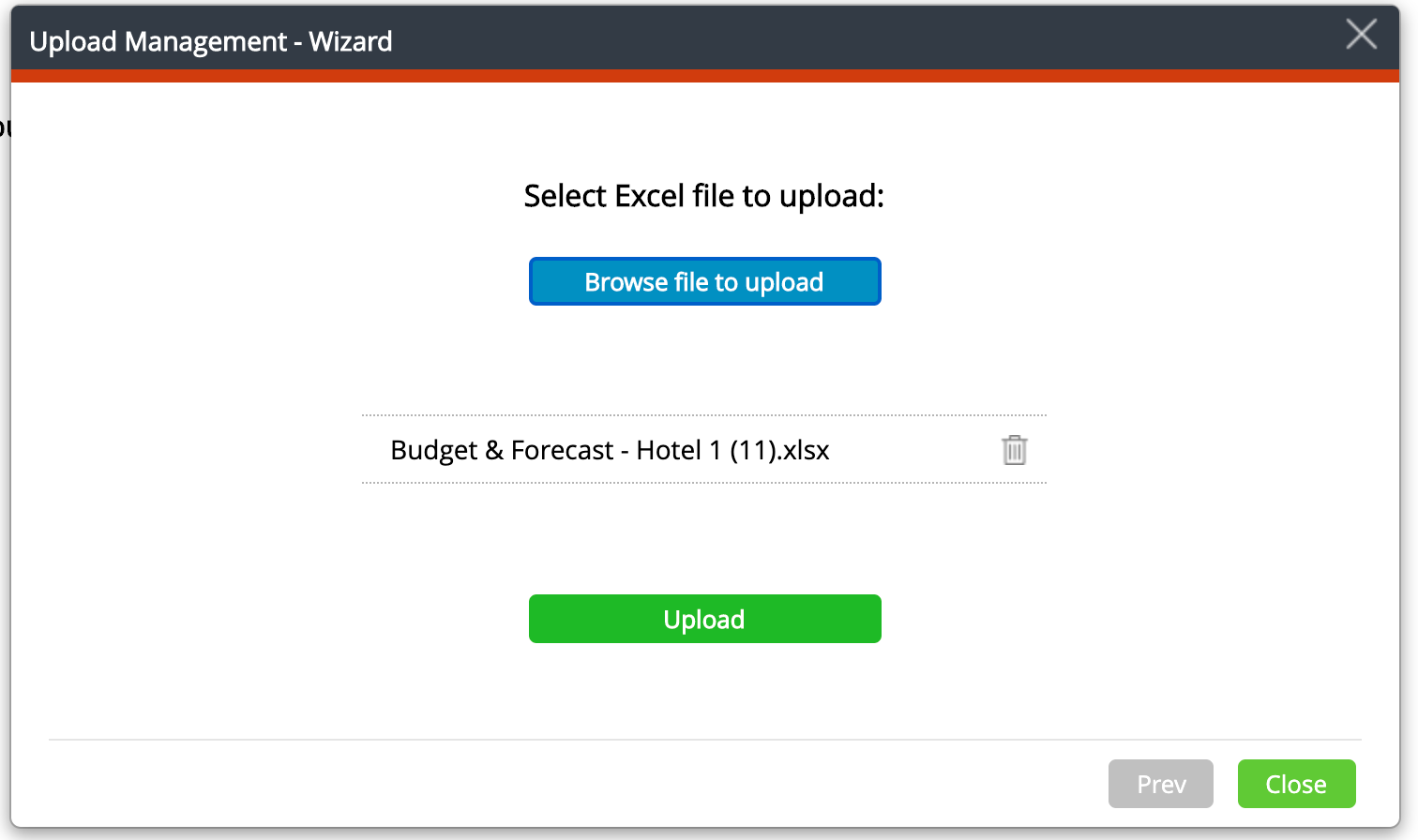
When Upload is clicked, you will get a message detailing what will be uploaded. If, for example, you have Locked Period, PMI will alert you what will, and what will not be uploaded.