
This is the “Set up SFTP Transfer” guide.
In this article, you’ll learn how to configure secure file transfers between Opera (or your systems) and PMI using SFTP. We walk you through creating the SFTP channel, linking it to your reports, and validating the setup, so your data flows smoothly and reliably.
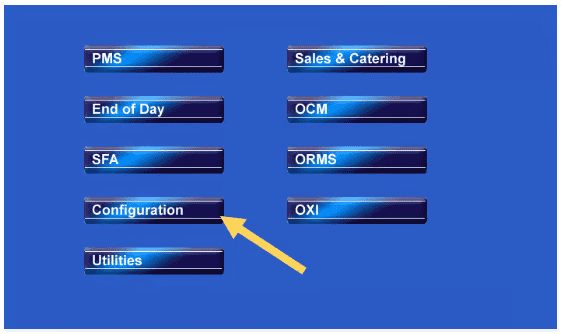
Step 1
- Property
- Delivery Method
- General
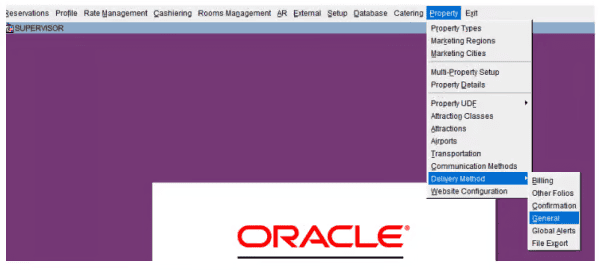
Step 2
- Click SFTP
- New
- Create name and description
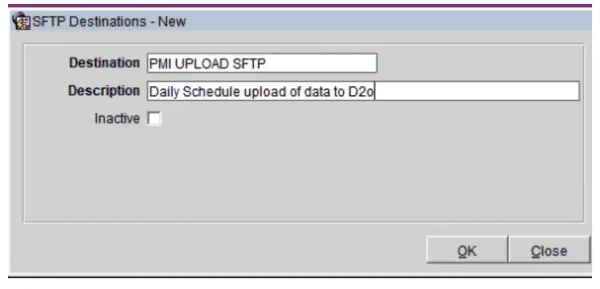
Step 3
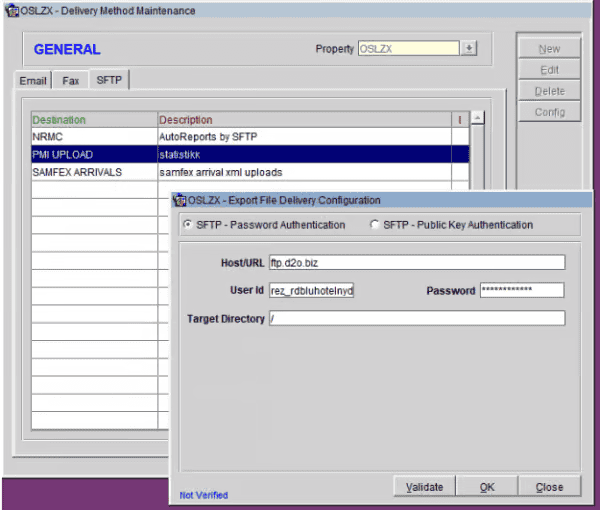
- Highlight the one you created and choose config
- Fill in information you received from d2o (this will be communicated by d2o)
- Ok and you are finished, run validate and ask if D2o received a test file.
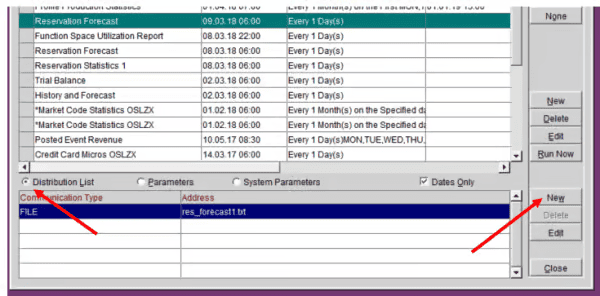
Next step is to add SFTP to all reports you created
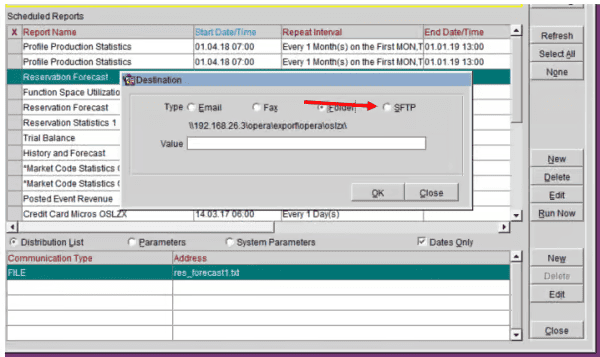
Step 4
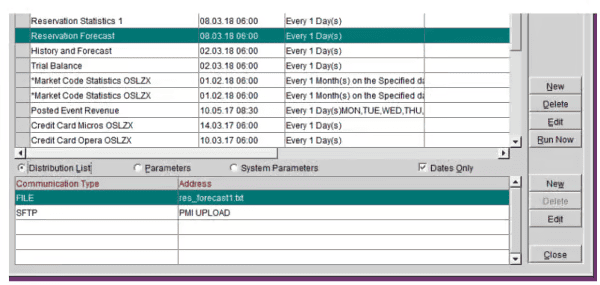
- Highlight report
- Choose distribution list
- NEW
- Choose SFTP
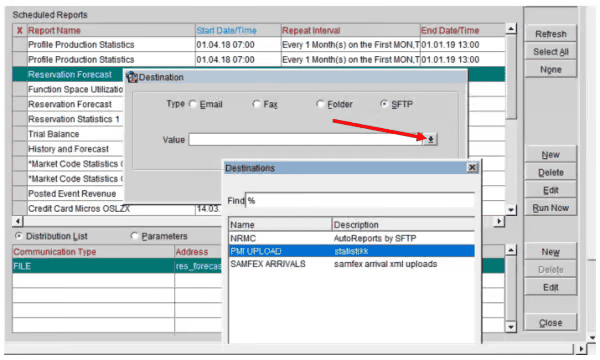
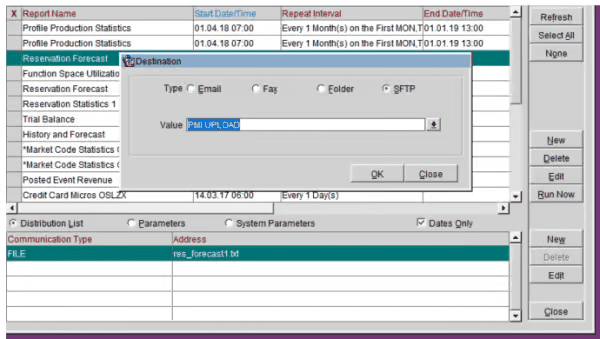
- In drop down meny, choose SFTP upload you created in delivery method
- Click ok, and report should be ready to go.
- Run report manully to check if they receive
Cross-references
- Opera Scheduler setup
- Reservation Statistics 1 (Historical Room Nights and Guest Nights) Reservation statistics 1 guide
- Trial Balance – (Historical Revenue) Trial balance guide
- Reservation Forecast – (OTB Room revenue, Room Nights and Guest Nights) Reservation forecast guide
- Reservation History and forecast – (Arrival and Departures)Reservation history and forecast guide
- M&E Revenue forecast – (OTB M&E Revenue) M&E revenue forecast guide