
Objective
By following this guide, you will enter monthly labor productivity or hour targets in PMI for each department using the Productivity sheet and the Budget & forecast module.
Requirements
- You must have access rights to the Budget & forecast module.
- The period must be open (not locked).
- Know which departments are productivity-based (targets set in productivity) and which are fixed-hour (targets set in hours).
Estimated time to complete
This task takes 15–20 minutes, depending on the number of departments.
Steps
Step 1: Export the Productivity sheet
1. Log in to PMI.
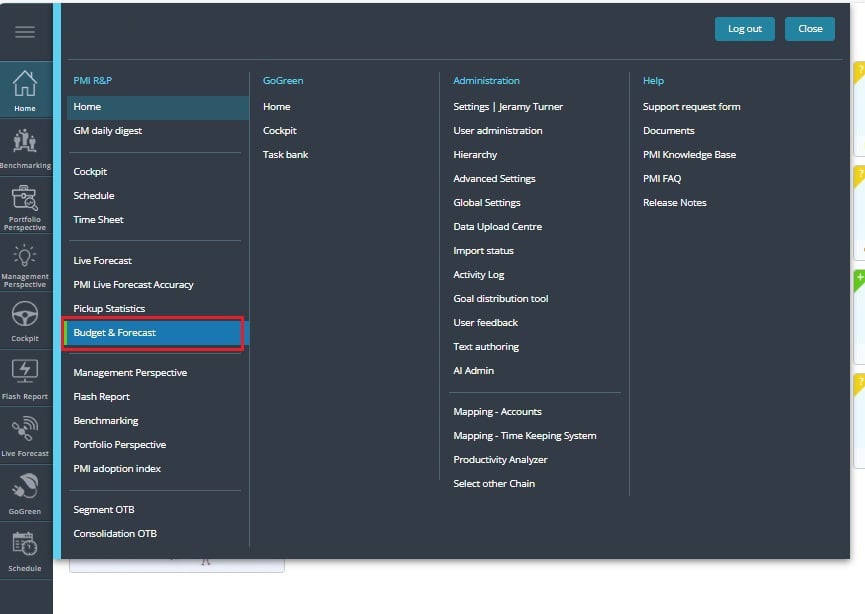
2. Go to Budget & forecast.
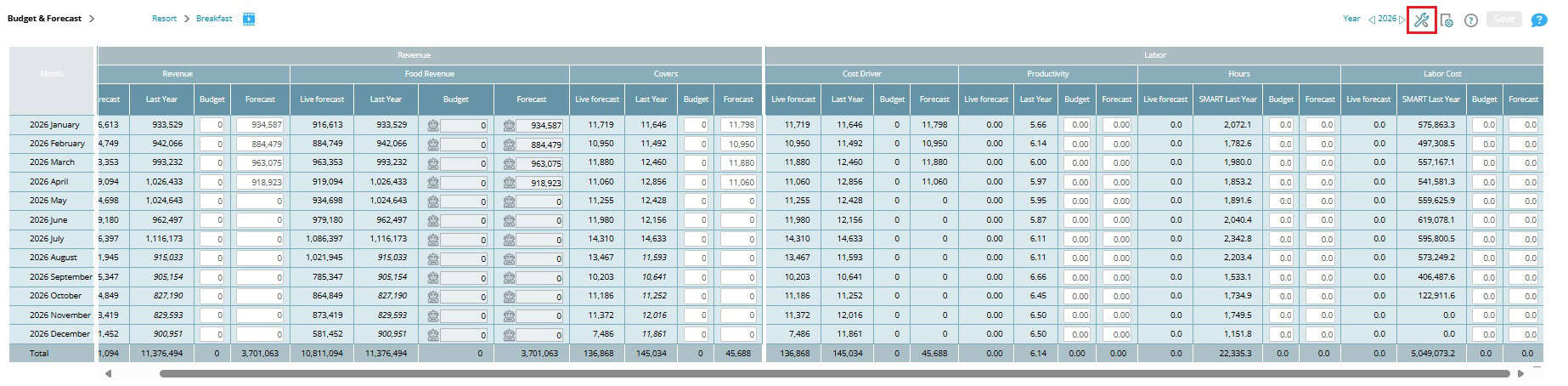
3. Select Tools from the top menu.
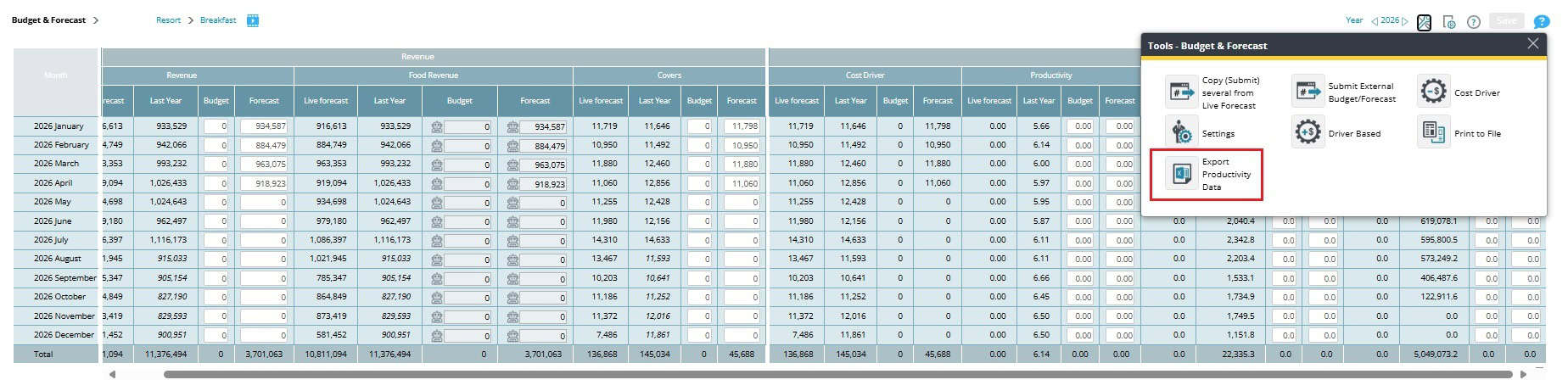
4. Click Export Productivity Data.
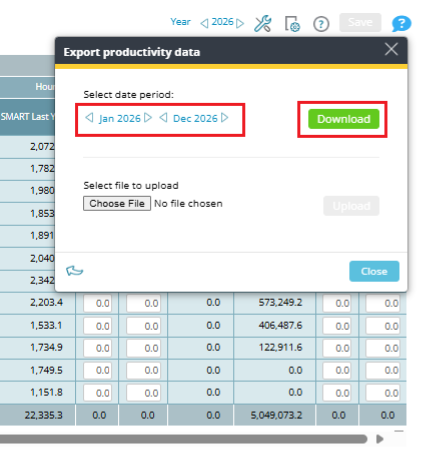
5. Choose the planning period and click download.
6. Open the file.
Step 2: Understand what’s in the Productivity sheet
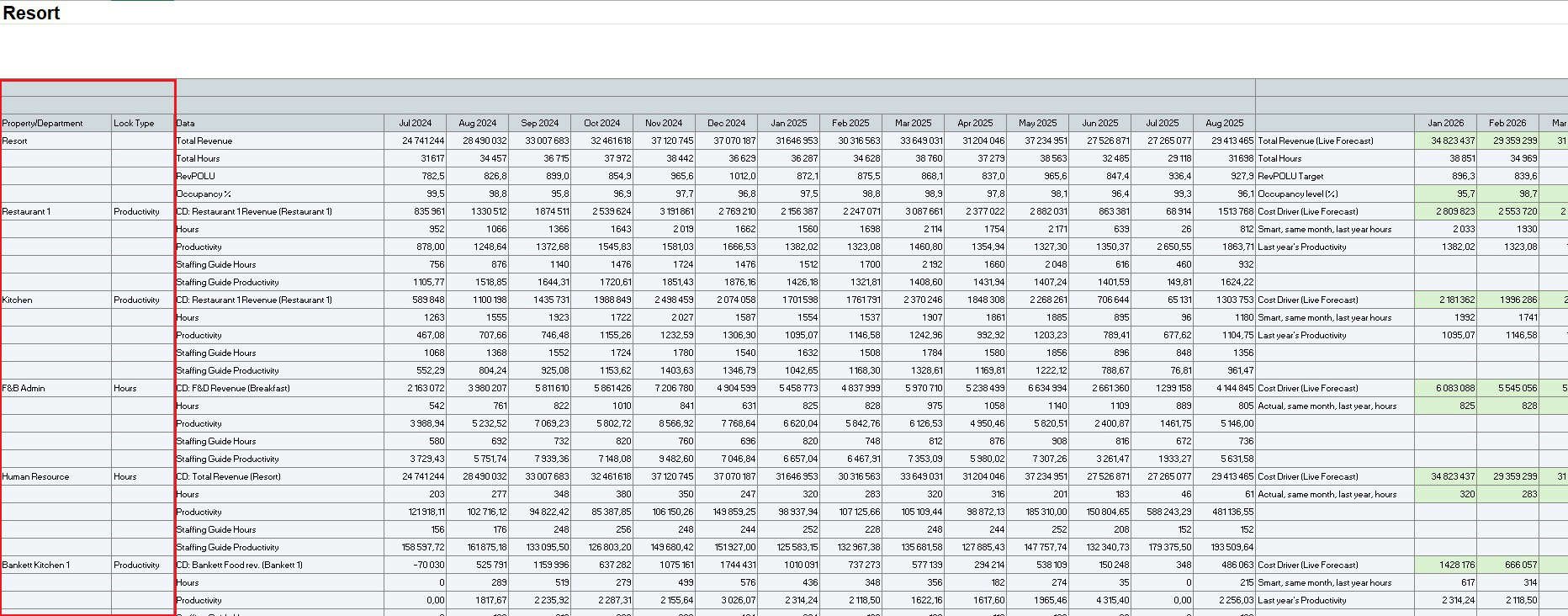
- Department list: A list of all the departments (with labor) in your hotel, those locked on hours and those locked on productivity.
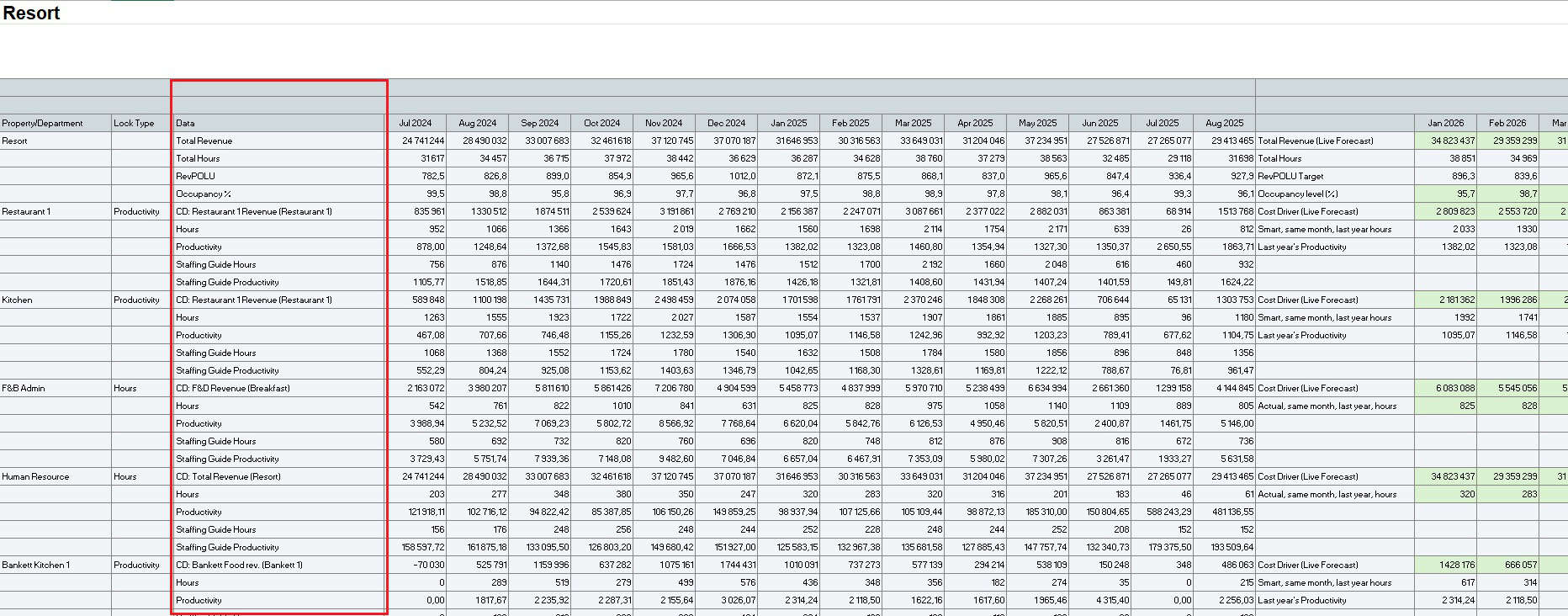
- Business metrics per department: Cost driver, hours, productivity, staffing hours and staffing productivity.
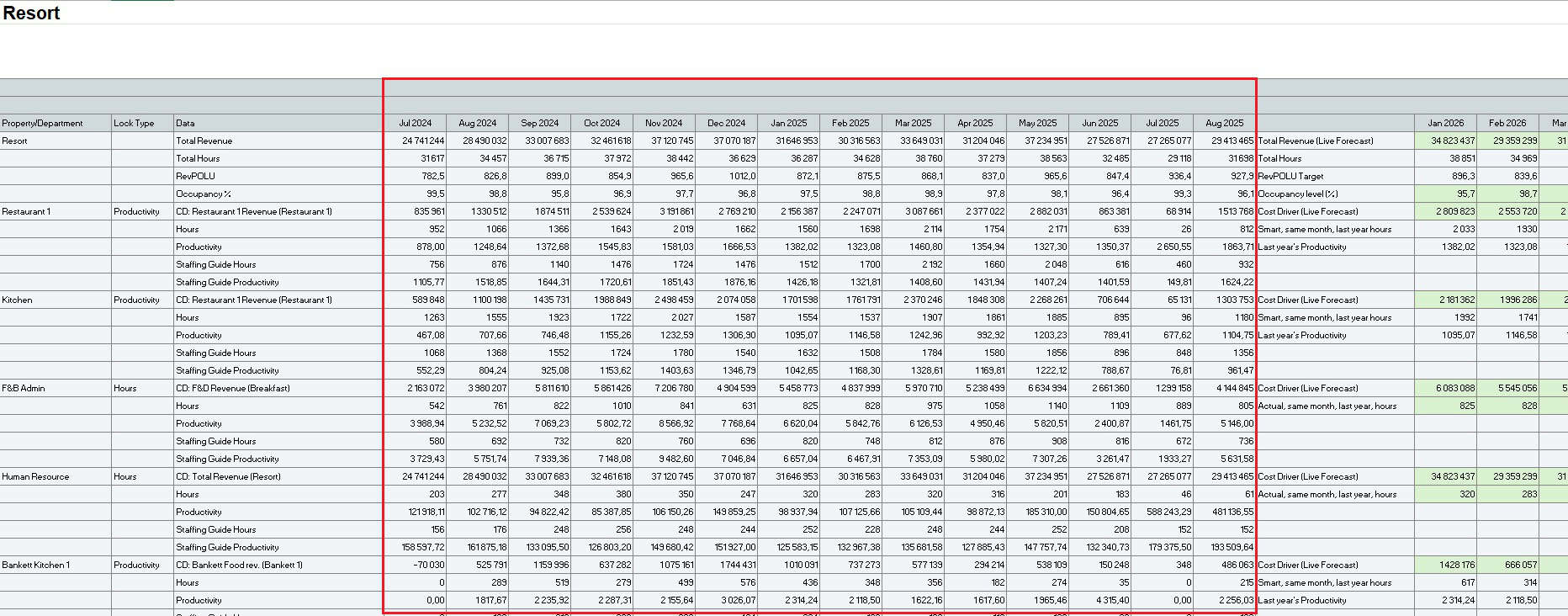
- Historical Data: Includes the last 12 months of actuals.
Scenarios for setting targets
Scenario 1 – Historical comparison
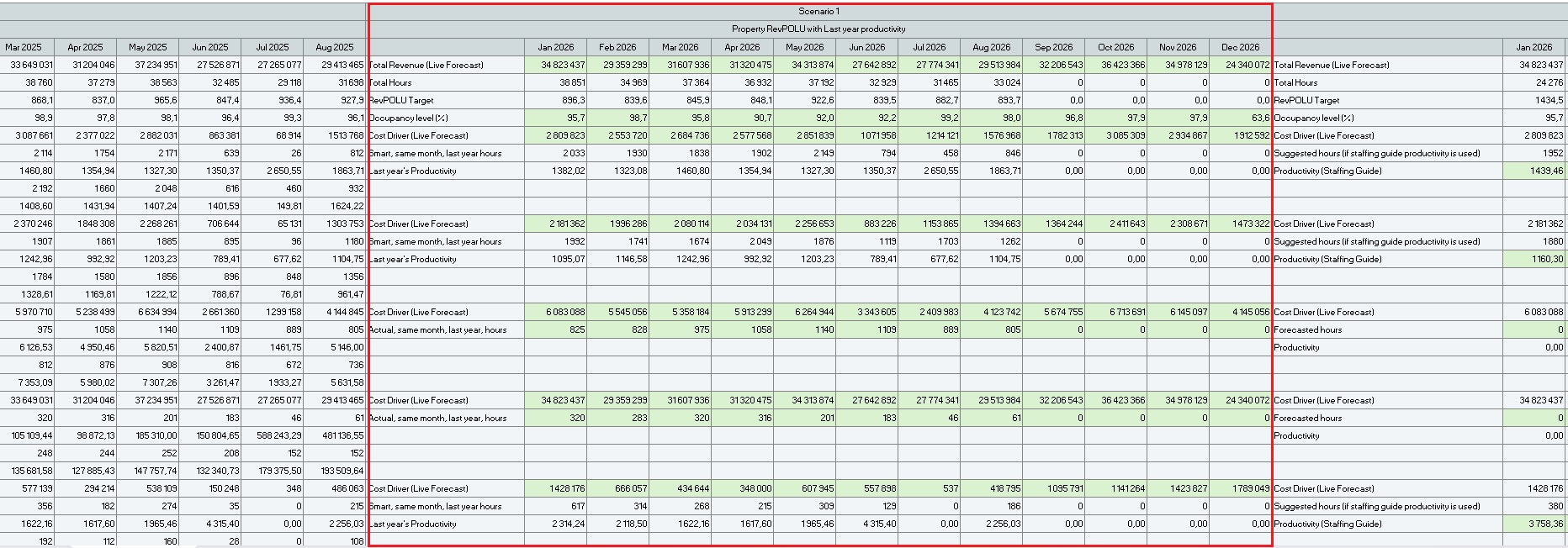
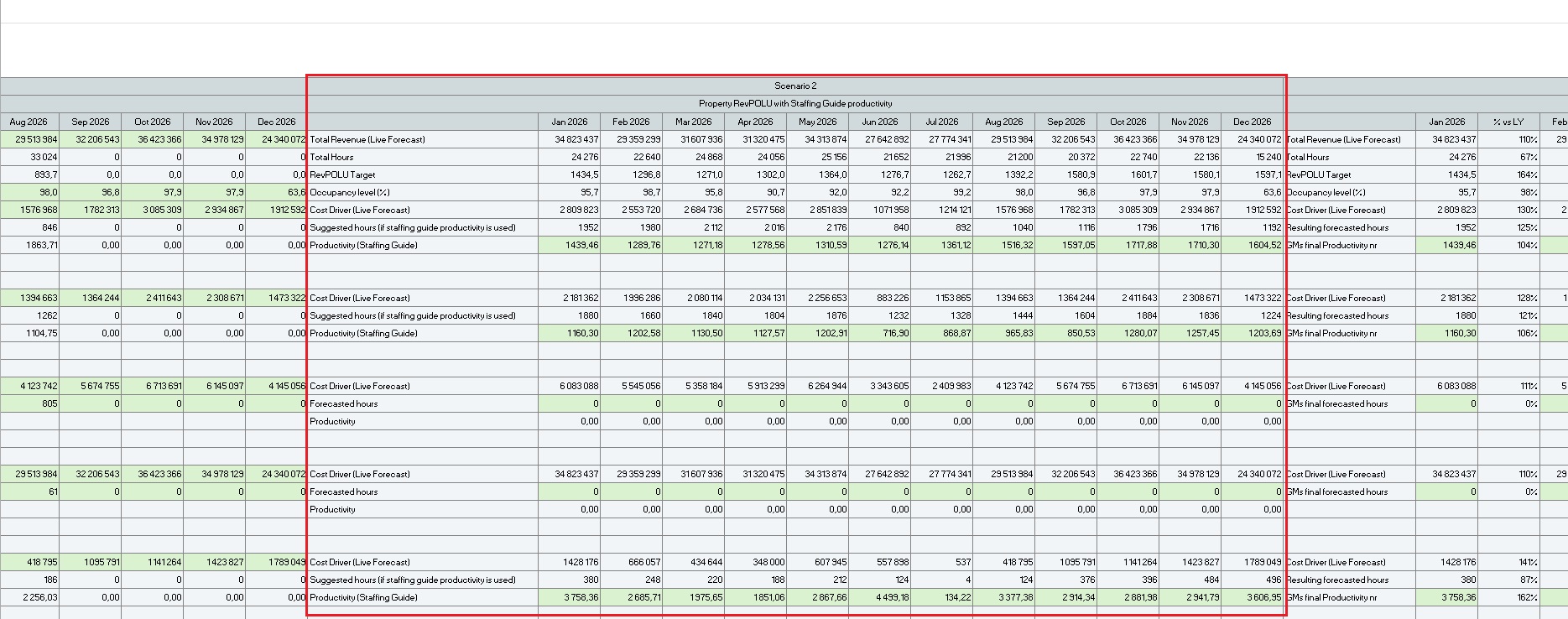
Scenario 2 – Staffing guide reference.
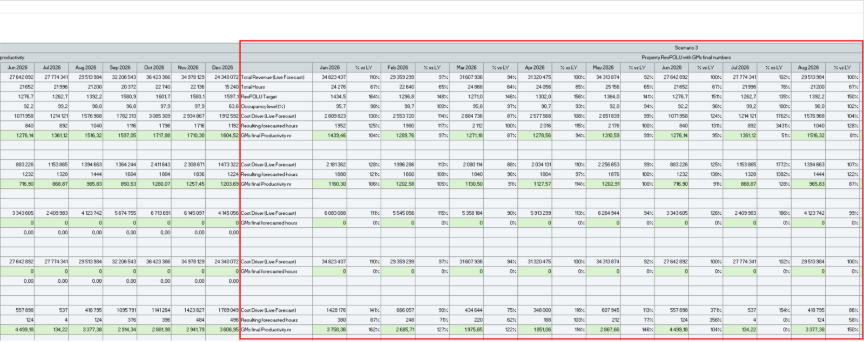
Scenario 3 – GM’s workspace for setting final targets
Step 3: Finalize hours and productivity targets
1. Enter the productivity and hours targets in the green blocks under Scenario 3.
- Paste values only (no formulas).
- Do not change the sheet structure or overwrite colored cells.
Step 4: Import the Productivity sheet back into PMI
1. Go to Budget & forecast.
2. In the top menu, select Tools.
3. Click Export Productivity Data.
4. Browse and upload your saved file.
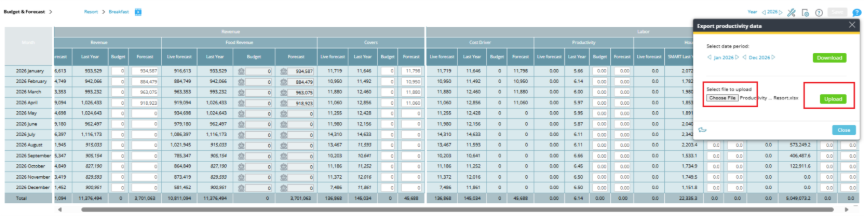
5. Review and adjust if needed in Budget & Forecast module.
Expected outcome
- Productivity targets are set for productivity-based departments.
- Hour targets are set for fixed-hour departments.
- The Budget & forecast module now reflects the monthly labor targets, visible for reporting and tracking.
Troubleshooting
- Targets don’t appear: Check that you imported the correct file and selected the right period.
- Cells are locked: The period may be closed or you lack editing rights.
Cross-references
Add later
Related features and modules
Add later
FAQ
Q: Where do I enter the data — in hours or productivity?
A: Fixed-hour departments use hours. Productivity-based departments use productivity (units per hour).
Q: Can I edit values directly in PMI instead of using the Productivity sheet?
A: Yes, you can adjust values directly in the Budget & forecast – Productivity targets screen.
Q: Does this affect the Live forecast?
A: No. Productivity targets are for budgeting and planning. The Live forecast remains your operational demand forecast.