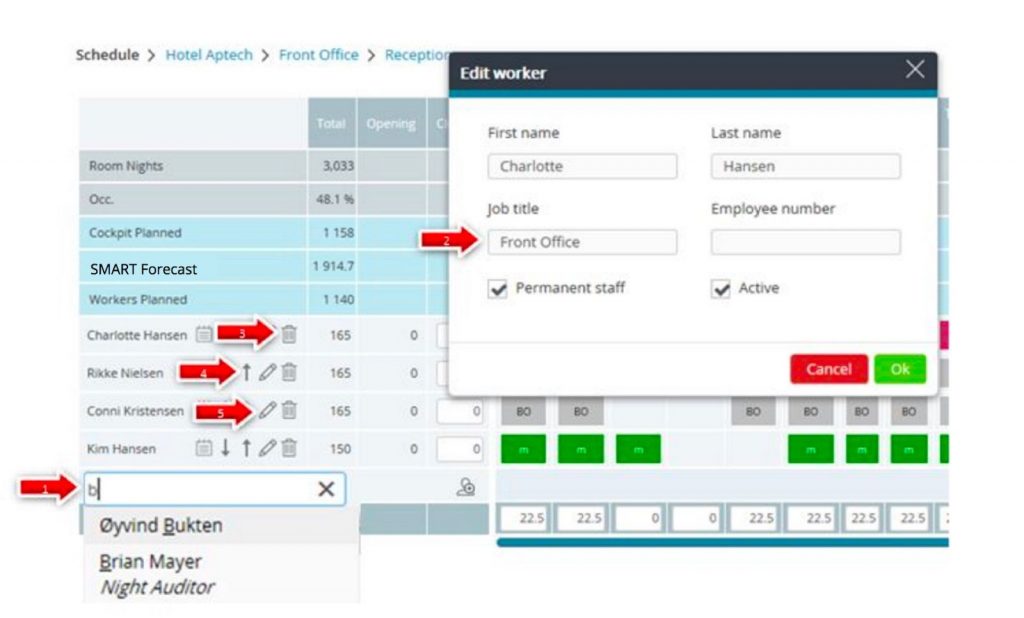
Add a new worker
- Click the Add staff field on the left and start typing the employee’s first name.
- If PMI finds a match, select it from the pop‑up.
- If no match appears, click outside the cell, then fill in all required details (make sure the Employee Number is correct — it’s your unique ID!).
Pro tip: Employee Number prevents accidental double‑booking across schedules.
Edit or reactivate a worker
- Click the pencil icon beside their name.
- Deactivate (hide): Tick the Active checkbox → the worker will vanish from scheduling pick‑lists (they’ll remain in italics on any existing shifts until the next month).
- Reactivate (show): Untick Active → restores them to all scheduling lists.
Delete a worker
- Click the trash‑bin icon beside their name.
- This permanently removes the profile from your schedule (past shift history remains in reports but cannot be restored).
Change display order
- Use the up/down arrows next to a name to move them higher or lower in the staff list.