
Purpose of this article
This article explains how the Data table works in PMI NextGen planning pages. It helps you understand what the numbers mean, how totals and averages are calculated, and how comparative data supports better decisions.
This article explains the features of the table. It does not cover step-by-step instructions for editing or submitting a forecast.
Concept definition
NextGen planning pages are new pages in PMI where you can review the monthly totals for your Live forecast data in preparation for the monthly forecast routine. It is a new part of the Budget & Forecast module, currently available for GoGreen Planning.
When you review predictions, you need to answer questions like:
- Does our consumption line up with our driver levels?
- Do costs line up with our consumption?
- How does this forecast compare to last year?
- Are our predicted costs aligned with our overall targets?
Use cases
The planning page is commonly used by:
- General Managers or Finance teams preparing for the monthly Forecast
- Heads of department reviewing predicted forecasts for consumption or productivity
The Data table helps you:
- Review predicted forecast month by month
- Compare Live P&L forecast to previously submitted forecasts or past Actuals
- Identify and resolve unusual values before the monthly forecast is run
Data table layout
The Data table shows your forecast plan in a traditional monthly format.
Page filters
You can select the version (1) to view in the main version selector.
This will set default dates; use the date selector (2) in the top-right to view different months.
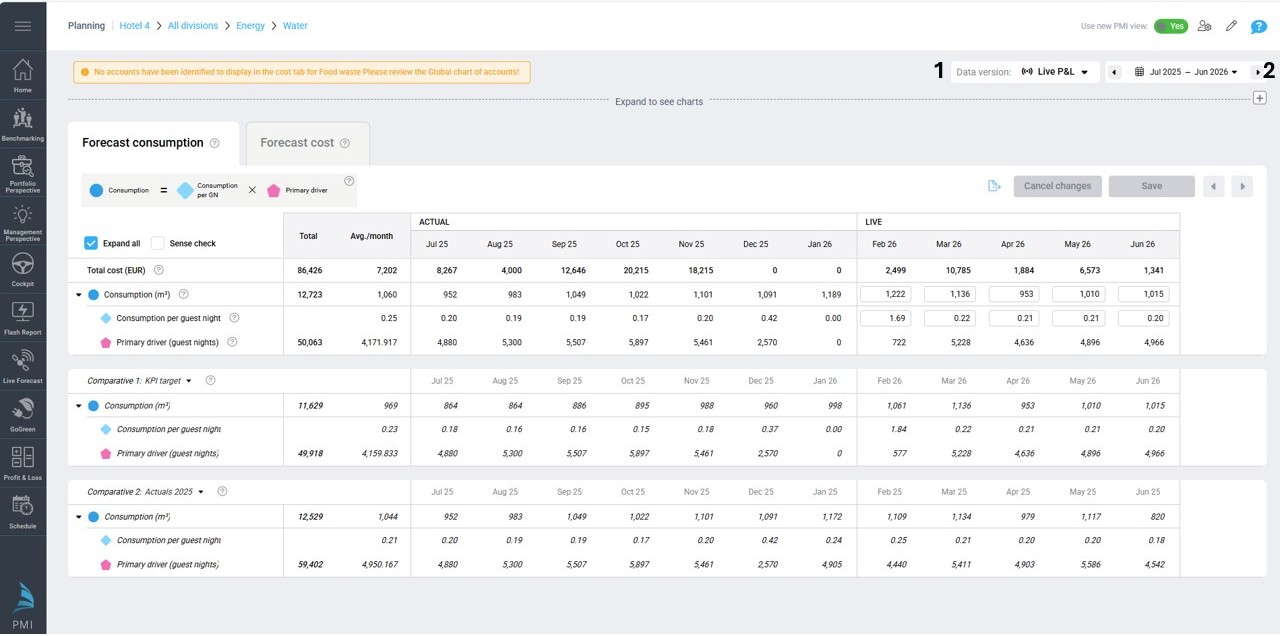
Image description: Example of a data table in a new planning page in PMI
TIP: See article Navigation and filters in planning pages for more detailed information
Columns
Column section headers
Each column section shows a specific type of data:
- Live – Your current Live P&L forecast. This uses Live forecast values from relevant modules and planning calculations. You can edit this data.
- Actual – Historical data already entered or imported. This is past data and cannot be edited.
- Forecast – Data submitted as part of a forecast version. Cannot be edited.
- Budget (Target) – Data submitted as part of a budget version. Cannot be edited.
If your selected date range includes past and future months, you may see multiple sections in the same table.
Total column
Total equals Sum of all months in the selected period
Example:
If revenue for January, February, and March is:
- January: 100,000
- February: 120,000
- March: 130,000
Total is 100,000 plus 120,000 plus 130,000 equals 350,000
Avg./month column
Average per month equals Total divided by number of months in view
Using the example above:
350,000 divided by 3 months = 116,667 per month
Special rule for ratios
For ratios such as:
- Consumption per Guest night
- Productivity
- Average rate
PMI calculates the average using totals — not the average of monthly ratios.
Example: Unit price
If:
- Total Cost = 50,000
- Total Consumption = 10,000 units
Unit price is 50,000 divided by 10,000 equals 5.00
This ensures the ratio reflects real values across the whole period.
Rows
Forecast section details
The top section of the Data table shows the values for the selected version (Live, Actual, Forecast, or Budget).
Key indicators:
- Tooltips explain where the value comes from, including manual edits, and also show sense check alerts when this is turned on
- Editable cells open in the Edit panel
- Manually edited rows show an edit icon
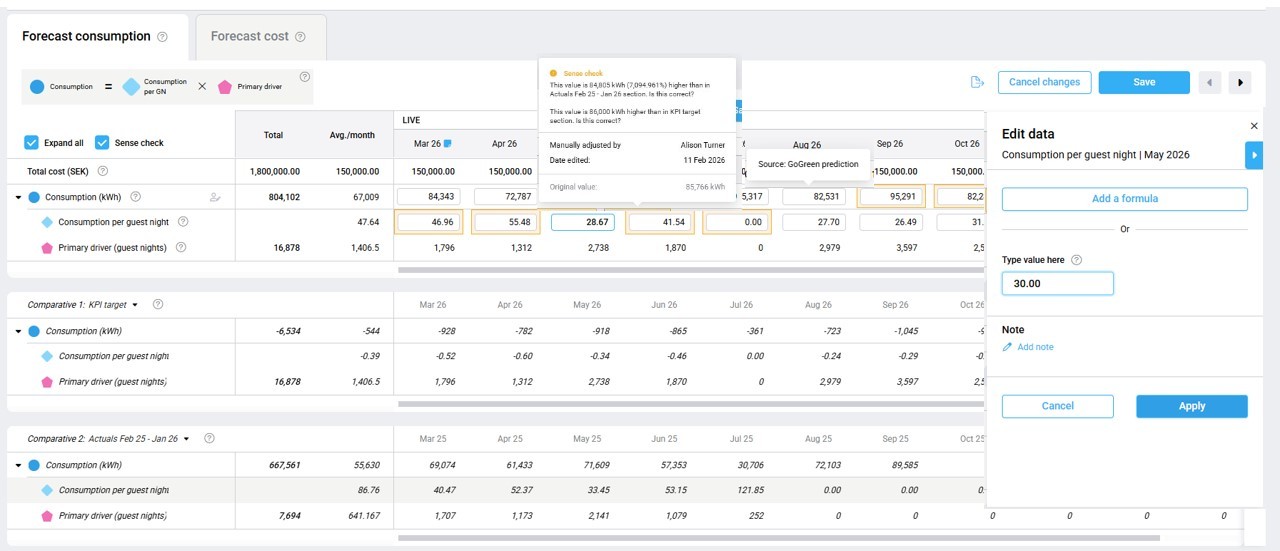
Image description: Example of a GoGreen Live P&L page with a manually edited row, a tooltip showing edit details and another tooltip showing value source.
Comparative section details
Below the main version, you can compare your plan to other versions. Use the dropdown to select the type of data you want to compare your main forecast version to.
Main comparatives:
- Show the same layout of data rows as the main forecast version
- Cannot be edited
- Also appear in graphs
- Sync between table and chart selection
- Include previously submitted forecasts or budgets
Additional comparative options include:
- KPI targets – (GoGreen planning only) Uses target consumption and Live P&L unit price to calculate equivalent cost
- Last available actuals (12 months) – Most recent actuals for the same month that is being forecast (uses period locking or offset days to determine when actuals is available)
- Actuals (previous calendar years) – Last two full historical years
- Live P&L without edits – Shows what values would be without any manual edits
These comparatives help you understand:
- Are we improving versus last year?
- Are manual edits improving accuracy of the forecast?
- Are we aligned with targets?
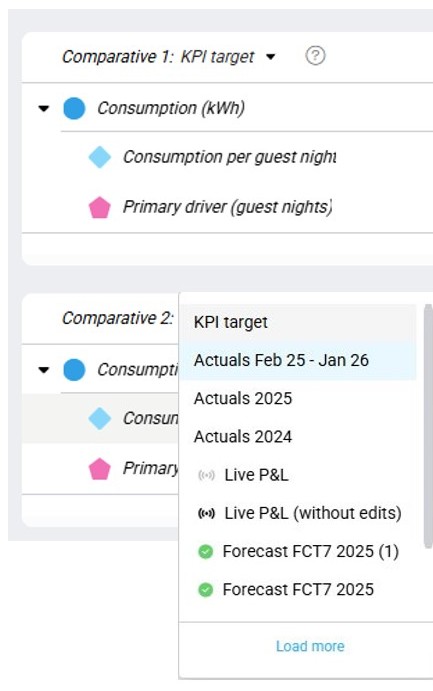
Image description: Comparative section in the table along with a dropdown showing an example of the options available to select
Editing the plan
Edit panel
Cells cannot be edited directly in the table.
When you select a cell, the Edit panel opens.
In the Edit panel, you can:
- Change the value
- Add a formula to link to another variable
- Reset to the original value
Apply changes in the panel to update the data table. The page will also need to be saved.
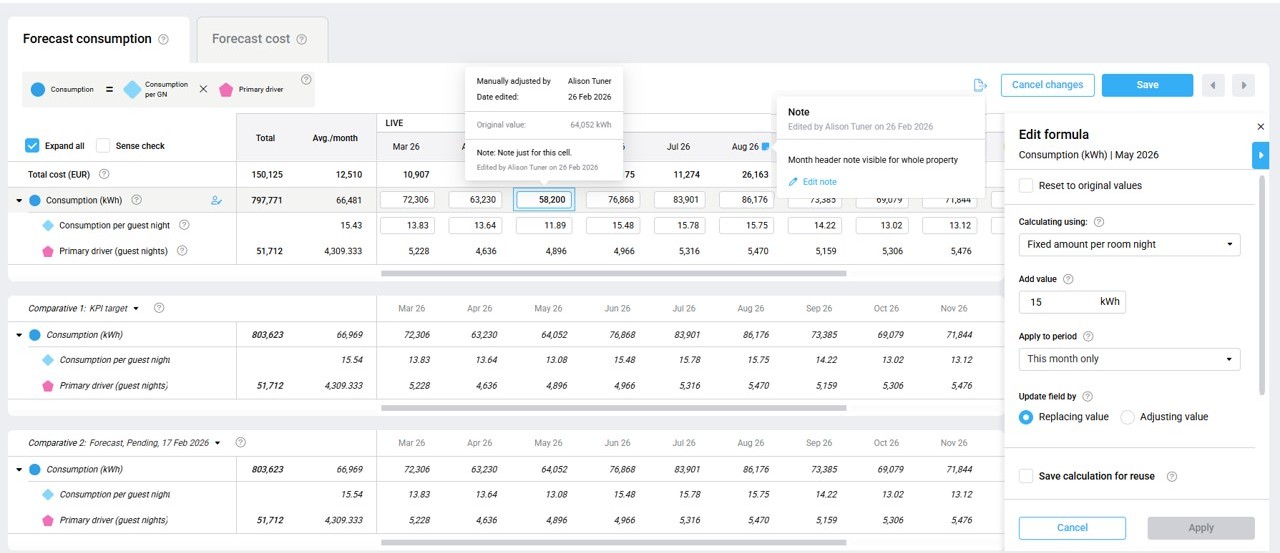
Image description: Edits are made using an edit panel which also has formula options
Adding notes
There are 2 types of notes than can be added in the data table:
- In the month header for a specific month; this note will show for the whole property not just this department or resource.
- In a specific cell; this is only for this cell in this department.
How to add notes:
- Month notes are added by hovering next to the month, then clicking the note icon.
- Cell notes are added in the Edit panel. The cell itself does not need to be edited if only a note is required.
- View previous notes in the tooltips for the cell or month
- In both cases, notes that are added in the Live P&L version will be copied into any future forecast versions.
Saving changes
The Save and Cancel changes buttons are above the data table and show in blue when there are unsaved changes in the page.
- Changes do not need to be saved to switch between tabs
- Changes must be saved before changing version, dates, resources or leaving the page.
- Unsaved changes can also be cancelled to return the data back to the last saved values.
Other features in the data table to help make forecasting easier
Expand to view hidden rows
To make it easier to see the main plan values in one go, not all of the data rows are shown when you open a planning page. Any row that has linked rows below it will have a triangle at the side. The triangle will point to the right when it is collapsed and will point down when it is already expanded.
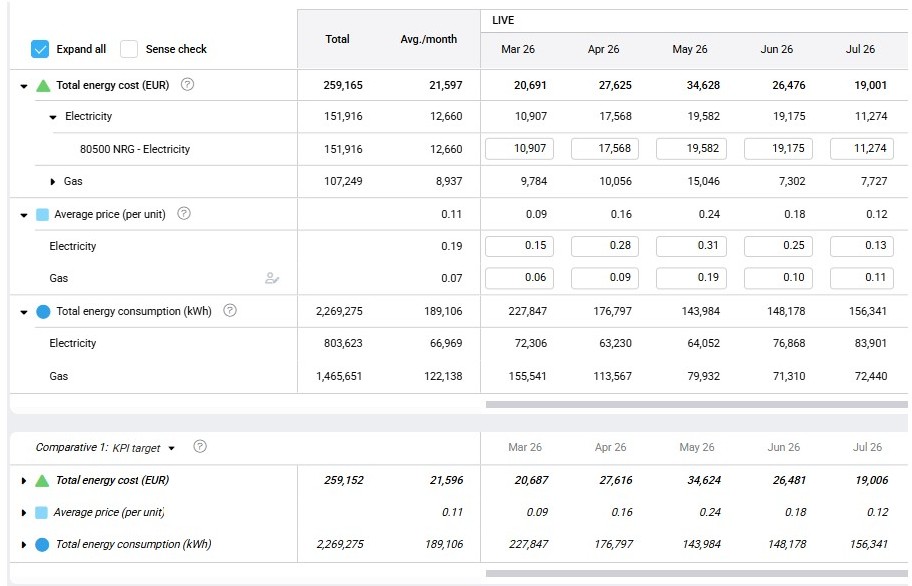
Image description: Data tables have options to expand the rows
There are three main ways to show or hide these linked rows. In all cases click will toggle between expand (show) and collapse (hide)
- Click the triangle on the row
- Click anywhere on the row
- Click the checkbox ‘Expand all’
The checkbox will not include the comparative sections so use the other two methods to expand these rows.
Sense check function
Sense check highlights values that may need review.
Warnings include:
- Red – Requires attention
- Amber – Suggested review
Warning alerts may appear when:
- Data is missing
- Values are negative
- Values differ significantly from the selected comparatives
Sense check helps prevent mistakes before submitting a version.
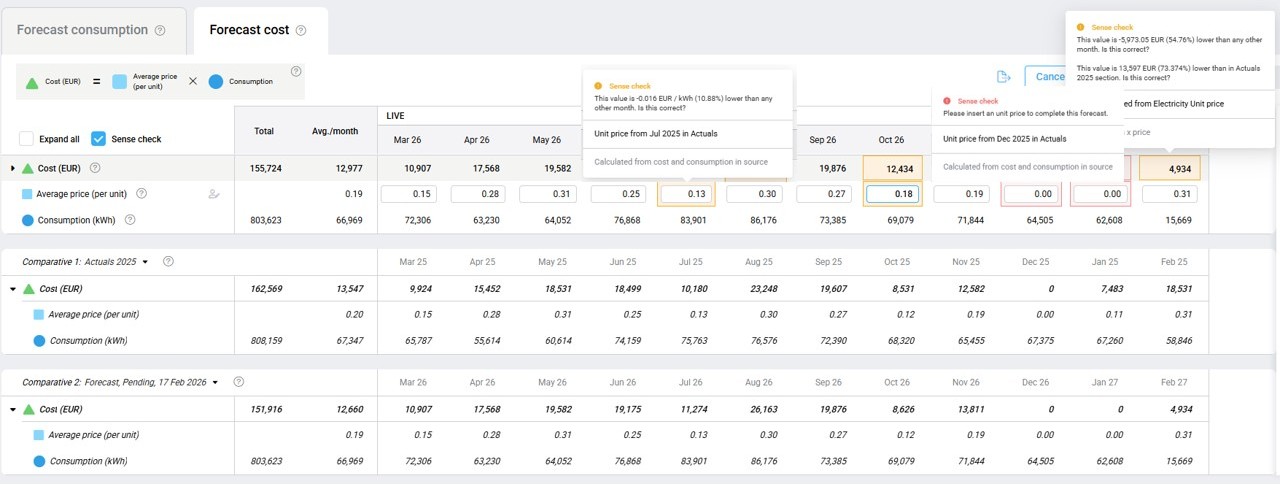
Image description: Sense check function in a data table with highlighted cells and warning alerts
TIP: See article Sense check mode in planning pages explained for more detailed information
Scrollbars and arrows
If the data table is too wide or long for your screen, scrollbars will appear automatically. Note that the three horizontal scrollbars move together (main forecast and the 2 comparatives).
There are scroll arrows at the top of the data table. These are enabled when they are required. Click the arrows to move the data more to the right or left.
Click anywhere on the data table and then use the keyboard arrows to move the focus left or right; this will also scroll the table.

Image description: Scroll arrows to the right of the Save button. Export button to the left of the Cancel changes button
Export the data
There is an export function so you can save a copy of the data as an offline file. It is next to the Cancel changes button.
- The export will offer a choice of format onto excel or googlesheet
- It will export all the rows in the current tab (including any hidden rows) and including the comparative data that is currently selected on the page
- It will only export one tab at a time (eg Consumption tab or Cost tab etc)
Cross-references
See following articles for more general information on NextGen planning pages and detailed information on specific planning modules:
- Navigation and filters in planning pages explained
- Sense check mode in planning pages explained
- Introduction to NextGen GoGreen planning
- How to edit a GoGreen plan
Related features and modules
This table design is used in NextGen planning pages that are accessed from the Budget and Forecast module in PMI. It is currently available for
- GoGreen planning
Values from the Planning pages will populate other modules in PMI including:
- Cockpit modules (consumption or productivity data)
- Profit & Loss module (costs associated with consumption)