
Overview
Food revenue can be configured at segment level, allowing each segment within a profit center to have its own food revenue settings and calculation method.
This is useful for operations where revenue is split across different segments, such as Food and Beverage. Food revenue is calculated separately for each enabled segment and then combined to create the total food revenue for the profit center.
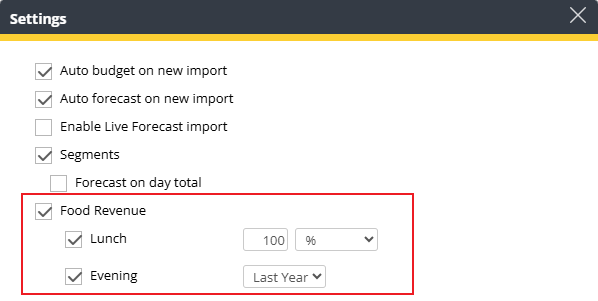
Image description: Profit center configuration showing food revenue settings per segment
Before you begin
Food revenue by segment is available when:
- Segments are available for the profit center.
- Food revenue is enabled for the profit center.
- Segment forecasting is enabled.
If segment forecasting is not enabled, food revenue is configured and calculated at profit center level only.
Configure food revenue for segments
When food revenue is enabled for a segmented profit center, each segment can be configured individually.
For each segment, you can:
- Enable or disable food revenue.
- Select how food revenue should be calculated.
- Use different calculation methods for different segments.
Food revenue is calculated independently for each enabled segment. The resulting food revenue values are then combined to create the total food revenue value for the profit center.
Food revenue calculation methods
The following calculation methods are available for each segment:
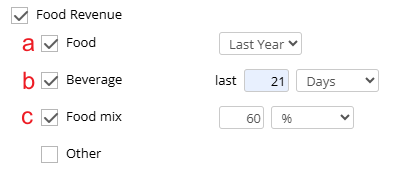
Available calculation methods can be used
Last year:
Uses the food revenue ratio from the same day last year.
The system calculates the food revenue percentage based on the ratio between food revenue and total revenue for the corresponding day last year and applies that ratio to the current forecast.
Days:
Uses the food revenue ratio from actuals during a selected number of previous days.
Enter the number of days to use, and the system calculates the food revenue percentage based on the actual food revenue ratio for that period.
For example, if you enter 28, the system uses the food revenue ratio from the last 28 days of actual data.
% (Percentage):
Uses a fixed percentage.
Enter the percentage of the segment revenue that should be treated as food revenue. The system calculates food revenue by applying the specified percentage to the segment revenue.
For example, if the segment revenue is 10,000 and the percentage is 40%, the calculated food revenue is 4,000.
Locked food segments
Some segments may be configured as food segments.
When a segment is marked as a food segment:
- Food revenue is automatically enabled and cannot be disabled.
- Food revenue is fixed at 100% and cannot be changed.
- Food revenue cannot be deactivated for the associated profit center when forecasting on segments.
Hover over the information icon to see why the setting is locked.
This ensures that revenue generated by dedicated food segments is always treated as food revenue.
A segment name alone does not determine whether it is treated as a food segment. A segment must be explicitly configured as a food segment.
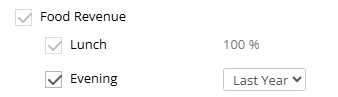
Food segment configured
Food revenue in Budget & forecast
When food revenue is enabled in Live forecast, a Food revenue section is displayed in Budget & forecast.
The Food % value represents the percentage of total revenue that is food revenue.
Using food revenue with segmented forecasting
When forecasting by segment:
- Food revenue is displayed only for segments where food revenue is enabled.
- Food revenue values are summarized on the total row.
- Live forecast and Last year Food % values are displayed as reference information.
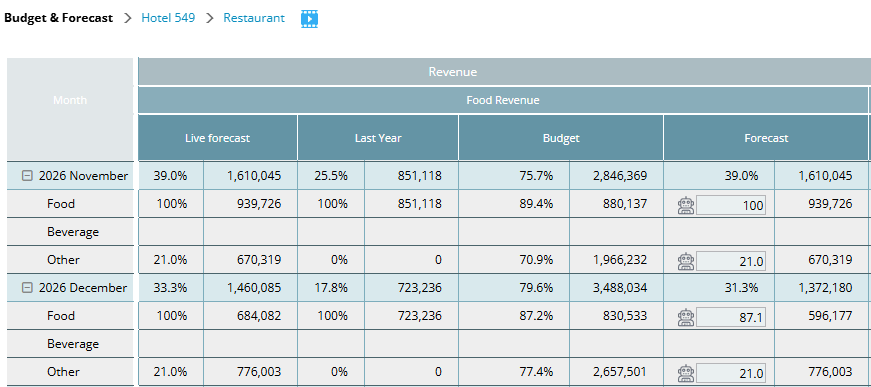
Budget & Forecast with segmented forecasting enabled
When forecasting is performed on total level, Food % and Food revenue are displayed and maintained on the total row.
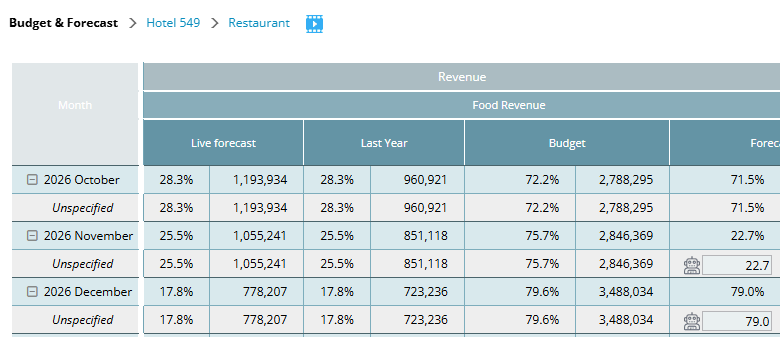
Budget & Forecast with segmented forecasting disabled
Automatic calculation
When automation is enabled, food revenue percentages are calculated using the food revenue settings configured for the department or segment.
The calculated percentage is then used to determine the food revenue value.
Changes made to Food revenue settings in Live forecast do not automatically update the budget or forecast percentages.
To recalculate budget and forecast values using the updated settings:
-
- Change the robot icon from Automatic to Manual.
- Change the robot icon back to Automatic.
- Click Save.
The Food % will be recalculated according to the current Live forecast settings, and new budget and forecast values will be generated.
Manual calculation
To manually control food revenue for a month:
-
- Click the robot icon to switch the month to Manual.
- Edit the Food % value.
- Leave the field and click Save.
The food revenue amount is recalculated immediately.
The month remains in Manual mode until automation is enabled again.
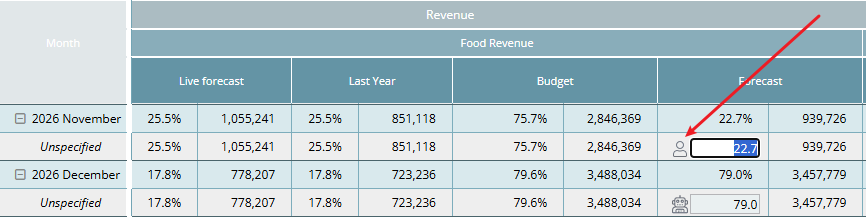
Manual editing of Food %
Cross reference:
How to set up a Live forecast: configuration settings
Frequently asked questions
Why is the food revenue option locked?
The segment has been configured as a food segment. Food revenue settings for food segments are automatically managed by PMI and cannot be edited.
Why is the Food % fixed at 100%?
The segment has been configured as a food segment. Food segments always use 100% food revenue.
Note: A segment name alone does not determine whether it is treated as a food segment. A segment must be explicitly configured as a food segment.
Why do some segments not show food revenue?
Only segments where food revenue is enabled display food revenue values.
Can different segments use different food revenue calculation methods?
Yes. Each segment can use its own food revenue calculation method unless it has been configured as a food segment.