
Objective
When a chain or property starts to forecast costs for GoGreen resources, PMI needs to be configured to give the most accurate results. These steps are generally done as a one-off action for the chain or property but can be reviewed and updated if needed.
This document details the steps required for the GoGreen planning module to work.
Users
Controllers, Administrators and HQ users will need to carry out most of these steps, along with d2o.
Prerequisites
1. The chain or property must already be using the GoGreen module in PMI and have active cockpits.
– It is ideal to also be reporting actual consumption for each resource
2. NextGen Planning and GoGreen planning are both enabled for the chain and/or relevant properties [d2o action]
3. Properties using PMI Planning should identify the cost accounts for each GoGreen resource
– The forecast will be more accurate if actual costs for resources have been recorded in PMI Planning under these accounts for at least 1 year.
– Properties that do not use PMI Planning will have a slightly different configuration (as well as the main steps for all chains, see additional step in section Auto-schedule)
4. Some settings require specific user rights; these are detailed in the relevant steps
Estimated time to complete
Once the cost accounts are identified the configuration will take around 1 hour at chain level
Each property may want to review their settings and adjust if necessary, around 15mins to action.
D2O can provide support and may carry out some actions directly in PMI
Steps
Step 1. Map cost accounts to each GoGreen resource
This step is not required for chains that do not use PMI Planning
D2o can support steps 1 and 3 but the chain must review and approve the mapping in step 2
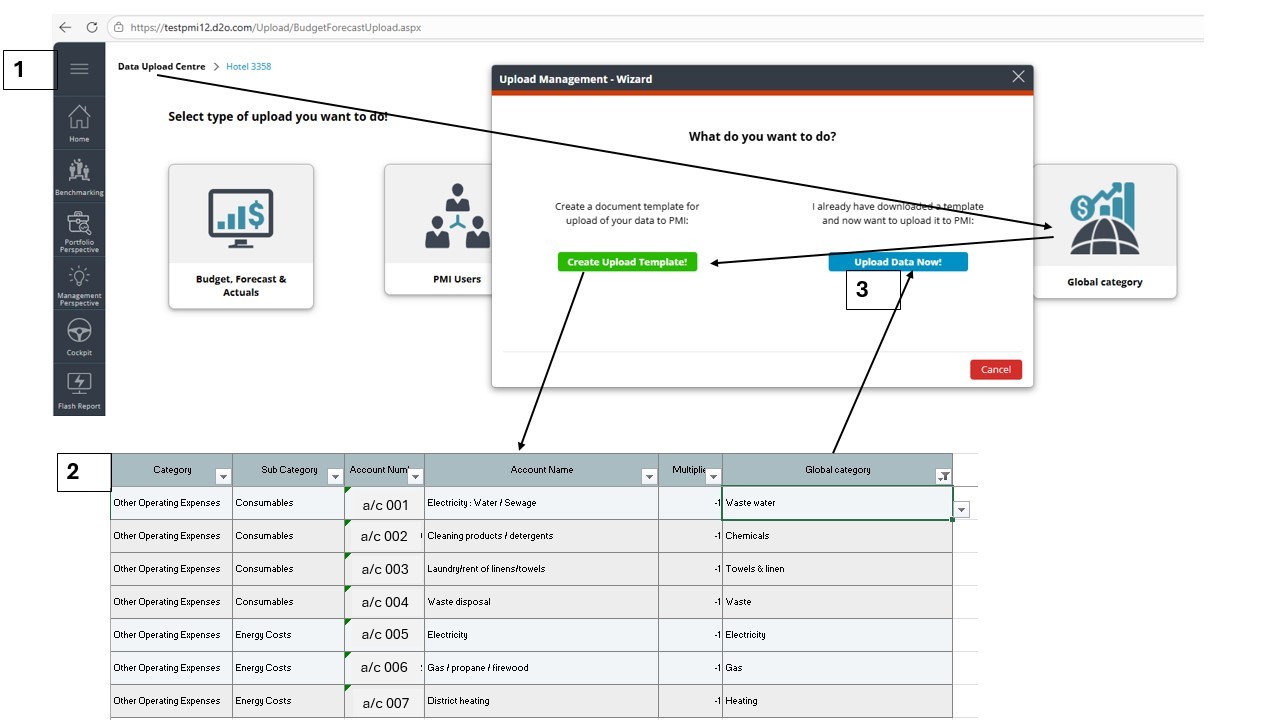
Image description: Use Data upload centre to download and complete a chart of accounts template, then upload it
1. Download a copy of the Global chart of accounts used by the chain in PMI.
a. This is accessed from Data Upload Centre > Global categories > Download Template
b. If there are more than 1 template this will need to be repeated for each template that is in use by the chain
2. In excel, match each account that is a cost for a GoGreen resource to the relevant resource in column E. Save changes to the file
a. Each account can only be mapped to 1 GoGreen resource.
b. GoGreen resources can be mapped to more than one cost account.
c. PMI supports cost reporting for the following GoGreen resources
- Electricity
- Heating
- Gas
- Solar energy
- Cooling
- Water (choose from: Water (unallocated); Municipal water; Waste water; Other water supply)
- Chemicals
- Towels & Linen
- Waste
- Food waste
- Refrigerants
- Fuel for company vehicles
3. Upload the new file for the chain in PMI using the Data Upload Centre > Global categories
a. If there is more than one template, select each one in turn and check you are uploading the correct file for that template
Step 2. Confirm that all resources should forecast costs
It is expected that all GoGreen resources with an active cockpit which report consumption will want to forecast costs. This is to meet financial audit requirements.
If there are resources where consumption is not reported, or where cost reporting cannot be linked directly to consumption, it is possible to remove this resource from GoGreen planning.
Request support from d2o to carry out this action.
Step 3. Map each active GoGreen resource to a department
This step is required for all chains.
There is a default setting if this is not completed, but cost forecasting may not be accurate
! WARNING: Once GoGreen planning is in use, changing the mapping for a resource will recalculate the costs. Any manual edits that have already been made to Unit price or Cost accounts may be lost as the cost should be reviewed again. Changes on chain settings will effect all properties that use chain settings.
1. This action requires users to have Controller or Administrator access (for property) or HQ level access for the chain setting.
a. In the main PMI menu click on the option Planning setup under ‘Administration’.
2. In Planning setup open the setting called Map GoGreen resources to departments
3. For each resource listed, set the default department where costs should be forecast to.
a. All costs for this resource will show in the Profit & Loss module under this department.
b. In the GoGreen planning page the resource will also be listed under this department in the navigation menu
c. For properties without Profit & Loss module, select ‘Administration’ (or equivalent department name) for all resources
4. If actual costs for a resource are reported in more than one department, tick the box ‘Use as default’
a. Forecast unit price is calculated from the actual costs reported for each resource. If costs come from more than one department the unit price will be more accurate if all these values are included in that calculation.
b. Forecast costs will still only be reported to the default department
c. Cost accounts in all the departments for this resoure will be locked in Profit & Loss module if this checkbox is ticked
5. When all resources are mapped, click Save. Click ‘Continue’ on the pop-up.
6. The GoGreen planning page will be updated with consumption and cost data using the department mapping and setting and can now be viewed (see Expected outcome)
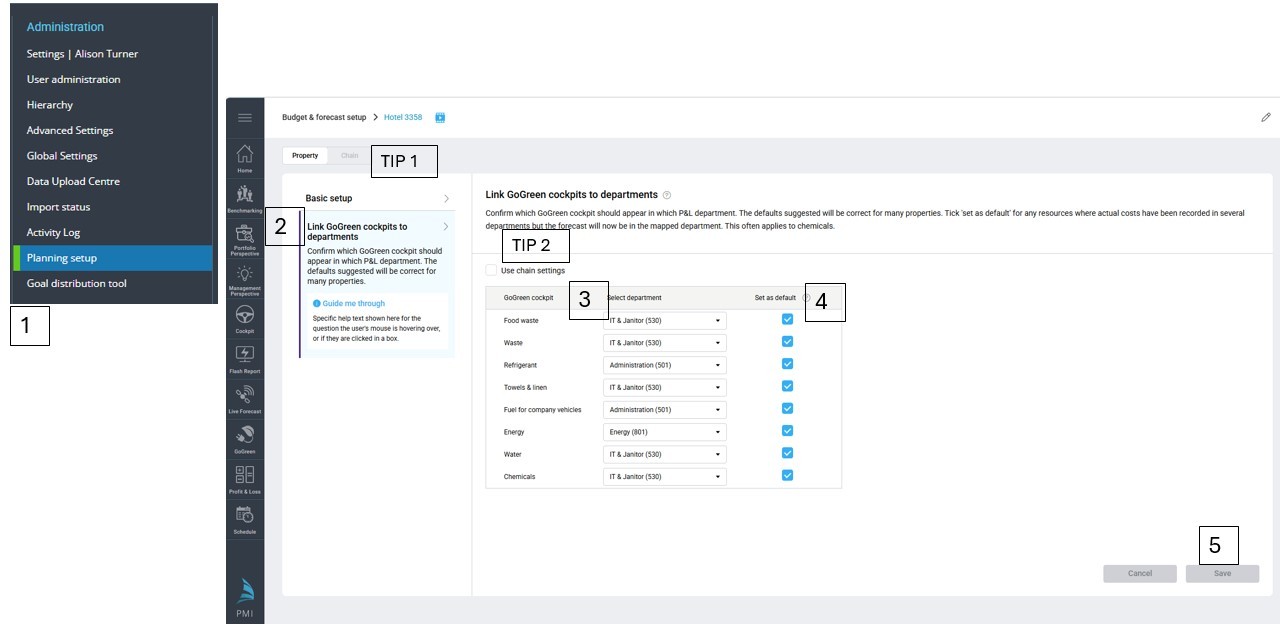
Image description: Planning setup module open at the setting ‘Link GoGreen cockpits to departments’ on the property page
TIPS:
- Set up the chain settings first with the most common mapping used by most properties
- Each property can review their setting. If the chain settings do not fit with how they forecast costs they should deselect ‘Use chain settings’, change and save settings just for their property.
Step 4. Schedule forecasting
This step is only required and available for chains that do not use PMI Planning.
If this screen is not available in Planning setup – and you do not use PMI Planning – please contact d2o support and request that tfhe ‘Auto-schedule forecast’ function is enabled for the property.
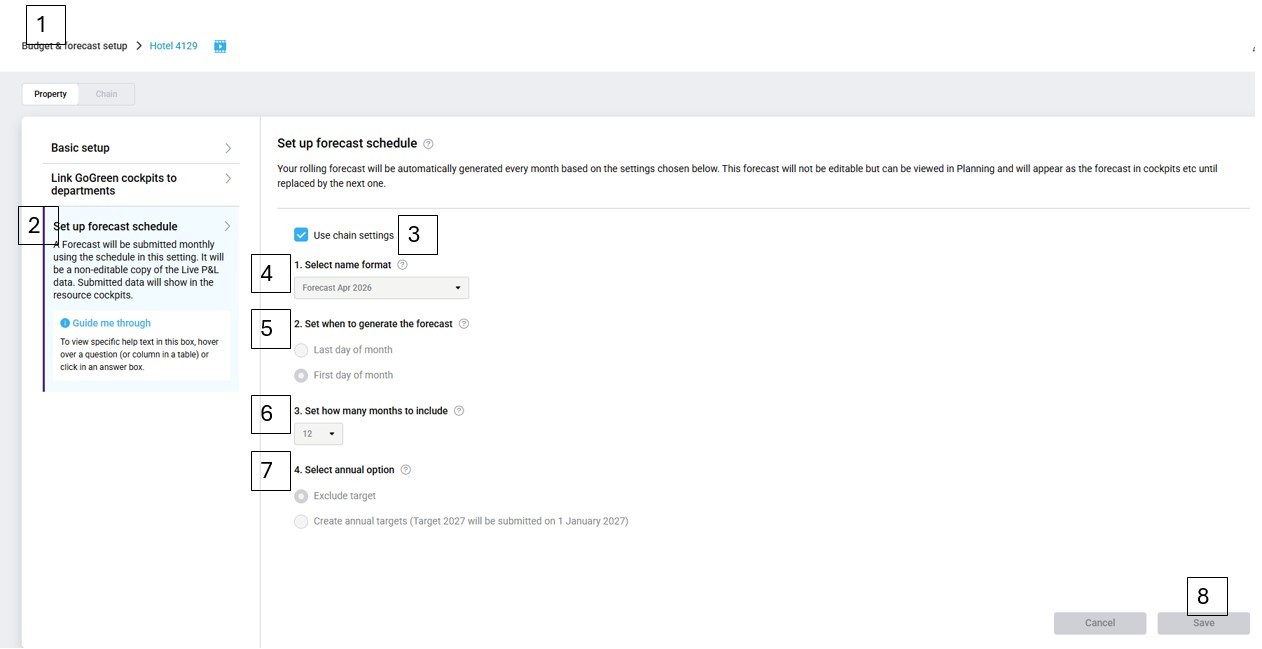
Image description: Auto schedule setting for properties without Profit & Loss module
1. This action requires users to have Controller or Administrator access (for property) or HQ level access for the chain setting. Open the Planning setup module
2. In Planning setup open the setting called Set up forecast schedule
3. These settings can be set at chain level (and each property can select the checkbox ‘Use chain settings’) or can be set for each property individually.
a. Note that the following settings are intended to be long-term settings for all future (monthly) forecasts and are not set each time just for the next forecast.
4. Select the format that the date will show in the version name; there are 3 options in the drop down. The month in the version name will be the month it was run.
5. Select when the forecast version should be run: on the 1st day of the next month or the last day of this month.
a. Forecasts will run at the end of the selected day, so that changes made to the Live forecast or Live P&L data during that day will be picked up in the new forecast version.
6. Set how many months should be included in forecast versions. Options are from 6 to 15 months.
7. There is the option to set up an annual budget. Regardless of when this is configured it will only run once a year at the end of the current year
a. It will use the same version naming as Question 1 (replacing ‘Forecast’ with ‘Budget or Target’
b. It will use the same date to run – 31st December (last day) or 1st January (1st day) – based on Question 2
c.. It will always run for a full calendar year regardless of the number of months in question 3.
8. Once the options are set, click Save.
Expected outcome
If there are any issues with the setup, see the Troubleshooting section below or contact d2o support to check initial settings for GoGreen planning
1. The GoGreen planning page should open and all the relevant GoGreen resources have their own planning page
a. Access through Budget and Forecast > GoGreen and use the navigation menu to select each resource under the mapped department (from Step 3)
b. There should be a consumption tab and cost tab for each resource unless valid exceptions were made (Step 2)
2. Each resource page will have both consumption and cost data showing in the tabs
a. Live P&L actual consumption and actual cost (if reported) when date period is in the past
b. Live P&L forecast consumption (from cockpit) and calculated forecast cost
c. If both cost and unit price are zero (0), this may mean there is missing actual data for consumption or costs
3. The Profit & Loss module will show the cost that has been calculated in GoGreen planning against each cost account mapped to the resources (Step 1). This is seen in the WiP forecast or WiP Budget
a. The cost account will only have data in the default mapped department (Step 3)
b. The same cost account in other departments will either:
c. Be locked and show ‘0’ if the checkbox ‘Set as default’ was selected for that resource
d. Be unlocked and available to edit/set formulas. This will not be linked to consumption
4. If auto-schedule is run, a Forecast will automatically be submitted on the selected date and will show in the GoGreen planning page
a. Date options are last or first day of the month so the expected outcome can only be seen after the selected date
Troubleshooting
Consumption data shows as zero (0)
- Check that the GoGreen cockpit for this resource has a Live forecast value. If this is also zero the issue is in the cockpit data, not GoGreen planning.
No cost accounts under the row ‘Total cost’ in the cost tab
- Check that the row ‘Total cost’ has been expanded to see all hidden rows
- Check if there is a warning banner informing that this resource does not have any accounts mapped. This may need updating in the Global chart of accounts.
The total cost is zero even though there is consumption.
- It is likely the unit price is also zero (0) in this instance. Unit price is calculated from the same month last year (or last available actuals). If there is no actual cost or actual consumption reported the unit price cannot be calculated.
- Chose the comparative option ‘Actuals ‘ which shows the last 12 months of available actuals. Check if there is actual consumption and cost for the correct month in that comparative data.
- Check that the cost data (in Profit & Loss) is in the same department as the resource mapping, or that the setting ‘use as default’ has been ticked to include costs from all departments (Step 3).
- If cost or consumption data is missing, request that actual data is updated into PMI for that month.
- If it is not possible to find or add cost and/or consumption data into PMI for past actuals, enter a unit price manually in GoGreen planning to forecast a cost.
The WiP forecast in Profit & Loss shows zero (0) for accounts that are in GoGreen planning
- Forecast costs will only be populated into the default department. If the account is in a different department and is locked this is becuase the setting ‘Set as default’ is ticked in the department mapping (Step 3)
- Select the default department (from mapped departments in Planning setup); the cost from Gogreen planning should be displayed there.
Edits made in the cost tab have been lost.
- Changing the department mapping for a resource will overwrite any edits on the cost tab (Unit price or Cost accounts). Reason: the cost is calculated from the cost accounts in the mapped departments; changing the mapping would give a new calculation which should be reviewed again.
- Before making changes to department mappings, we recommend exporting the cost page for the resource(s) that will be affected.
Warning messages in GoGreen planning
The following banners may display in the GoGreen planning page:
Live P&L is being recalculated. Refresh the page in 5-10minutes
- This happens overnight (10.00 CET) every night and also if a setting has been updated in Planning setup.
- The data will not refresh automatically on the page., even if the banner disappears. Refresh the page or return in 5 minutes.
Accounts are not set for . Update the Global chart of accounts!
- This will list any cockpits (resources) that have a planning page with cost tab but don’t have any accounts mapped to that resource (Step 1). This must be fixed in the Global chart of accounts to forecast costs for this resource.
- If this resource should not forecast costs, the cost tab – or whole planning page – can be turned off (Step 2).
Cross-references
The following articles give more information about the GoGreen planning page. It is recommended to read the top two articles in connection with this one:
- How to run a monthly GoGreen forecast
- Navigation and filters explained
Related features and modules
These settings will affect the GoGreenplanning module and mapped cost accounts in the Profit & Loss module.