
Objective
Pickup Statistics shows how your on-the-books (OTB) figures change over time. Use it to identify stronger and weaker stay dates, understand which segments explain the movement, and decide which assumptions to revisit in your Live Forecast.
This guide is for revenue managers, general managers and colleagues responsible for forecasting. Available departments, segments and controls depend on your property configuration and imported booking data.
Before you start
Confirm the property, department and stay period you want to review. Check that booking imports are current. Missing or incomplete snapshots can make a booking pattern look different even when the underlying business has not changed in the same way.
Keep two questions separate: how have bookings changed, and how much additional business do we expect? Pickup Statistics helps you investigate booking changes. The Pickup field in Live Forecast is used in the forecasting workflow and has different meanings depending on the measure and whether the date is past or future. See Pickup explanation for those calculations.
Open the view and choose a measure
Open Pickup Statistics from the main PMI menu or from Live Forecast where available. Select the property, department and period, then choose the measure that answers your question:
- Room Nights shows booking volume.
- ARR shows the average room rate.
- Room Revenue shows the revenue position.
Start with the Total segment, then select a segment to investigate its contribution. Additional group or market-code options depend on your setup.
Choose a display
- Graph – Dates helps you examine the pattern across stay dates in the selected period and identify dates that need attention.
- Graph – Accumulated compares this year’s OTB position with the corresponding position last year.
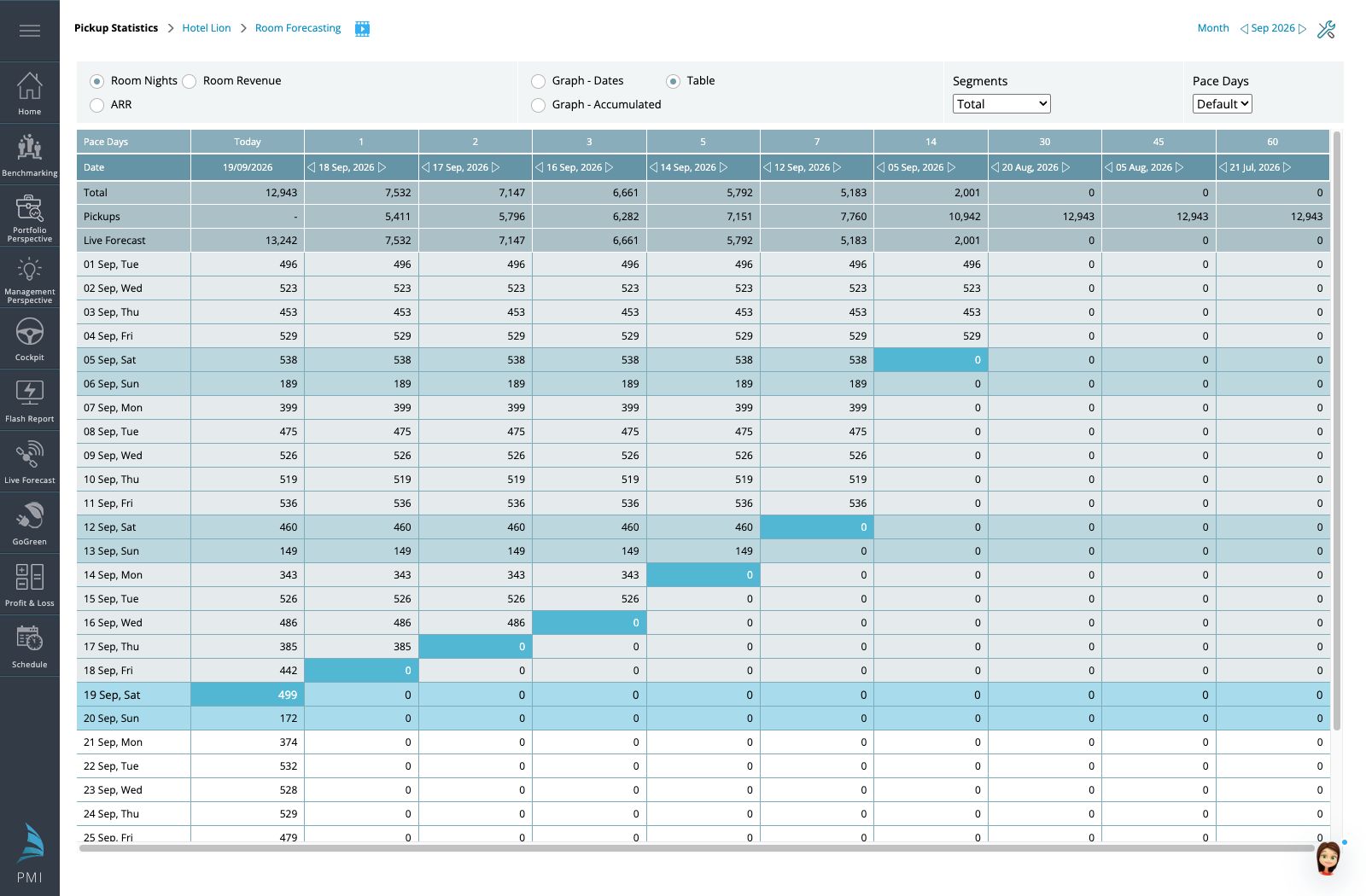
- Table lets you inspect the figures and snapshot dates behind the pattern.
Read the graph legend before interpreting a line or bar. Check the measure, segment, snapshot date and comparison period together; a change in any of these can change the comparison.
Read snapshot dates and Pace Days
The stay period identifies the business you are reviewing. A snapshot date identifies when that booking position was captured. Several snapshots can therefore describe bookings for the same stay period.
Pace Days sets the intervals used to compare booking positions. Read the displayed dates alongside the selected interval. In Table view, the Pace Days row and date headers show how far each snapshot is from the reference date. Check the actual dates rather than assuming the reference is always today.
For example, suppose you are reviewing November stays and the displayed snapshots are 6 October and 29 September, seven days apart. If the same property’s Total segment shows 420 room nights on 6 October and 390 on 29 September, the net change is 420 – 390 = 30 room nights. These are fictional figures. They describe booking movement between two snapshots for November stays, not stays during those seven October days and not the additional business still expected before November.
Review a booking pattern
- Start with the Total segment and one measure, such as Room Nights. Confirm the stay period and snapshot dates.
- Identify dates with stronger or weaker bookings in Graph – Dates, then use Table view to inspect the figures.
- Select individual segments to understand which business explains the movement.
- Review ARR and Room Revenue as well. Higher booking volume alone does not establish a better revenue outcome.
- Compare with last year using the intended booking horizon and a suitable date comparison. Consider whether weekday patterns or an event make the periods less comparable.
- If the evidence changes your expectations, return to Live Forecast to make and save the forecast adjustment.
For example, Demo Hotel A sees stronger room-night pickup for two weekends but little improvement on weekdays. The movement is concentrated in leisure business. The manager checks rates and revenue before revising the relevant forecast dates; the weekend improvement alone does not justify raising every day of the month.
Investigate unexpected figures
First check the property, department, stay period, measure, segment, pace interval and snapshot dates. Then check import freshness. If an older snapshot is missing or contains zero values, establish whether the booking history is complete before treating the difference as demand growth.
A net reduction in bookings can reflect cancellations or changes to existing reservations. Investigate the source before assuming a negative movement is an error. When another report shows a different result, align its scope and snapshot date before comparing totals.
Export for a review
Use the Excel export available in Pickup Statistics to support a review. Export controls and available formats can vary by interface and access. Record the property, stay period, measure, segment, snapshot dates and pace interval with the report so another reader can reproduce the comparison.
Related information
- Pickup explanation explains the Pickup field and calculations in Live Forecast.
- Segment OTB explains booked-business snapshots, segment comparisons and investigating differences between reports.