Objective
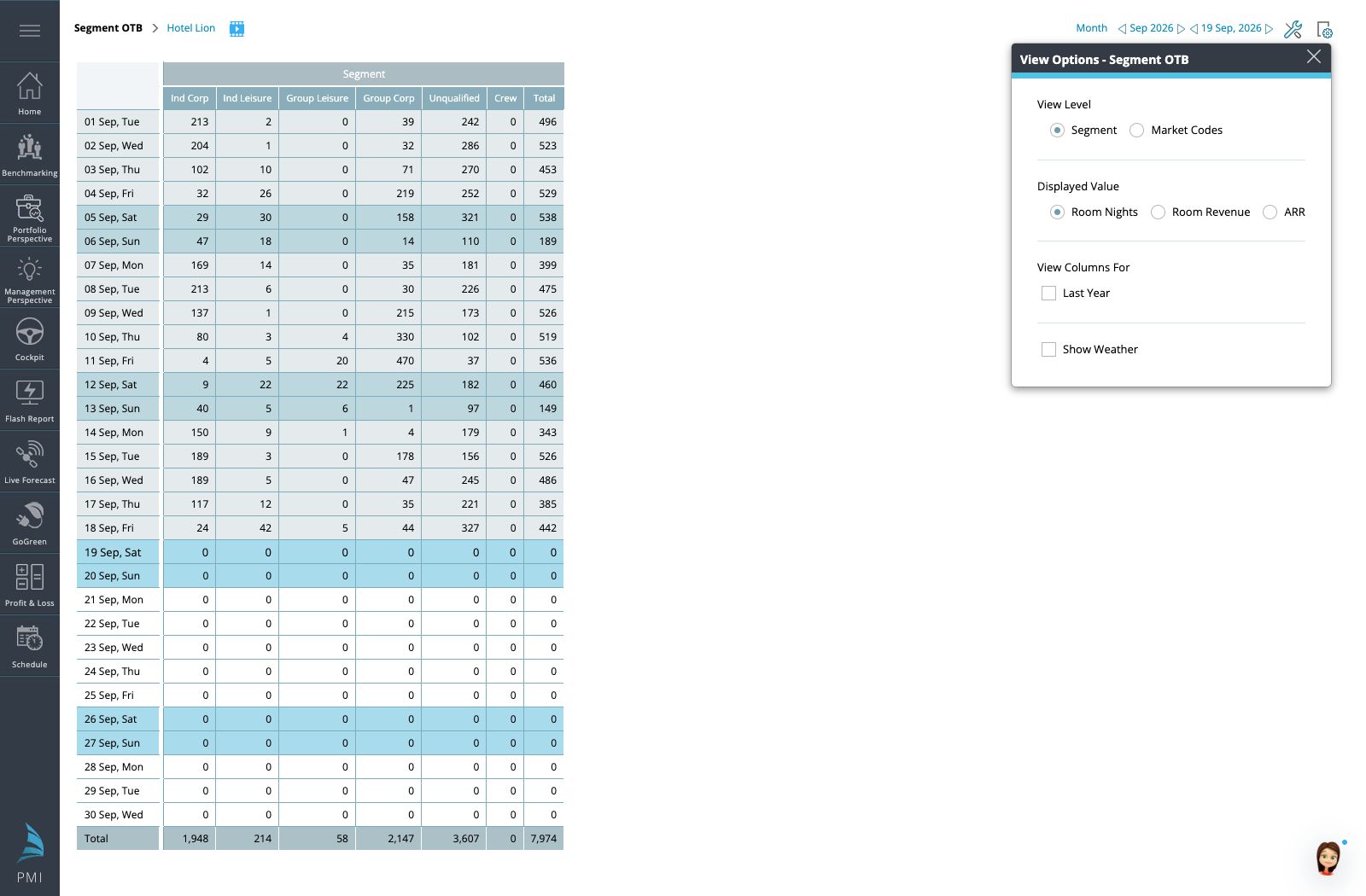
Segment OTB gives a snapshot of booked business for a selected period. Use it to understand the mix of bookings by segment, group or market code and compare the position with last year.
The report is read-only. It helps you investigate and interpret bookings; changes to source bookings and forecast assumptions take place in their respective systems or views.
Understand the two dates
The stay or reporting period identifies the business you are looking at. The snapshot date identifies when the booking position was captured. Both matter when comparing Segment OTB with Live Forecast or Pickup Statistics.
For example, two reports covering October can legitimately differ if one shows bookings captured yesterday and the other uses an older snapshot. Align the snapshot and scope before investigating a discrepancy.
Choose the display
Open Segment OTB and select the property or department. Choose Month, Months, Days or Year as appropriate, then select the reporting period.
In View Options, choose the grouping you need: Segment, Group or Market Codes. Then choose Room Nights, Room Revenue or ARR. Available groupings depend on the imported data and configuration.
When comparing with last year, select By Date for the calendar-date comparison or By Weekdays for the weekday comparison. Consider the purpose of the review: a weekday-driven business pattern may need a different comparison from an event tied to a specific calendar date.
Review the report
- Confirm the snapshot date and reporting period.
- Start with the total and select the measure relevant to your question.
- Review the segments or market codes contributing to that total.
- Add the last-year comparison and verify the chosen date basis.
- Check volume and rate together before drawing a revenue conclusion.
- Use the summary at the bottom to confirm the overall position.
Example
Demo Hotel A has more room nights on the books than last year but lower room revenue. The manager looks at the segment mix and ARR rather than concluding that the increase in bookings has improved performance. Any proposed forecast adjustment is then reviewed in Live Forecast.
Investigate differences
If a segment appears to be missing, check the grouping and source mapping with the responsible colleague. If values seem out of date, check Import Status. When another report differs, compare snapshot date, property, period, grouping and measure first.
OTB describes booked business at a point in time. It does not by itself include all the additional business you may expect before the stay date.
Export for a review
Use Tools to export to Excel or PDF where available. Include the snapshot date and selected comparison in the review notes so the exported report can be interpreted correctly.
Related information
View examples
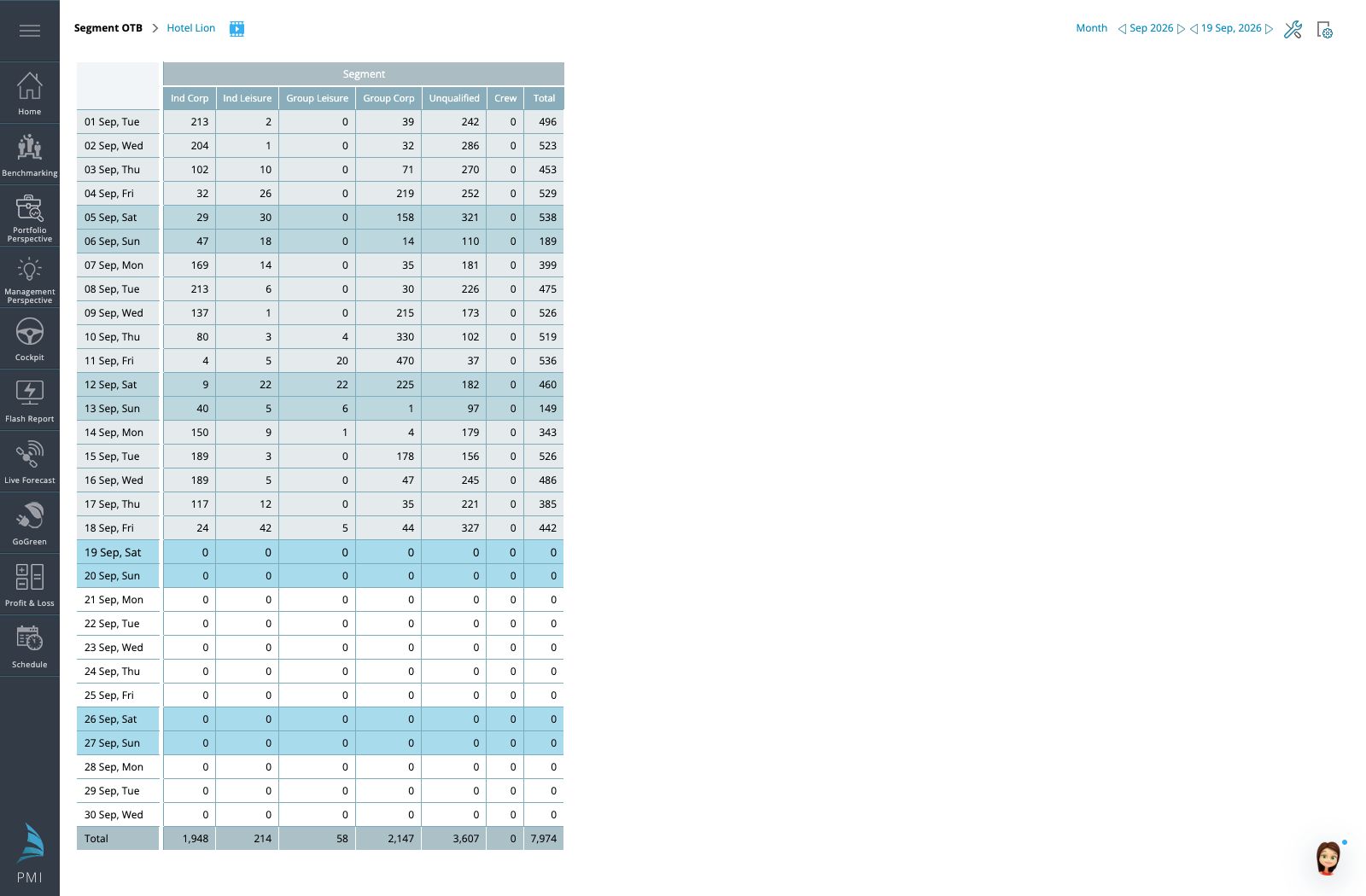
Figure 1. Segment OTB with daily values, segment columns and totals for the selected month.