
Purpose of this article
This article explains how Navigation and filters work on the NextGen planning pages in PMI.
It helps you understand how the page controls what data you see, which version you’re reviewing, and how your personal view settings affect the Data table.
It is useful to Heads of departments, Controllers and GMs who might be reviewing data in the planning pages as part of the monthly forecast cycle.
Concept definition
NextGen planning pages are new pages in PMI where you can review the monthly totals for your Live forecast data in preparation for the monthly forecast routine. It is a new part of the Budget & Forecast module, currently available for GoGreen Planning.
The top section of the planning page controls:
- Which resource you’re viewing
- Which version of data you’re reviewing
- Which dates are included
- How the Data table is displayed
This article explains each of these features as shown in the following screenshot.

Image description: Features of the page header on NextGen planning page
1. PMI view switch
The PMI view switch allows you to return to the old Budget & Forecast view.
Any unsaved changes on the page must be saved before switching.
2. Navigation menu
Each cockpit has its own planning page, called a resource.
Resources are linked to the departments based on where the costs should be forecast. For example, the resource Energy may sit under the department ‘Energy’. Use the navigation menu to select the required resource to open up that planning page.
You can find a resource in three main ways:
- Select the division, then department, then resource (click on each to move to the next level of the menu)
- Use the search bar to search by resource name
- Select All departments in the department list to see a full list of resources
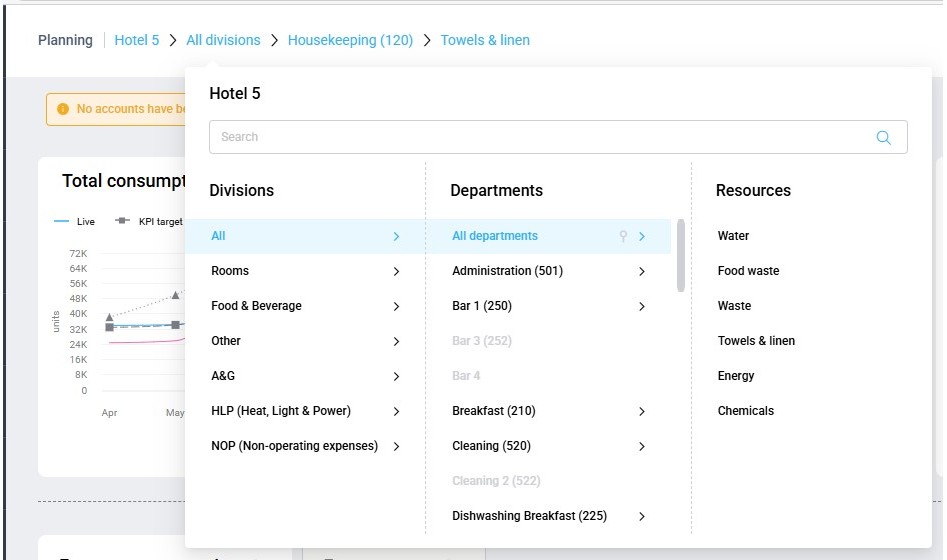
Image description: Menu for navigating to departments and their resource page(s)
3. Energy resource filter in GoGreen planning
In GoGreen planning there is also an Energy resource filter which appears only when you’re on Energy.
The default selection is All, which shows the Energy summary page. For each type of data row in the table (eg consumption, cost, unit price):
- there will be a row of data for each resource
- There will be a ‘Total Energy’ row which is the sum of all the resources
If you select a single resource in the filter (for example, Electricity), the page updates to show data only for that resource.
TIPS:
- Choose single resources for a focused review of each one.
- Choose ‘All’ to see the total costs which will be forecast for Energy.
4. Data version
The Data version dropdown determines which dataset you’re viewing in the data table and charts.
Available options typically include:
Live P&L – Updated daily from Live forecast GoGreen consumption. Shows expected cost based on forecasted consumption/productivity etc.
Forecast (or Budget/Target) – Previously submitted forecasts, in date order, most recent version at the top.
Once a monthly forecast is submitted, it appears as a new version in the list. These are snapshots of the data at the time of the forecast and are read-only.
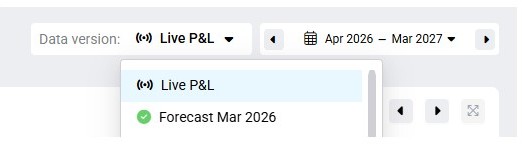
Image description: Version selection drop-down in NextGen planning pages
5. Date picker logic
The Date picker controls which months are displayed in the data table.
By default, it aligns with the selected version. However, you can choose other date ranges. The default selection is:
- Live P&L will default to 12 months starting next month.
- A submitted forecast will default to the dates that were part of the forecast.
To view past Actuals:
- Select Live P&L
- Choose past dates in the date picker
The column section header will display whether the months you are viewing are Actual, Live or Forecast data.
The date picker allows you to select a single month, multiple months or a single year.
- For multiple months, click the start and end date in the calendar view to create the range you want.
- To change just the start or just the end click on the new month and click off the date picker to confirm that change.
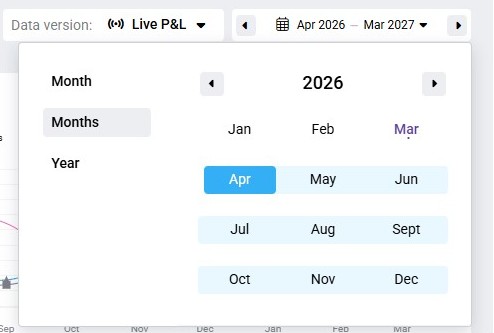
Image description: Date picker allows user to select which months to view
6. Personal view options logic
The Personal view options setting controls how the Data table appears for you. These settings are user-specific and will apply to all planning pages in this module.
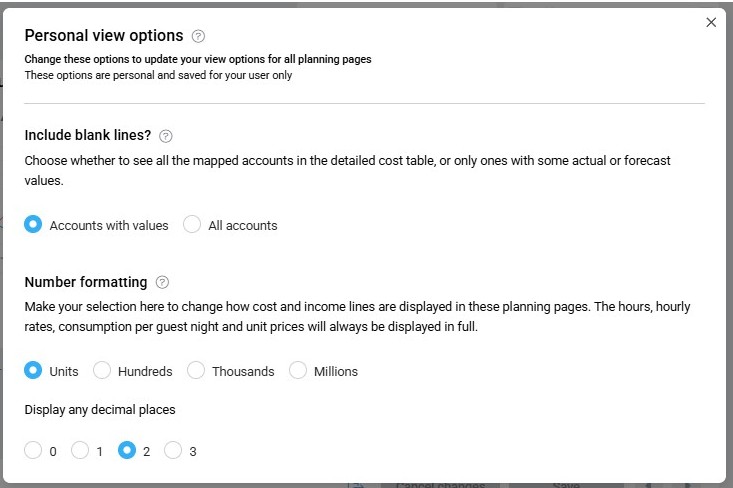
Image description: Personal view options allow user to set how cost rows and accounts should be displayed
Two important options:
1. Cost account visibility (Include blank lines)
By default, cost accounts appear only if they contain values in the selected version.
If you select All accounts, PMI also shows related accounts with no values (or zero).
Why this matters:
Seeing all accounts helps you identify missing data or inactive accounts.
2. Number formatting
Number formatting applies only to financial numbers, such as:
- Total cost
- Cost accounts
This allows you to adjust how values display to make viewing the data on the page easier to read. Choose the setting that best represents the scale of your data.
For example, it is recommended that if displaying in thousands or millions to include at least 2 decimal places to see values that are less than 1000 or 1000000.
Example
- Cost value is 927
- Display in Thousands with 0 decimals would show as ‘0’
- Display in Thousands with 1 decimal would show as ‘0.9’
- Display in Thousands with 2 decimals would show as ‘0.93’.
- Display in Thousands with 3 decimals would show as ‘0.927’.
Regardless of the setting in personal view options, editing values is always done in units with max 2 decimal places.
7. Warning banners
Warning banners may appear in the top section if:
- There are issues with settings
- PMI is recalculating a forecast
These banners alert you that values may temporarily change or require attention.
TIP: For the recalculation banner, please refresh the page before making edits to ensure that all values have finished recalculating
Cross-references
For other explanations about specific GoGreen planning or general inforamtion about the NextGen planning pages see the following articles:
- Overview of GoGreen planning
- Data table explanation
- How to edit a GoGreen plan
Related features and modules
This concept currently applies to:
- GoGreen planning pages