
GoGreen Period locking allows you to control when actual consumption data (e.g., electricity, gas, chemicals) can be edited in PMI, and when imported data should be prevented from updating a period. This ensures finalized data is protected while still visible for review.
In addition to standard period locking, Full lock can be enabled for selected GoGreen resources. Full lock blocks imported data from updating locked periods, helping protect finalized data while allowing imports to be processed again automatically when the period is reopened.
Objective
By the end of this guide, you will be able to:
- Update GoGreen lock status at the chain level.
- Create or edit property exceptions.
- Save changes to reflect in the Period locking overview.
- Understand how period locking affects imports, mappings, and Import Status.
Prerequisites
- GoGreen admin role with chain-level access.
- Users with GoGreen only role and GoGreen user additional role can view lock status but cannot edit.
Full lock (imports)
Full lock extends standard period locking by preventing imported data from updating locked periods for selected GoGreen resources.
Unlike standard period locking, Full lock also prevents imported data from updating a locked period. This helps protect finalized data while allowing imported data to be processed again automatically when the period is reopened.
This is useful when actual data is managed externally and should not be changed by incoming interfaces once a period is locked.
Keep the following in mind:
- Full lock is configured at chain level.
- It applies only to the selected GoGreen resources.
- Once enabled and saved, it cannot be disabled.
- Reopening a locked period reloads imports and overwrites any manually entered values for that period.
Configure Full lock
Step 1. Enable Full lock (chain level)
- Go to Advanced settings > Period locking.
- Click the Settings (cog icon) in the top right.
- On Chain settings, click on Show more to open the Full lock setting.
- Select the resources where imports should be blocked when locked.
- When enabling Full lock for a resource, a confirmation message explains that Full lock:
- Blocks imported data while periods are locked.
- Reloads imports and overwrites manual values whenever a locked period is reopened.
- Cannot be disabled once it has been enabled.
- Select Continue to enable Full lock or Cancel to keep the current setting.
- Click Save.
Note: Once Full lock has been enabled and saved for a resource, it cannot be disabled. The setting applies to the entire chain.
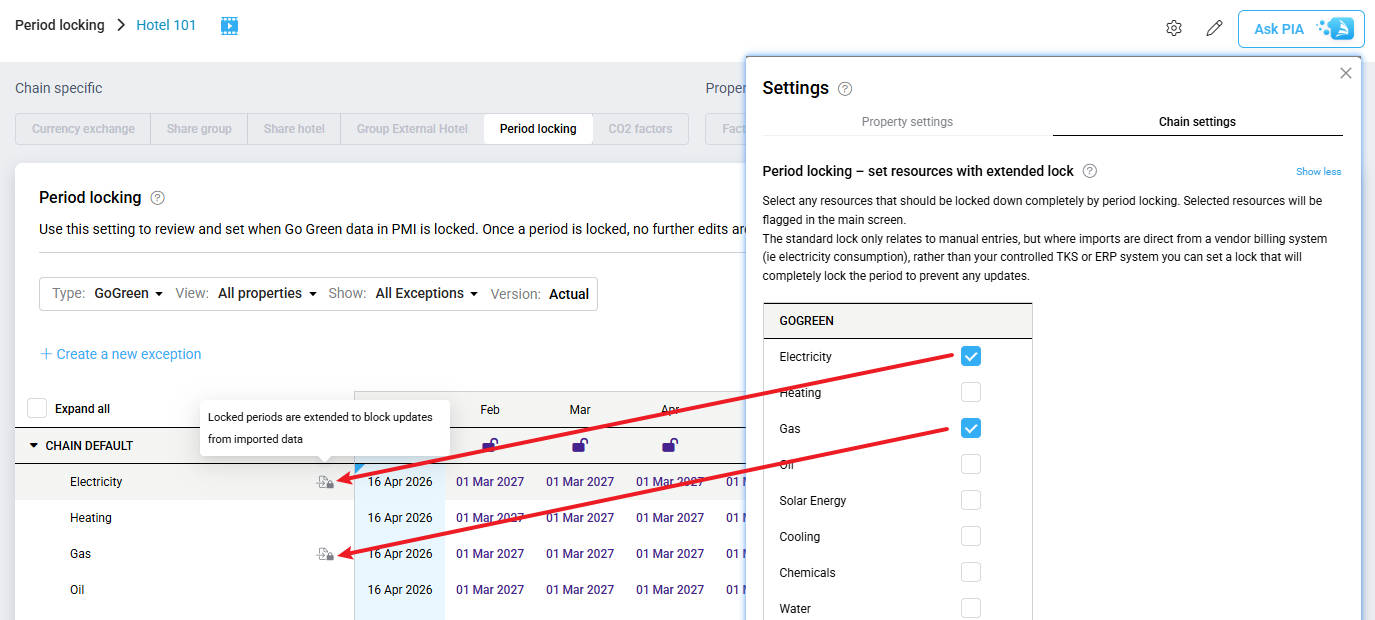
Image: Image: Chain settings & extended lock icon
Step 2. Identify resources using Full lock
- Resources using Full lock display a Full lock icon throughout Period locking, including both the overview page and the edit popup.
- Hover over the icon to see: “Locked periods are extended to block updates from imported data”
Chain-level locking
Step 1. Navigation
The chain default defines the standard lock timing for the whole chain. If no exceptions exist, all properties follow these dates.
- Go to Advanced settings > Period locking.
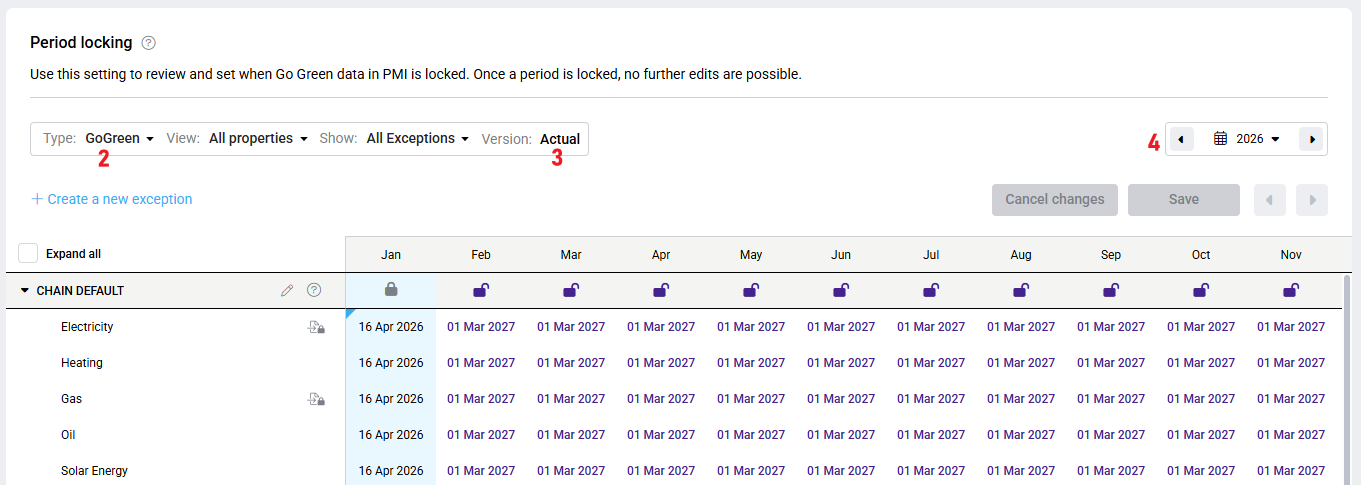
Image: Period locking main page showing Type, View, Version, and Year dropdowns
- Select the Type: GoGreen.
- Users with GoGreen admin role will see GoGreen by default.
- Actual is the only version available.
- Use the date picker to select the year.
Step 2. Edit periods on the main table
- Review the chain default lock dates for each period.
- These are the baseline for all properties unless exceptions are created.
- GoGreen sources with lock dates per source and month are clearly displayed.
- Resources with Full lock enabled display an icon in the resource row to indicate that imports will also be blocked when the period is locked.
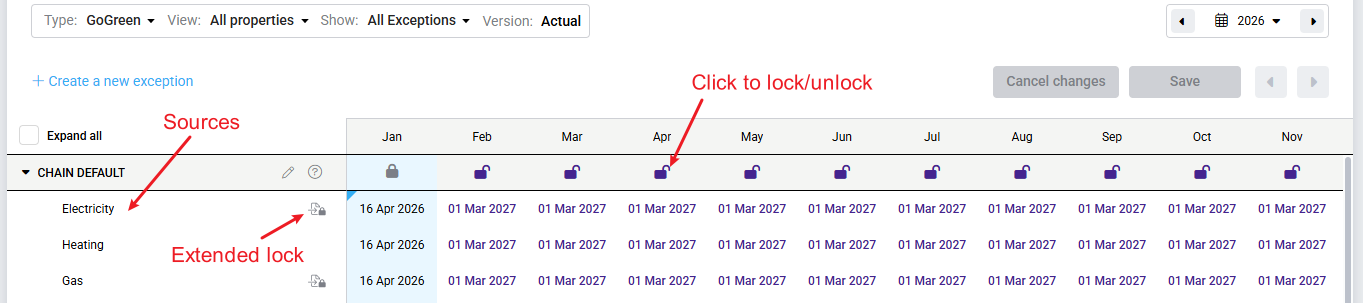
Image: Chain-level padlocks for GoGreen resources
- To perform an instant lock/unlock per month for all data typessources, single-click a lock for a period in the chain header row.
- When unlocking a period, the next day’s date will be set as the default relock date[EH.
Step 3. Edit periods using the edit popup
- Click the pencil icon next to the chain row to:
- Change a lock for one single month or all months in a year.
- Change a lock for only one source (e.g. water, electricity, etc).
- Edit the lock date to a future date other than the default.
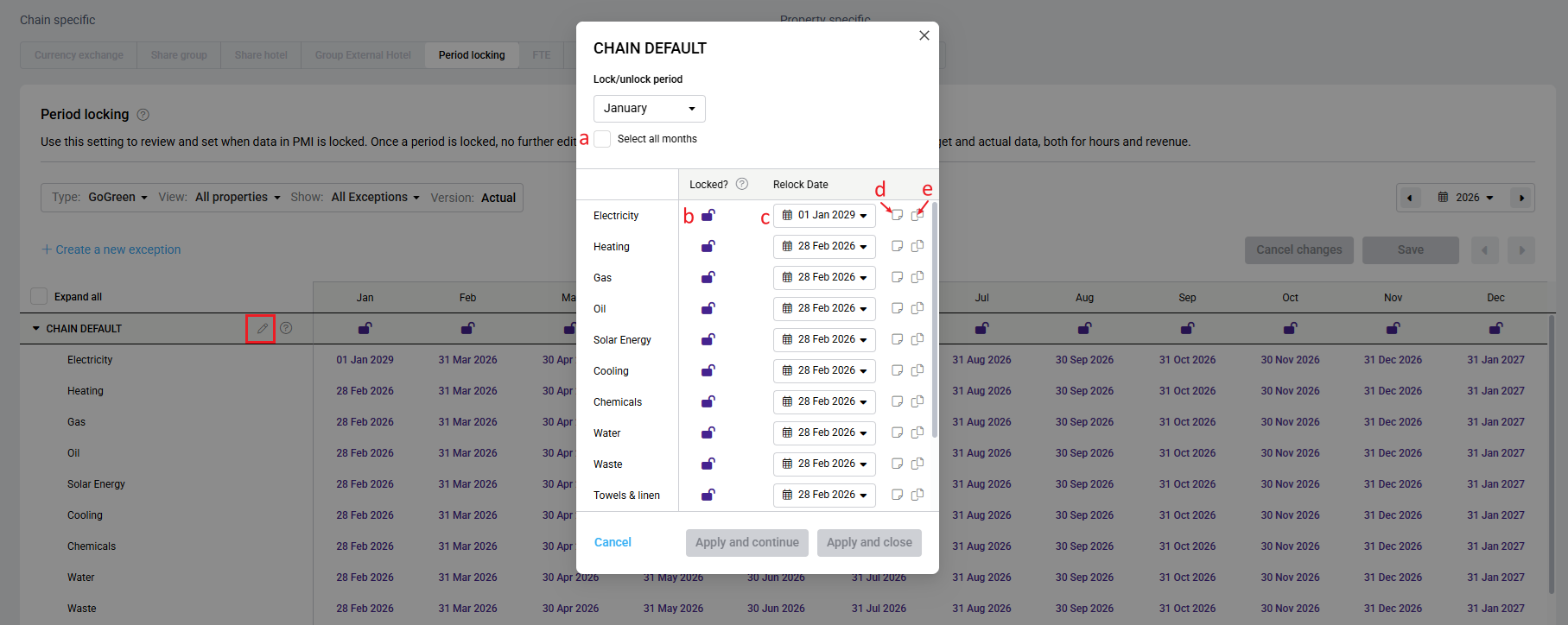
Image: Edit popup overview
- In the popup:
- Select the month to edit, or use Select all months for the whole year. (a)
- Click the Lock icon on a source to lock or unlock the period. (b)
- Adjust the Relock date if needed (default is the next day). (c)
- Click the Note icon to add a note if unlocking a locked period (mandatory for audit purposes). (d)
- To copy the same change to all the other sources, click the Copy icon. (e)
Note: When Select all months is selected, the same settings are applied to all months for all sources. Any source not edited will default to the settings of the chosen month.
- Apply your changes:
- Apply and Continue –keeps the popup open to continue editing other months.
- Apply and Close –closes the popup.
- Save your changes on the page:
- Click Save to save all changes made on the page.
- Click Cancel to cancel all changes.
- Exiting the page or changing the year without saving will display a confirmation popup.
- Chain-level changes immediately update all properties that do not have exceptions.
Note: When you lock a period, the date is highlighted with a blue background. This highlights all changes made today, and will be cleared the following day.
Hovering over a lock/relock date will display a tooltip with last saved information.
How Full lock behaves
When a resource uses Full lock:
- Locking a period:
- Prevents manual updates (standard behavior).
- Prevents imported data from updating that period.
- Reopening a locked period:
- Reloads all available imported data.
- Processes any imports that were previously blocked by the lock and overwrites manually entered values.
Note: Once a chain-level period is locked and reaches its lock date, it cannot be unlocked at chain level. To make changes after this point, create a property exception and unlock the period at property level.
Property exceptions
Use property exceptions when a single hotel requires different lock dates than the chain default.
Exceptions help you avoid opening a period for the whole chain when only one property needs access.
Step 1. Adding exceptions for specific properties
- Click Create a new exception above the table.
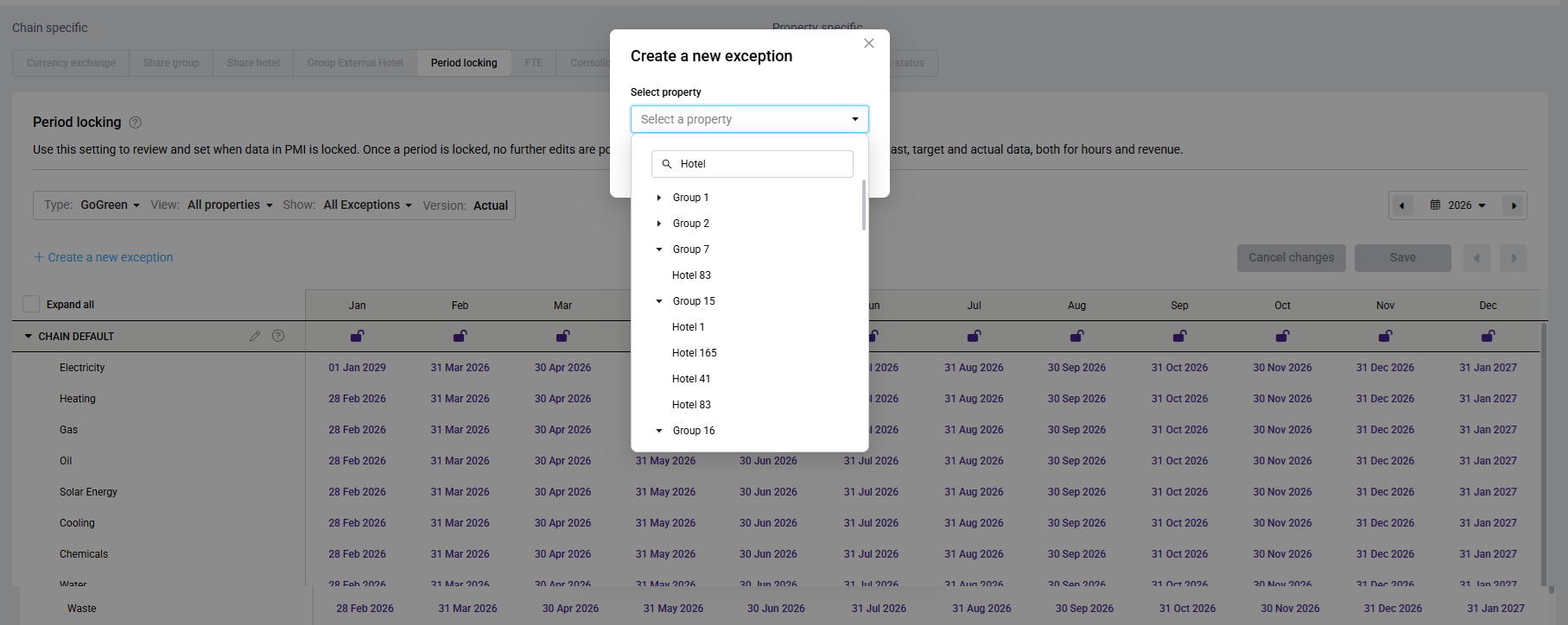
Image: Create new exception button and popup
- In Select property, find the hotel by typing in the search box, or expand a group and select the hotel.
- If a property already has an exception, selecting it opens the existing settings for editing. No duplicate will be created.
- In the exception popup:
- a – Select the month to edit, or use Select all months for the whole year.
- b – Click the Lock icon on a resource to lock or unlock the period. Changing the relock date of a locked period will also unlock the period.
Note: If you unlock a period for a resource using Full lock, PMI displays a warning explaining that reopening the period will reload imported data and overwrite any manually entered values for that period. Only continue if this is the intended outcome.
-
- c – When unlocked, adjust the Relock Date if needed (default is the next day).
- d – Click the Note icon to add a note if unlocking a locked period (mandatory for audit purposes).
- e – To copy the same change to the other sources, click the Copy icon.
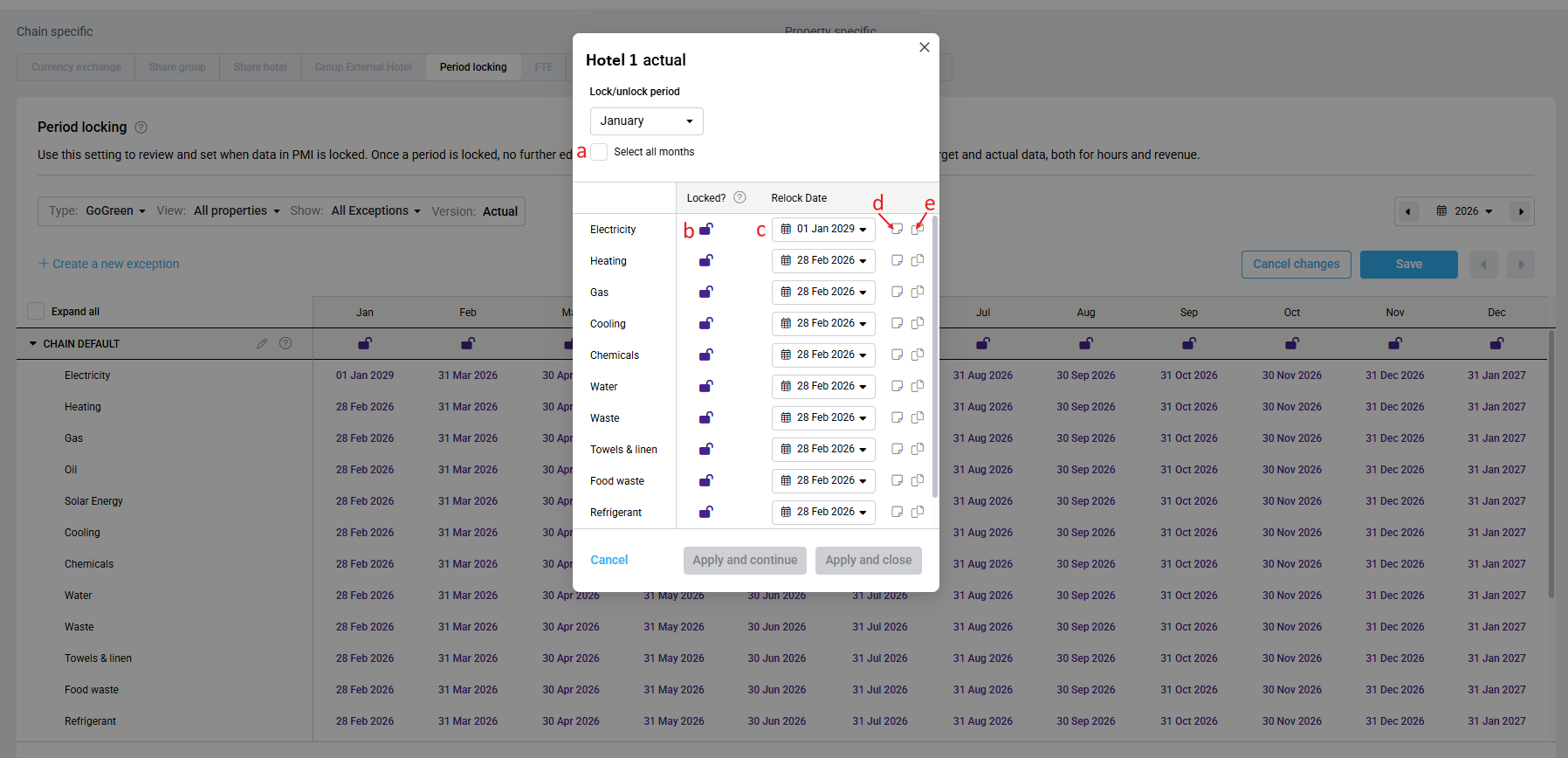
Image: Exception popup with lock, relock, note, copy
Note: When Select all months is selected, the same settings are applied to all months for all sources. Any source not edited will default to the settings from the chosen month.
- Apply your changes:
- Apply and Continue – keeps the popup open.
- Apply and Close – closes the popup.
- Save your changes:
- Verify that the exception appears below the chain settings.
- Click Save to save the exception and adjustments.
- Click Cancel to cancel the exception and adjustments.
- Exiting the page or changing the year without saving will display a confirmation popup.
- Click on the pencil icon to edit an existing exception.
- To remove an exception, click the Delete icon next to the property. It will revert to the chain default lock dates.
- To perform an instant lock/unlock per month for both source, single-click a lock for a period in the exception header row.
- When unlocking a period, the next day’s date will be set as the default relock date.
Note: Months in italic and a paler colour are not edited in the exception and will still follow the chain defaults.
Full lock in property exceptions
Locking a period for a resource with Full lock enabled will:
- Prevent manual updates (standard behavior)
- Prevent imports from updating actual data for that period
Unlocking a period will:
- Allow imports again
- Automatically process any previously blocked import data
Note: Once a chain-level period is locked and reaches its lock date, it cannot be unlocked at chain level. To make changes after this point, create a property exception and unlock the period at property level.
Expected outcome
- The months you changed use the exception’s lock settings.
- Any months you did not set continue to follow the chain default and will be shown in italic.
- Today’s changes are highlighted with a blue background.
Impact on Import Status
When Full lock is enabled, period locking directly affects how imported files are processed.
Import results when periods are locked
If a file contains both locked and unlocked periods:
- Status: Partial update
- Only data for unlocked periods is imported
If all data in the file is for locked periods:
- Status: Not updated in PMI
- Information: Period locking restriction
Additional indicators
Import status includes a Period lock column when GoGreen is activated for a chain/property.
A lock icon identifies data that could not be imported because of a locked period.
For newly mapped GoGreen accounts, the same indicator is displayed whenever imported data falls within a locked period.
You can click the icon to open the relevant period locking view
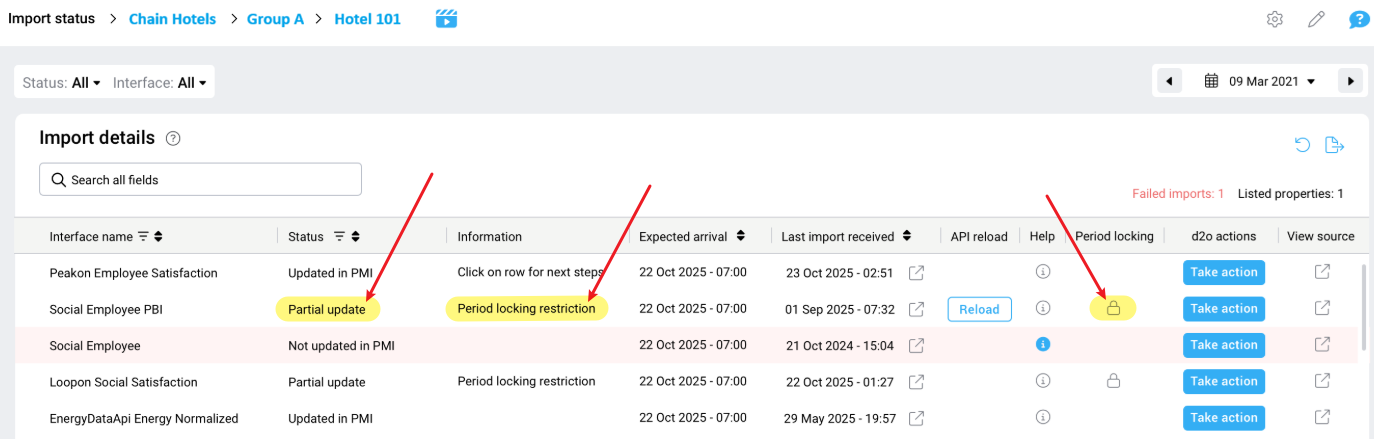
Image: Import Status page showing Partial update and Period locking column
View imported data for locked periods
To see how period locking affects imported data, click the View data icon on an import file.
In the data view:
- The left side shows the source data from the file. (a)
- The right side shows the imported (transformed) data in PMI. (b)
For rows where the period is locked:
- No data is shown on the imported (right) side (c)
- These rows are not processed due to period locking
- A lock icon is displayed for all rows where data was not imported (d)
Click the lock icon to:
- Open the Period locking page in a new tab and navigate directly to the relevant period and resource
This helps you quickly identify which data was blocked and take action if needed.
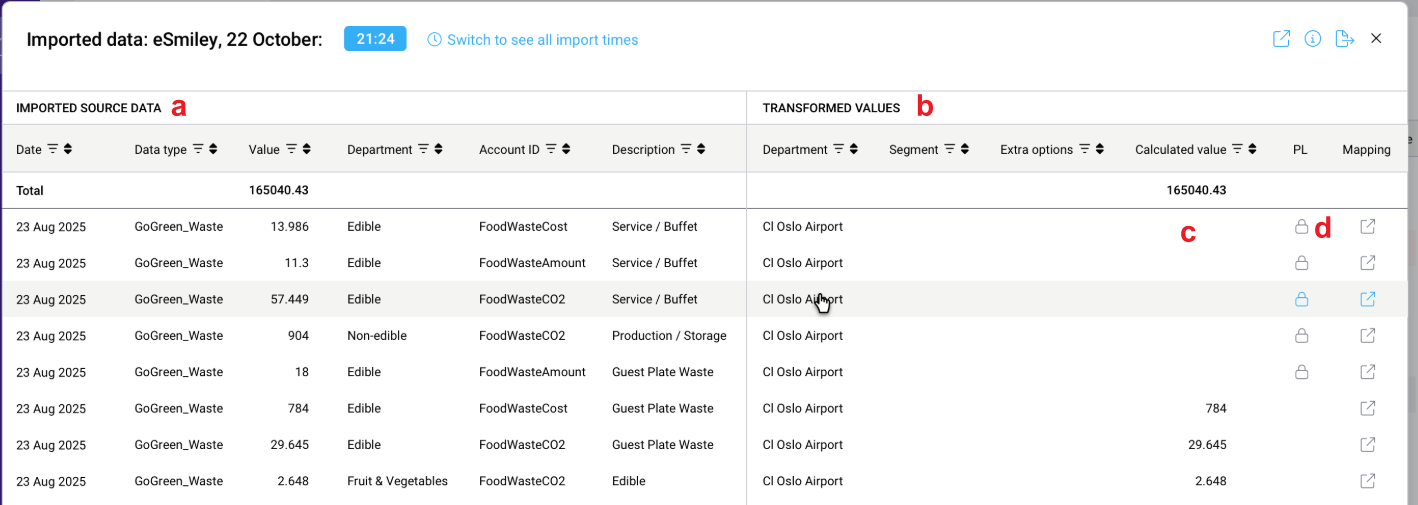
Image: Import data view
After unlocking a period
- Previously blocked data is automatically processed
- Import status updates accordingly
Impact on mapping
Full lock also affects how GoGreen account mappings interact with locked periods.
Creating new account mappings
New GoGreen accounts can be mapped even when locked periods exist.
If one or more new mappings belong to a resource using Full lock, PMI displays a warning when you click Save.
The warning explains that:
- The new mappings will be saved.
- Data for locked periods will not be imported.
- Each affected GoGreen resource and its locked period are listed.
You can then:
- Select Apply and Save to save the mappings.
- Select Close to return to the mapping page without saving.
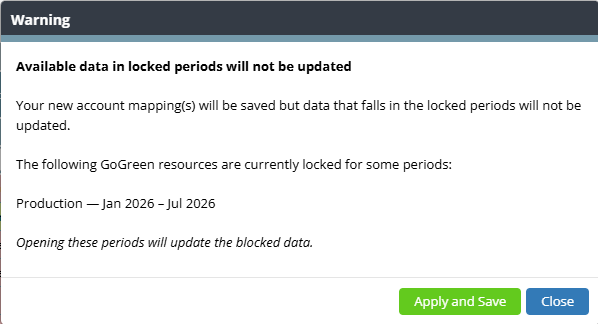
Image: Information message regarding Full lock data in locked periods
Editing existing mappings
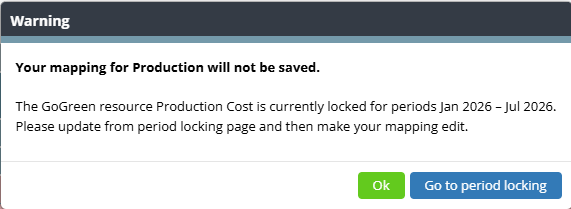
When changing an existing account mapping, locked periods must first be excluded from the mapping by defining the appropriate date range.
If the mapping still affects locked periods:
- The mapping cannot be saved.
- PMI displays a warning identifying the affected GoGreen resource and locked period.
- Open the required periods in Period locking, OR update the mapping “from/to dates” so that locked periods are excluded before saving the change.
Key points to remember
- When you lock or unlock a period, the date is highlighted with a blue background. This highlights all changes made today, and will be cleared the following day.
- Hovering over a lock/relock date will display a tooltip with last saved information.
- Locked periods prevent manual entries for GoGreen.
- Full lock prevents imported data from updating locked periods.
- Reopening a locked period reloads imports and overwrites any manually entered values.
- Once enabled, Full lock cannot be disabled.
- Full lock is configured at chain level and applies to selected GoGreen resources.
- All changes are tracked in the Activity log with user, date, time, and note.
Note: Align chain-level lock dates with your data entry and review processes to ensure data is complete before periods are locked.