
Each week, the Rooms Live forecast should be reviewed to ensure that the Live forecast for the coming weeks is realistic. This process consists of 3 simple steps:
Which upcoming days look unusual and need a manual check?
Start with explicit sense-check alerts and the largest material differences in the selected upcoming dates. Compare Live forecast with the relevant OTB, Forecast and other displayed references on the same units and revenue basis.
Review dates affected by events, holidays, closures, reopening or capacity changes even when no alert is shown. An alert identifies something to investigate; it does not prove that the forecast is wrong. Conversely, no alert does not establish that every operating assumption is correct.
For each shortlisted day, record the signal, the expected operating situation and the evidence needed to decide whether to keep or adjust the forecast. Check import information when it is relevant, and distinguish a forecast change from an incomplete source delivery.
Prioritise days where a supported change would affect staffing, purchasing or another imminent decision. A large percentage on a small base may be less important than a smaller percentage affecting substantial revenue or workload. Retain justified forecasts and adjust only where the evidence supports a change.
If PIA receives only selected or limited daily details, its shortlist covers those supplied dates. It should not describe that as an exhaustive review of the entire future forecast.
Review:
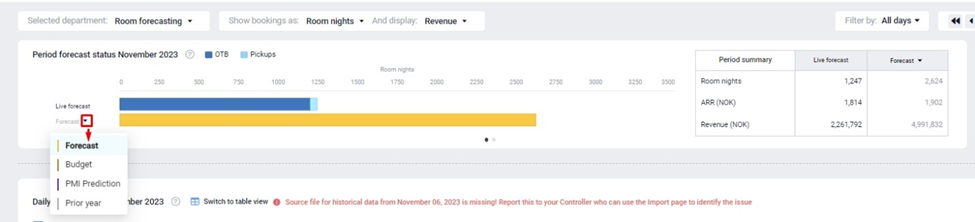
Review the Live forecast at period level compared to the Forecast, Budget, PMI Prediction and Prior year. Look at the past week and ahead at the next 3 weeks. Evaluate if the Live forecast is as expected, or if adjustments are needed.
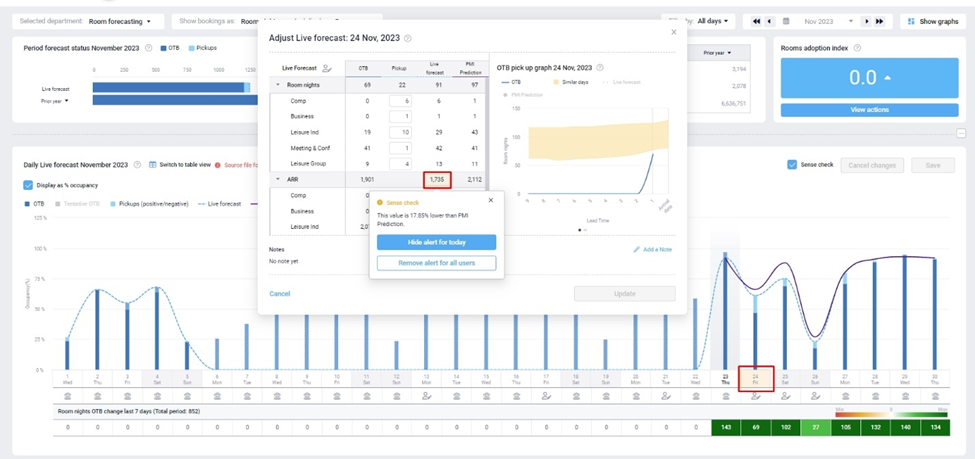
Review at daily level using the sense check function:
View the main graph which shows the Live forecast at a daily level. The sense check highlights days that have unusual Live forecast values, compared to historical trends.
Click on a day with a highlight to view the day’s data and sense check comments. Review if any changes need to be made.
- If no changes are needed, you can opt to hide the alert, and it will be hidden for the remainder of the day. It will reappear the next day if it is still relevant.
- Select ‘Remove the alert for all users’ if you do not want to show the alert again.
- If you want to adjust a value, or keep the alert active, simply close the pop-up window.
Adjust:
Make changes by adjusting the pickup values. Here you can add or subtract from the on the books value to get your Live forecast total for the day.
If your Live forecast uses auto-PMI, deactivate the automation for the day by selecting the robot icon. This allows you to manually override the automated values for this day.
Save:
Remember to press Save/Update when you have finished making changes.