
Purpose
This article gives an overview of the GoGreen Planning pages in PMI, used for forecasting GoGreen consumption and their related costs.
It gives an overview of the different screen elements in the prepopulated screen. Throughout the article there are links to other articles which give deeper understanding or detailed instructions on specific features.
Note that the GoGreen planning page may need some configuration first, which is done in the Planning setup module. TIP: See article ‘How to setup a GoGreen plan’ for instructions on this.
User roles and responsibilities
This article is relevant to:
Controllers and General Managers with responsibility for monthly financial forecasts
Heads of department with GoGreen responsibilities or users with the role “GoGreen user”
Use case
What is GoGreen planning?
Planning is a module that supports the GoGreen cockpits with financial elements for environmental targets.
This module is prepopulated using the latest Live forecast consumption along with cost estimates based on historical financial (P&L) data. This version is called ‘Live P&L‘ and is the basis for the monthly forecast.
Planning process overview
The new planning module follows the same principles as other financial process in PMI with a permanently available WIP version (called Live P&L). The steps of the process are:
1. Finance view the cost data in the Profit & Loss module under WiP forecast to see the pre-populated GoGreen costs.
2. GoGreen owner or Controller can also view the Live P&L version for each resource in the planning page with pre-populated data to
a. Review consumption and calculated costs, if shown
b. Edit data only if required for more accurate forecast
3. Costs link straight to the Profit & Loss page in PMI ready for monthly forecasting
4. Monthly submitted Planning forecast includes GoGreen cost forecast
a. Submitted version also submits consumption and cost back to cockpit pages
b. Submitted version viewable in GoGreen planning page
Key features: overview of GoGreen planning module
The planning screen is accessed from the Budget & Forecast page.
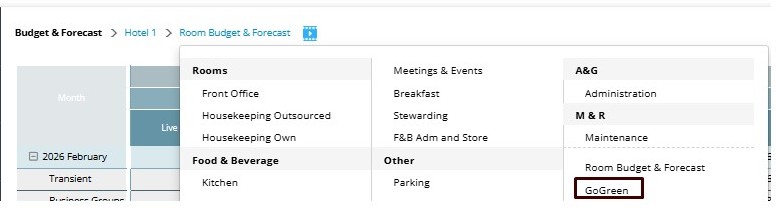
Image description: From Budget/Target & Forecast menu, click GoGreen option to open GoGreen planning page
This document continues with notes on each of the numbered screen elements from the image below. Remember you can also get similar information in the screen at any point by selecting the question mark icon for the element you are interested in.
There are also links to other articles for more details on each feature.
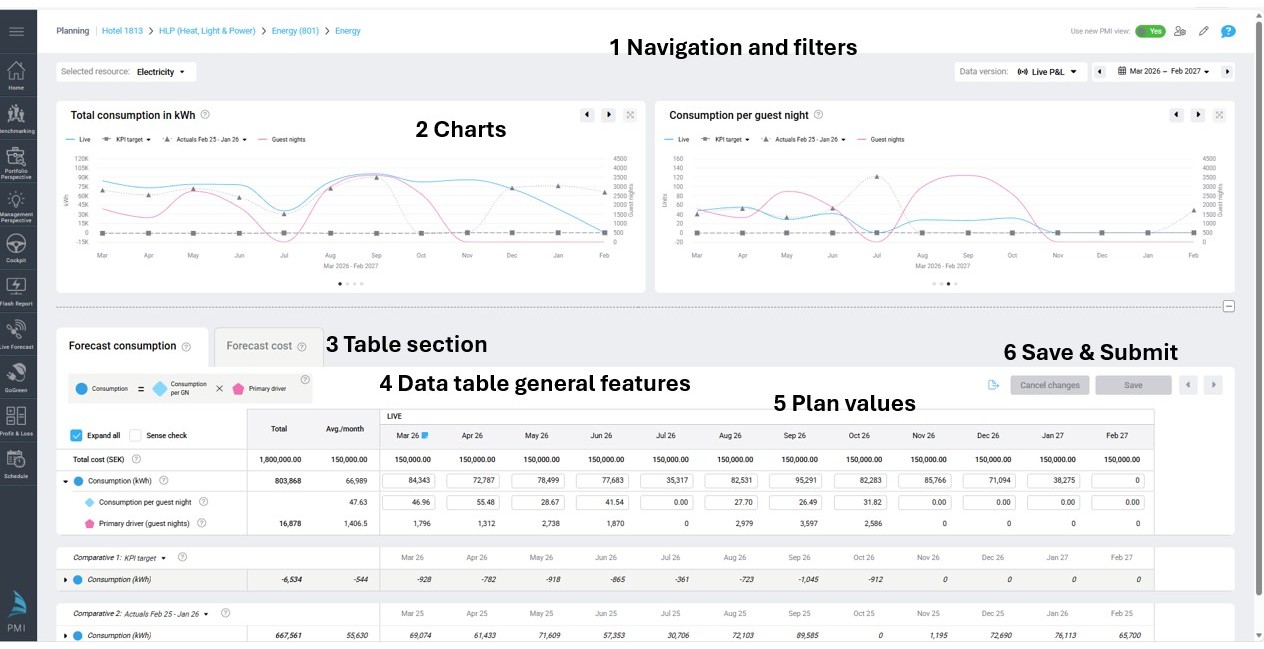
Image description: Main features of the GoGreen planning page
The planning screen works in the same way for any kind of plan available. There may be different versions of plans, called Live P&L, budget, forecast or target so we have used the term ‘version’ throughout this text as a generic term.
1.Navigation and Filters
The top section of the page contains the navigation, filters and personal settings.
Warning banners may also appear in this section if there are issues with settings or if PMI is currently recalculating a forecast.

Image description: Header area of GoGreen planning page
Features include
1a. Navigation menu. Each GoGreen resource has its own planning page listed under the department it has been mapped to.
1b. PMI view switch.Click the switch to return to the old Budget & Forecast view.
1c. Energy resource filter.This filter only shows when the page is on Energy. The default is ‘All’ which shows the Energy summary page. Use the filter to view the page for only a single energy resource (e.g. Electricity).
1d. Data version.Use the dropdown to select the version of data to view. Live P&L is updated daily; Forecast (or Budget/Target) versions show previously submitted forecast values
1e. Date picker.This will automatically show the dates for the version selected but other dates can be chosen
1f. Personal view options. Open this setting (image below) to set how you want to view the data in the data table on the page. This is specific to your user.
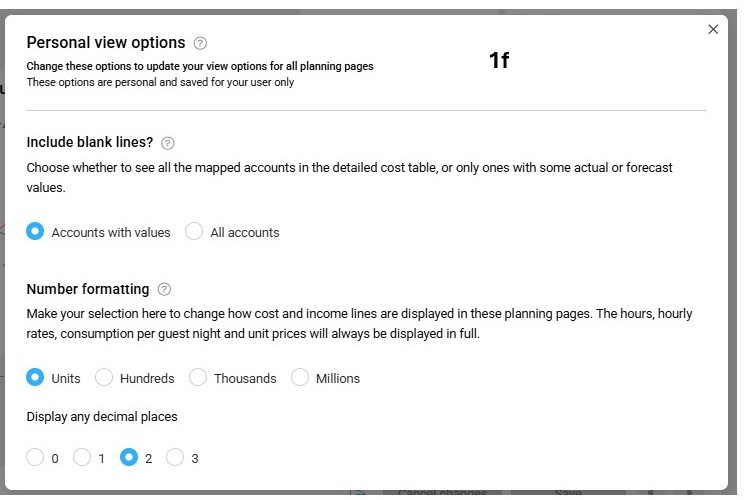
Image description: Personal view options allow user to set how cost rows and accounts should be displayed
TIP: More information on each of these features is in the article ‘Understanding the navigation features in NextGen Planning pages’
2. Charts
There are four main charts on the planning page. These display the data in the tables making it easy to spot variations in the Live P&L version that may need to be looked at more closely. These charts are:
- Total consumption
- Consumption per guest night
- Total cost
- Price per unit
- On the ‘Energy summary’ page, the Total consumption and Total cost are replaced with a variation of the chart that shows the breakdown of these values by resource.
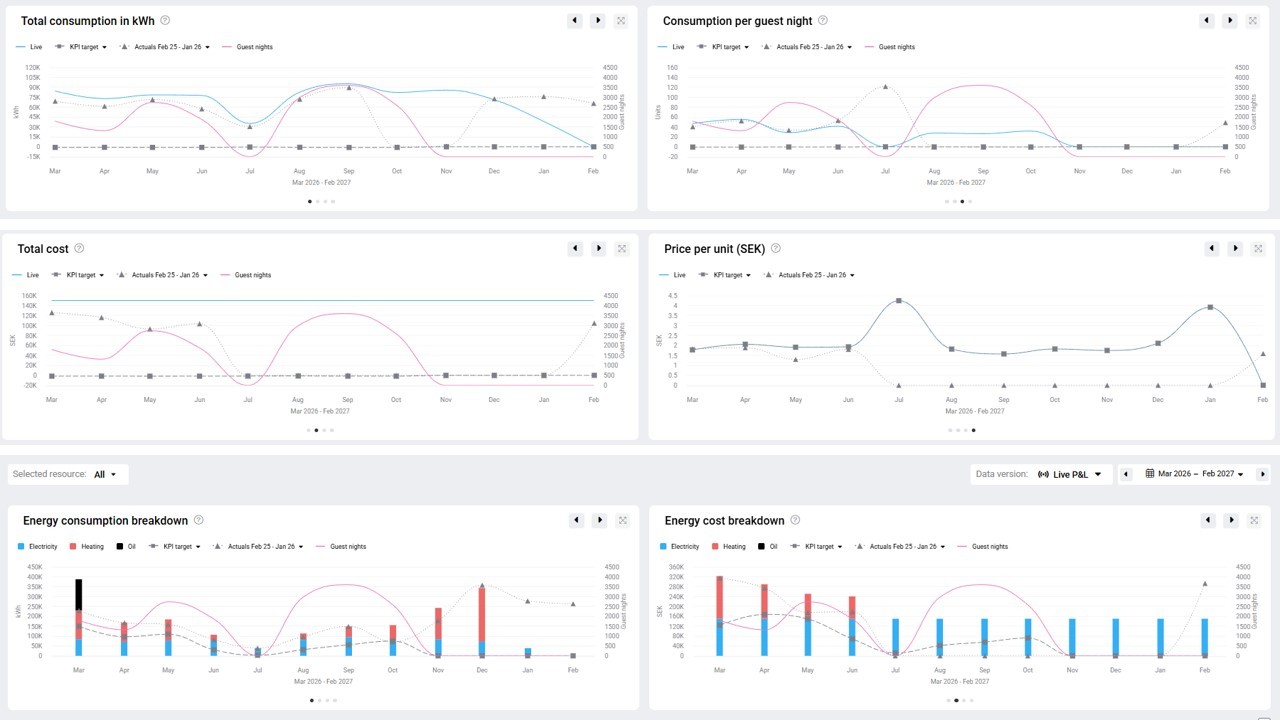
Image description: Overview of all the charts on the GoGreen planning page
See article “Charts in GoGreen planning explained” for more detailed information on the features of the charts and using them alongside the data table.
3. Data table section
The data table sits below the chart section.
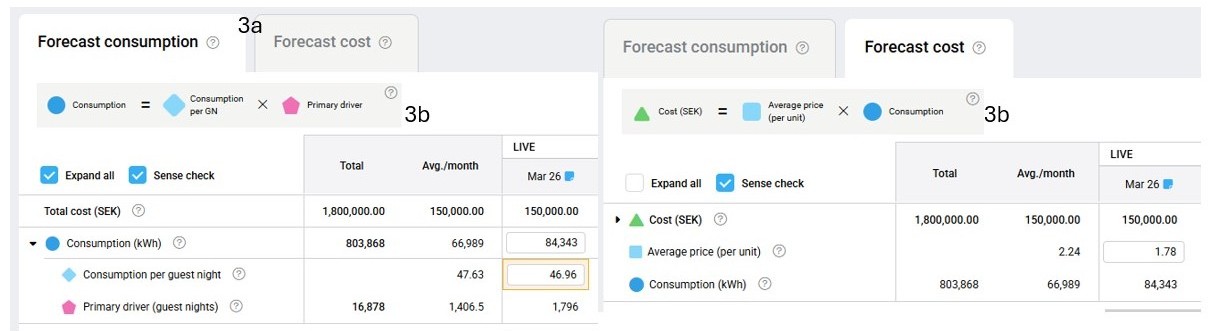
Image description: Data tables in GoGreen planning appear on two separate tabs
It has two tabs: Consumption and Cost (3a). This allows the user to focus on one part of the forecast at a time, and the system will update both tabs if any changes are made.
The formula board on each tab (3b) displays the calculation or formula used to create the plan values in each tab. The symbols used are reflected by the same elements in the data table. In the data table, if one element is edited the others will update based on this formula.
4. Data table general
The tables are the traditional view of a forecast plan with numbers by month. Change the date period in the top right to view alternative months.
See the article “Understanding and using the data table in NextGen planning pages” for more detailed information on each of the features in the data table. A brief overview is given below.
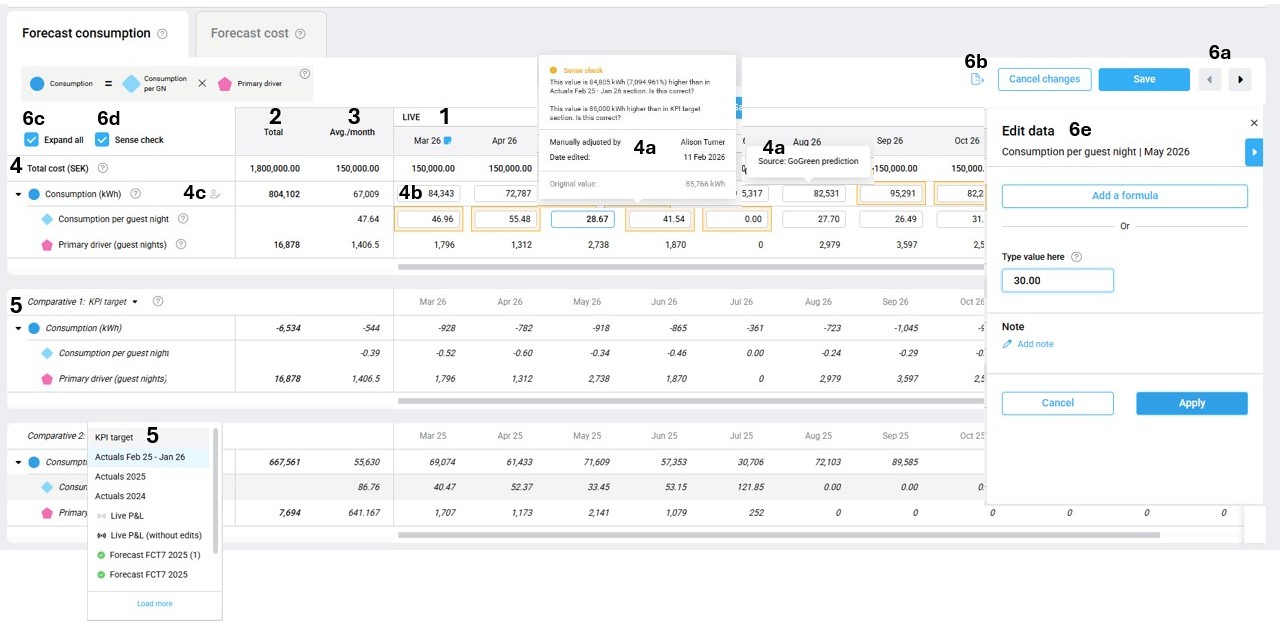
Image description: Features of the main data table in GoGreen planning pages
1. Column section header will show the type of data being viewed based on the version and dates selected
2. Total column is the sum of all months in the selected period
3. Avg./month column is the sum of all months divided by the number of months in the view.
4. Forecast section: the top rows of the data table show values for the selected version (eg Live P&L, Actuals or a Forecast/Budget/Target). In this section:
a. Tooltips on data values show the source of the value, details of any manual edits and sense check alerts (if enabled)
b. Cells that can be edited have an edit box
c. Rows that are edited show with a manual edit icon at the start of the row; hover over the row to see blue highlight on the edited cells
5. Comparative section: there are 2 different sets of comparative data. They work the same way as each other and allow you to compare your forecast plan to other versions, previous actuals etc.
6. Other table features include:
a. Scrollbars and arrows for scrolling across the page or up and down
b. Export to get a downloaded copy of the data in excel or googlesheets
c. Expand all option to show all the rows in the forecast section; deselect to hide all but the default rows
d. Sense check will highlight any cells that PMI thinks need further review or where there may be errors or missing data
e. Edit panel: all editing is done in the edit panel (not directly in the cells in the table). This allows for more complex formula to be set for a cell, not just entering a new value.
7. Energy summary page: the resource ‘Energy’ may have multiple resources linked to it as ‘sub resources’. When Energy is selected in the main menu, the page will show a Summary for all those resources. See the image below for some specific points about this page:
a. A single resource can be selected in the filter (1) to show the standard planning page just for that resource (eg. Electricity)
b. Each data row type will show a total row (2) followed by the specific values per resource (2). Eg Total consumption followed by the consumption for Electricity, Heating, Gas, Oil).
c. Collapse or expand the rows (4) to view just the summary or to look in more detail at the individual resource.
d. Any edits made in the summary page (5) will update for that resource and will flow up into the Energy summary totals.
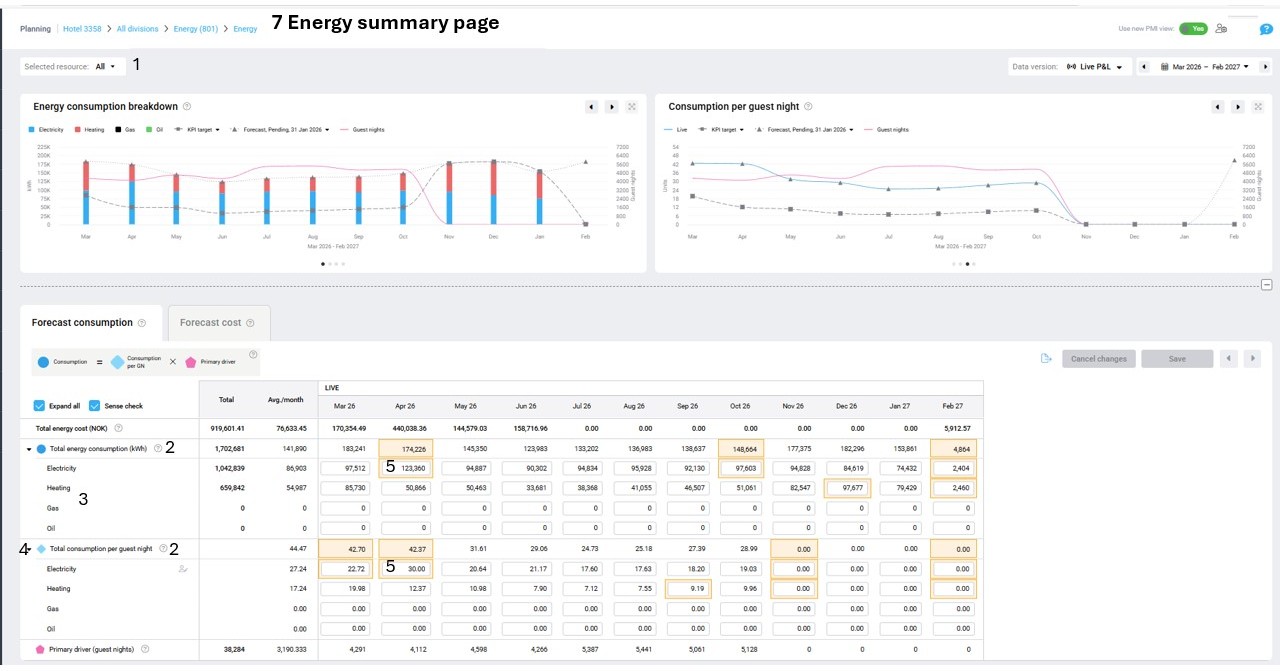
Image description: Energy summary page on GoGreen planning
Also see articles: ‘Sense check explained’ and ‘How to edit a GoGreen plan’
5. Version plan values
The data in the table is pre-populated using data already in PMI and other calculations to give a recommended forecast. Comparative data and submitted versions show the saved values.
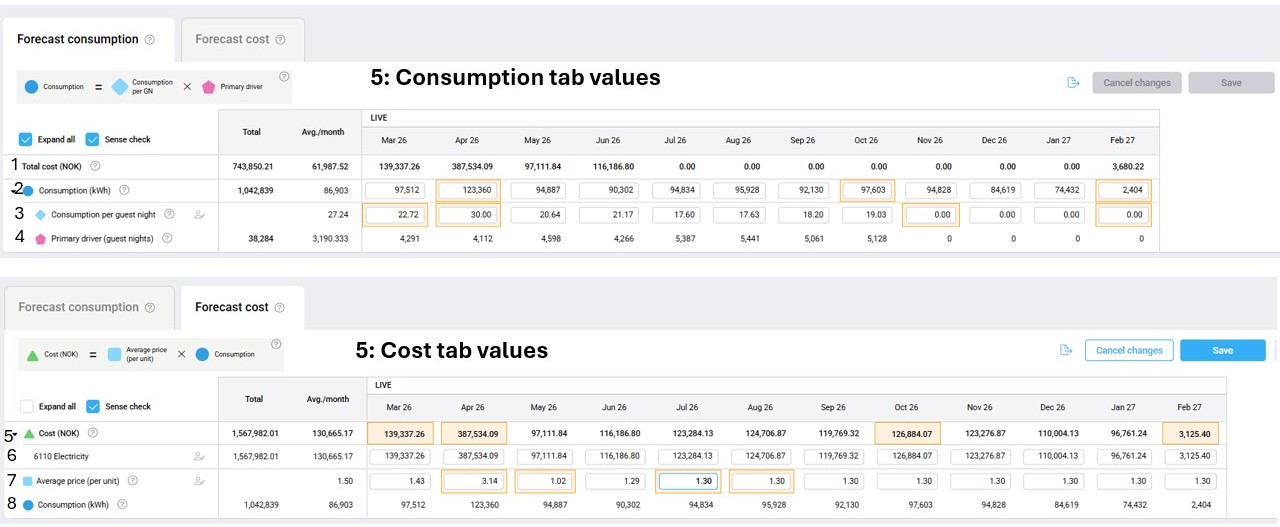
Image description: Data in the consumption and cost tables in GoGreen planning pages
On the consumption tab the main sets of data shown are:
- Total cost (1): this is pulled from the Cost tab as a summary of the costs to compare to consumption.
- Consumption (2): The Live forecast consumption from the GoGreen cockpit for this resource.
- Consumption per Guest night (3): Calculated from the Consumption and Guest nights.
- Primary driver (guest nights) (4): The Live forecast guest nights for the property. This is the same for all resources.
On the Cost tab the main sets of data shown are:
- Total cost (5): this is the calculated cost from Consumption x Unit price.
- Cost accounts (6): these are the specific financial accounts for the costs. If multiple accounts or subaccount, the total cost is split in the same proportion as the same month last year (last available actual)
- Average unit price (7); initially calculated from the same month last year to suggest a unit price. Used to calculate the total cost.
- Consumption (8): shows the current value from the Consumption tab.
Live P&L version
Only the Live P&L version can be edited; submitted versions are all read-only.
PMI best practice is to review the consumption and cost, but not to edit unless the PMI predictions are significantly different to what is expected.
- If an edit is required to consumption, it is better to edit the Consumption per Guest night row or add a calculation into Consumption to link it to Guest nights or Room nights. This will ensure that as Guest nights updates the Consumption reflects these changes.
- Note that editing Live P&L consumption here will not change the Live forecast value in the cockpit
- If an edit is required to costs, it is better to edit the Unit price to keep the link to consumption.
- If a resource has multiple cost accounts and the cost needs to be edited at account level, this will recalculate the Unit price instead. It is recommended to use the ‘Add formula’ option in cost accounts to retain a link to consumption.
TIP: See the articles ‘GoGreem Plan values’ and ‘How to edit a GoGreen plan’ for more detailed information on understanding and updating the values in the data table.
6. Save,Cancel changes & submit functions
Live forecast values are updated daily (overnight) and any recalculations of the Live P&L are automatically saved and updated to the Profit & Loss module.
- Currently, edits can only be made in the Live P&L version.
- Once changes are saved in the planning page, these will immediately update the relevant cost accounts in the Profit & Loss module.
The Save and Cancel changes buttons are above the data table and show in blue when there are unsaved changes in the page.
Submit process
The GoGreen forecast is submitted as part of the monthly forecast process run in the Profit & Loss module. There is no requirement to create or submit a version within the GoGreen planning module.
TIP: PMI recommends that the Live P&L is reviewed before the monthly forecast is submitted to ensure any changes that may be required have been made in time.
Once a monthly forecast has been submitted, it will show as a new version in the GoGreen planning with a read-only view of both the consumption and cost data. This can be selected from the Data version selector.
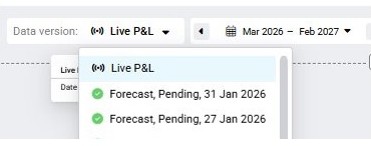
Image description: Version selector in GoGreen planning shows submitted versions as well as Live P&L
TIP: See the articles ‘How to do a monthly forecast’ for more information on the submit process, including exceptions for properties that do not use PMI Planning (Profit & Loss) module.
Cross-references
The following articles give more information about the features of GoGreen planning pages and how to use this module in the monthly forecast cycle
GoGreen plan values explained
Data tables in NextGen planning pages explained
Navigationin planning pages explained
Sense check in NextGen planning pages explained
Charts in GoGreen planning explained
How to setup GoGreen planning for a property
How to edit a GoGreen plan
How to do a monthly forecast in GoGreen
Related features and modules
‘Planning setup’ module
Planning pages are initially configured using the settings in ‘Planning setup’ by a Controller or Administrator. This includes setting up the automated schedule for forecasts where properties do not use PMI Planning.
‘Profit and Loss’ module
Cost data is passed to the ‘Profit and Loss’ module where properties use PMI Planning. The submit function is carried out here too, as part of the standard monthly forecasting process.
‘GoGreen cockpit’
Consumption Live forecast comes from the GoGreen colcpit into GoGreen planning. The forecast consumption is submitted back to the cockpit as part of the monthly forecast.