
Overview
This article explains how PMI calculates future planning cycles, generates version names, applies scheduling rules, and handles changes to active planning cycles.
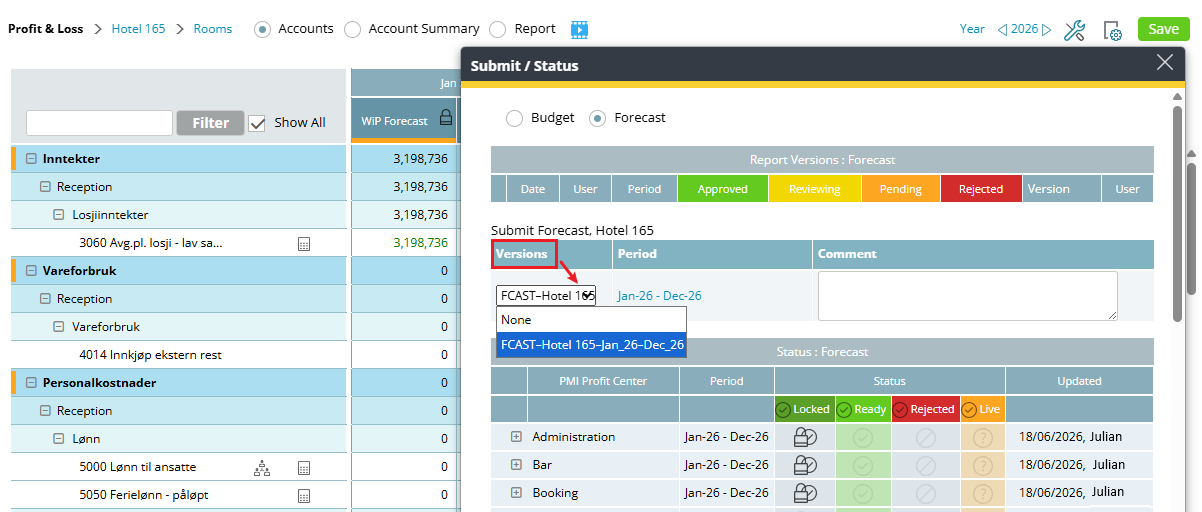
Image description: Example of the version name in P&L Status
1. How future cycles are calculated
What it does
Once you set up your first cycle, called the anchor, the system figures out all the future cycles automatically by shifting every anchor date forward by the same amount, based on your repeat setting.
How it works:
- Annually – Every date shifts forward by 12 months.
- Quarterly – Every date shifts forward by 3 months.
- Monthly – Every date shifts forward by 1 month.
This shift applies to all dates in the anchor cycle:
- Planning period start date
- Planning period end date
- Team submission window open date
- Team submission window close date
- Final review deadline
Note: All dates move forward together by the same amount.
Worked example
Your anchor budget cycle:
- Planning period – Jan 2027 to Dec 2027
- Team window opens – 19 Aug 2026
- Team window closes – 19 Nov 2026
- Review deadline – 30 Nov 2026
- Repeat – Annually
- Planning period: jan 2027 – dec 2027
- Team window opens: 19 aug 2026
- Team window closes: 19 nov 2026
- Your review deadline: 30 nov 2026
PMI generates the following cycles:
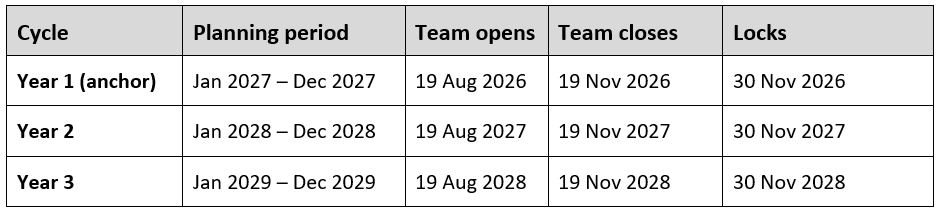
You set it up once. The system fills in the rest.
Edge case: Months shorter than 31 days
If a date falls on the 31st and the target month does not contain a 31st day, PMI automatically uses the last day of that month instead.
For example:
- March 31 → June 30
- June 30 → September 30
- September 30 → December 31
This ensures every generated date remains a valid calendar date.
2. Date rules enforced by the system
What it does
PMI prevents invalid or conflicting schedules from being saved. These checks happen in real time, and invalid dates are unavailable for selection in the date picker.
Rule 1 — Chronological order
The team submission window must open before it closes.
The close date must always be later than the open date.
Rule 2 — Review window must follow the team deadline
The final review deadline must be the same as or later than the team submission deadline.
A planning cycle cannot be locked before users have finished submitting data.
Rule 3 — No anchors in the past
The first cycle’s lock date must be today or in the future.
You cannot create a new automated schedule that begins in the past.
Rule 4 — Cycles can’t overlap
The total time between the team open date and the review lock date must be shorter than the selected repeat interval.
For example:
- A cycle that remains open for 120 days cannot repeat quarterly.
- Quarterly cycles repeat every 90 days.
- The next cycle would begin before the current cycle is completed.
PMI prevents this configuration from being saved.
3. How version names are built
What it does
When PMI creates a plan version, it generates the version name using the naming template configured in Cycle schedule.
The version name is fixed at the moment the version is created and never changes.
The building blocks:
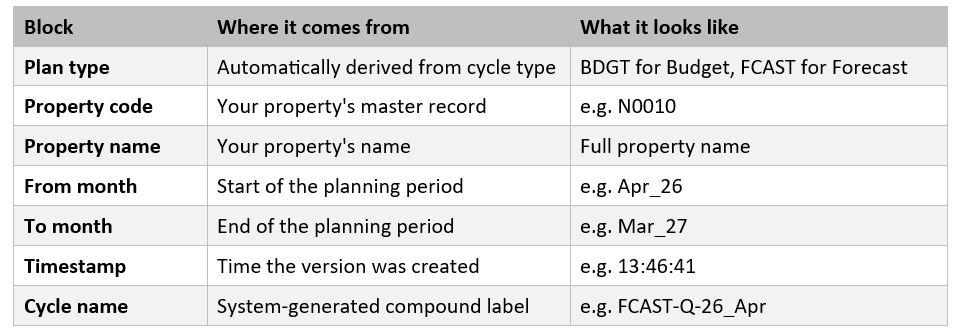
How the cycle name is generated
The cycle name is assembled using:
[Plan type] – [Repeat abbreviation] – [Last two digits of year] _ [Start month abbreviation]
Repeat abbreviations:
- A = Annually
- Q = Quarterly
- M = Monthly
Example: A quarterly forecast starting April 2026 becomes:
FCAST-Q-26_Apr
Separator cleanup
If you remove a building block from your naming template, PMI automatically removes any unnecessary separators.
Generated named never:
- Start with a separator
- End with a separator
- Contain duplicate separators
Worked example:
Template you configured: [Plan type] + [Property code] + [From month] + [To month]
Version data at creation:
- Plan type = FCAST
- Property code = N0010
- From month = Apr_26
- To month = Mar_27
Generated version name:
FCAST_N0010_Apr_26_Mar_27
This name remains permanently attached to the version.
Updating the naming template later does not rename existing versions.
4. What triggers a version to open
What it does
Every night at midnight, based on the property’s local time zone, PMI checks the planning schedule.
If the current date matches the open date of a scheduled cycle, PMI automatically:
- Creates the plan version
- Generates the version name
- Creates the planning document
- Makes the version available to users
What happens if the creation fails
If version creation fails because of a temporary system issue, PMI does not skip the cycle.
Instead, PMI:
- Retries after one hour
- Retries again after two hours
- Retries a final time after three hours
If all retry attempts fail, a critical alert is sent to the designated system administrator for investigation.
The cycle does not disappear — someone will be notified to investigate.
5. How the system handles rule changes mid-cycle
What it does
When schedule rules are changed while a cycle is already open, PMI uses a defined priority order to determine how the changes should be applied.
This helps prevent unexpected deadline changes for users who are already working in the cycle.
Scenario A — you changed the master rules only
Example:
You extended next year’s budget submission window from 60 days to 90 days, but this year’s budget is already open.
PMI asks you to choose between:
- Future cycles only — This year’s budget carries on under its original deadline. Next year’s budget gets the new 90-day window.
- Immediately — This year’s budget deadline updates right now.
Budget rule changes only affect budget cycles. Changing forecast rules never touches an open budget cycle, and vice versa.
Scenario B — you adjusted a specific cycle’s dates directly on the schedule
Example:
You shifted the close date for the April forecast cycle by two weeks to avoid a public holiday.
PMI confirms that:
- The change applies only to the selected cycle.
- All other cycles continue to follow the master rules
Scenario C — you changed the master rules and directly edited the same open cycle
Example:
You change the forecast cadence globally and manually adjust the dates of the currently active forecast cycle.
PMI applies the changes as follows:
- The manual date adjustment takes priority for the active cycle.
- The master rule is ignored for the currently open cycle
- The master rule changes apply to future cycles.
- Only one confirmation prompt is displayed.
6. Rules that protect your historical data
Old plans are never touched
Automation rules apply only to plan versions created after you first activate the schedule.
Existing versions remain unchanged regardless of:
- Creation date
- Naming format
- Planning schedule
Naming changes don’t rename existing versions
Changes to the naming template apply only to future versions.
Previously created versions keep their original names.
Locked versions cannot be reopened
Once a version reaches the Locked status, no configuration change can reopen it.
This includes changes to review deadlines or scheduling rules.
Edge cases
Re-enabling a disabled plan type
If forecasting or budgeting was previously disabled and is later re-enabled, all date fields are cleared.
PMI requires a new anchor cycle to be configured before future cycles can be generated.
This prevents outdated dates from becoming the basis for future planning schedules.
Turning off a plan type while a cycle is open “kill switch”
If budgeting or forecasting is disabled while a cycle is currently open, PMI displays a confirmation prompt before saving.
The active cycle continues normally until completion.
No future cycles of that type will be generated.
Running budget and forecast cycles simultaneously
Budget and forecast cycles operate independently.
This means:
- Budget and forecast cycles can overlap.
- Rule changes apply only to the affected plan type.
- Confirmation prompts apply only to the affected plan type.
- Locking one plan type does not affect the other.
Related articles
Plan version automation – Never miss budget season
How to set up automated planning cycles