
Objective
To add or update other non-operating revenue in the Planning module using manual entry, constants, even function or source definitions that combine multiple inputs.
Requirements
- Access to the Planning module in PMI
- Permission to edit revenue accounts
Estimated time to complete
3–5 minutes
Steps
1. Log in to PMI.
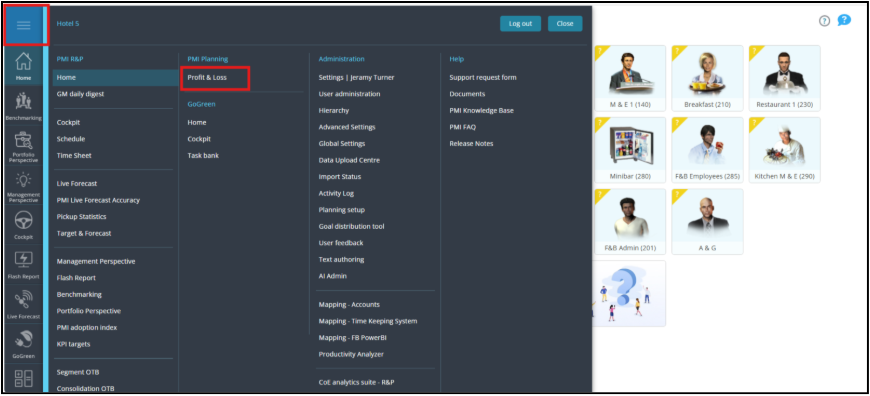
2. From the main menu, select Profit & Loss.
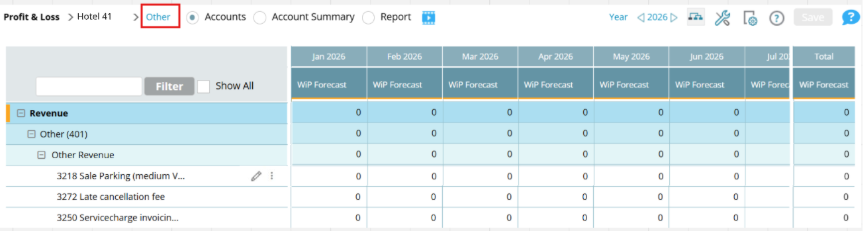
3. Select Other division to view non-operating revenue accounts.
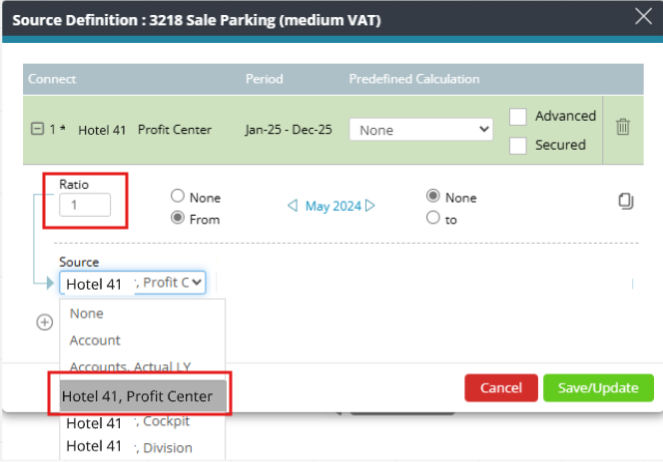
4. Select the account to edit (e.g. Sales Parking).
5. Select one of four options for entering revenue:
1. Manual entry: Type the value directly into the Profit and loss grid.
2. Even function: Use the even function to distribute a value evenly across the planning period.

3. Constant: Use constant to apply the set value to each month. (link to how to add constant?)
4. Source definition: Use a formula that pulls from one or more sources.
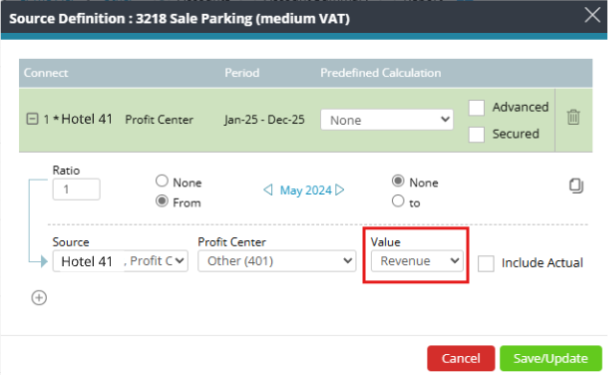
6. Fill in the source definition (if applicable).
1. Enter a ratio of 1 for full value of the revenue (unless a different ratio is required).
2. Select the appropriate revenue source from the dropdown.
3. Choose the correct profit center.
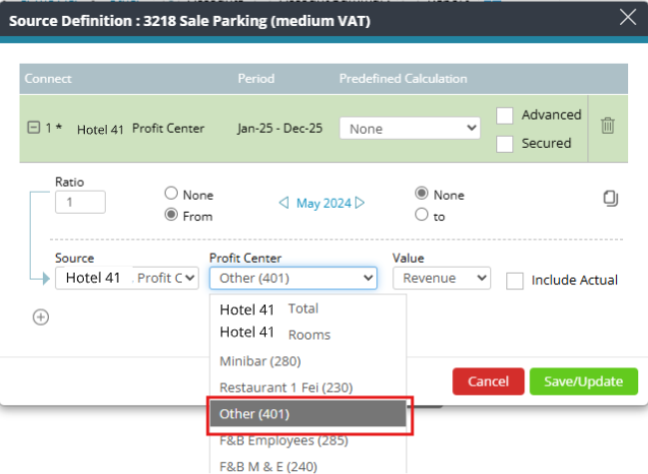
4. Select Revenue.
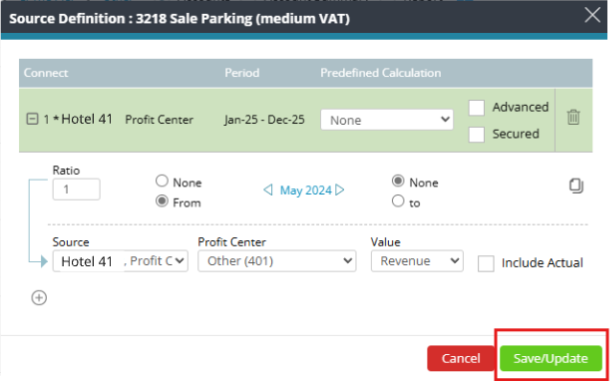
7. Click Save/Update.
Expected outcome
The selected non-operating revenue is added or updated in the Profit and loss view, with values distributed according to your input method.
Troubleshooting tips
- Even function not working? Make sure the values are correct with no spaces.
- Fields are locked? You may not have the required permissions. Contact your system administrator.
Cross references
How to add a Food & beverage revenue forecast in P&L Planning