
Objective
Add or update Room revenue in the Planning module to ensure accurate budgeting and forecasting.
Requirements
Access to the Planning module in PMI
Appropriate user rights
Estimated time to complete
3 minutes
Steps
Log in to PMI.
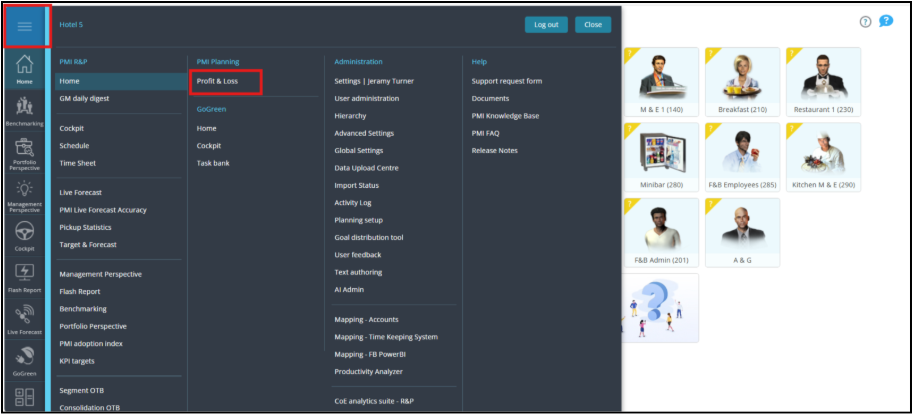
1. Go to the Profit & Loss module.
2. From the main menu, select Profit & Loss.
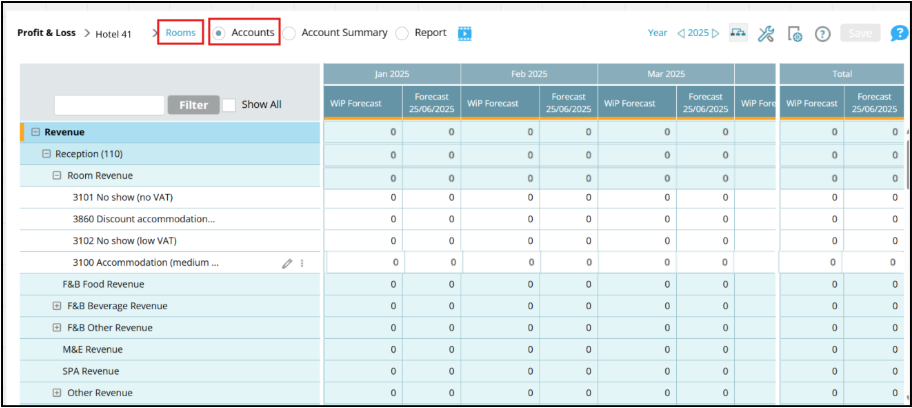
3. Go to Rooms division on accounts view.
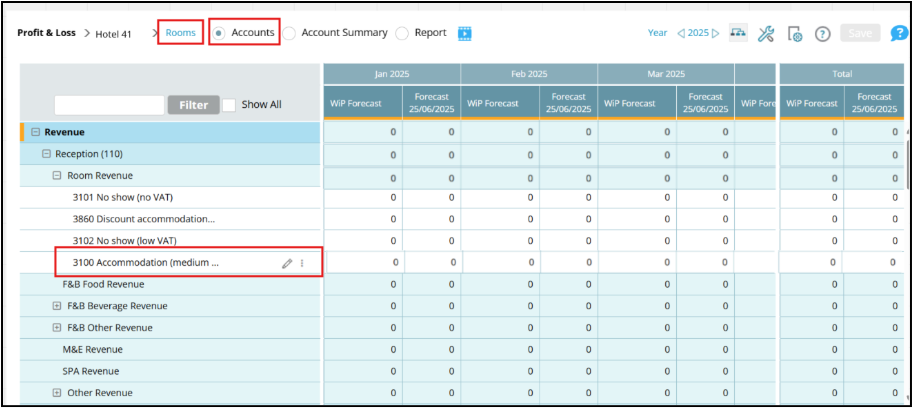
4. In the account list, locate and click on the Room revenue line.
5. On the right side of the Room revenue row, click the pencil icon to open the editing pane.
6. In the Source definition pane, click on the Ratio field.
7. Enter 1 for full value of the revenue (unless a different ratio is required).
8. Click on the Source field.
9. Select the appropriate revenue source from the dropdown.
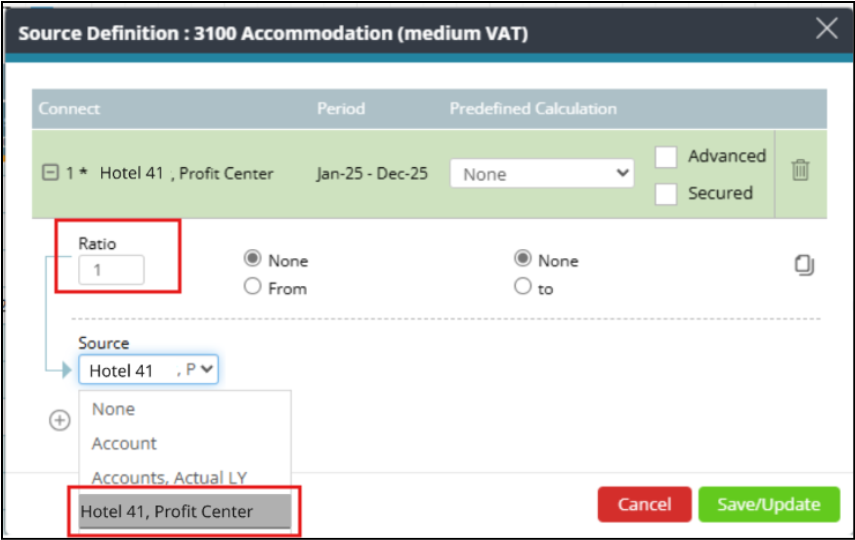
10. Choose the correct profit center.
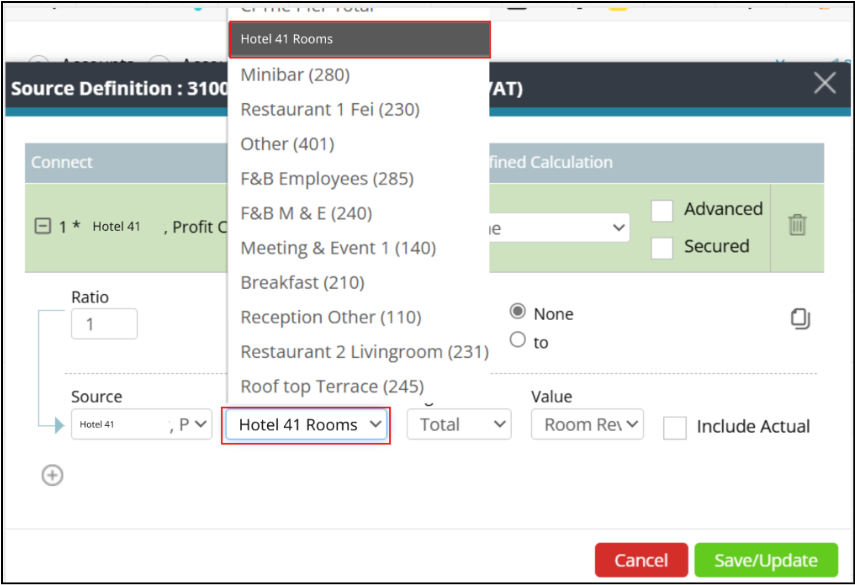
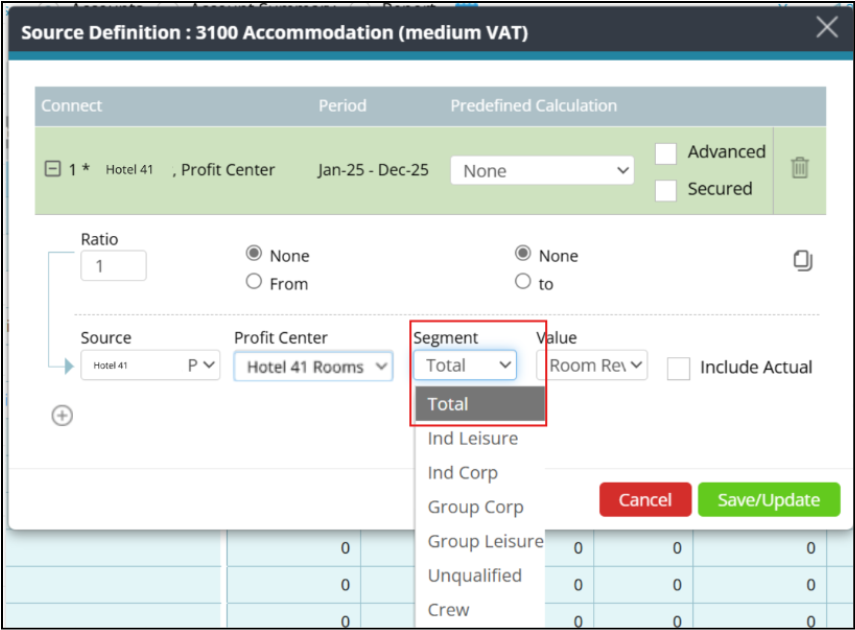
11. Select a segment if applicable; otherwise, choose Total.
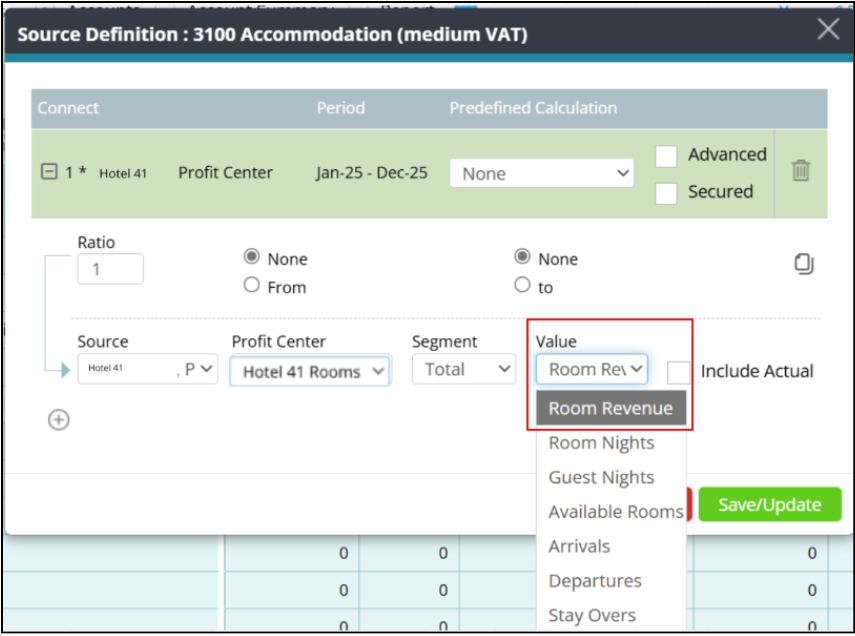
12. Select Room Revenue.
13. Click Save/Update.
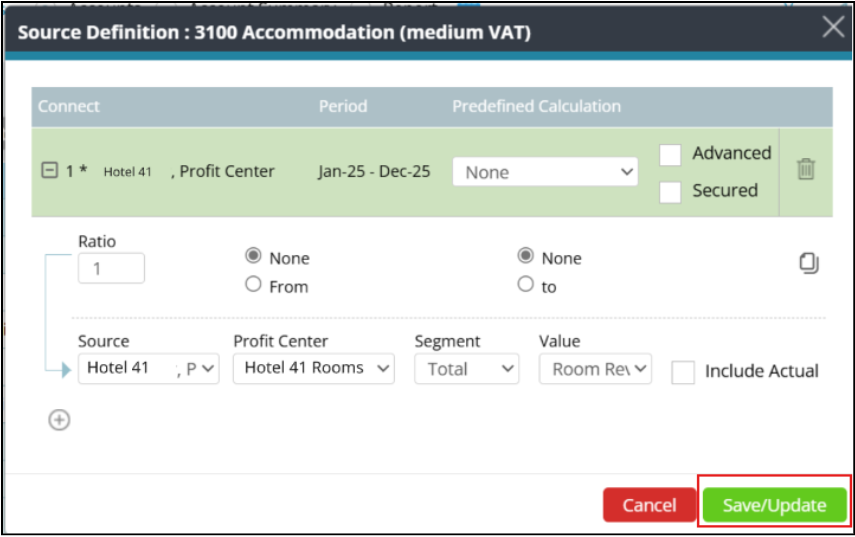
Expected outcome: Room revenue is now added or updated in the Profit and loss view.
Cross references
How to add other non-operating revenue in Planning
How to add a Food & beverage revenue forecast in P&L Planning