
Purpose
Each month, a new forecast should be submitted for the coming months, and for properties with GoGreen, the monthly forecast should include costs linked to GoGreen consumption. This can be done via the new GoGreen planning pages and Profit & Loss module in PMI. This document gives a step-by-step guide on how to carry out the monthly routine with a specific focus on GoGreen forecast.
- For properties without PMI Planning (Profit & Loss) see section: Exceptions: Auto-schedule a forecast.
- For annual budgets, see section: Annual budgets.
Users
GoGreen planning will be used by Financial controllers or General managers (GM) as well as any employees with responsibility for GoGreen resources.
The user role ‘GoGreen user’ is required to make edits in the GoGreen planning page.
Pre-requirements
The GoGreen planning pages should be enabled for the chain/property and certain configurations carried out to pre-populate the data in them. This includes mapping cost accounts to the GoGreen resources and mapping the resources to the correct departments for calculating and forecasting costs.
- For information on how to get started with the new Planning pages see new article Setting up GoGreen planning pages
- For further information on the pages and calculations see articles Overview of GoGreen planning and GoGreen plan values explained
Standard monthly routine
The monthly submit routine carried out in Profit & Loss will continue as normal and will now automatically include all costs from the GoGreen planning pages.
There are 3 simple steps to this process which can be shared by Heads of Department and the controller or GM.
Step 1: Review the WiP forecast for GoGreen resources

Image description: The Profit & Loss module with an example of Electricity account showing costs from GoGreen planning and a link to that page
1. Before the monthly financial forecast, go to the Profit & Loss module. Select departments that have GoGreen cost accounts and review them
a. Accounts that are mapped to a GoGreen resource in that department will be pre-populated from the GoGreen planning module (1)
2. Pre-populated accounts are locked and show a link icon (2) in the row header.
a. If there are any concerns with the value in the WiP forecast, click the link to review the calcuations behind it in GoGreen planning module.
3. If there are no issues with the values (and after all other standard checks as part of the monthly forecast process), the submit process can be run as usual from the Status tool (3) and will automatically include:
a. GoGreen costs
b. GoGreen consumption
Optional exception for Chemicals resource
The chemicals resource can be set to allow the cost to be split manually into multiple departments. This setting is in the Planning setup ‘Link GoGreen cockpits to departments’ settings.
- If selected, the cost values for chemical consumption will not automatically pass to the cost accounts in the Profit & loss module
- Use the formula box to connect the cost account(s) in each department to the source ‘Planning – GoGreen – Chemicals – Total cost’ and use a ratio or constant/assumption to allocate the correct proportion for that department. This will ensure the WiP forecast is updated as chemicals consumption updates in GoGreen planning.
See article ‘How to set up ‘Manual split for chemical costs’ in GoGreen planning’ for more information.
Step 2: Review the GoGreen planning page (Live P&L)
1. If required, review the calculations for each resource. Access this by either:
a. Clicking the link from the Profit & loss module .
b. Selecting the option GoGreen in the department menu of Budget & Forecast module.
2. All individual resources can be selected from the menu once inside the planning page.
3. Select each resource and check that the version is ‘Live P&L’.
4. Review the values for consumption and cost for the next 12 months.
a. See the article ‘GoGreen Plan values explained’ for more details about the calculations if this is not clear in the module
b. Use the date selector to review longer time period. The Live P&L forecast is pre-populated up to 24 months from today’s date, but may not be fully calculated if there is Guest night or Live forecast consumption data missing.
c. To review and update Guest nights or Live forecast consumption use the relevant modules (Live forecast or GoGreen cockpit)
5. Adjust the forecast if needed by clicking on the relevant cell and adjusting the values.
a. See the article ‘How to edit a GoGreen plan’ for details on this.
b. It is recommended not to adjust consumption (allow PMI to predict this based on Guest nights)
c. It is recommended to adjust Unit price rather than cost to keep the cost aligned with consumption
6. Save changes to the plan before leaving each resource page.
7. The WiP forecast will automatically be updated in the Profit & Loss module when save changes to costs, ready to be submitted as a the monthly forecast.
8. When the forecast is run, this takes a snapshot copy of the Live P&L version that day. Edits will not be able to be made in a submitted forecast version, so check that the Live P&L reflects the values that should be in the forecast.
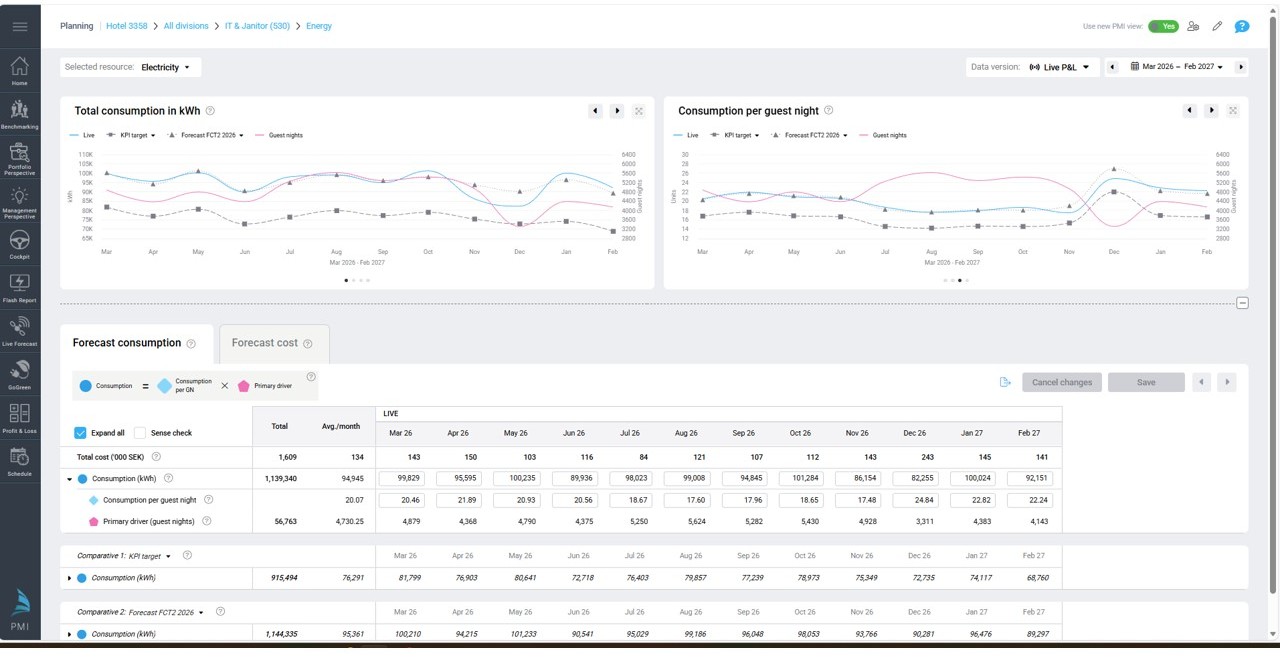
Image description: New GoGreen planning page showing Live P&L version
Step 3: Review submitted forecast in Planning page and cockpit
1. Once the monthly forecast version has been submitted from Profit and Loss module, this version will also be available to view in the GoGreen planning pages (access as in Step 2).
2. Use the Version selector to view the submitted copy of the version (1 in image below)
a. This version cannot be edited.
3. The forecast values are also automatically updated in the relevant cockpits:
a. GoGreen cockpits show the last submitted forecast consumption and cost in both the Doing and Learning pages
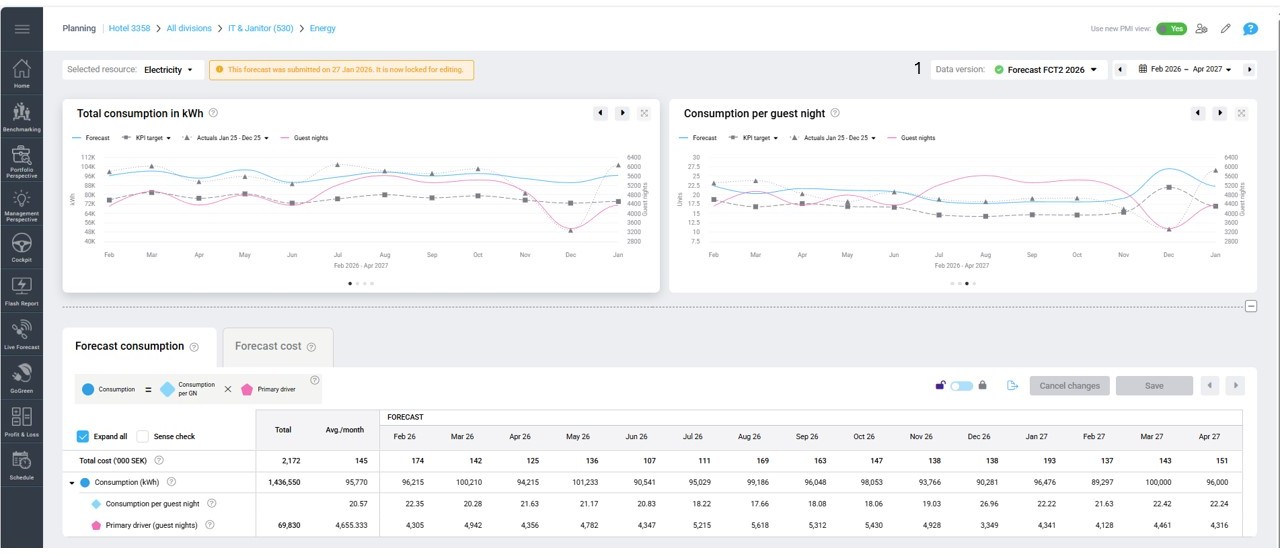
Image description: GoGreen planning page with a submitted forecast version
Exception: auto-schedule a forecast
For properties which do not have PMI Planning (Profit & Loss), the monthly forecast can be scheduled to run automatically.
This will only submit values that are in new Planning pages, initially starting with GoGreen data only.
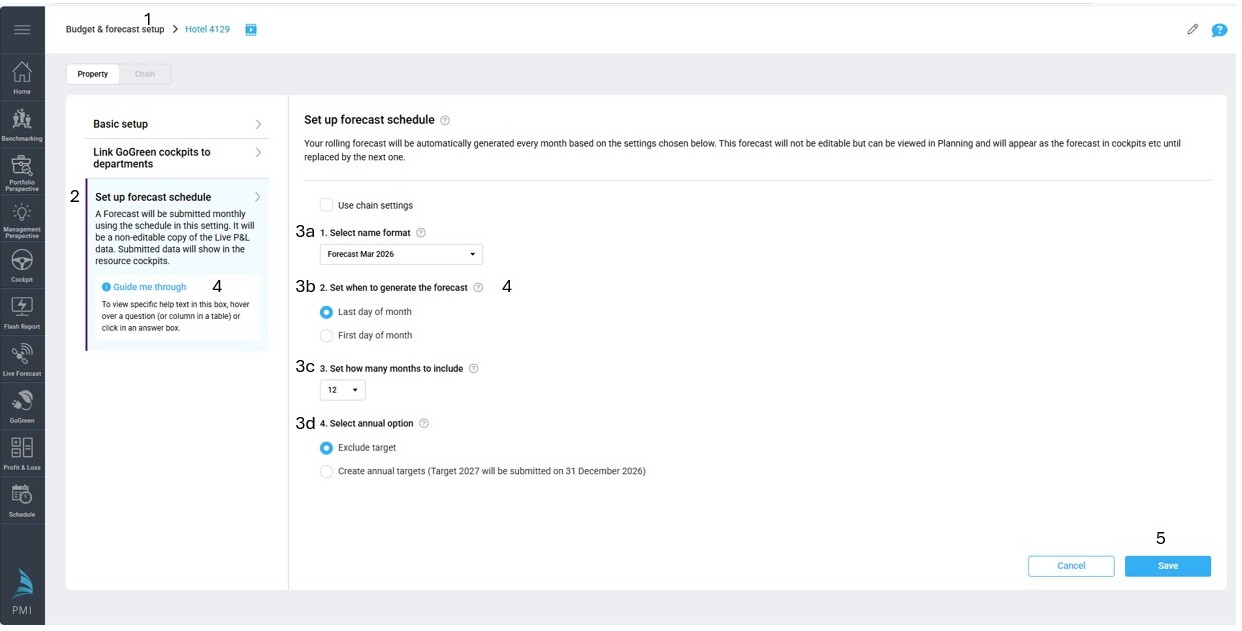
Image description: Planning setup page to set up the auto-schedule for GoGreen monthly forecast
Step 1: Set up the auto-schedule
1. Controller or Administrator rights required for access to Planning setup
2. Go to Planning Setup and select the option ‘Set up forecast schedule’
3. Complete the settings to choose
a. Date format for the forecast version name
b. Whether the forecast should run at the end of the month or the start of the new month
c. How many months to include in each forecast
d. Whether or not to have an annual budget version at the end of each year
4. There is help text (? Icons and Guide me through) for more details on each setting.
5. Once the settings are saved, the schedule is set up and a monthly forecast will be automatically run and submitted at the end/beginning of next month.
Step 2: Review the Live forecast plan (Live P&L)
1. Before or on the day of the scheduled forecast, go to Budget & Forecast in the main menu. Select the new view Planning page for the correct department.
a. To access all GoGreen planning pages, select the option GoGreen in the department menu. All individual resources can be selected once inside the planning page.
2. Select each resource and check that the version is ‘Live P&L’.
3. Review the values for consumption and cost for the next 12 months.
a. See the article ‘GoGreen Plan values explained’ for more details about the calculations if this is not clear in the module
b. Use the date selector to review longer time period. The Live P&L forecast is pre-populated up to 24 months from today’s date, but may not be fully calculated if there is Guest night or Live forecast consumption data missing.
c. To review and update Guest nights or Live forecast consumption use the relevant modules (Live forecast or GoGreen cockpit)
4. Adjust the forecast if needed by clicking on the relevant cell and adjusting the values.
a. Unit prices and costs cannot be calculated by PMI so add a Unit price to each month to get a forecast cost
b. Seethe article ‘How to edit a GoGreen plan’ for details on this.
c. It is recommended not to adjust consumption but to allow PMI to predict this based on Guest nights
5. Save changes to the plan before leaving each resource page.
6. Edits will not be able to be made in a submitted forecast version, so check that the Live P&L reflects the values that should be forecast.
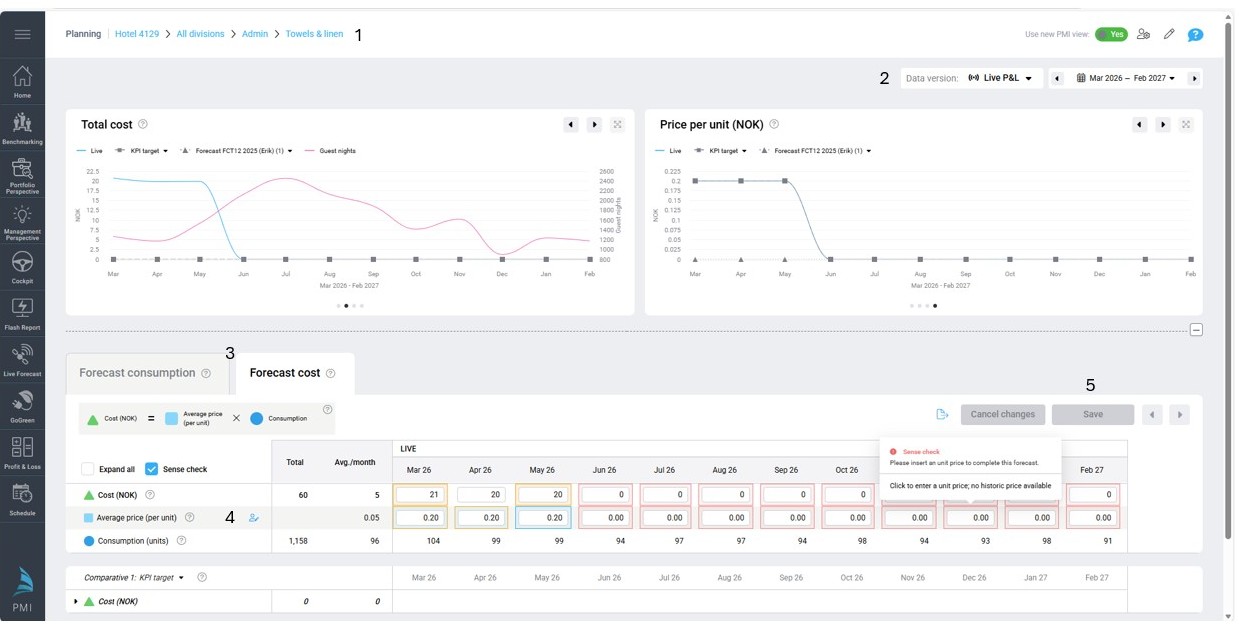
Image description: Properties without Planning (Profit & Loss0 need to manually add Unit price
Step 3: Review forecast in Planning page and cockpit
1. The forecast version will run overnight at the end of the day selected in the schedule.
2. This version will be available to view in the GoGreen planning pages the next day (access through Budget & Forecast).
3. Use the Version selector to view the submitted copy of the version that was submitted (1 in image below)
4. This is a snapshot of the Live P&L version at the time the version was submitted.
a. This version cannot be edited.
5. The forecast values are also automatically updated in the relevant cockpits:
a. GoGreen cockpits show the last submitted forecast consumption and cost in both the Doing and Learning pages
Image description: GoGreen planning page with a submitted forecast version
Annual budget routine
The annual budget routine follows the same principle as the monthly forecast one.
- The Live P&L version should be reviewed for the following calendar year, also taking into consideration that this will form the budget
- For properties that use PMI Planning, the WiP Budget will show the Live P&L values in linked GoGreen cost accounts. The budget version is submitted using the standard process.
- For properties that have an auto-schedule, the budget version is generated overnight on either the 31st December or 1st January based on the setting in Planning setup, using the Live P&L data.
- The submitted budget version will be available to view in the GoGreen planning pages the next day.
Cross-references
See the following articles for more information on the GoGreen planning module along with details on the data and step-by-step guides: