
Purpose
The Import status page helps you monitor whether PMI has received and processed the latest interface data for your properties.
Use this page to quickly identify delayed, missing, or incorrect imports before they affect reporting, forecasting, or operational analysis.
The page provides visibility into:
- interface import activity
- expected arrival times
- successful and failed imports
- import troubleshooting information
- API reload options for supported interfaces
Users typically review this page:
- in the morning to confirm overnight imports
- when reports appear incorrect or incomplete
- when troubleshooting missing or delayed data
- before contacting support regarding interface issues
The Import status page works together with the Import status Settings configuration. Settings such as Expected file arrival and Data offset directly influence the statuses displayed on this page.
Navigation
Main Menu > Administration > Import status
Understanding the page layout
The screenshot below shows the main areas of the Import status page covered in this article.
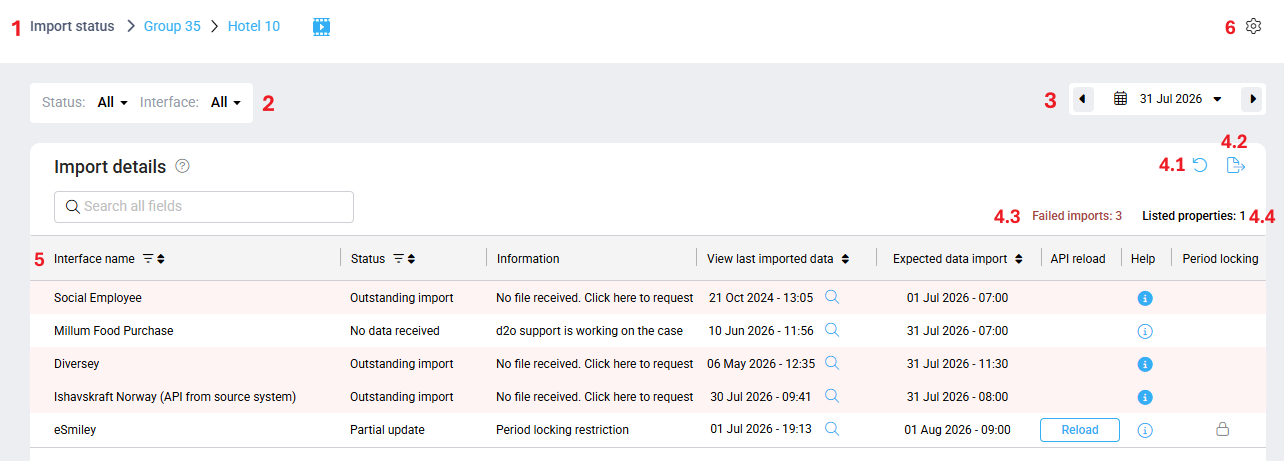
Image: Main areas of the Import status front page
1. Breadcrumb selection
The breadcrumb at the top of the page controls which properties and interfaces are displayed.
You can drill down through:
- Chain
- Group
- Property
Depending on your selection, the table displays different levels of detail.
| Breadcrumb selection | Table content displayed |
| All chains > All groups > All properties | All chains and their related properties and interfaces (collapsed) |
| One chain > All groups > All properties | All properties within that chain |
| One chain > One group > All properties | All properties within that group |
| One chain > One group > One property | Interfaces for the selected property |
The breadcrumb only displays chains and properties the user has access to.
Selecting All chains may limit filtering until properties are expanded.
When selecting a chain or group level, the page automatically filters on Not updated in PMI to help minimize loading time and improve performance.
The table refreshes automatically when changing breadcrumb selections.
2. Filters and search
The page includes filtering and search tools to help locate interfaces quickly.
Available filters include:
- Status
- Interface
- Search field
You can:
- filter by import status
- filter by interface type
- search for specific interfaces or properties
Enter at least 3 characters in the search field and press Enter to start the search.
Column filtering, search, and sorting
Additional filtering, search, and sorting options are available directly within certain columns in the Import table.
Column filtering is currently available on:
- Property
- Interface name
- Status
Users can:
- filter on multiple selections within the same column
- combine filters across multiple columns
- search within available column values
- sort column data in ascending or descending order
Example:
- filter multiple properties
- filter multiple interface names
- combine those selections with one or more status values
This allows users to narrow down results more precisely when reviewing large numbers of imports.
Learn more:
Filtering data in PMI tables
3. Date selector
The date selector controls which operational day PMI evaluates.
You can:
- view today’s imports
- review historical import activity for previous days
The page always displays the import information relevant to the selected day.
The page does not display a date range. Only one operational date can be reviewed at a time.
This helps users investigate whether imports were delayed, missing, or corrected on a previous day.
4. Page actions and indicators
4.1 Reload icon (round arrow)
The Reload icon refreshes the Import status page and updates the displayed import information.
Use this option when:
- reviewing newly received imports
- checking updated statuses
- refreshing the page after troubleshooting actions
4.2 Export
Use the Export icon to download the current table view to Excel.
The exported file reflects:
- the currently selected date
- applied filters
- visible table results
4.3 Failed imports counter
The page displays the total number of failed imports currently visible in the table.
This counter updates automatically based on:
- selected filters
- breadcrumb selection
- operational date
4.4 Listed properties
Shows how many properties are currently included in the table view.
This value changes dynamically depending on:
- breadcrumb selection
- filters applied
- search results
5. Import table overview
Each row in the table represents a property (optional) and interface combination.
If you only have access to one property, the Property column may be hidden automatically.
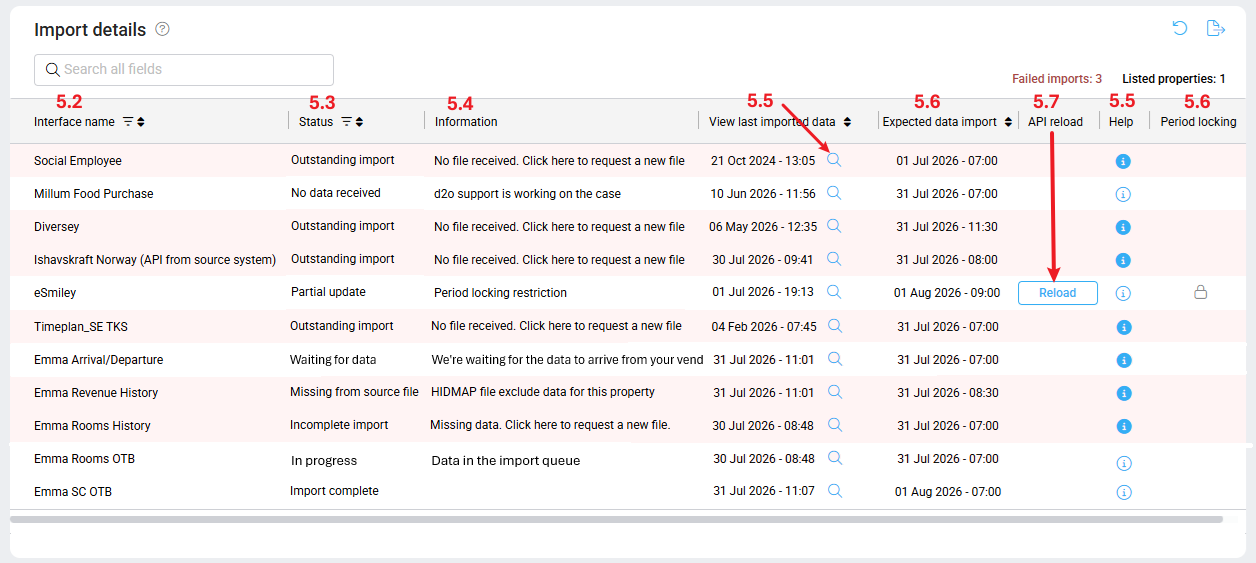
Visible columns & statuses on the Import details table
5.1 Property name
The Property name column displays the property associated with the interface import and will only be visible when you have selected all properties in a group or chain.
This column helps users identify which property the import belongs to when reviewing multiple properties at chain or group level.
The Property column may be hidden automatically if the user only has access to one property.
Property filtering and sorting are available directly from the column header.
5.2 Interface name
The Interface name column displays the name of the integration or interface sending data into PMI.
Examples may include:
- PMS interfaces
- POS interfaces
- Labor systems
- Financial systems
- API integrations
This column helps users identify which system is responsible for the import.
Interface filtering and sorting are available directly from the column header.
Multiple interfaces may exist for the same property.
5.3 Status
The Status column shows the current import result for the selected operational day.
Common statuses include:
| Status | Meaning |
| Import complete | Import completed successfully |
| In progress | Import is currently being processed in the import queue |
| Waiting for data | PMI is waiting for the import file |
| Partial update | Import completed but only partial update because some data was not imported in a locked period (GoGreen) |
| Outstanding import | No file was received |
| Incomplete import | The imported file are missing data |
| Missing from source file | The HIDMAP file fore several properties does not included data for this property |
| No data received | There was no successful import and d2o is working on the case |
Rows with failed or missing imports are highlighted in red for easier visibility.
Related article: Understanding import statuses
5.4 Information
The Information column provides a short explanation of what the status means or what to do next.
5.5 View last imported data
The table always reflects the import activity for the selected date.
This is important when reviewing historical imports.
Example:
- If you select yesterday’s date, the column displays the final file received yesterday
- Even if newer imports were received today, they are not displayed when reviewing the historical date
This helps users investigate historical import activity accurately.
View imported data icon
The icon beside View last imported data opens the imported data linked to that specific import.
The displayed data always relates to:
- the selected operational date
- the import timestamp shown in View last imported data
Use this option to:
- review imported values
- validate interface content
- troubleshoot incorrect data
Related article: How to view imported data in the Import status
5.6 Expected data import
This column shows when PMI expects the next import file to arrive.
This value is controlled by the Import status Settings configuration.
Daily and Hourly interfaces
For Daily and Hourly interfaces:
- PMI expects a file every day
- the configured time determines when PMI starts evaluating missing imports
Example:
- Expected arrival: 07:00
- If no file is received by 07:00, the status becomes Outstanding import
- If the file arrives successfully before or after 07:00, the status becomes Import complete.
Once a successful import is received, PMI does not continue checking that interface again until the next operational day and the Expected data import will change to the next date & time, which will be the following day, 07:00.
Monthly interfaces
Monthly interfaces use:
- a specific day of the month
- a configured arrival time
PMI only starts evaluating the import once the configured monthly threshold is reached.
Example:
- Monthly ETA: 15th day of the month at 07:00
- PMI will not trigger warnings before that time
After a successful monthly import:
- PMI stops checking until the next configured monthly cycle.
- The Expected data import will change to the next date & time, which will be 15th of the next month, 07:00.
5.7 API reload
API-based interfaces include a Reload button.
This option manually triggers a new data request from the external API source. Click once to fetch the latest data via API.
Typical usage:
- retry delayed API imports
- refresh missing API data
- reprocess updated external data
Reload is only available for supported API interfaces.
Reload is disabled while an import is already in progress.
Related article: How to reload an API import
5.8 Help
Selecting the Information icon opens the Import information popup.
The Information icon in the help column provides access to interface-specific troubleshooting and support information.
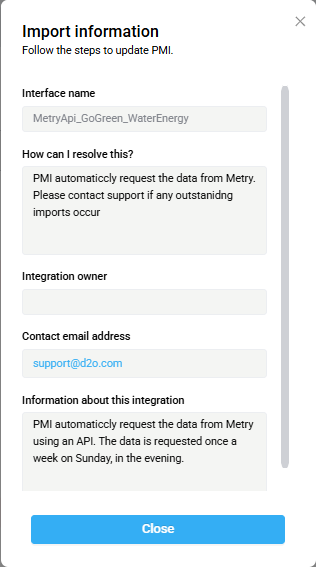
Image: Import Information
Interface name
Displays the interface connected to the import.
How can I resolve this?
Provides guidance on:
- who to contact
- how to resolve missing files
- handling incorrect or incomplete data
- next troubleshooting steps
Integration owner
Displays the person or organization responsible for the integration.
This may include:
- the vendor
- internal IT teams
- third-party providers
- d2o integration contacts
Contact email address
The email address users should contact regarding:
- missing files
- incorrect imports
- interface questions
- integration support
Information about this integration
Provides additional interface details users may need to know.
Examples:
- file delivery information
- operational notes
- integration-specific behavior
- vendor communication details
If no support information exists for the interface, users are directed to:support@d2o.com
5.9 Period locking (if applicable)
The Period locking column is only available when the GoGreen extended lock feature is activated.
This column provides visibility into the current locking status for the operational period associated with the import.
Period locking helps prevent changes to data during locked operational periods and supports controlled data management processes.
For more information about GoGreen period locking, see:
How to manage GoGreen period locking
6. Settings
The Settings gear icon gives a better insight on the settings for each Interface.
Import status behavior is heavily influenced by the Import status Settings configuration, including:
- Expected file arrival
- Data offset
- Warning logic
- Data level
- Interface activity status
- Track status
These settings determine:
- when PMI expects files
- which operational dates PMI validates
- when warnings appear
- how statuses are calculated
- Which interfaces are displayed in the main Import status page
For more information, read: Understanding the Import status settings
Additional page information
Clicking rows
When hovering over a row in the Import table:
- standard rows change to a light grey background
- alert rows change to a darker red background
- the cursor changes to a hand icon to indicate the row is selectable
Selecting a row opens the related Import information popup.
Related articles
- Import status overview
- Understanding the Import status settings
- Understanding import statuses
- How to reload an API import
- How to view imported data in the Import status
- Handling Outstanding Imports (Missing Data) in PMI