How to set up ‘Manual split of chemical costs’ in GoGreen planning
Objective
When a chain or property forecast costs for chemical consumption in GoGreen planning, the cost may need to be allocated to more than one department. Some departments may report costs on chemical cost accounts that do not relate to the GoGreen consumption forecast (eg Spa chemicals). PMI can be configured to allow the total cost for chemicals to be manually allocated to the cost account in multiple, specific departments.
These steps are generally done as a one-off action for the chain or property but can be reviewed and updated if needed.
This feature only applies to chemicals. For all other resources, see articles on general setup of GoGreen planning. Chemicals can also follow the standard configuration along with the other resources.
This document details the steps required to turn on and setup the split and ensure an accurate cost is forecast for the GoGreen consumption.
Users
Controllers, Administrators and HQ users will need to carry out most of these steps
Prerequisites
- The chain or property must already be using the GoGreen module in PMI and have a cost account for chemicals already mapped to the resource in the chart of accounts
- Properties that do not use PMI Planning do not need a cost account mapped
- Properties using PMI Planning should identify the cost accounts for chemicals and which departments report costs relating specifically to the GoGreen consumption of chemicals
- The forecast will be more accurate if actual costs for resources have been recorded in PMI Planning under these accounts for at least 1 year.
- Properties that do not use PMI Planning will not need to carry out this step
- The chain or property must have the ‘cost tab’ enabled for chemicals for this function to have any effect.
- Some settings require specific user rights; these are detailed in the relevant steps
Contact your PMI administrator or d2o if any of the above steps need action first.
Estimated time to complete
Once the cost accounts are identified the configuration will take around 30-40 minutes at chain level
Each property should then review their formulas for the affected accounts, around 15 mins to action.
Steps
Step 1. Select ‘Allow manual split’ column in the GoGreen Department mapping setting
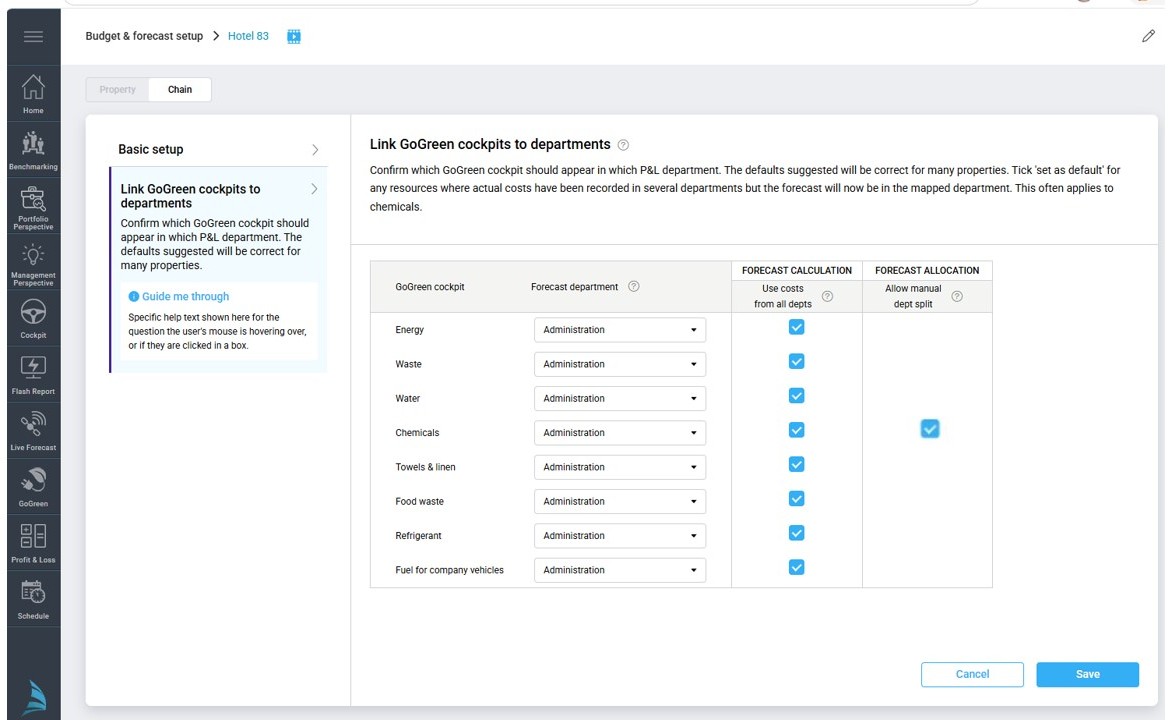
Image description: Planning set up: Department mapping for GoGreen resources. New checkbox for chemicals to allow split of cost
TIP: If making this change for a whole chain it is recommended to do this at a quiet time when not many users are likely to be working with theGoGreen planning forecast.
- Check the department mapping settings for the resource ‘Chemicals’.
- Select the checkbox ‘Allow manual split of costs’ for chemicals.
- If users have edited the cost tab for Chemicals in the GoGreen planning module, a pop-up will appear confirming this when you click Save (see image below)
- Download the report of affected edits and keep available to double check after the change
- Select whether to keep the users’ edits or remove them.
- If choose ‘remove’ there will be a subsequent pop-up to confirm you want to Delete all users’ edits. This cannot be undone once applied.
- If choose ‘keep’, note the edits on costs accounts cannot be kept with this change as the account will not be linked to chemicals in GoGreen planning. Edits can be re-entered on the Total cost row after the change.
- Edits on Unit price will be kept if choose the option ‘keep’ edits.
- Click Save in the appropriate pop-up to confirm the change to the setting.
- The configuration change will start running. If this change was made at chain setting it may take some time to run through each affected property
- A warning banner will display on the GoGreen planning page for each property until the change has been completed.
TIP: If other changes are required for the chemical department mapping, it is better to do these first, before turning on the ‘Split cost’ checkbox
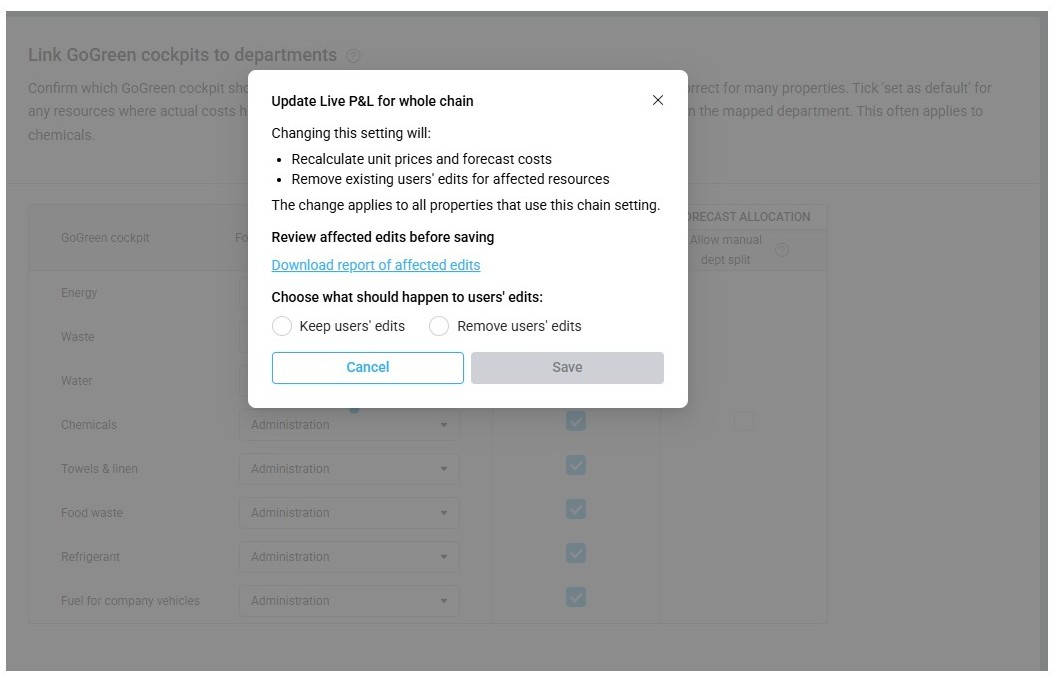
Image description: Planning set up: Department mapping for GoGreen resources. Keep edits pop-up
Step 2. Check the Live P&L forecast for chemicals in GoGreen planning module
Go to the GoGreen planning module (via Budget and Forecast, select ‘GoGreen‘) and select the resource ‘Chemicals’ to view the change.
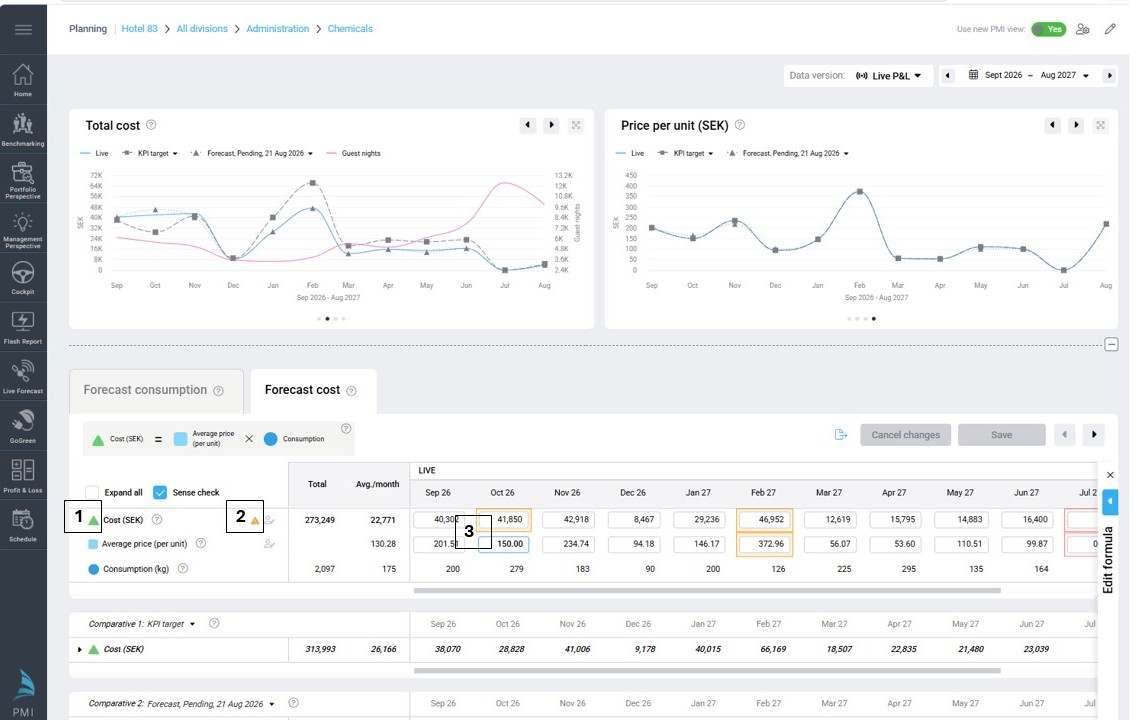
Image description: GoGreen planning page UI when split cost manually is selected for chemicals
The GoGreen planning page has now updated for the chemicals page and has the following changes on the cost tab for the Live P&L:
- There is no cost account linked to the chemicals page; total cost row cannot be expanded to see account level
- The icon on the cost row will remind you that this cost is not connected to the Profit & loss module
- Editing can be done on the total cost row as well as the unit price row
TIP: It is always recommended to edit Unit price so that the forecast can change as consumption changes
Step 3. Connect the account to GoGreen planning in the Profit & loss module
This step is required to ensure that forecast costs are passed back to the GoGreen cockpit.
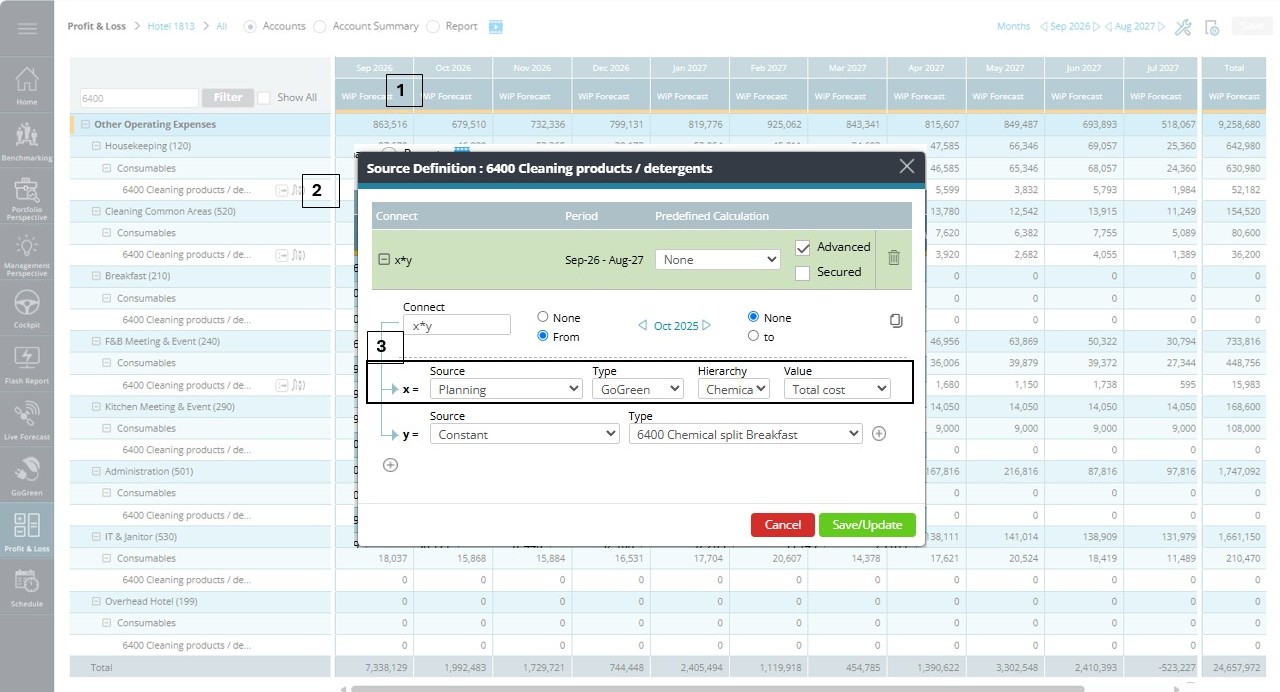
Image description: Lorem ipsum dolor sit amet, consectetur adipisicing elit, sed do eiusmod tempor incididunt ut labore et dolore magna aliqua.
- Open the Profit & loss module and select the WiP forecast, with dates starting next month onwards.
- The cost account that has been mapped to chemicals (Global chart of accounts) will no longer be locked in any department.
- Any old formulas that pre-existed will be re-activated
- If the default department did not have any formula, the last saved data from GoGreen chemicals may still display there
- With department selection set to ‘All’, filter for the chemical cost account to get an easy overview of the values and setting in each department
- Set up a new formula (or edit an existing one) on all departments that should have a cost connected to the GoGreen chemical consumption.
- Source must connect to ‘Planning – GoGreen – Chemicals’; select Total cost to allocate all or some of the cost to the selected department
- Use ‘Advanced settings’ to set up a formula that connects the Total cost to a constant/assumption for the department
TIP: PMI’s new feature Planning assumptions allows properties to set up a group of assumptions (previously called constants). This ensures that the split always equals 100% of the source. The proportions can be based on history (allocate the same as last year) or based on a manual allocation. Speak to your PMI administration for more information on this module.
Step 4. Submit forecast in the Profit & loss module
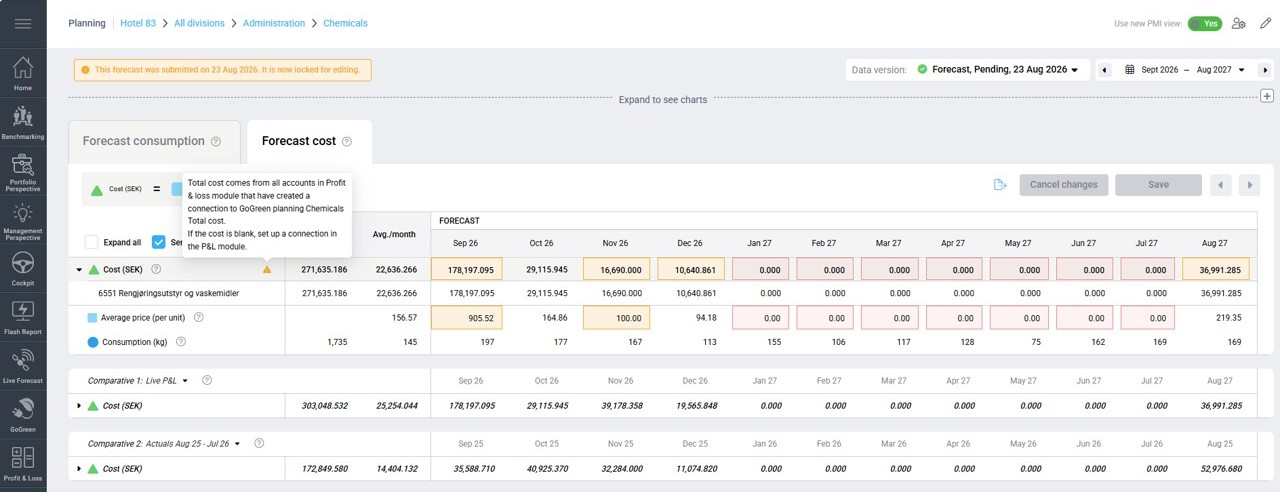
Image description: GoGreen planning module UI for a submitted version
- In the Profit & loss module, carry out the Submit forecast (or budget/target) process in the normal way for your property
- Review the submitted forecast for chemicals in the GoGreen planning module
- Select the submitted forecast in the drop-down list and check the total cost submitted
- Expand the total cost row to see all cost accounts that are now connected via the formula in the Profit & loss module
- The cost in each account (and the total cost) will come from the values in any department that created a formula with GoGreen planning chemicals as a source
- Select ‘Live P&L’ as a version in one of the comparative sections to compare the submitted forecast with the calculated Total cost in Live P&L.
- If the values do not match, check the formulas for the cost account(s) in Profit & loss module.
- The Unit price in the submitted forecast is the value that will be submitted back to the GoGreen cockpit. It is used to show the cost value for Live consumption and Target consumption in future months.
Troubleshooting
No accounts under the row ‘Total cost’ in the cost tab for Chemicals
- In the version ’Live P&L’ you will only see the Total cost row on the chemicals cost tab; no cost accounts are connected in this version
- In a submitted Forecast version you will see accounts from the Profit & loss module if:
- They are mapped to chemicals in the chart of accounts AND
- A formula is set up with a source to ‘Planning – GoGreen – Chemicals’
The total cost for chemicals is zero in my submitted forecast in the GoGreen planning page, even though there is a cost in Live P&L.
- It is likely that there are no formulas on the relevant cost account in Profit & loss module that connect the account to the source: Planning – GoGreen – Chemicals. Check in the Profit & loss
The cost in GoGreen cockpit doesn’t look like it is using the correct Unit price
- The unit price is calculated from the accounts in Profit & loss module that connect the account to the source: Planning – GoGreen – Chemicals. You can see the submitted forecast unit price in GoGreen planning module.
The constants used in the formula box don’t give 100% of the total cost from GoGreen planning
- Using PMI’s recent feature Planning assumptions will allow you to group a set of assumptions together. This makes it easier to see that you will be forecasting 100% of the cost. (Assumptions were previously called constants.) See article ‘Overview of Planning assumption’ for more information
The option to allow chemical cost to be split manually is not the correct option for my chain or property
- The option is turned on or off in Planning setup. The decision to use it is a business decision. The default setting is turned off.
- If a chain or property has turned it on but wishes to turn it off again, the GoGreen planning page and links to Profit & loss module will return to the same UI and process as for all other GoGreen resources.
Cross-references
The following articles give more information about the GoGreen planning page. It is recommended to read the top two articles in connection with this one:
- Overview of GoGreen planning
- GoGreen plan values explained
- How to run a monthly GoGreen forecastt
- Overview of Planning assumptions
Related features and modules
This setting will affect the GoGreen planning module and the Profit & Loss module.