
How to use Constants/Planning assumptions in P&L formulas
Constants and planning assumptions are numeric values that can be used in P&L planning formulas. They allow you to use a defined amount or percentage in a calculation instead of entering the value directly into the formula.
For example, you can use a constant or planning assumption for a food cost percentage, a fixed monthly cost, or another value that is used repeatedly in your planning calculations.
Planning assumptions is the new interface for managing these planning values. Existing properties can continue to use the legacy Constants tool, while new properties use Planning assumptions.
Good to know: Planning assumptions are still shown as Constants in the P&L formula creator. When you want to use a planning assumption in a formula, select Constant as the source and then select the required value from the list.
How constants and planning assumptions work
Constants and planning assumptions are maintained separately from your P&L accounts and can then be referenced in planning formulas.
For example, if food cost is normally 30% of food revenue, you can create a planning assumption called Food cost % with a value of 30%.
A P&L formula can then use:
Food revenue × Food cost % = Food cost
If the food cost percentage changes during the year, you can maintain different values for different months. For example, you might use 30% for most months and 40% in December because of a seasonal menu.
When the planning assumption is updated, the formula uses the updated value in the calculation.
Example
A hotel wants to calculate food cost for the Breakfast department based on food revenue.
The hotel has a planning assumption called Food cost %, with a value of 30%.
The formula uses:
- Constant: Food cost %
- Profit center: Breakfast
- Value: Food revenue
The calculation is:
Food revenue × Food cost % = Food cost
For example, if food revenue is €20,000 and the Food cost % is 30%, the forecasted food cost is €6,000.
If the planning assumption is changed to 35%, the formula uses 35% when calculating the forecast.
Add a constant or planning assumption to a P&L formula
1. Open/edit the P&L formula
- Open the Profit & Loss Account page.
- Find the P&L account where you want to create or update the formula.
- Click the pencil icon next to the account. (or to edit an existing formula, click on the formula icon)
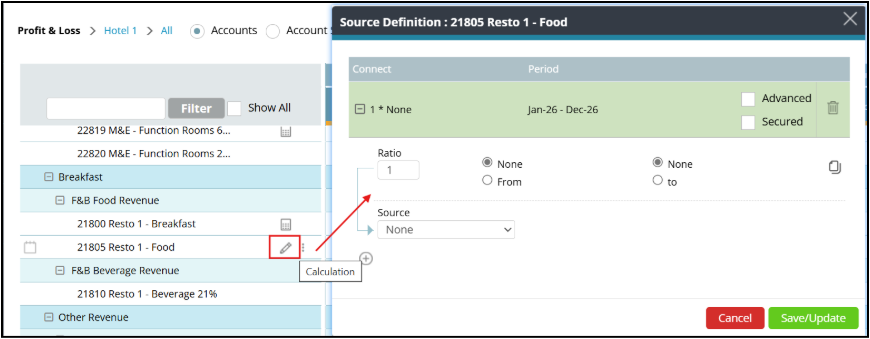
Open/edit a formula
- If this is a new formula, click on the +
- Select Advanced.
- Enter or update the formula in the Connect/formula field.
- Click the wand icon to open the advanced calculation editor.
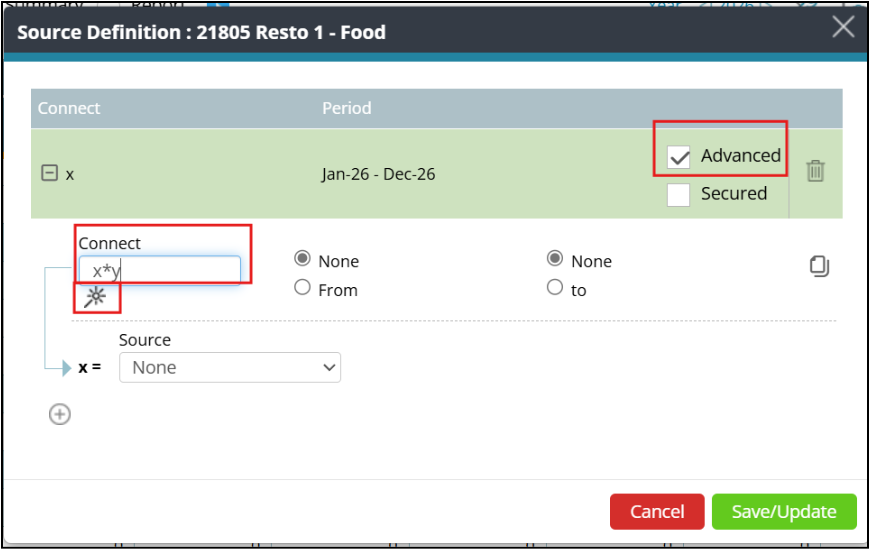
Add an advanced calculation
2. Select the Constant/Planning assumption
- At the x value, open the Source dropdown.
- Select Constant.
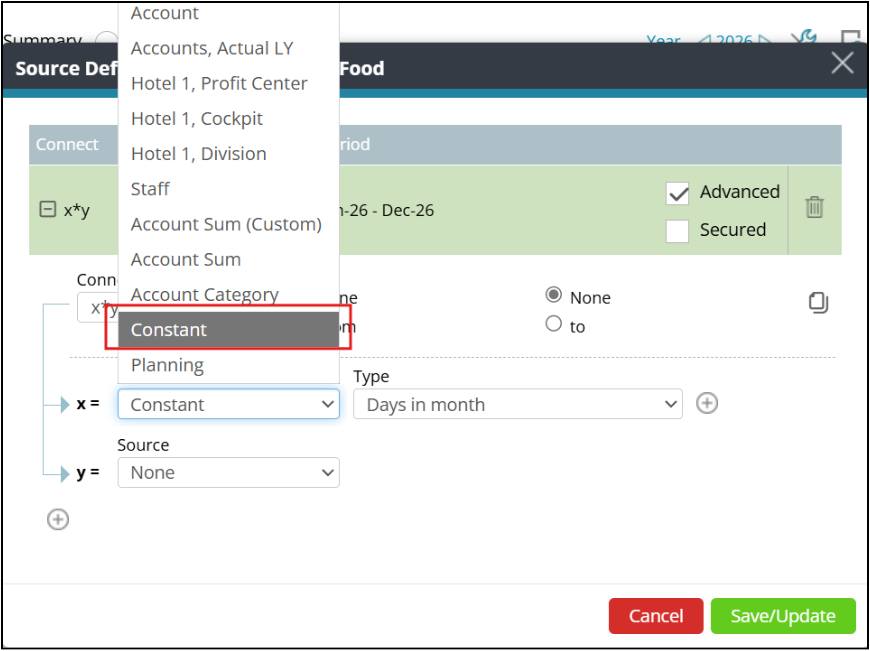
Select constant as the source
- Open the Type dropdown.
- Select the constant or planning assumption you want to use.
The list contains the planning values available to the property. Values created in the new Planning assumptions interface are also shown here as Constants.
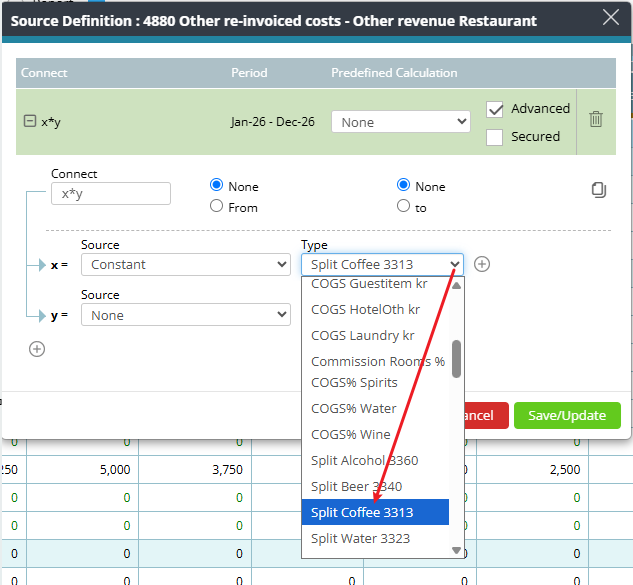
Select the correct constant/assumption
3. Select the value to use in the formula
- Under the y value, open the Source dropdown.
- Select the source that contains the value you want to use.
For example, select Hotel 417, Profit Center if the formula should use a value for a specific profit center.
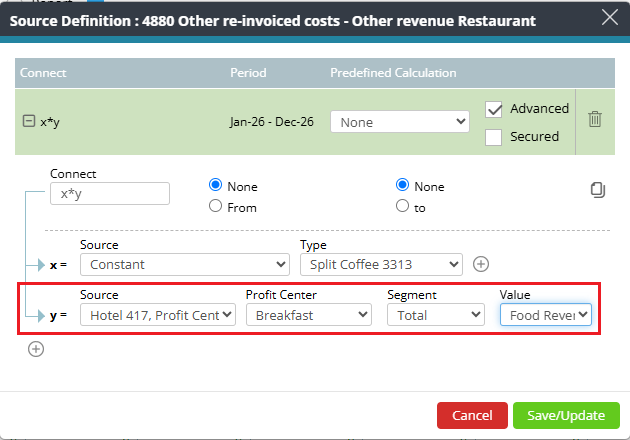
Select source, eg. Profit centre
- Select the required Profit Center.
- Select the Segment, if applicable.
- Under Value, select the value to use in the formula, such as Food Revenue.
- Click Save/Update.
The planning formula now uses the selected constant or planning assumption when calculating the P&L account.
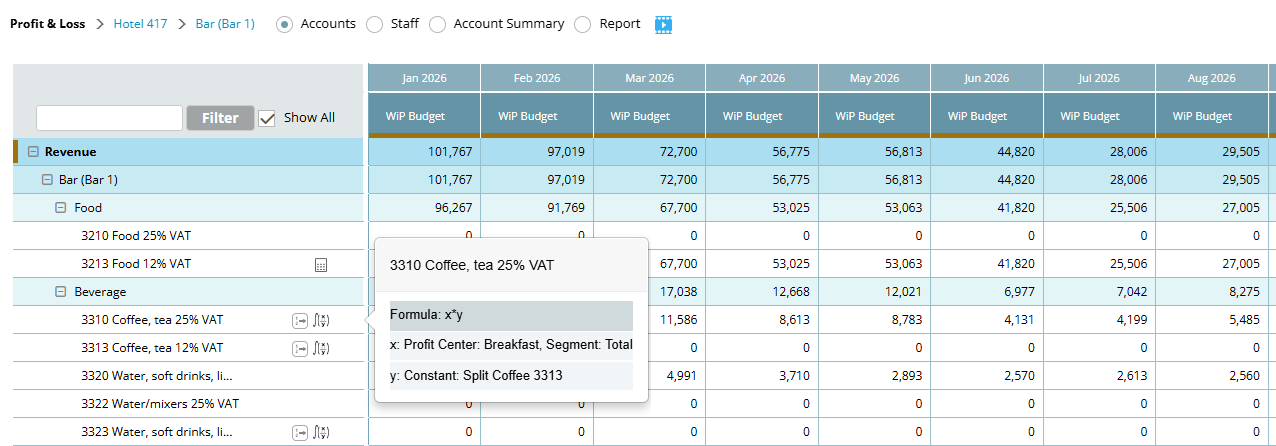
Where to manage constants and planning assumptions
The value used in the formula is managed in the Constants or Planning assumptions tool, rather than directly in the formula.
You can manage planning values in the legacy Constants tool or in Planning assumptions.
If you are using the Constants tool, you can switch to Planning assumptions by turning on the Use new PMI view toggle.
To return to the legacy Constants screen, turn Use new PMI view off.
Both views use the same underlying planning data.
Important to know
Once a planning assumption is used in a P&L formula, some of its settings can no longer be changed. For example, the Display as percentage setting cannot be changed while the assumption is used in a formula.
For formula-linked planning assumptions, PMI can also calculate historical assumption values from actual P&L results. These values are displayed in the Actuals period in Planning assumptions and are read-only.
For more information about managing planning values, see:
- Constants explained: how they work in PMI Planning
- Planning assumptions explained
-
Getting started
-
-
- Arrivals/Departures
- Data elements required from PMS
- Manual Export PMS – Fidelio
- How to do a manual PMS export from Opera
- Manual Export PMS – Picasso
- Manual Export PMS – Protel
- Manual Export PMS – Spirit Web
- PMS – Cenium
- PMS – Citybreak
- PMS – Fidelio
- PMS – Opera
- PMS – Protel
- How to do a manual PMS export from HotSoft
- PMS – Skidata
- How to set up an Opera reports export
- PMI API
- PMI API Best Practice Get Forecasted hours
- PMI File Agent setup and documentation
- Technical specification for data integration
- How to transfer data to PMI
- How to enable Opera Cloud reports
- PMI system integration overview
- Opera Scheduler setup - Reservation Statistics 1
- Opera Scheduler setup - Report Trial Balance (trial_balance)
- Opera Scheduler setup - Reservation Forecast, (res_forecast)
- Opera Scheduler setup - Reservation History & Forecast (history_forecast)
- Opera Scheduler setup - Daily Forecast Report
- Opera Scheduler setup - SFTP transfer guide
- Manual Export PMS Opera
- Report 1 (manual export): Reservation Statistics 1 (res_statistics1)
- Report 2 (manual export): Reservation Forecast, (res_forecast)
- Report 3 (manual export): Trial Balance (trial_balance)
- Report 4 (manual export): Reservation History & Forecast (history_forecast)
- Show all articles ( 4 ) Collapse Articles
-
- Understanding Productivity in Hospitality (and Why It Matters in PMI)
- How Forecasting Drives Productivity in Hotels
- The Most Important Productivity KPIs in Hospitality
- The Hotel Productivity Management Cycle
- Hospitality Productivity and PMI – Quick overview
- Balancing Productivity, Cost Control, and Guest Service in Hotels
-
Video tutorials
-
- Administration Labor cockpit [14:49]
- Bar and Pub Labor cockpit [12:21]
- Breakfast Labor cockpit [12:05]
- Consolidated view in Benchmarking and Management Perspective [3:20]
- Flash Report Onboarding [6:27]
- Flash report overview [2:25]
- Food cost cockpit [6:21]
- Kitchen Labor cockpit [11:28]
- Labor Cockpit Onboarding [18:16]
- Labor cockpit overview [3:12]
- Live forecast 1/5 navigation [5:05]
- Live Forecast 2/5 Rooms [5:05]
- Live forecast 3/5 meeting & event [5:40]
- Live forecast 4/5 food & beverage [6:11]
- Live forecast 5/5 breakfast [7:19]
- Live forecast onboarding [6:06]
- Live forecast overview [2:58]
- Management perspective overview [3:06]
- P&L Planning 1/10 Purpose and benefits [2:25]
- P&L Planning 10/10 How to approve forecast and budget or target [2:34]
- P&L Planning 2/10 Navigation [4:26]
- P&L Planning 3/10 How to build a total [4:29]
- P&L Planning 4/10 Three ways of inserting figures [4:32]
- P&L Planning 5/10 How to add a sub account [1:42]
- P&L Planning 6/10 How to build a constant [2:42]
- P&L Planning 7/10 Staff module [2:48]
- P&L Planning 8/10 How to add a staff member [1:33]
- P&L Planning 9/10 How to revise and submit a forecast [3:01]
- Repair and Maintenance Labor cockpit [13:01]
- Restaurant Labor cockpit [12:30]
- Schedule 1/8 Navigation [5:12]
- Schedule 2/8 How to create a labor cockpit schedule [4:29]
- Schedule 3/8 How to add a team member [2:07]
- Schedule 4/8 How to create a shift code [3:30]
- Schedule 5/8 How to add shift codes to team members [3:41]
- Schedule 6/8 How to create a rotating schedule [3:20]
- Schedule 7/8 How to replace shift codes for a period [2:00]
- Schedule 8/8 How to create split shifts between departments [2:42]
- Stewarding Labor cockpit [11:38]
- Timesheet Onboarding [4:14]
- Show all articles ( 25 ) Collapse Articles
-
- Articles coming soon
-
- Administration Labor cockpit [14:49]
- Bar and Pub Labor cockpit [12:21]
- Breakfast Labor cockpit [12:05]
- Food cost cockpit [6:21]
- Front office Labor cockpit [12:05]
- Housekeeping Labor cockpit [11:20]
- Kitchen Labor cockpit [11:28]
- Labor Cockpit Onboarding [18:16]
- Labor cockpit overview [3:12]
- Repair and Maintenance Labor cockpit [13:01]
- Restaurant Labor cockpit [12:30]
- Schedule 1/8 Navigation [5:12]
- Schedule 2/8 How to create a labor cockpit schedule [4:29]
- Schedule 3/8 How to add a team member [2:07]
- Schedule 4/8 How to create a shift code [3:30]
- Schedule 5/8 How to add shift codes to team members [3:41]
- Schedule 6/8 How to create a rotating schedule [3:20]
- Schedule 7/8 How to replace shift codes for a period [2:00]
- Schedule 8/8 How to create split shifts between departments [2:42]
- Stewarding Labor cockpit [11:38]
- Timesheet Onboarding [4:14]
- Show all articles ( 6 ) Collapse Articles
-
- How to edit a plan [3:52]
- P&L Planning 1/10 Purpose and benefits [2:25]
- P&L Planning 10/10 How to approve forecast and budget or target [2:34]
- P&L Planning 2/10 Navigation [4:26]
- P&L Planning 3/10 How to build a total [4:29]
- P&L Planning 4/10 Three ways of inserting figures [4:32]
- P&L Planning 5/10 How to add a sub account [1:42]
- P&L Planning 6/10 How to build a constant [2:42]
- P&L Planning 7/10 Staff module [2:48]
- P&L Planning 8/10 How to add a staff member [1:33]
- P&L Planning 9/10 How to revise and submit a forecast [3:01]
-
- Articles coming soon
-
-
Onboarding
-
- Onboarding roles overview
- Onboarding roles – Breakfast
- Onboarding roles – Finance
- Onboarding roles – Food cost
- Onboarding roles – Front Office
- Onboarding roles – Housekeeping
- Onboarding roles – Kitchen
- Onboarding roles – Restaurant and Meeting & Event
- Onboarding roles – Stewarding
- Onboarding roles – Repair and Maintenance
- GM Introduction to PMI
- Onboarding roles – Bar and Pub
- Onboarding roles – Administration
-
-
GM's corner
-
PMI homepage
-
PMI planning
-
- How to work with Rooms Budget and forecast
- How to work with non-rooms Budget and forecast
- Use Forecast/Budget hours from Cockpit in P&L Staff module
- How to input a budget in PMI
- Setting productivity targets in PMI
- Express planner overview
- How to run Express planner
- How to configure Express planner settings
- Express planner calculation explanation with examples
- Compiling revenue streams overview
- How to manually enter a revenue budget in PMI
- How to enter a revenue budget in PMI using Live forecast data
- How to enter a revenue budget in PMI using the Data Upload Centre
- How to set monthly labor productivity and hour targets in PMI
- Arrivals, departures, and stay over visibility
- P&L planning automation - how the system calculates your planning schedule
- Plan version automation - Never miss budget season again
- How to set up automated planning cycles
- Show all articles ( 3 ) Collapse Articles
-
- Room revenue Planning: Calculations explanation
- Labor planning: How to edit
- Overview of GoGreen Planning
- How to set up GoGreen planning for a chain or property
- Navigation and filters in NextGen planning page: explanation with examples
- Sense check mode in new planning pages explained
- How to edit a GoGreen plan
-
- Accounts overview
- How to populate and edit accounts
- How to approve a forecast or budget in PMI
- How to copy from reference
- How to edit and update using the staffing tool
- How to make a profit forecast
- How to set up a weekly Live forecast
- How to add a comparison year in P&L
- How to modify a P&L report
- Planning Menu – Tools and View Options overview
- Planning staff module overview
- How to build a P&L planning report
- How to add staff and manage staff cost
- Staffing screen overview
- How to input a budget in PMI
- PMI Planning module overview
- How to add a Food & beverage revenue forecast in P&L Planning
- How to add room revenue in Planning
- Constants explained: how they work in PMI Planning
- Auto-populate P&L Staff hours and rates from Budget & forecast
- Profit & Loss staff – Copy hours and rates to cockpit
- How to use Constants/Planning assumptions in P&L formulas
- Show all articles ( 7 ) Collapse Articles
-
-
Cockpit
-
- Labor cockpit overview
- Labor Cockpit Preparations
- Labor cockpit cost driver
- SMART forecast explained
- How does SMART allocate daily hours?
- Using arrivals and departures as a cost driver
- Closing Profit Center or Cockpit
- How to work with labor cost
- Min/Max explanation
- Parent and sub-cockpits explained
- Staffing guide explained
- Daily and weekly routines for department heads
- Understanding the importance of including outsourced labor hours in PMI
- How to add labor cost in PMI
- Cockpit rates - Daily weighted payroll projection
-
- Labor cockpit schedule
- How to make a schedule
- How to revise a schedule
- PMI Schedule: Information and Calculation rows explained
- Predefined shift codes
- How to print a schedule
- Revise staff
- Schedule 1/8 Navigation [5:12]
- Schedule 2/8 How to create a labor cockpit schedule [4:29]
- Schedule 3/8 How to add a team member [2:07]
- Schedule 4/8 How to create a shift code [3:30]
- Schedule 5/8 How to add shift codes to team members [3:41]
- Schedule 6/8 How to create a rotating schedule [3:20]
- Schedule 7/8 How to replace shift codes for a period [2:00]
- Schedule 8/8 How to create split shifts between departments [2:42]
- How to work with the Schedule in PMI
- Split Shifts Between Departments
- The Schedule Tools & View menu options overview
- Show all articles ( 3 ) Collapse Articles
-
-
Live forecast
- Live forecast overview
- How to set up a Live forecast: configuration settings
- Live forecast tools and personal view settings
- PMI prediction explained
- Pickup explanation
- Revenue driver explained
- Segment OTB
- Submit Live Forecast to Forecast (monthly routine)
- NextGen Rooms Live forecast overview
- NextGen Rooms Live forecast: Weekly routine overview
- Rooms live forecast: How to work with auto Live forecast
- NextGen Rooms live forecast: Personal view options
- Rooms Live forecast: Sense check mode explained
- How pickup fields are displayed and used in Room live forecast
- Collaborative Forecasting with PMI Prediction
- Non-rooms Live forecast using PMI prediction
- Live forecast – Copy to live forecast
- Live forecast – Revise forecast/budget
- Rooms Live forecast - Edit guest nights factor explained
- Live forecast settings - Configure food revenue by segment
- Show all articles ( 5 ) Collapse Articles
-
Data analysis views
-
Administration
-
- Add documents to a property
- Currency settings
- Fact sheets overview
- Group external hotel
- How to use hours transfer [3:34]
- Hours transfer rules
- Operational status
- Period locking overview
- Share group
- Share hotel
- How to complete Classification Fact sheet
- How to use Period locking for R&P in practice
- How to manage GoGreen Period locking
-
- How to view imported data in the Import status
- Import status overview
- How to read the Import status page
- Handling Outstanding Imports (Missing Data) in PMI
- Understanding the Import status settings
- Import status - Understanding advanced Data offset validation for GoGreen and Food Purchase interfaces
- Import status - Understanding statuses
- How to reload an API import
-
-
GoGreen
-
- Introduction to GoGreen planning
- Overview of GoGreen Planning
- GoGreen plan values explained
- GoGreen planning charts explained: using charts to understand my forecast
- How to set up GoGreen planning for a chain or property
- How to do a GoGreen monthly forecast routine
- Navigation and filters in NextGen planning page: explanation with examples
- Data table general explained
- Sense check mode in new planning pages explained
- How to edit a GoGreen plan
- GoGreen home page overview
- GoGreen Doing Cockpit overview
- GoGreen Learning page overview
- GoGreen index overview
- Weather normalization overview
- CO2 factors overview
- GoGreen targets explanation
- GoGreen index: How are the measurements calculated?
- Useful links for sustainability and environmental management best practice
- How to make a manual entry in a GoGreen cockpit
- Weather normalization explained
- GoGreen benchmarking enhancement - 01.23
- GoGreen – Data Integration & Insights (Overview)
- Environmental Sustainability in Hotels – Foundation
- Environmental Dimensions in Hotel Operations (Energy, Water, Waste, Emissions, etc.)
- Environmental Management Systems (EMS) in Hotels
- GoGreen Monitoring, Measurement, and Performance Evaluation in Hotels
- Waste Measurement and Verification in Hotels
- Emergency Preparedness and Environmental Risk Management in Hotels
- Hotel Water Consumption Profile & Key KPIs
- Domestic Hot Water Systems in Hotels (Efficiency & Legionella Control)
- Cooling Towers and Water Efficiency in Hotel HVAC Systems
- Water Metering, Submetering and Leak Detection in Hotels
- Preventive Water Management Tasks for Hotels
- Nordic Swan Ecolabel for Hotels
- How the Nordic Swan Criteria and Scoring Work
- BREEAM Certification for Hotels Explained
- Green Key Certification for Hotels
- Hotel Energy Consumption and Key Performance Indicators
- Hotel Energy Benchmarking (A++–G Classification)
- HVAC Systems and Energy Optimization in Hotels
- Boiler Systems and Heating Efficiency in Hotels
- Building Management Systems (BMS) and Energy Monitoring
- Preventive Energy Management and Engineering Tasks
- GoGreen Sustainability Knowledge Hub
- Advanced Water Optimization in Hotels
- Smart Leak Detection in Hotels
- Smartvatten Leak Alarms for Hotels
- How to Investigate Water Leaks in a Hotel
- Water Balance Modeling and Water Analytics for Hotels
- Smart Irrigation and Cooling Tower Water Optimization in Hotels
- Hotel Water Management and Optimization – Overview
- How to Control Linen Inventory in Hotels
- How to Set Up a Food Waste Management Program in Hotels
- How to Run a Food Waste Audit in Hotels
- Food Waste Troubleshooting and Best Practices for Hotels
- PMI Energy Heatmap – Understanding Energy Consumption Patterns
- How to Control Your Hotel Using Data and Operational Discipline
- PMI GoGreen Cockpit – Managing Sustainability Performance in Hotels
- How to Set Up GoGreen in PMI
- How to Measure and Manage Waste in Hotels
- GSTC Hotel Standard – What It Is and How It Applies to Hotels
- Green Key Certification for Hotels – What It Is and How It Works
- Sustainability Certifications for Hotels – GSTC, Green Key, Nordic Swan, and BREEAM
- GoGreen in PMI – Sustainability and Operational Efficiency in Hotels
- PMI GoGreen Knowledge Hub
- Hotel Energy Benchmark – Energy Analysis Reference
- Hotel Energy Optimization – Understanding Base Load, Peaks, and Energy Performance
- Hotel Energy KPIs Explained: Base Load, Peak Demand, and Key Metrics
- How to Analyze Hotel Energy Consumption Patterns
- How to Identify Energy Savings Opportunities in Hotels
- Green Key Certification in Hotels – Overview and Practical Application
- Green Key Criteria – Mandatory and Optional Tasks (Pre-defined)
- Show all articles ( 48 ) Collapse Articles
-
-
KPIs
-
PMI adoption index
-
General user knowledge
-
Miscellaneous
-
Access system
- Articles coming soon
-
FAQ
-
- How can I see the hours that are imported to PMI?
- How do I enter the rates?
- How do I know if I am scheduling according to activity?
- How does PMI summarize the hours?
- How is productivity calculated?
- What are fixed hours?
- What are productive and non-productive hours?
- What are the rates and how are they calculated?
- What is a cost driver?
- What is min/max hours?
- Why do the planned hours in the Timekeeping System (TKS) not match PMI?
- Why is the total number of hours for the month too low/high?
- What is SMART?
- How F&B departments can set realistic targets when room revenue drops temporarily
- Why is my MTD SMART productivity different from my ME SMART productivity when my cockpit is locked on Productivity?
-
- How do I estimate my Closing Inventory?
- My food cost % is wrong (too high/low). Why is that?
- My turnover days are set to 32. What does that mean?
- What are my routines in the Food cost cockpit?
- What do I enter in the Purchase column?
- What is opening and closing stock?
- What is the recommended number of turnover days?
- What is turnover days and how is it calculated?
- Where do I change my food cost forecast?
- Why is opening and closing stock important?
-
- Can one employee work in two departments?
- How do I add a shift code?
- How do I copy hours into the unspecified row (Timekeeping system excluded)
- How do I create a rotating schedule?
- How do I make a new schedule?
- How do I navigate the tools in the schedule?
- What are timekeeping system (TKS) excluded hours for?
- How do I add a schedule to my cockpit?
- Do workers added in the schedule get carried over to future months?
-
- Do I have to change my budget & forecast manually every month?
- How can I see what the current cost driver is?
- How do I set a productivity goal?
- How does the cost driver effect my hours and productivity?
- Where can I find the upload function?
- Why are my budget and forecast locked?
- What is Room revenue planning?
-
- How do I copy to Live forecast?
- How do I submit my Live forecast to forecast?
- How do I reset the pickup for a full month?
- Why do I have a red triangle to the left of the date?
- What are Pickup statistics?
- What are covers?
- What are the seasons in PMI?
- What do the pickups show and why are they sometimes negative?
- What is a revenue driver?
- What is the difference between Forecast and Live forecast?
- Why does on the books in PMI not match what we have in our PMS?
- How do I calculate ARR and ADR?
-
- Can I edit the figures in the Flash report?
- Different view options in the Flash report
- How am I performing compared to my forecast/budget/last year?
- How can I print the report?
- How can I switch between viewing daily and monthly figures?
- How do I check what segments add to the total daily figure?
- How do I edit my covers?
- Why are my room/guest nights wrong?
- What is the Flash Report
- Why is my revenue wrong?
- How is the month-to-date forecast and budget calculated in the Flash report?
- Why are the numbers in the Flash report different from the Live forecast?
- Where can I see account mapping details?
-
- How do I know if the mapping is correct?
- How do I know where accounts should go in PMI?
- How do I map the categories in the timekeeping system (TKS)?
- I cannot see my department in Timekeeping System (TKS) mapping. How do I see it?
- There is a position missing in the Timekeeping system mapping. How can I fix this?
- What are Categories in PMI Timekeeping system?
- What is Departments in Timekeeping system (TKS) mapping?
- What is mapping accounts?
- What is mapping – timekeeping system?
- Why don’t I see the spoon and fork icon in account mapping?
-
PMI Release notes
-
- GoGreen Task Bank and Cockpit enhancements - 12.24
- Refrigerants and Fuel Tracking for GoGreen cockpits enhancement - 11.24
- KPI targets enhancement - 10.24
- Automatic renewal of constants enhancement - 10.24
- GoGreen manual entry enhancement - 10.24
- CO2 factors enhancement - 09.24
- KPI targets enhancement - 07.24
- NextGen Rooms Live forecast statistics and pickup data enhancement - 07.24
- Date picker enhancement - 07.24
- Update to NextGen Rooms Live forecast - 06.24
- P&L planning accounts enhancement - 06.24
- Weather normalization enhancement - 05.24
- Update to NextGen Rooms Live forecast page: Sense check updates - 05.24
- PMI adoption index enhancement - 05.24
- PMI adoption index enhancements - April 2024
- Consolidation OTB enhancement - April 2024
- Update to NextGen Rooms live forecast page: Personal view options, Mar 2024
- User administration enhancements March 2024
- GM daily digest enhancement March 2024
- PMI Index calculation updates for 2024
- KPI targets enhancement February 2024
- KPI targets enhancement - January 2024
- Show all articles ( 7 ) Collapse Articles
-
- GoGreen benchmarking enhancement - 01.23
- GoGreen index calculation enhancement - 04.23
- PMI adoption index: Help videos for measurements enhancement - 02.23
- Activity log enhancement - 07.23
- Arrivals and departures forecast enhancement - 02.23
- KPI upload tool enhancement - 08.23
- GoGreen Food waste cockpit enhancement - 08.23
- GoGreen Doing cockpit enhancement - 06.23
- Benchmarking: PMI Index value updates based on time period selected - 06.23
- GoGreen cockpit: Highlight months missing data on 12 month graph - 07.23
- KPI targets enhancement - 01.23
- Goal distribution tool enhancement - 09.23
- Live forecast enhancement: Editing ARR values -12.23
- User administration release note - 12.23
- New page view of Rooms live forecast - 12.23
-
- Benchmarking calculation enhancement - 03.22
- Enhancement to add department type in the P&L report - 03.22
- Print all unmapped accounts on chain level - 03.22
- Printing to Excel and PDF enhancement - 03.22
- Introduction to PMI enhancement
- Room Live forecast – Change to pickup fields - 04.22
- Information/calculation rows in PMI schedule - 09.22
- Export to Google Sheets enhancement - 08.22
- PMI Advanced settings – Period locking - 06.22
- GM daily digest enhancements - 09.22
- PMI adoption index: Option to filter and export scores enhancement - 12.22
- Profit center Live forecast: Automatically switch between OTB and revenue driver
- SMART Forecast enhancement - 09.22
-
d2o team only
-
- Articles coming soon
-
- Articles coming soon
-
- Articles coming soon
-
- Articles coming soon
-