
How to set up automated planning cycles
Overview
The Cycle schedule setting allows you to automate the creation and management of Budget and Forecast planning cycles. You can define when planning cycles open, how long users can submit their plans, how long reviewers have to approve them, and how generated plan versions are named.
Once configured, PMI automatically creates future plan versions according to your schedule, helping ensure a consistent and repeatable planning process.
Objective
By the end of this task, you will have configured the automated rules that control when your Budget and Forecast plan versions open each cycle, how long your team has to submit their numbers, how long you have to review, and what every generated version is named — so the system runs each planning round automatically from this point forward.
Before you begin
This functionality is not automatically available for all chains. If you want it activated, contact support@d2o.com.
Who can do this?
- System administrator
- Hotel controller / Finance manager
When can this be configured?
You can set up or change Cycle schedule settings at any time. If a plan version is currently Open (your team is actively working on it), the system will ask you how the changes should be applied before saving — it will not block you or apply changes silently.
How Cycle Schedule Works
Cycle Schedule automates the creation of Budget and Forecast planning cycles based on rules that you define.
The setup process consists of three stages:
- Configure Budget and/or Forecast planning cycle rules.
- Define how generated plan versions should be named.
- Review and activate the generated schedule.
Before configuring these rules, you must first open the Cycle Schedule configuration page.
Open the configuration
Go to Profit & loss > Settings > Cycle schedule, then select your collection from the list.
The setup wizard opens on the first step: Planning cycle scope.
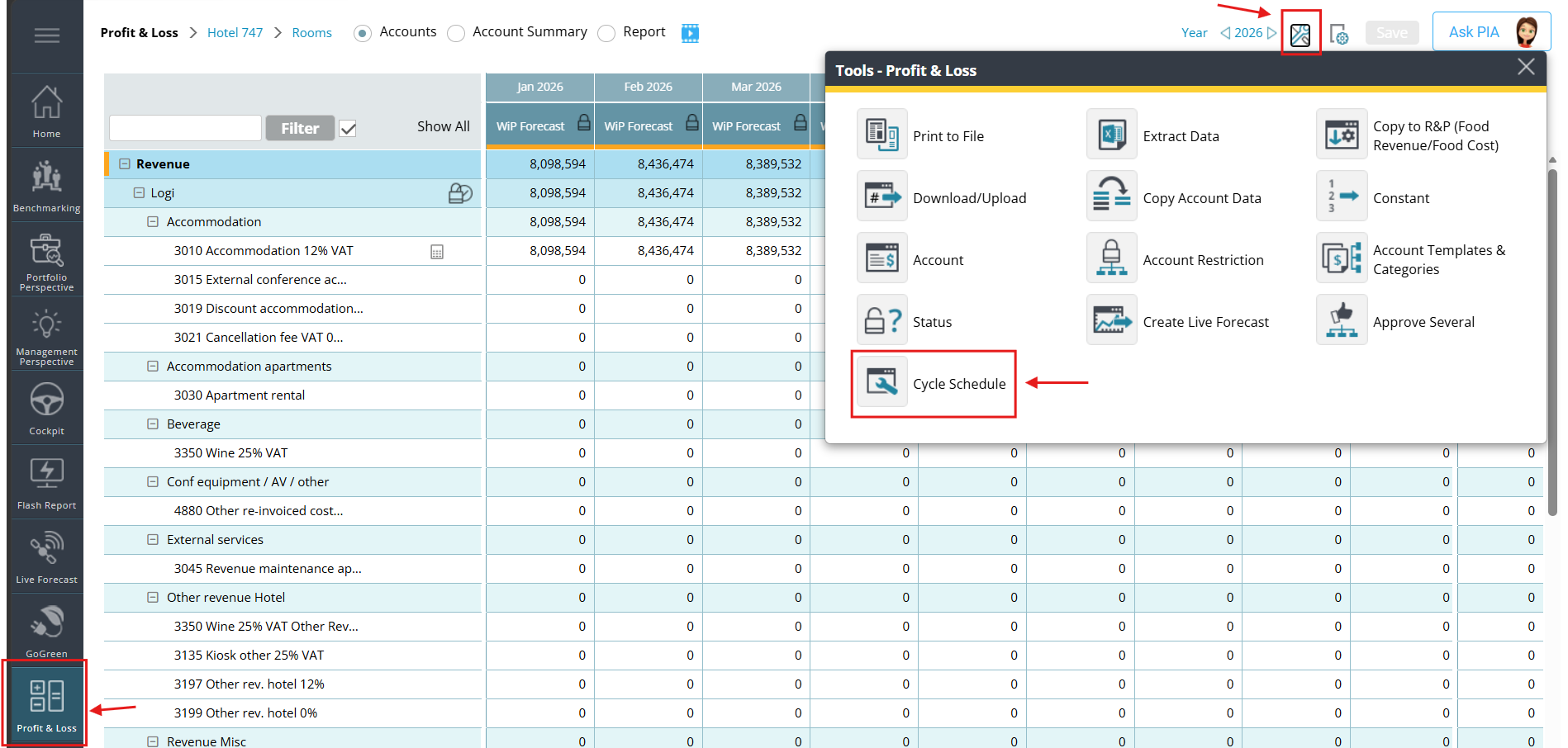
Image description: Navigation to the Cycle schedule
Step 1: Configure planning cycle rules
In the Planning cycle scope stage, configure the rules for your budget and forecast planning cycles.
1.1 Configure budget cycles (skip if you’re not running a budget)
Check the Budgeting checkbox at the top of the budgeting card.
When enabled, the budget cycle settings become available. If disabled, the fields collapse and the Budget cycle is disabled.
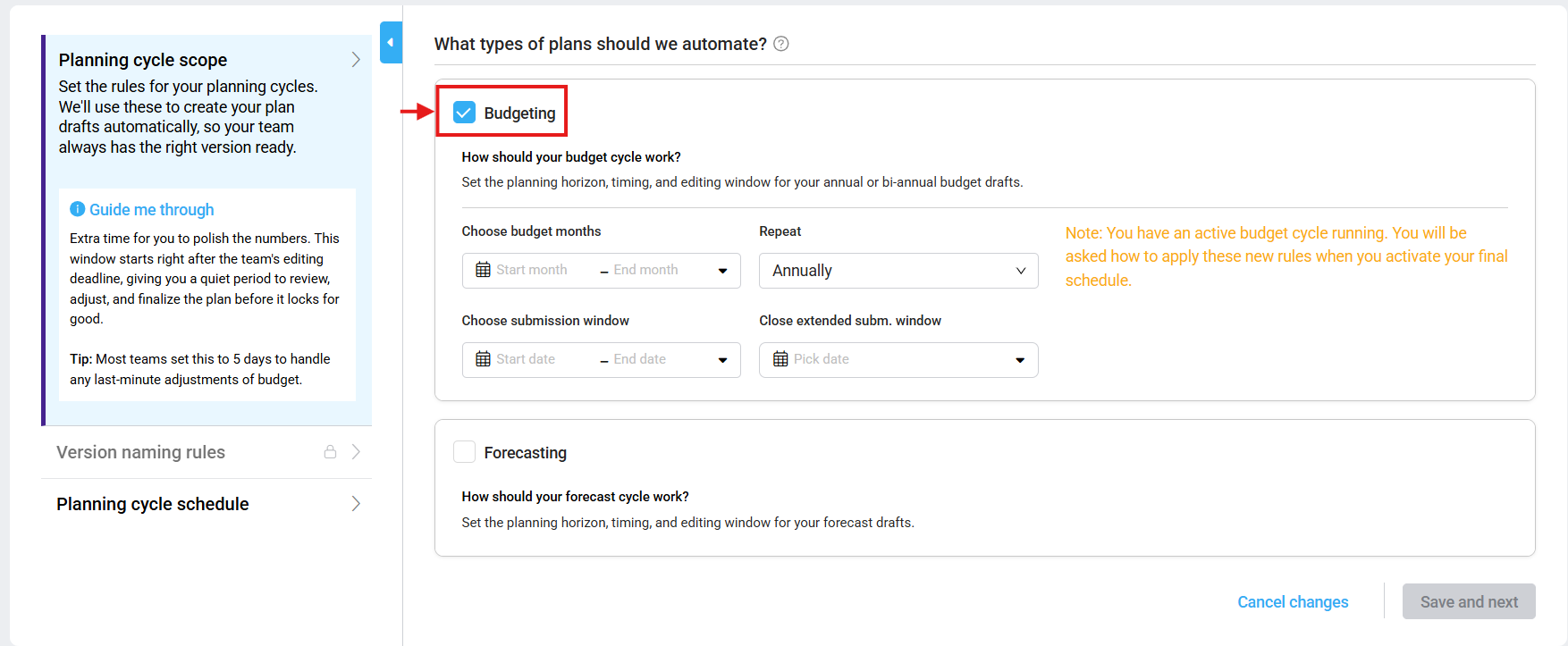
Image description: Configuring your budget
Complete the budget cycle settings.
Configure the following fields:
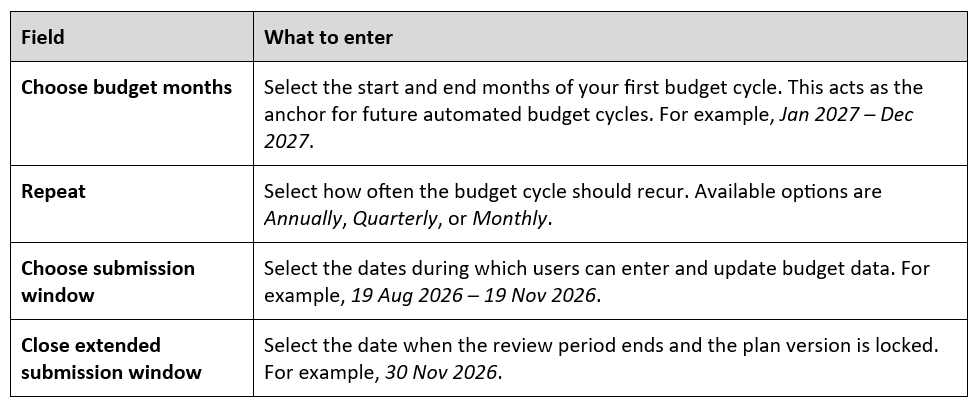
Review the summary panel
As you complete the fields, the summary panel displays the calculated planning cycle details, including the planning period, submission window, and review period.
Review these details before continuing. If the dates or timings are not correct, adjust the settings accordingly.
If an orange warning is displayed, an active budget cycle already exists. You can continue configuring the settings and decide how changes should be applied when saving.
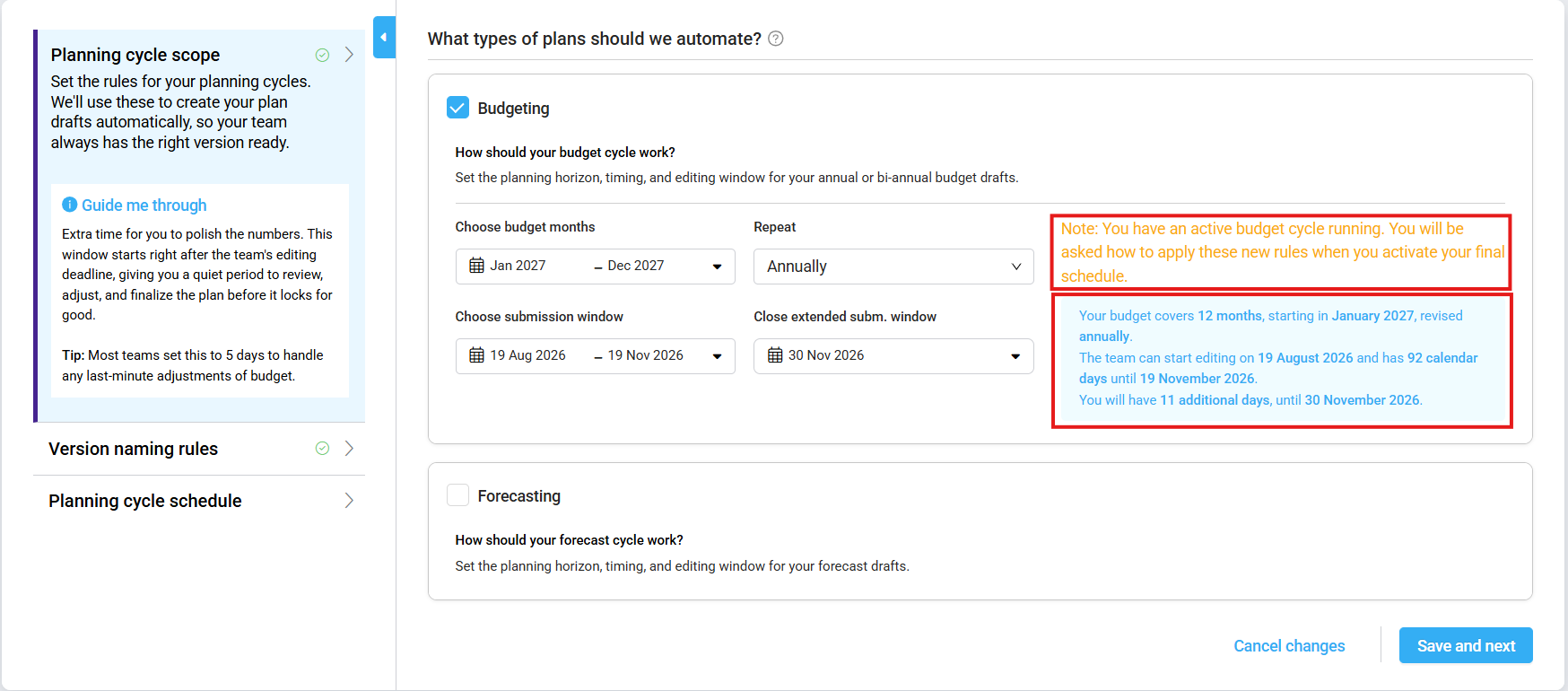
Image description: Budget summary and warning
1.2 Configure forecast cycles (skip if you’re not running a forecast)
Enable Forecasting and configure the planning cycle settings for your forecast process.
The same fields are available as for budgeting:
- Choose forecast months – Select the start and end months of your first forecast cycle.
- Repeat – Select how often the forecast cycle should recur.
- Choose submission window – Select the dates during which users can enter and update forecast data.
- Close extended submission window – Select the date when the review period ends and the forecast version is locked.
Budget and forecast cycles are configured independently and can use different schedules, submission windows, and review periods.
Note: At least one plan type must remain enabled. If both budgeting and forecasting are disabled, the schedule cannot be saved.
Step 2: Configure version naming rules
Version naming rules help ensure generated plan versions are easy to identify and remain consistent across properties and planning cycles.
Select Save and next to open the Version naming rules step.
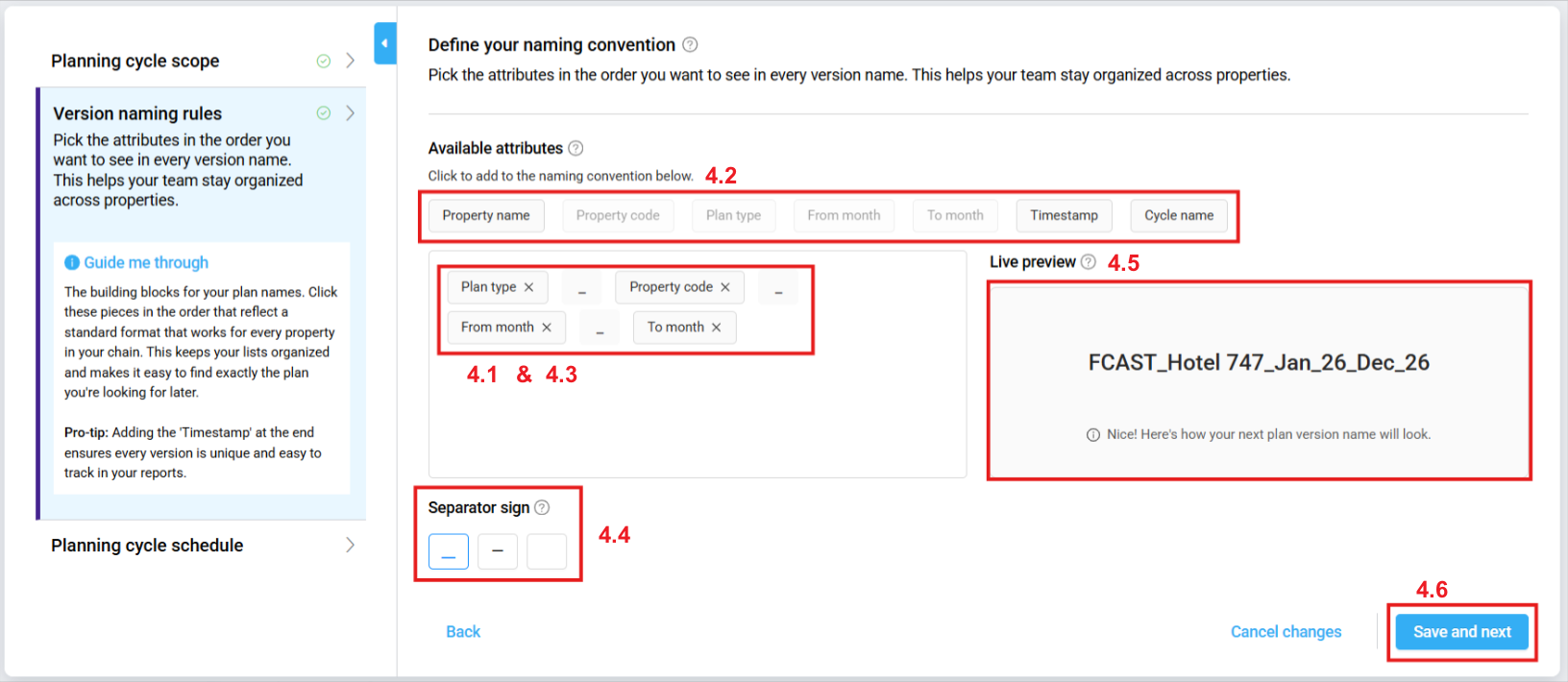
Image description: Version naming rules settings
4.1 Review the default format
The builder area is pre-filled with: [Plan type] _ [Property code] _ [From month] _ [To month]. This is the system default. You can keep it or customise it.
4.2 Add more name pieces (optional)
The Available attributes panel shows additional building blocks you can add: Property name, Cycle name, Timestamp. Click any chip to add it to the builder. Once a chip is in the builder, it greys out in the available list — it can’t be used twice.
4.3 Reorder or remove pieces (optional)
- Drag chips within the builder area to change their order.
- Click the × on any chip to remove it from the name.
Required: The builder must always contain either Property name or Property code. Remove both and the Save and next button disables with an inline warning.
4.4 Choose a separator
Under Separator sign, pick one of three options: underscore ( _ ), dash ( — ), or space.
4.5 Check the live preview
The Live preview panel on the right shows exactly how your next generated version name will look. Check it carefully. Once the schedule is live, this naming format applies to every future version.
Note: Renaming past versions is not possible.
4.6 Click Save and next.
Step 3: Review the planning schedule
The planning cycle schedule displays all generated budget and forecast cycles for the next 12 cycles.
Use this view to verify that the schedule created from your rules matches your planning requirements.
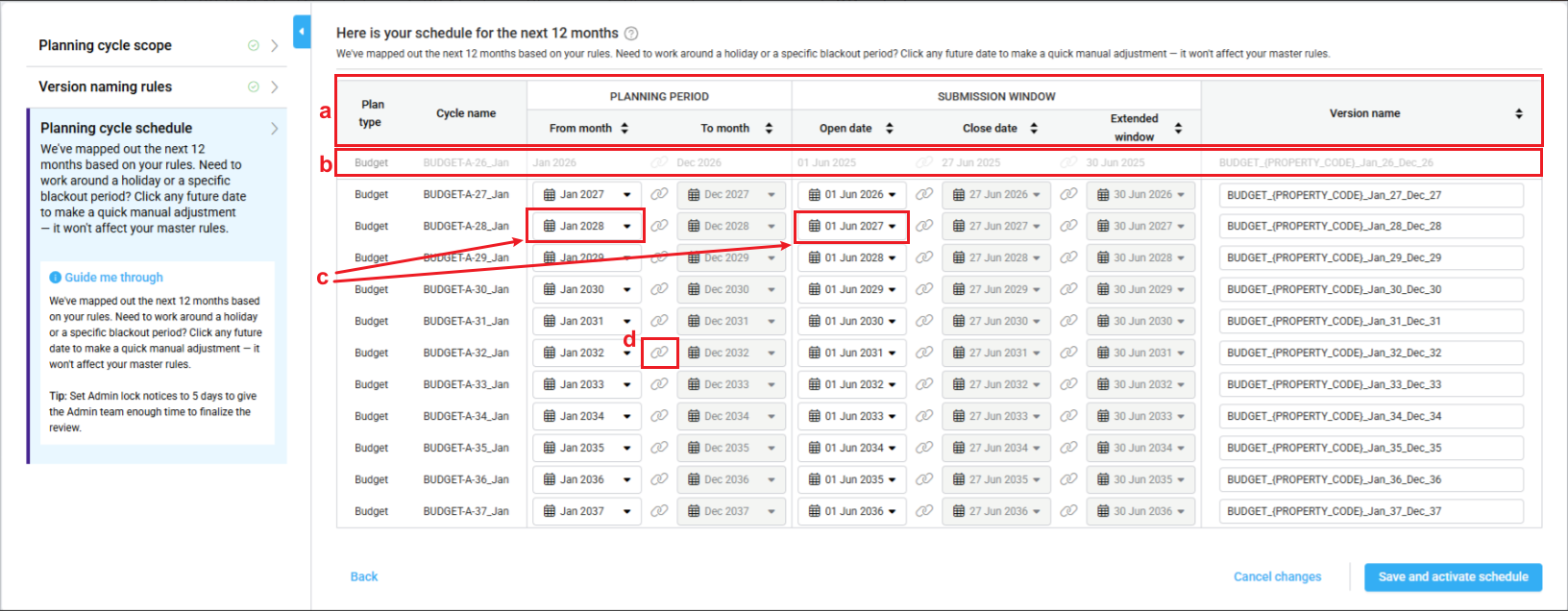
Image description: Adjusting individual cycle schedule
3.1 Read the schedule table
The table maps out every planned Budget and Forecast cycle for the next 12 months, with columns for Plan type, Cycle name, From month, To month, Open date, Close date, Extended window, and Version name. (a)
Greyed-out rows at the top are past (Locked) cycles — they are read-only and cannot be changed. (b)
3.2 Adjust individual cycles (optional)
For any future or currently Open row, click a date cell to open a date picker and shift that specific cycle’s date. This changes only that one cycle — your master rules for all other cycles stay exactly as you set them. (c)
To move two linked dates together (for example, shifting both the open and close date forward as a block), keep the chain link icon between them in linked mode. To edit just one date on its own, click the chain icon first to unlink the pair. (d)
Step 4: Save and activate
Select Save and activate schedule.
If any active planning cycles are affected by your changes, PMI will display a confirmation message before saving.
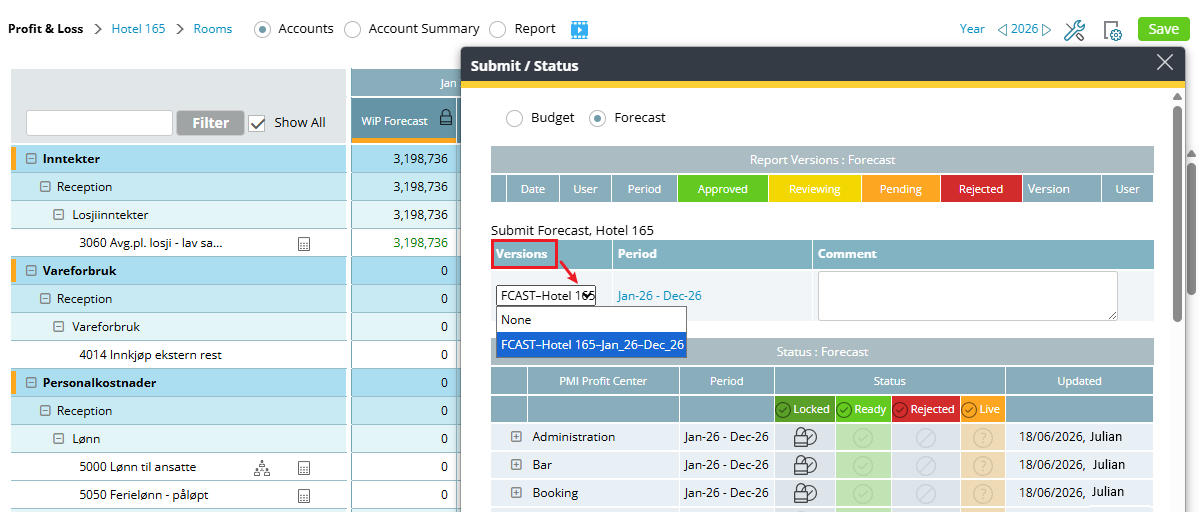
Image description: Example of the version name in P&L Status
Handling confirmation prompts
Depending on the changes you make, PMI may display one of three confirmation prompts before saving your schedule. These prompts help you decide how changes should be applied when active planning cycles are already in progress.
Prompt A — “You have an active planning cycle”
This appears when you changed a master rule and there is currently an open Budget or Forecast cycle of that same type.
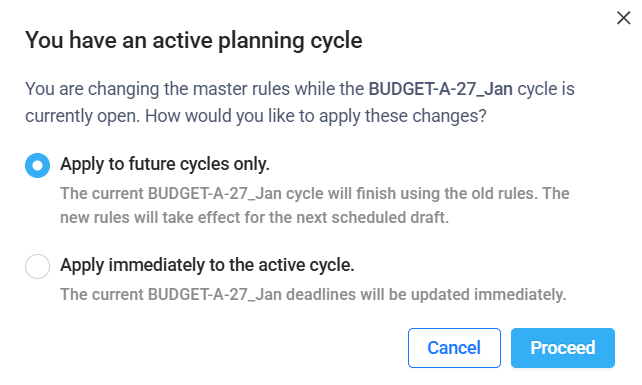
Image description: Confirmation popup during an open budget/forecast cycle
- Apply to future cycles only (selected by default) — Your team finishes the current cycle under the old deadline. The new rules kick in from the next cycle onward.
- Apply immediately to the active cycle — The current cycle’s deadlines update right now.
Click Proceed, or Cancel to go back.
Prompt B — “You are modifying an active cycle”
This appears when you directly edited a date on an open cycle row in the schedule table (Step 3.2).
It confirms that your manual change overrides the master rule for that one cycle only.
All other cycles stay on master rules. Click Confirm & update, or Cancel to undo.
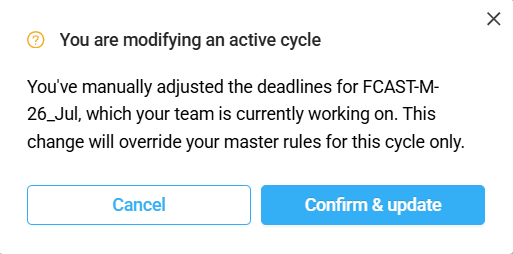
Image description: Confirmation when date is modified during an active cycle
Prompt C — “Confirm schedule updates”
This appears when you both changed a master rule AND directly edited an open cycle row for the same plan type.
Your direct edit wins: the active cycle uses your manual dates, and the new master rules apply to all future cycles.
Click Confirm & update, or Cancel.
Best practices
- Give yourself a realistic review period by allowing sufficient time between the submission deadline and the extended review deadline.
- Use direct schedule edits for one-off exceptions rather than changing your master rules.
- Use a consistent version naming convention across all properties to simplify reporting and plan management.
Related articles
Plan version automation – Never miss budget season again
How the system calculates your planning schedule