
This is the Opera Scheduler – Report Trial Balance (Historical Revenue) guide.
This article walks you through how to export historical revenue data from Opera via the Scheduler’s Trial Balance report, enabling you to feed accurate financials into PMI. Whether you’re doing this for the first time or refreshing your setup, this will help you get it right in minutes.
Step 1
- Click NEW
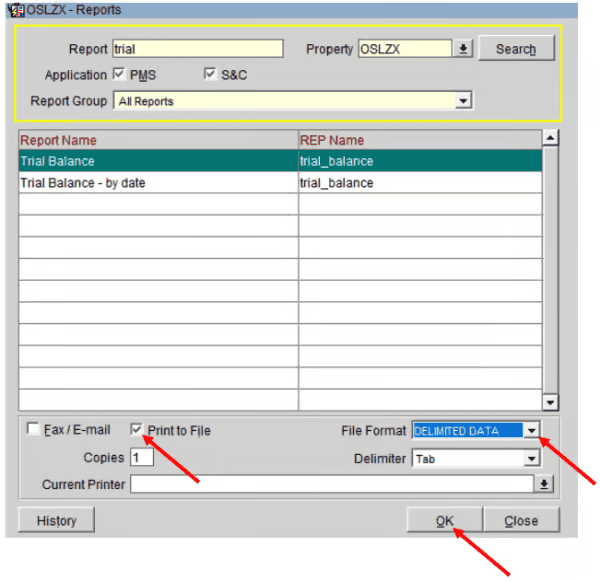
- On report overview write trial in the Report field, click search
- Choose Trial Balance
- Click ok
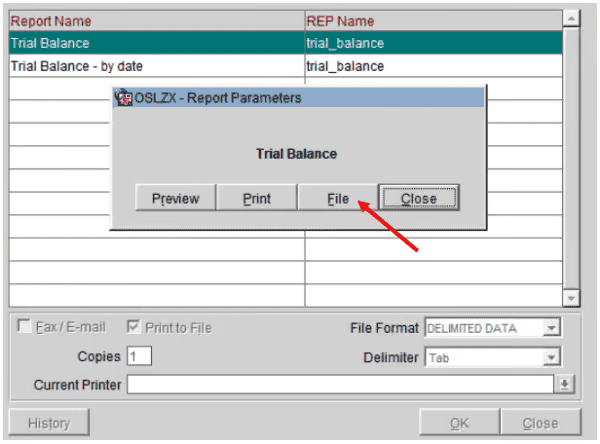
- Print to file
- File format Delimited data
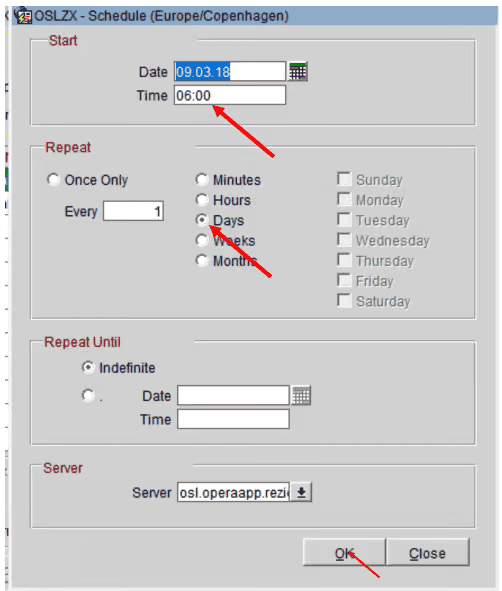
- Ok
Step 2
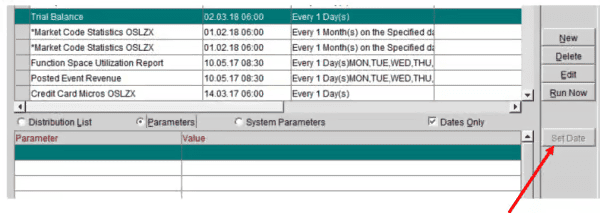
- Set date to -1
If you cannot reach Set Date – please to the following:
- Go to Configuration in Opera
- Setup
- Report Setup
- Reports
- Search for Trial Balance
- Edit the Trial Balance
- Click on Parameters button
- Save (do not change anything just click Save)
- Ok
- Exit the module
Then back to Opera Scheduler and the Set Date is visible
Cross-references
- Opera Scheduler setup
- Reservation Statistics 1 (Historical Room Nights and Guest Nights) Reservation statistics 1 guide
- Trial Balance – (Historical Revenue) Trial balance guide
- Reservation Forecast – (OTB Room revenue, Room Nights and Guest Nights) Reservation forecast guide
- Reservation History and forecast – (Arrival and Departures)Reservation history and forecast guide
- M&E Revenue forecast – (OTB M&E Revenue) M&E revenue forecast guide