
This is the Opera Scheduler – Reservation Statistics 1 guide.
This document walks you step‑by‑step through how to schedule and export historical room‑night and guest‑night data from Opera PMS, so you can seamlessly feed valuable stats into the PMI platform. Whether you’re setting things up for the first time or refreshing your knowledge, we’ll help you get up and running smoothly.
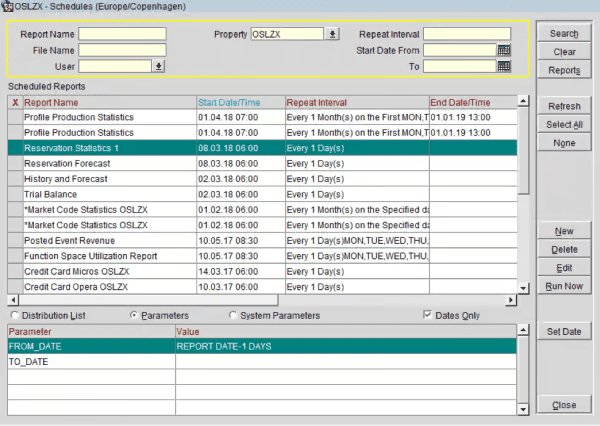
Step 1
- Log into opera PMS
- Miscellaneous and choose Reports Scheduler
- Click NEW
Step 2
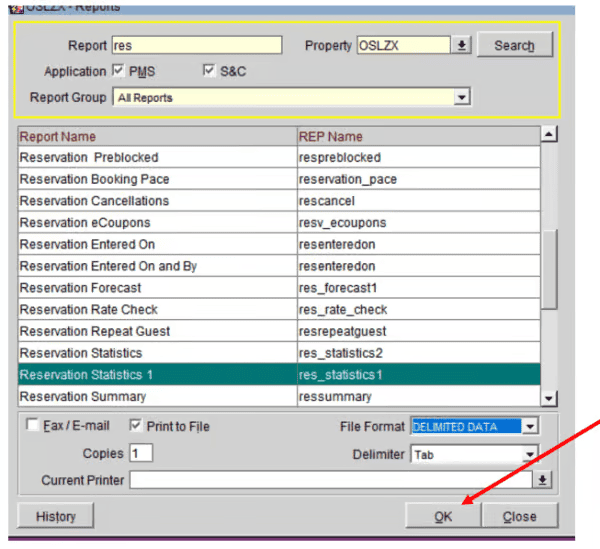
- Enter reservation in Report field and click search
- Choose Reservation Statistics (res_statistics1)
- Print to file and Delimited data and click OK
Step 3
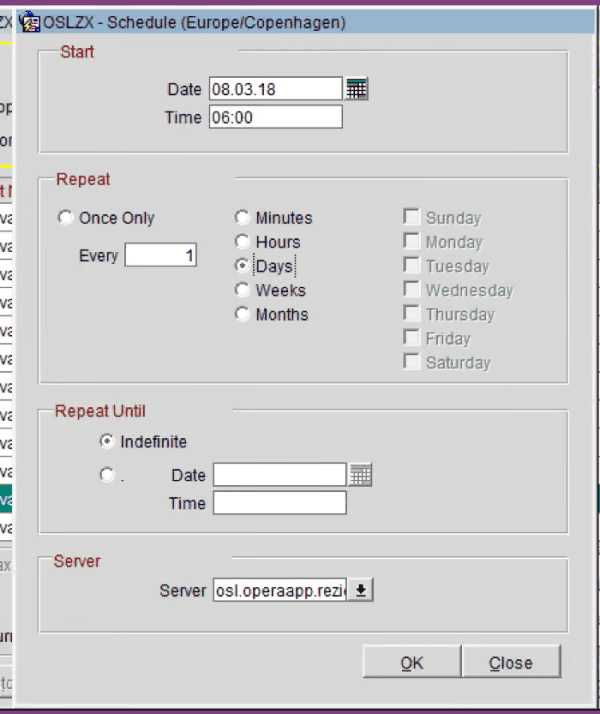
- Scedule start next day
- Time 06:00
- Every one day
Step 4
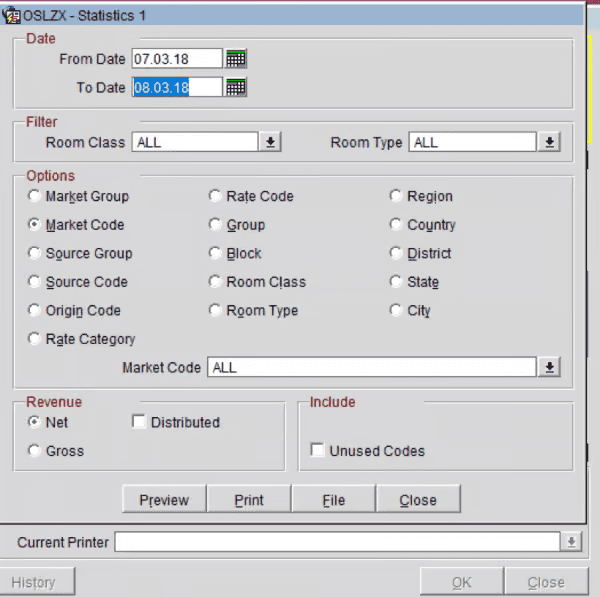
- From date is yesterday’s date
- Under “Options”, choose Market Code
- Click on File
- Close
- Go back to reports
Step 5
- Set From Date to Report Date -7
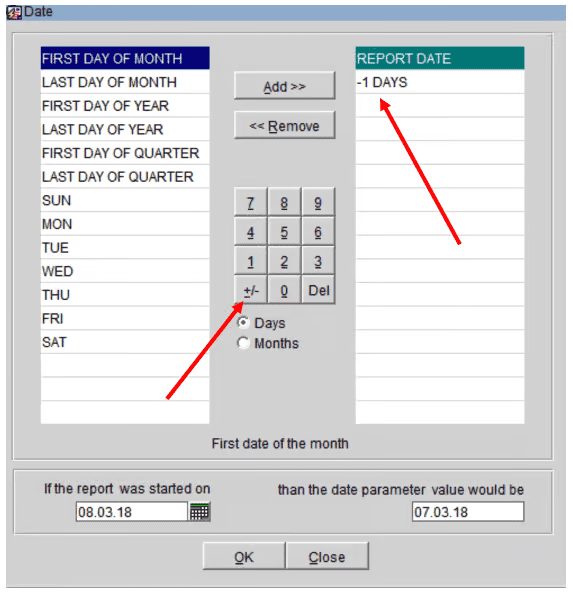
- Set To date to Report Date -1
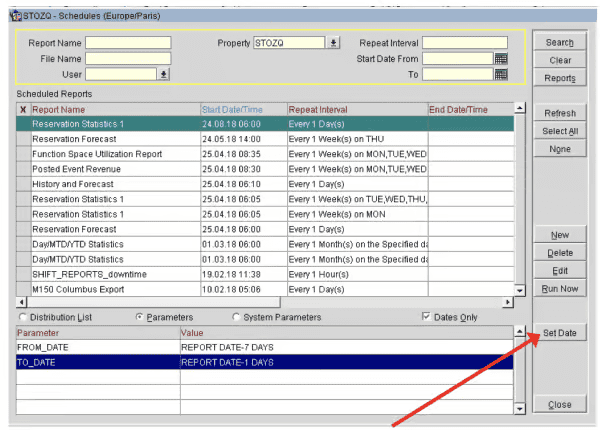
Step 6
- It should be -7 days NOT 1
Cross-references
- Opera Scheduler setup
- Reservation Statistics 1 (Historical Room Nights and Guest Nights) Reservation statistics 1 guide
- Trial Balance – (Historical Revenue) Trial balance guide
- Reservation Forecast – (OTB Room revenue, Room Nights and Guest Nights) Reservation forecast guide
- Reservation History and forecast – (Arrival and Departures)Reservation history and forecast guide
- M&E Revenue forecast – (OTB M&E Revenue) M&E revenue forecast guide