
This article explains what the different import statuses mean in the Import status table. Knowing how to interpret each status helps users identify whether data is up to date or if further action is needed.
Introduction
Import statuses help users understand whether expected interface data has been received and processed successfully in PMI.
PMI monitors active interfaces and evaluates:
- whether a file arrived
- whether the expected operational dates or months exist in the file
- whether PMI could process the file successfully
When PMI detects a problem, the interface displays a status that explains the issue. Depending on the status and your warning configuration, a warning may also appear on the PMI home page.
Import status behavior
The Import status page monitors active interfaces configured through the System Integration Tool (SIT).
PMI evaluates imports based on:
- Data level
- Expected file arrival
- Data offset
- Warning configuration
These settings determine when PMI expects data and when warnings should appear.
Understanding statuses
Import complete
An interface is considered Import complete when:
- the file arrived successfully
- the expected operational dates or months were found
- PMI processed the file successfully
This means the interface is working as expected.
In progress
An interface is marked as In progress when:
- the import process has started
- the file is currently being processed
- the import is waiting in the processing queue
No action is needed while the import is in progress.
The Import status page refreshes automatically once processing is complete.
Waiting for data
An interface is marked as Waiting for data when:
- PMI is still within the expected arrival time for the import
- the expected file has not yet arrived
No action is needed while PMI is waiting for the expected import.
If the expected arrival time passes without receiving the file, the status changes accordingly.
Outstanding import
An interface is marked as Outstanding import when:
- the expected import has not been received after the expected arrival time
Interfaces marked as Outstanding import are highlighted in red.
If Warning is enabled, PMI also displays a homepage warning until the issue has been resolved.
Incomplete import
An interface is marked as Incomplete import when:
- the file was imported successfully
- some of the expected operational data is missing
Interfaces marked as Incomplete import are highlighted in red.
If Warning is enabled, PMI also displays a homepage warning until the issue has been resolved.
Import failed – format issue
An interface is marked as Import failed – format issue when:
- the file was received
- PMI could not process the file because of an invalid or unsupported file format
Interfaces marked as Import failed – format issue are highlighted in red.
If Warning is enabled, PMI also displays a homepage warning until the issue has been resolved.
Missing from source file
An interface is marked as Missing from source file when:
- the import file was received successfully as a HIDMAP for a group of properties/chain
- the property is not included in the source file
- no data could therefore be imported for that property
Interfaces marked as Missing from source file are highlighted in red.
If Warning is enabled, PMI also displays a homepage warning until the issue has been resolved.
No data received
An interface is marked as No data received when:
- d2o Support is investigating an import issue
- the interface is temporarily being handled by d2o
No action is required from the property while this status is displayed.
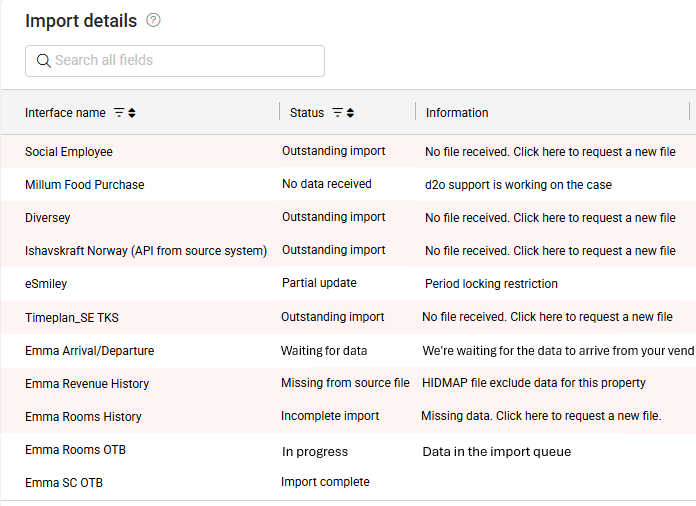
Where statuses appear
Statuses are displayed directly on the Import status page.
- The Status column shows the current status of each interface.
- The Information column provides a short explanation related to the current status.
- The Status filter in the top bar or column can be used to narrow down the list and display only selected statuses.
Status background colors
The Import status page uses background colors to help users quickly identify interface conditions.
- Red row background – Indicates an import that requires attention, such as an Outstanding import, Incomplete import, Import failed – format issue, or Missing from source file.
- Standard white or gray row – Used for neutral statuses such as Updated in PMI or In progress.
- Hover behavior – Moving the cursor over a row changes the background color to highlight the selected row.
These visual indicators help users quickly scan the table and select interfaces for additional details or troubleshooting.
Related actions
The Import status page includes actions that help users troubleshoot or restart imports.
- Use the Reload icon to manually restart imports for API-based interfaces that are not updated.
- Click the Help icon or select the row to open Import Help and view the recommended troubleshooting steps.
Related articles
How to read the Import status page
Understanding the interface settings
How to reload an API import
Import status overview