
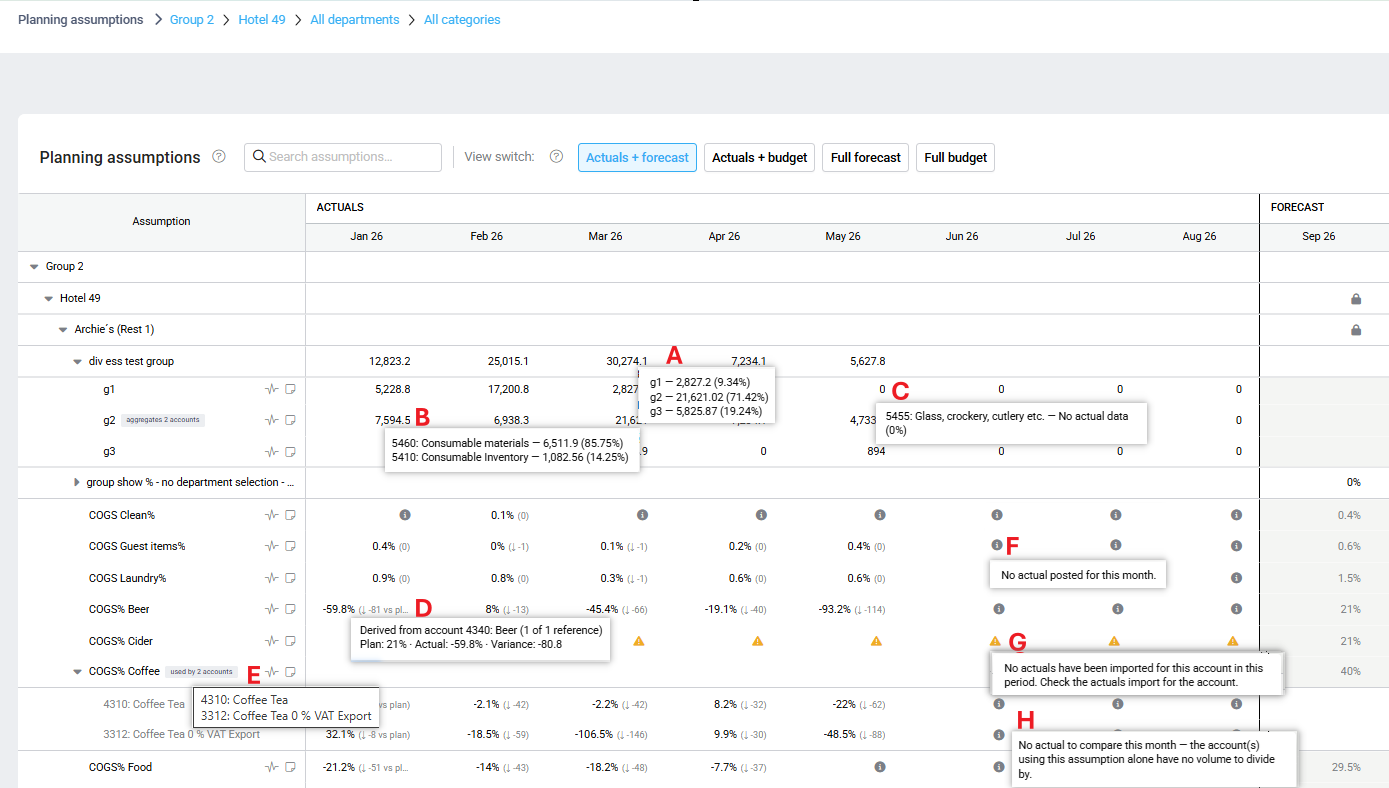
Planning assumptions uses tooltips to provide more information about actual values, linked accounts, comparisons, and missing actual data. The information displayed depends on whether you are viewing a group or a standalone assumption.
Group assumptions
A – Total group: The tooltip displays the value of each child assumption and the percentage that each child contributes to the total group value.
B – Aggregated actuals: When a child assumption is based on more than one account, PMI displays the aggregated actual value. The tooltip lists the accounts included in the calculation.
C – 0% on a child assumption: The tooltip displays the account used in the related P&L formula and explains why the child assumption has a value of 0%.
Standalone assumptions
D – Formula-linked actuals: When a standalone assumption is used in a P&L formula and all values are present, the tooltip displays Derived from account [account number]: [account description]. It also shows the selected plan value, actual value, and variance or comparison.
E – Used by multiple accounts: When the assumption is used in more than one account, each linked account is displayed on a separate line in the tooltip.
F – Grey information icon – No actual posted for the month: The assumption could not be calculated because the account where this assumption is being used in the formula has no imported value for this month. The account is not mentioned in this case.
G – Amber triangle warning icon – No actuals have been imported for this account in this period. Check the actuals import tor the account: Neither the base account nor the linked account has any imported actuals for the applicable year or current-year actual months.
H – Grey information icon – No actual to compare this months – the account(s) using this assumption alone have no volume to divide by: The grey information icon indicates that the base account has actuals, but the linked account used in the assumption formula has no actual volume for the relevant month or period. However, the linked account provides the volume used as a divisor, so the system cannot calculate the actual assumption value without that volume.
I – Grey information icon – No actual to compare – this assumption isn’t used in any account. (No example in the screenshot): An assumption may exist in the system but not be used in any account formula. In this case, there is no base account using the assumption. The system therefore has no actual assumption value to calculate or compare.
When no account number is displayed in any tooltip, then you can identify the account where the assumption is used:
- Open Fast-fill for the assumption.
- Select Pull the data from a formula.
- Review the linked account displayed in the formula selection.