
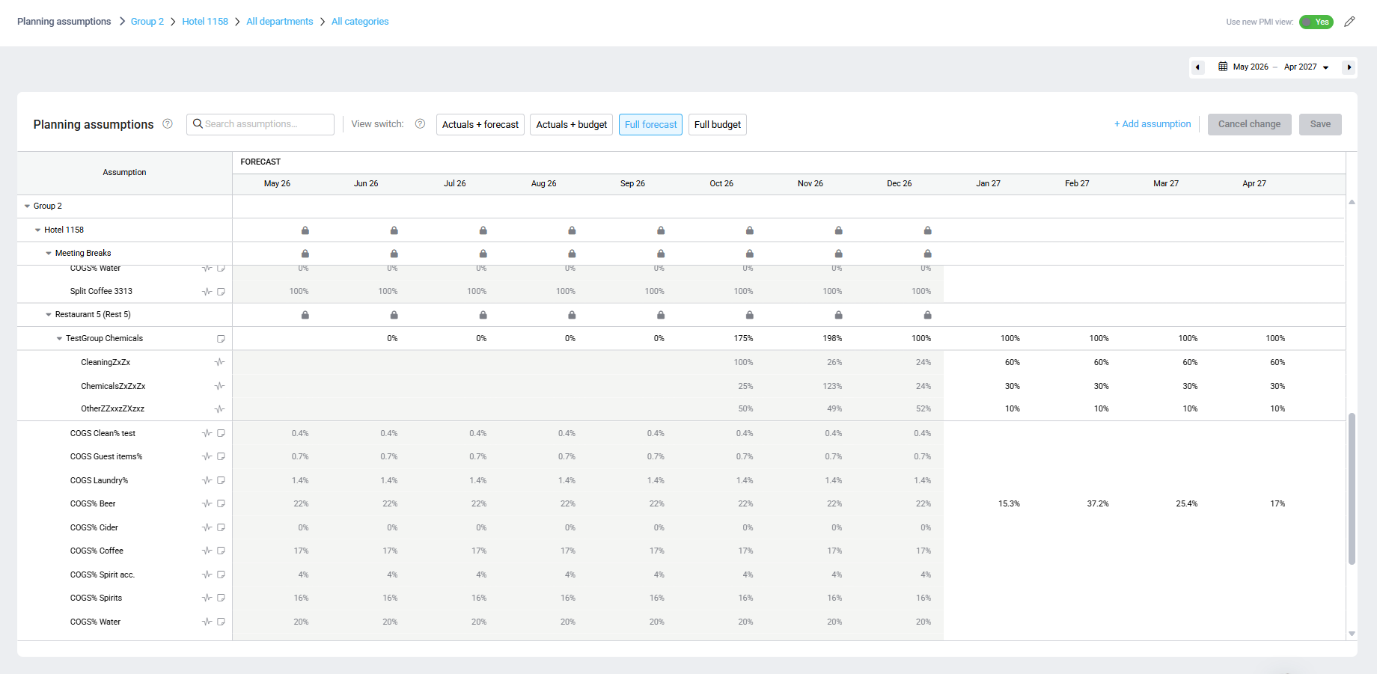
Planning asumptions grid
Planning assumptions are configurable numeric values used as inputs to your budget and forecast calculations. They can represent key planning drivers such as occupancy rates, revenue split percentages, cost factors, or other values that influence your financial plan.
Planning assumptions give you one centralized place to manage these values when market conditions change or when you need to update your planning model. They replace much of the manual spreadsheet work with automated distributions and fast-fill tools, helping you update assumptions more quickly and see their impact across your planning data.
You can create individual assumptions or organize related assumptions into groups. Values can vary by month, and historical actuals can be used to suggest values or percentage distributions. This gives you a starting point based on what has happened at the property instead of requiring you to calculate every value manually.
Good to know: Planning assumptions is the new interface for managing planning values previously known as Constants. Existing properties can continue to use the legacy Constants interface, while new properties use Planning assumptions.
How Planning assumptions work
Planning assumptions are maintained separately from your P&L accounts and can be used in P&L planning formulas.
You can create assumptions at different levels, including property, division, department, or property group, depending on your planning needs.
For example, an assumption could contain a food cost percentage that is 30% for most months and 40% in December because of a seasonal menu.
Historical actuals can also be used to suggest values or percentage distributions. You can review and adjust the suggested values before using them in your plan.
For standalone assumptions, you can also use historical values to help fill newly available planning months, reducing the need to enter recurring values manually.
Worked example
A hotel normally expects food cost to be 30% of food revenue. During December, the hotel expects food costs to increase to 40% because of seasonal menus.
You can create a Food cost % planning assumption and use 30% for most months and 40% for December.
If food revenue is €20,000 and the Food cost % assumption is 30%, the planned food cost is €6,000.
If the assumption changes to 40% for December, the calculation uses 40% for that month.
This allows the hotel to maintain the planning assumption rather than manually changing the calculation for each month.
Where Planning assumptions are used
Planning assumptions can be used in P&L planning formulas to calculate forecast values.
For example:
Food revenue × Food cost % = Food cost
In the P&L formula creator, Planning assumptions are shown as Constants. To use a planning assumption in a formula, select Constant as the source and then select the required planning value from the list.
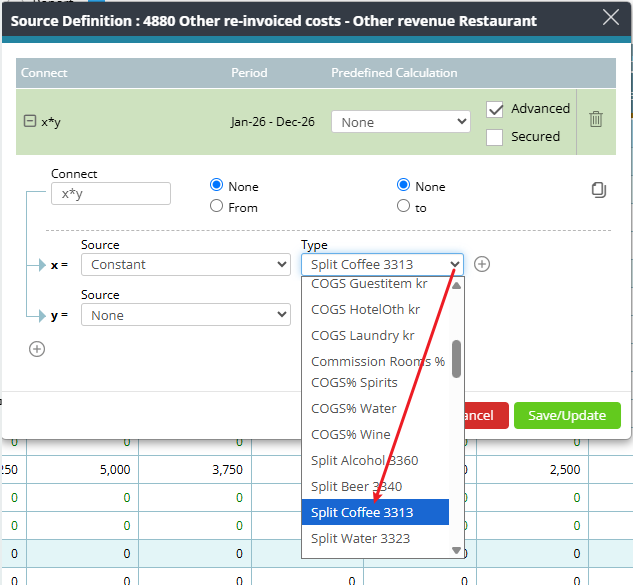
Example of formula using constants
For detailed instructions, see How to use Constants/Planning assumptions in P&L formulas.
Who can use Planning assumptions?
Your access to Planning assumptions depends on your user role and the level of the hierarchy you can access.
| User role | View | Create/edit/delete | Restrict access |
| View PMI | All assumptions except restricted assumptions | No | — |
| Division/department manager | All assumptions except restricted assumptions | Department level only, limited to the departments the user has access to | Cannot use this option |
| Operational manager | All assumptions except restricted assumptions | Property level, limited to the properties the user has access to | Cannot use this option |
| Controller | All assumptions except restricted assumptions | Property level, limited to the properties the user has access to | Cannot use this option |
| Administrator | All assumptions except restricted assumptions | Property level, limited to the properties the user has access to | Cannot use this option |
| HQ controller | All assumptions except restricted assumptions | Department, property, and group level | Cannot use this option |
| HQ administrator | All assumptions, including restricted assumptions | Department, property, and group level | Can create restricted assumptions, but cannot edit or delete them |
Where to find Planning assumptions
- Open Profit & Loss.
- Open Tools.
- Select Constants.
- Turn on the Use new PMI view toggle.
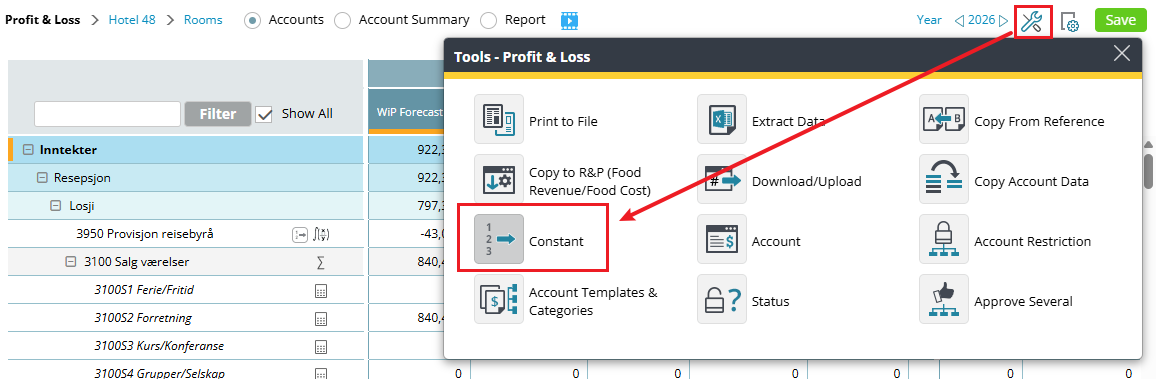
The Planning assumptions screen opens with the planning values available for the property.
Good to know: You can switch between Planning assumptions and the legacy Constants interface using the Use new PMI view toggle. Your selected view is remembered when you next open the tool.
Before you begin
Keep the following in mind when you open Planning assumptions:
Existing properties
Existing properties will see their existing Constants in Planning assumptions.
The planning data is shared between the two interfaces, so existing properties can continue working with their current planning values in either view.
New properties
New properties start with an empty Planning assumptions grid.
Planning assumptions can then be created for the values needed in the property’s budget and forecast.
These can be created as individual assumptions or organized into assumption groups.
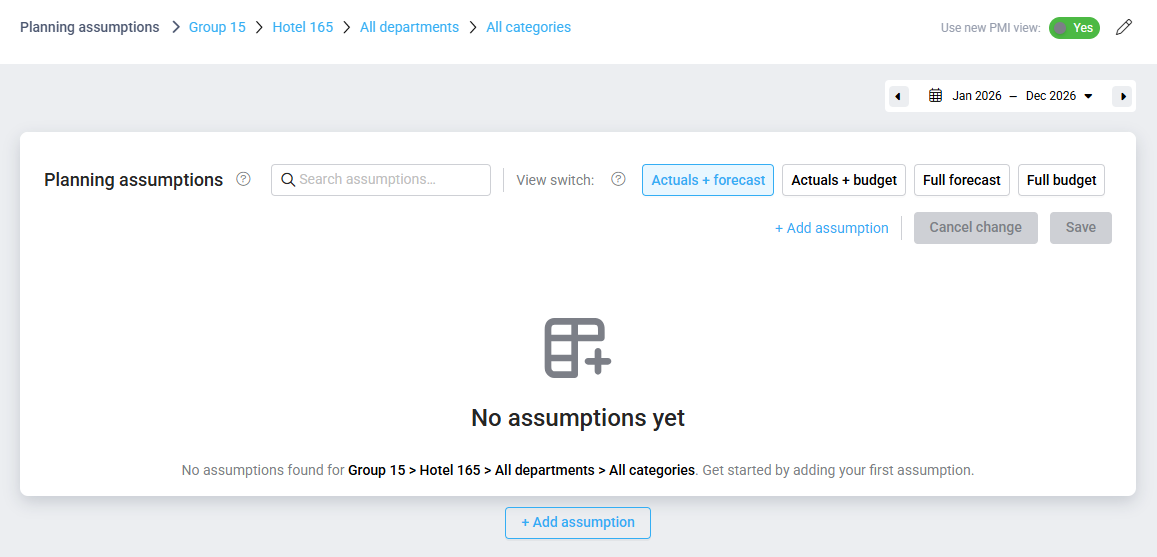
Opening screen when opening Assumptions for the first time
Related articles
- How to use Planning assumptions: Learn how to navigate the Planning assumptions screen and create, edit, delete, and update planning assumptions, including assumption groups, Fast-fill, historical suggestions, validation, and restricted assumptions.