
PIA is becoming easier to use as part of your daily PMI review. This update brings clearer access to chat and learning resources, quick briefings where available, and the option to listen to replies in your preferred language.
Start with the view you are working in
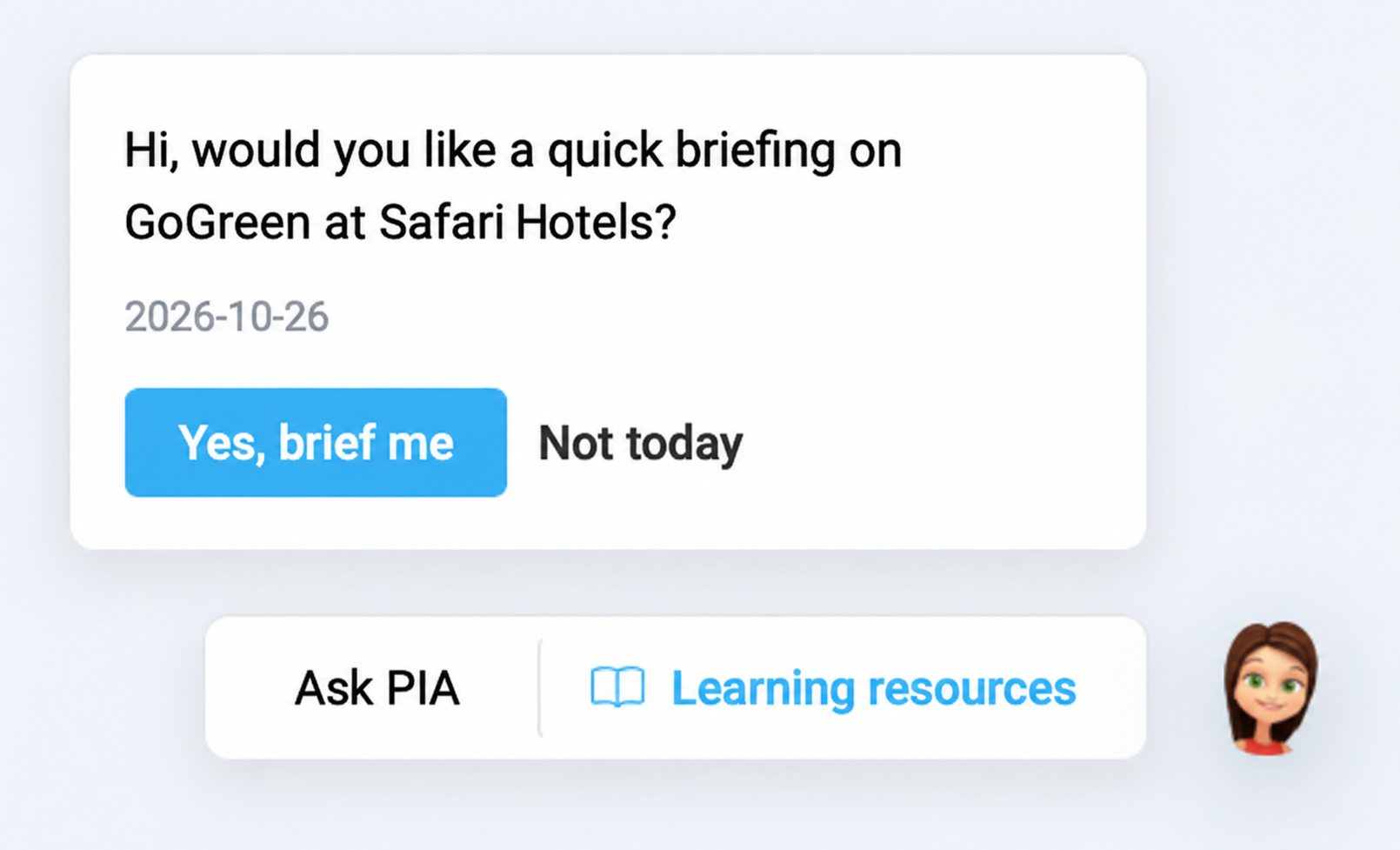
Choose Ask PIA beside the avatar to open chat, or Learning resources to open the Knowledge base. Inside chat, Brief this view gives you a starting point for reviewing the current view where supported. You can follow up with questions about the figures, what needs attention and the next useful check.
Listen to a reply
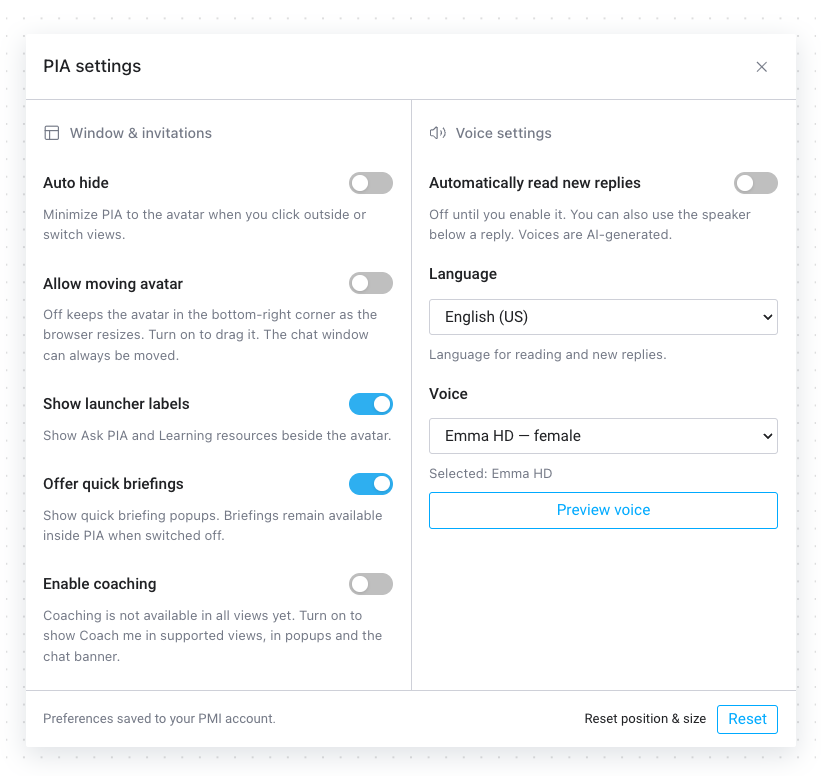
Use the speaker below a reply to hear it read aloud. In the new settings panel, choose a language and voice, then select Preview voice to try it. The language setting applies to reading and new replies. Voices are AI-generated.
Automatically read new replies is off until you enable it, so you decide when PIA speaks.
Make PIA fit your working day
Open the cogwheel in the chat header to find window, invitation and voice settings together. With Allow moving avatar off, PIA’s avatar stays in the bottom-right corner as you resize the browser window. Turn it on if you prefer to drag the avatar to another position; the chat window can always be moved.
Keep the launcher labels visible or hide them, and switch off Offer quick briefings if you prefer to start briefings inside PIA. Enable coaching is off by default and makes Coach me available in supported views when switched on. Your preferences are saved to your PMI account.
Try it during your next review
Open a PMI view, check the selected property and period, and ask: “What needs my attention here?” Then follow up: “Which figures support that, and what should I check next?” The information PIA can use depends on the view, available data and your permissions.
For a tour of the controls, see PIA chat features. For a practical workflow, see Mastering PIA Chat for Enhanced Productivity.