
Objective
By following this guide, you will enter monthly labor productivity or hour targets in PMI for each department using the Productivity sheet and the Budget & forecast module.
Requirements
- You must have access rights to the Budget & forecast module.
- The period must be open (not locked).
- Know which departments are productivity-based (targets set in productivity) and which are fixed-hour (targets set in hours).
Before you start: Enter and save the budget for each department’s cost driver before working on labor targets. For departments locked on Productivity, both the cost-driver budget and a productivity value must be present for the relevant period before the FTE Budget value can be saved. For example, if Front Office uses Room nights, save the Room nights Budget first. See Why do my FTE Budget values disappear after saving?
Estimated time to complete
This task takes 15–20 minutes, depending on the number of departments.
Steps
Step 1: Export the Productivity sheet
1. Log in to PMI.
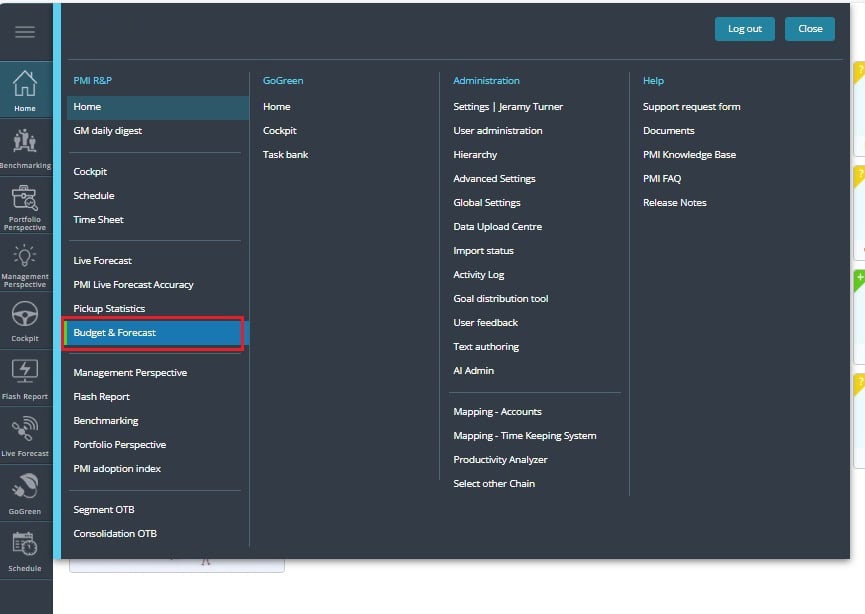
2. Go to Budget & forecast.
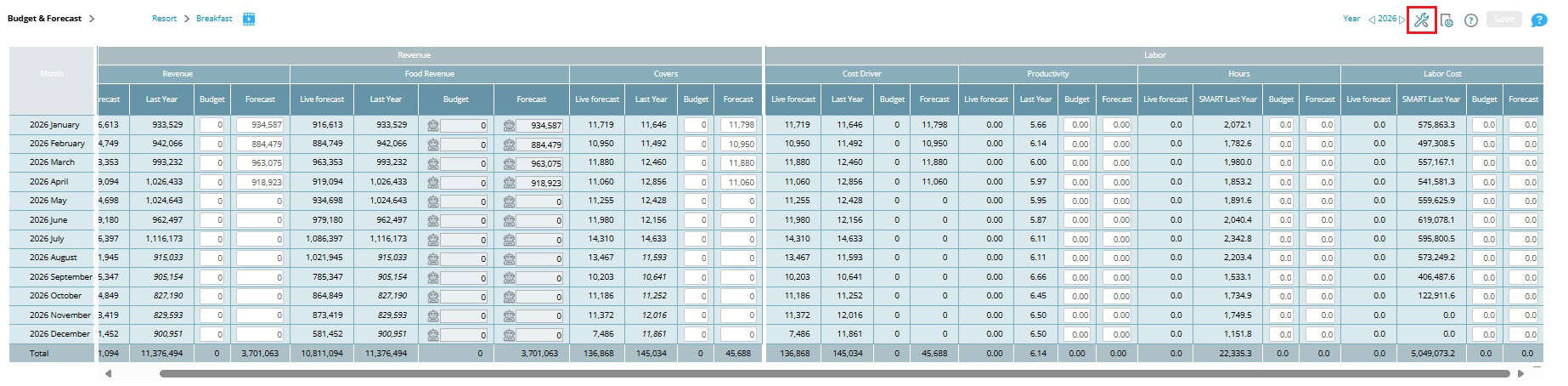
3. Select Tools from the top menu.
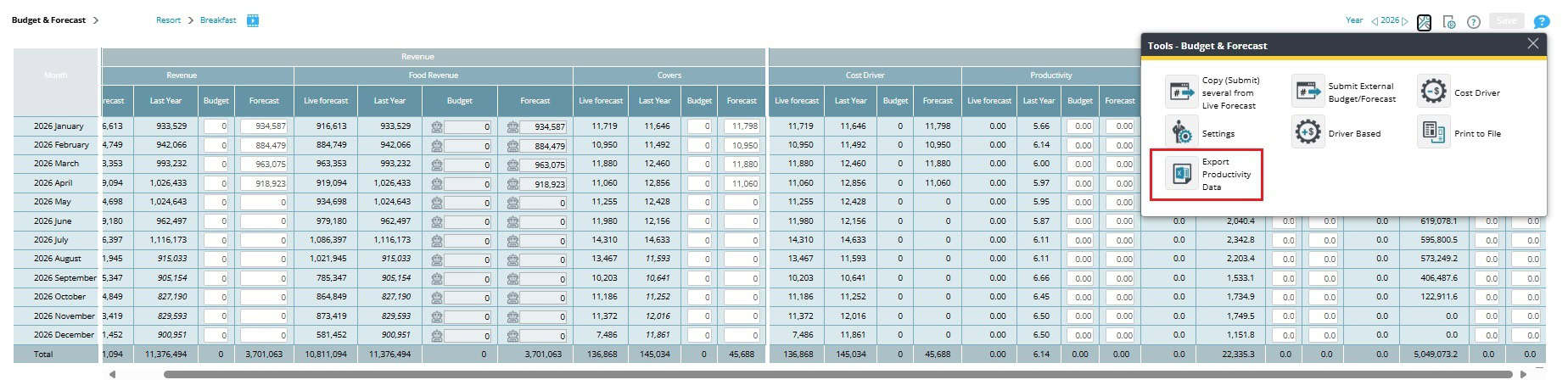
4. Click Export Productivity Data.
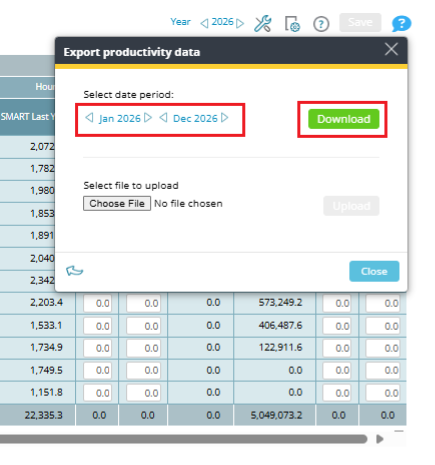
5. Choose the planning period and click download.
6. Open the file.
Step 2: Understand what’s in the Productivity sheet
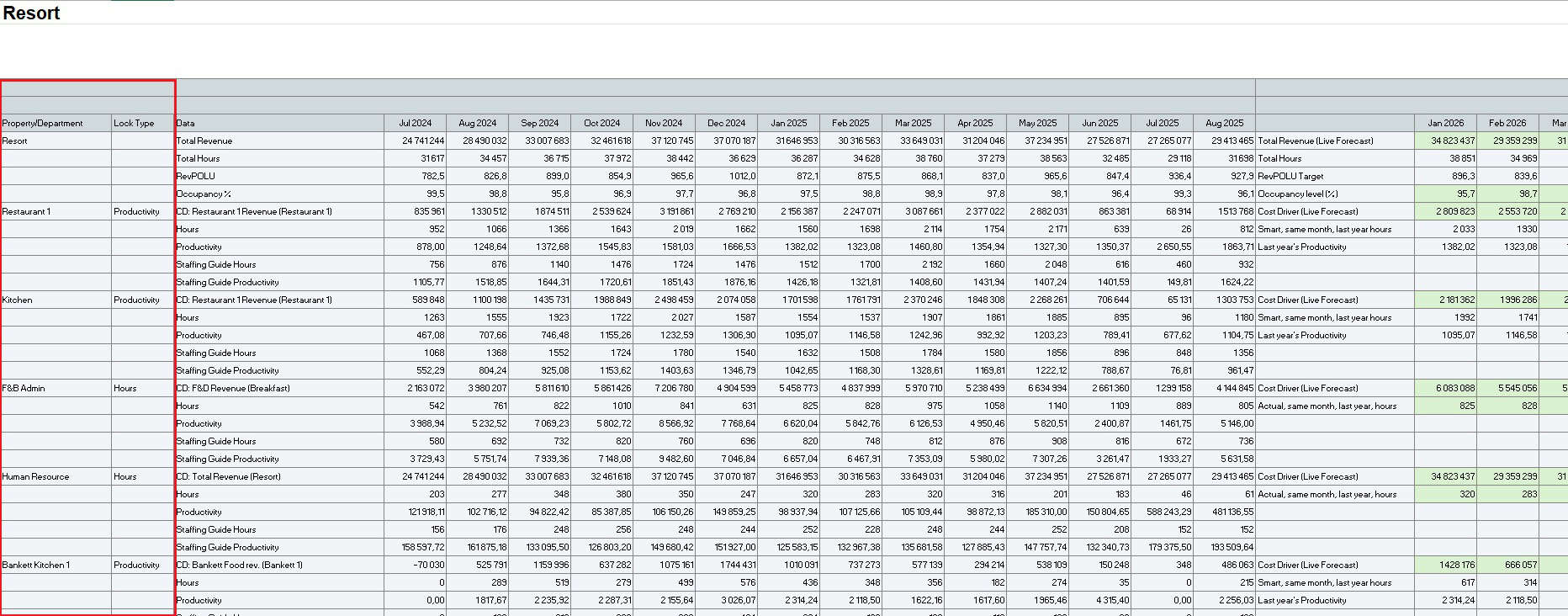
- Department list: A list of all the departments (with labor) in your hotel, those locked on hours and those locked on productivity.
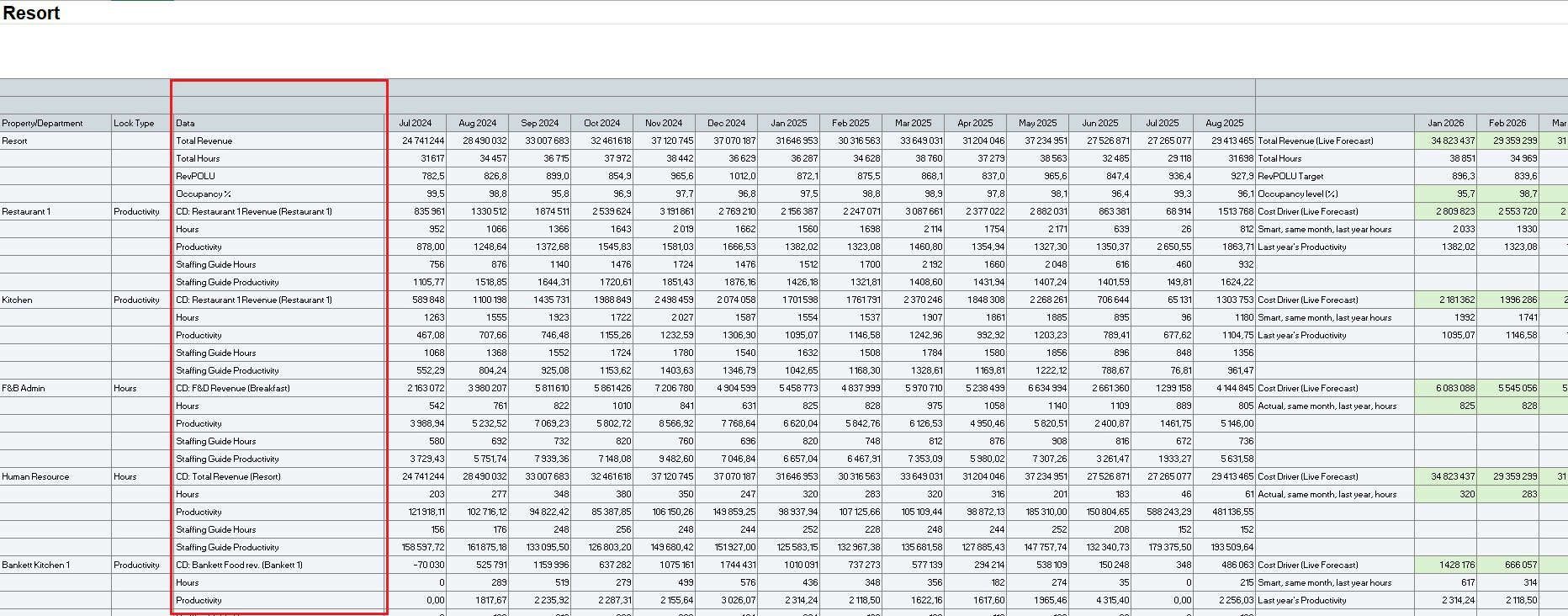
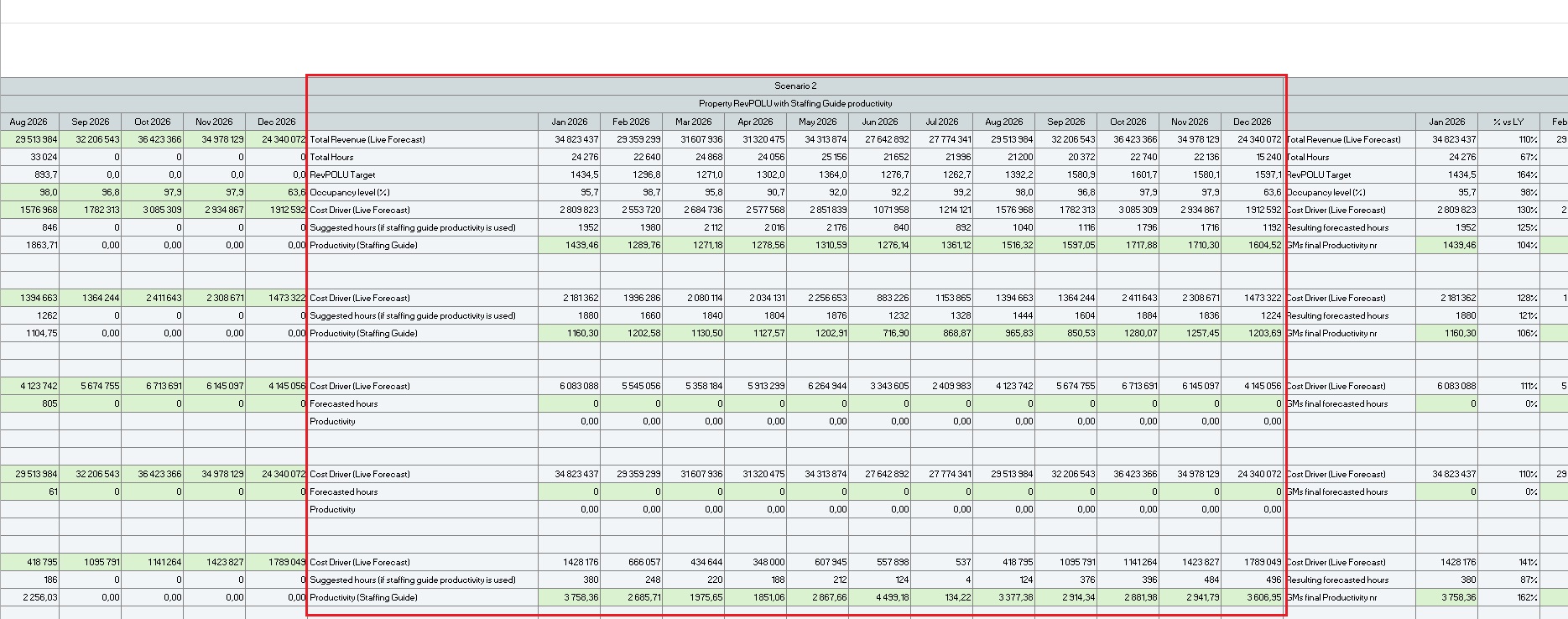
- Business metrics per department: Cost driver, hours, productivity, staffing hours and staffing productivity.
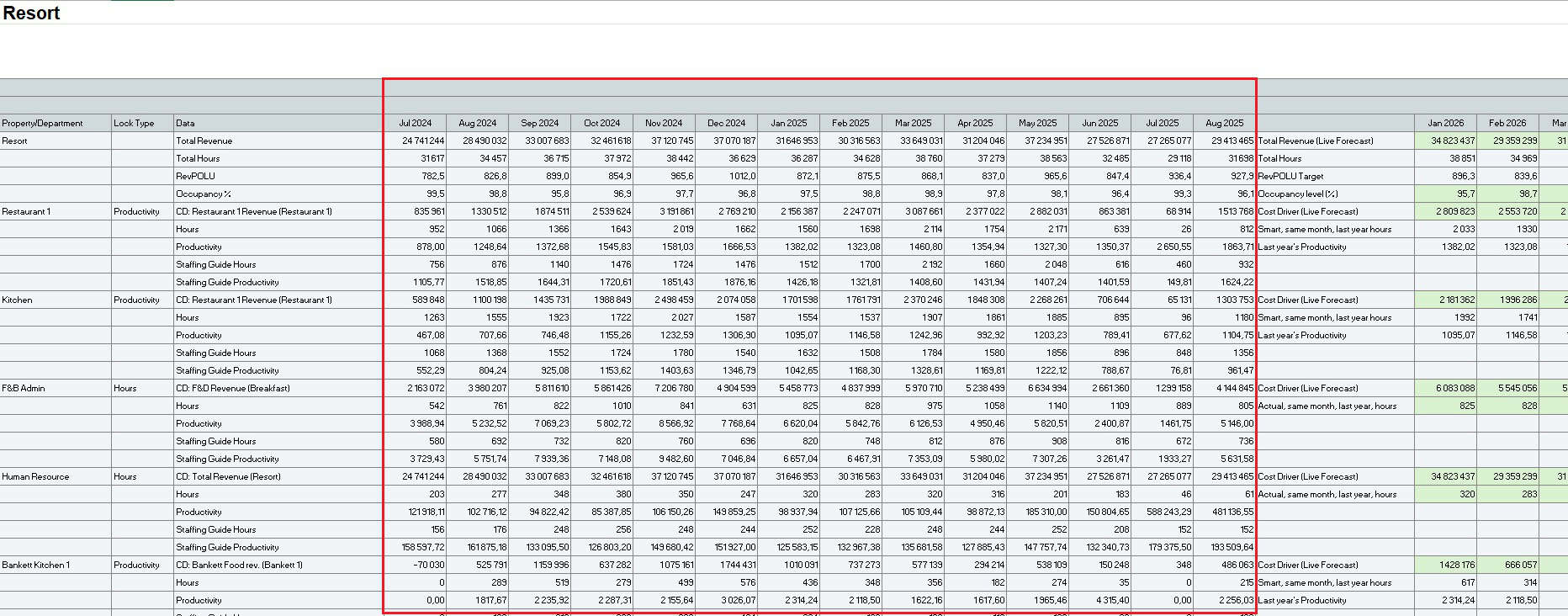
- Historical Data: Includes the last 12 months of actuals.
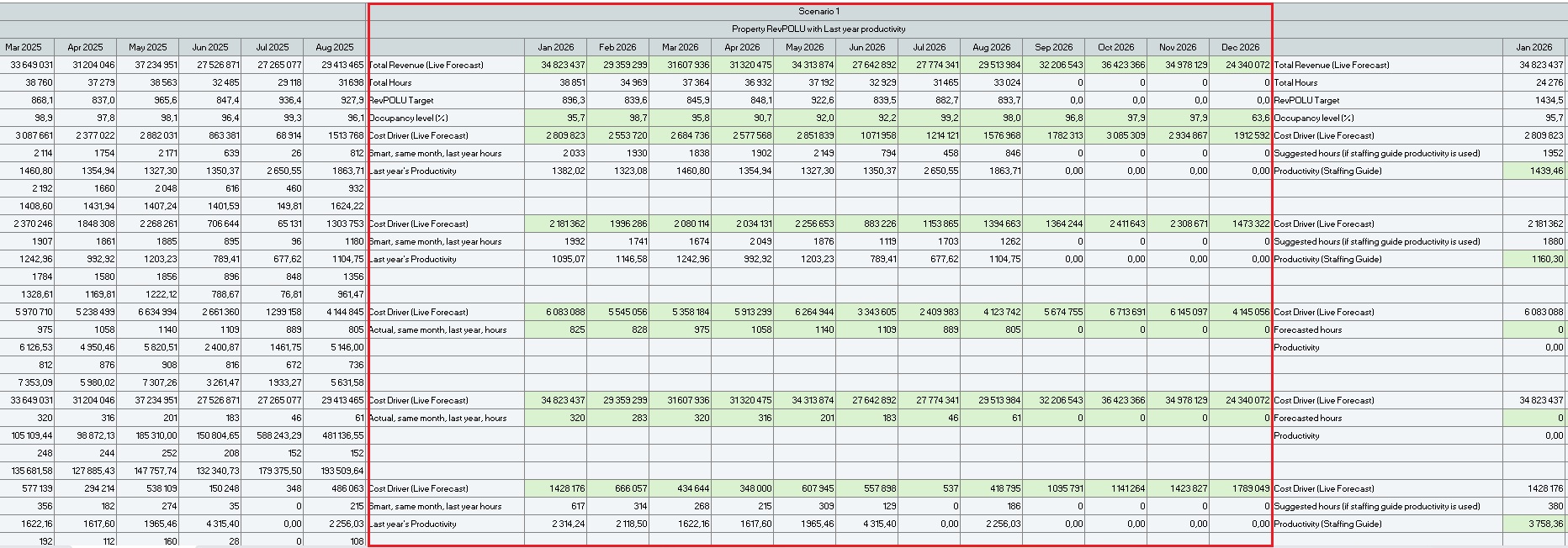
Scenarios for setting targets
Scenario 1 – Historical comparison
Scenario 2 – Staffing guide reference.
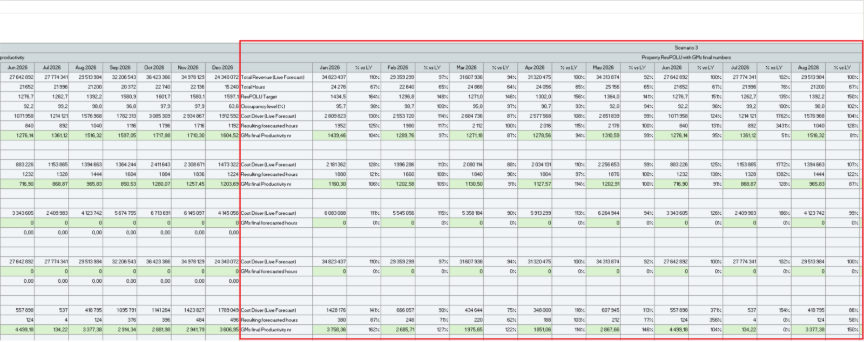
Scenario 3 – GM’s workspace for setting final targets
Step 3: Finalize hours and productivity targets
1. Enter the productivity and hours targets in the green blocks under Scenario 3.
- Paste values only (no formulas).
- Do not change the sheet structure or overwrite colored cells.
Step 4: Import the Productivity sheet back into PMI
1. Go to Budget & forecast.
2. In the top menu, select Tools.
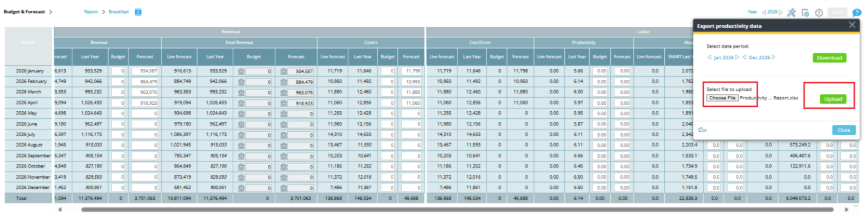
3. Click Export Productivity Data.
4. Browse and upload your saved file.
5. Review and adjust if needed in Budget & Forecast module.
Expected outcome
- Productivity targets are set for productivity-based departments.
- Hour targets are set for fixed-hour departments.
- The Budget & forecast module now reflects the monthly labor targets, visible for reporting and tracking.
Troubleshooting
- Targets don’t appear: Check that you imported the correct file and selected the right period.
- Cells are locked: The period may be closed or you lack editing rights.
Cross-references
Add later
Related features and modules
Add later
FAQ
Q: Where do I enter the data — in hours or productivity?
A: Fixed-hour departments use hours. Productivity-based departments use productivity (units per hour).
Q: Can I edit values directly in PMI instead of using the Productivity sheet?
A: Yes, you can adjust values directly in the Budget & forecast – Productivity targets screen.
Q: Does this affect the Live forecast?
A: No. Productivity targets are for budgeting and planning. The Live forecast remains your operational demand forecast.