
Start with a decision you need to make
PIA is most useful when you give it a clear question and use the answer to guide your next check. This guide shows a practical way to move from a PMI view to a better-informed action. PIA must be enabled for your property, and its answers depend on your permissions and the information available.
1. Set the context
Open the relevant PMI view and check the property, department, dates and comparison. Include these in your question if they are not clear. A precise request is easier to investigate than “Why are my numbers wrong?”
For example: “For Safari Hotels’ restaurant this month, compare revenue with forecast. Which dates show the largest gaps in the available data?”
2. Get a quick overview
Select the PIA avatar to open PIA, then select Brief this view where available. Briefing invitations are off by default. If you enable them in PIA settings and an invitation appears, you can accept it or choose Not today. You can also use the Query Library or type your own question.
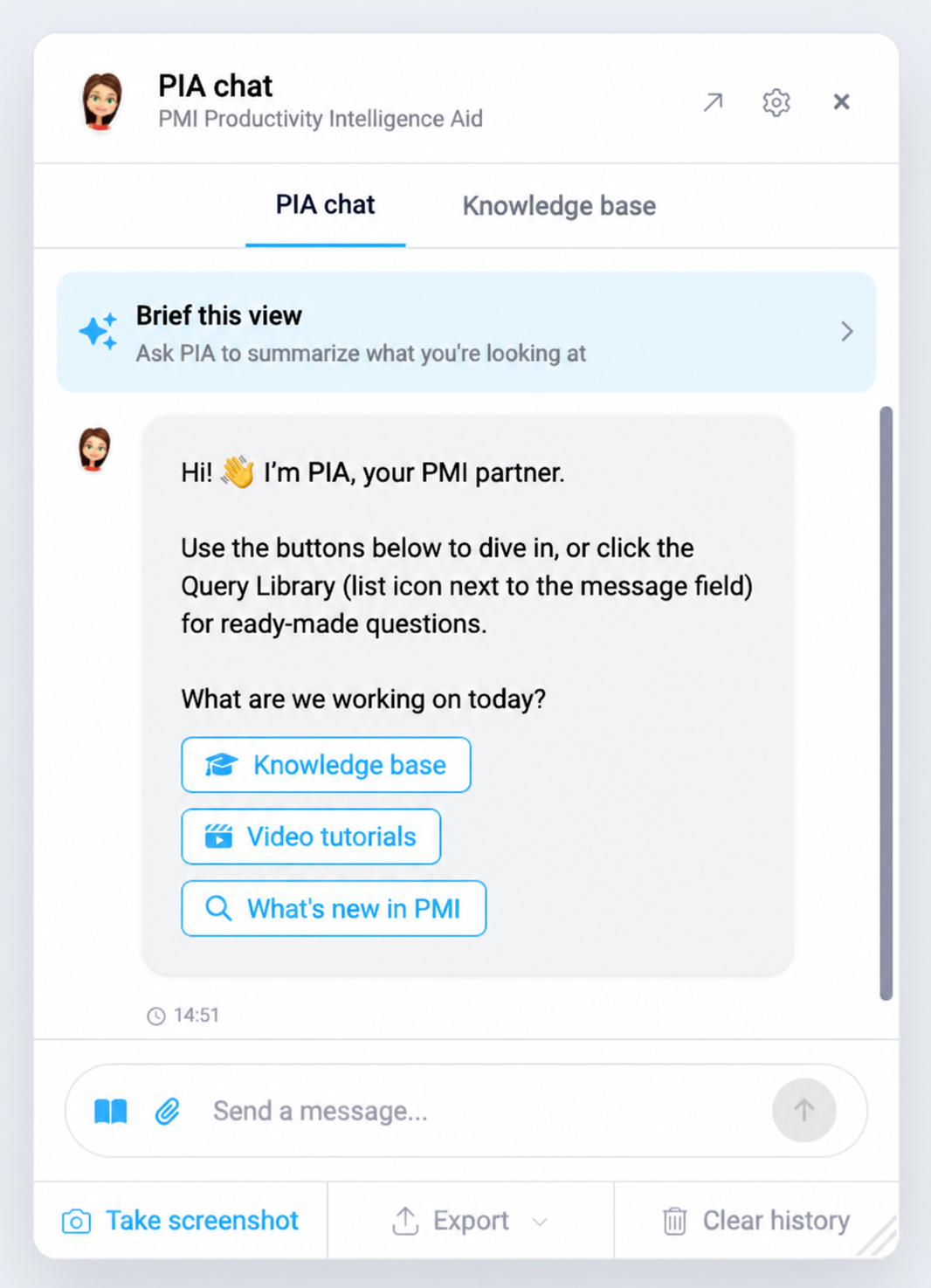
Read the briefing as a starting point. Check the period, measure and comparison it uses before drawing a conclusion. If the available information is incomplete, ask PIA which input is missing.
3. Follow the observation back to the figures
Keep the same conversation while you investigate one topic. Useful follow-ups include:
- “Which dates or departments contribute most to this gap?”
- “Which figures support that explanation?”
- “Is this an observed result or a possible cause we still need to check?”
- “What should I check before changing the plan?”
For example, higher revenue does not by itself show that a department had more work. Ask PIA to distinguish volume, average spend and hours when the necessary figures are available.
4. Add evidence when it is needed
PIA can receive data directly from supported PMI views. If the conversation lacks a relevant figure or screen detail, use Take screenshot or attach a suitable file. Say what the attachment shows, including its property, period, units and comparison.
When comparing two views, identify both clearly and provide any missing evidence. For example: “This screenshot shows restaurant revenue for September. The next shows hours for the same department and dates. Compare them once you have both.” Check that the periods and definitions match; do not assume every other PMI view is automatically included.
5. Turn the discussion into a practical next step
Ask: “Given what we have checked, what is one useful action before the next review?” Add operating constraints such as service coverage, fixed duties or a known event. Review the suggestion with the person responsible before changing a forecast or staffing plan.
You can ask PIA to summarise the agreed action, responsible person and review date for you to copy or export. Record it in your team’s normal follow-up process; a chat summary alone is not a saved task or scheduled reminder.
Make PIA fit your routine
Use the speaker below a reply to listen to it. Open the cogwheel → Voice settings to choose a Language and Voice, then try Preview voice. Language applies to reading and new replies. Enable Automatically read new replies only if you want each new reply read aloud; it starts off.
Offer quick briefings is off by default under Window & invitations in PIA settings. Turn it on if you want briefing popups. You can still start a briefing inside PIA where available when it is off. Enable coaching is also off by default; switch it on to show Coach me in supported views.
Leave Allow moving avatar off to keep the avatar in the bottom-right corner as you resize the browser window, or turn it on to drag it elsewhere. You can always move the chat window. These preferences are saved to your PMI account.
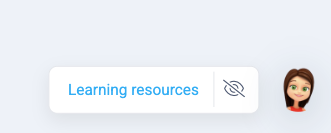
The launcher is off by default. Turn on Show launcher labels in PIA settings to display it. To hide it again, select the eye icon, read the explanation and confirm Hide launcher. The PIA avatar stays available. You can restore the launcher through the same setting. Existing saved preferences are retained, so your settings may differ from the defaults.
Find the instructions behind the advice
Use Learning resources or the Knowledge base tab when you need to understand how a PMI feature works. Open source links in a reply when provided. For a control-by-control reference, see PIA chat features.
If PIA misunderstands
Correct the specific assumption, add the missing dates or figures, and ask again. When you switch to a different property or topic, state the new context explicitly. Use response feedback to report a misunderstanding. For an unresolved issue, start a support request and review the details before submitting it.