
Background
The GoGreen planning module calculates a cost for each GoGreen resource. If cost accounts have been mapped to that resource, they are automatically updated in the Profit & loss module with the cost from the GoGreen planning module. The total cost for each account is normally only updated in one department and cannot be allocated proportionally to other departments. This release allows the option to split the total cost of chemicals to more than one department within the Profit & loss module.
What’s new
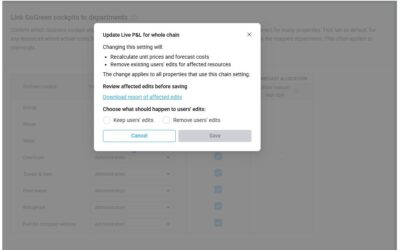
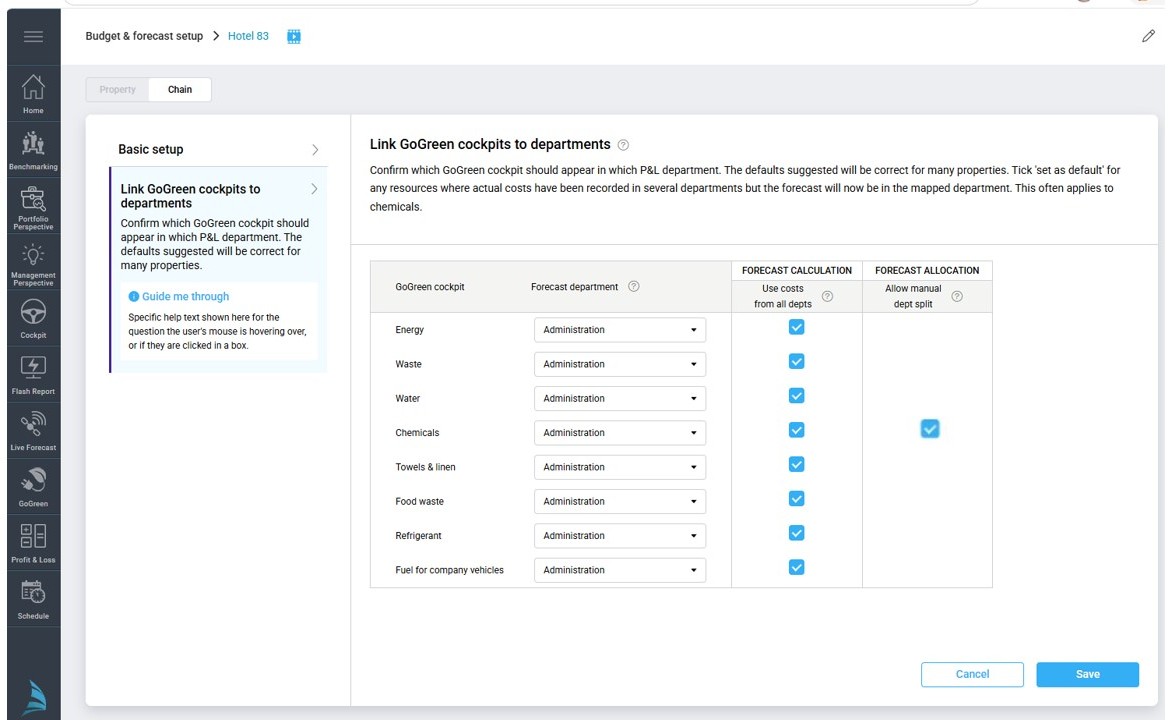
- A setting in Planning setup which allows the property or chain to turn on the function to allow cost to be split manually. This option only applies to the Chemicals resource (see image 1 at top of article).
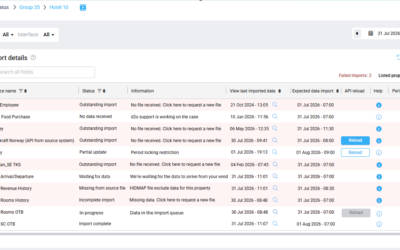
- Updated UI of the cost tab in GoGreen planning when the ‘Allow split’ checkbox is selected for a property/chain. Cost accounts are not visible there and cost is calculated as a Total cost only (see image 2).
- The cost account in Profit & loss module is disconnected from the GoGreen planning module
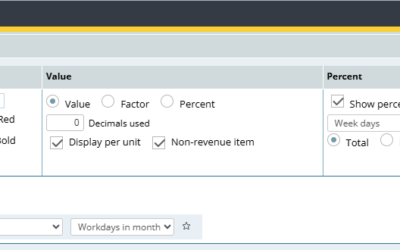
- The cost accounts can be re-connected to GoGreen planning Total cost at department level by setting it as a source in a formula box in the Profit & loss module (see image 3).
- When a forecast is submitted in Profit & loss, the submitted version will also show in GoGreen planning. When chemical cost is split manually:
- The total cost for chemicals in the submitted version will be the total of any accounts that have GoGreen planning chemicals as a source in their formula.
- This will also update the last submitted unit price value used by the GoGreen cockpit.
- Note: if the function to allow chemical cost to be split manually is not selected or is turned off in Planning setup, then the process will be the same for chemicals as for all other GoGreen resources.
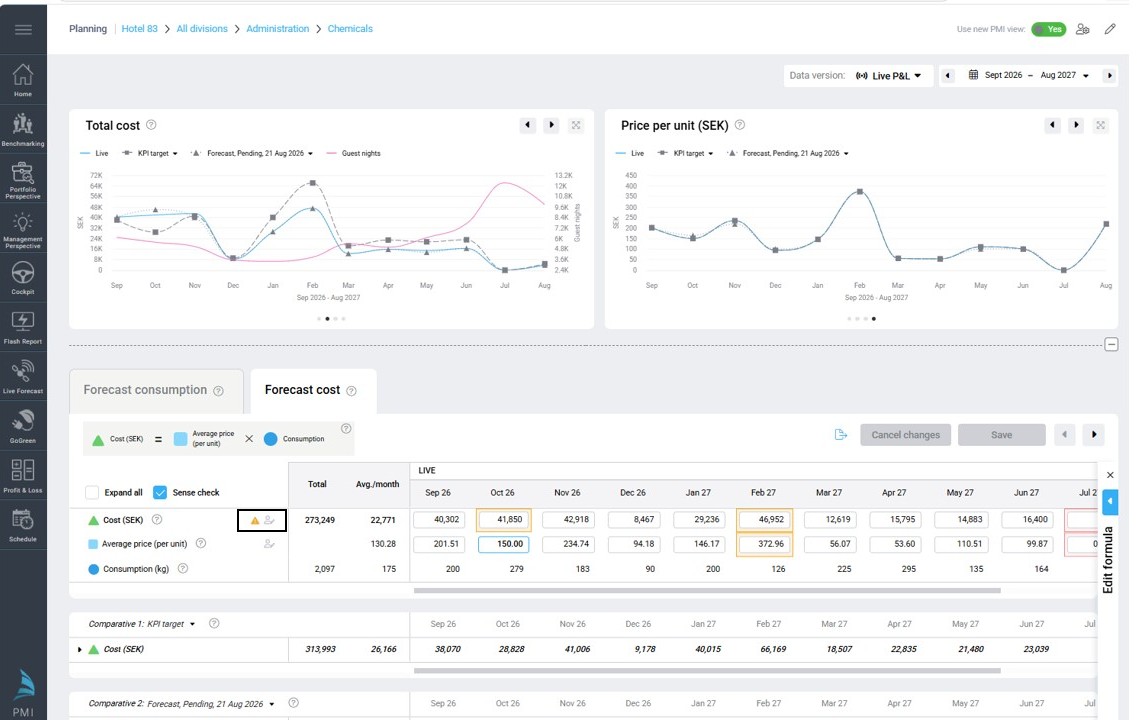
Image 2: Updated UI in the GoGreen planning module for Chemicals: costs calculated at Total cost level
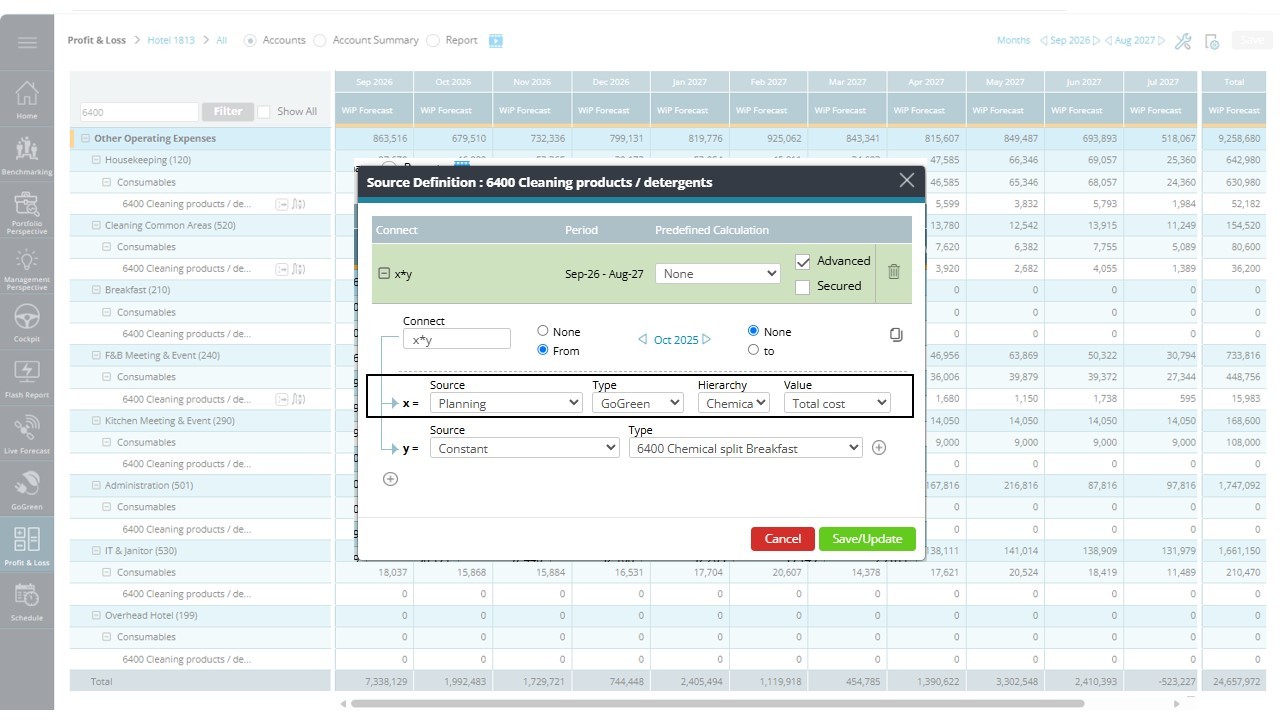
Image 3: Use the formula box in the Profit & loss module to connect the total cost chemicals from GoGreen planning into each relevant department and apply a ratio or constant to allocate how much of the cost the department should get.
To understand how the whole GoGreen planning module works and how to use the settings, see the following articles:
- Overview of GoGreen Planning
- How to set up GoGreen planning for a property
- How to set up ‘Manual split of chemical costs’ in GoGreen planning