
New KPI setting allow chains and properties to control which KPIs are displayed for departments and groups, reducing unnecessary KPI duplication and improving visibility control.
What’s New
A new setting, Adjust KPIs to display, has been added to KPI Settings.
This enhancement allows chains and properties to control which KPIs are visible for specific departments or groups.
Previously, all properties saw the same KPIs, including KPIs that were not relevant to them.
The original Add KPI option is still used to define and activate new KPIs, including the KPI name, formula, and other setup details.
Once a KPI has been activated by an HQ user, it becomes available in the new Adjust KPIs to display setting, where:
- Chain users can define the default visibility setup.
- Properties can inherit the chain setup or override it where relevant.
Important: Once a KPI has been saved as active, it cannot be deactivated again.
Use of KPIs in other PMI areas, such as the GM DD Watchlist and Cockpit annual chart, still depends on activation in the original KPI setup screen. This ensures that changes made in the display setting do not affect KPI availability in other pages.
Who Can Use This
The following user roles can access KPI settings at property level:
- HQ Controller
- HQ Administrator
- Administrator
The following user roles can access KPI settings at chain level:
- HQ Controller
- HQ Administrator
Improvements
With the new display setting:
- Chains can define which KPIs should be visible as the standard.
- Properties can inherit the chain setting or adjust which KPIs they want to display.
- Global KPIs can be enabled for specific departments or groups without needing to create duplicate KPIs.
- The setting controls KPI visibility only and does not change KPI calculations.
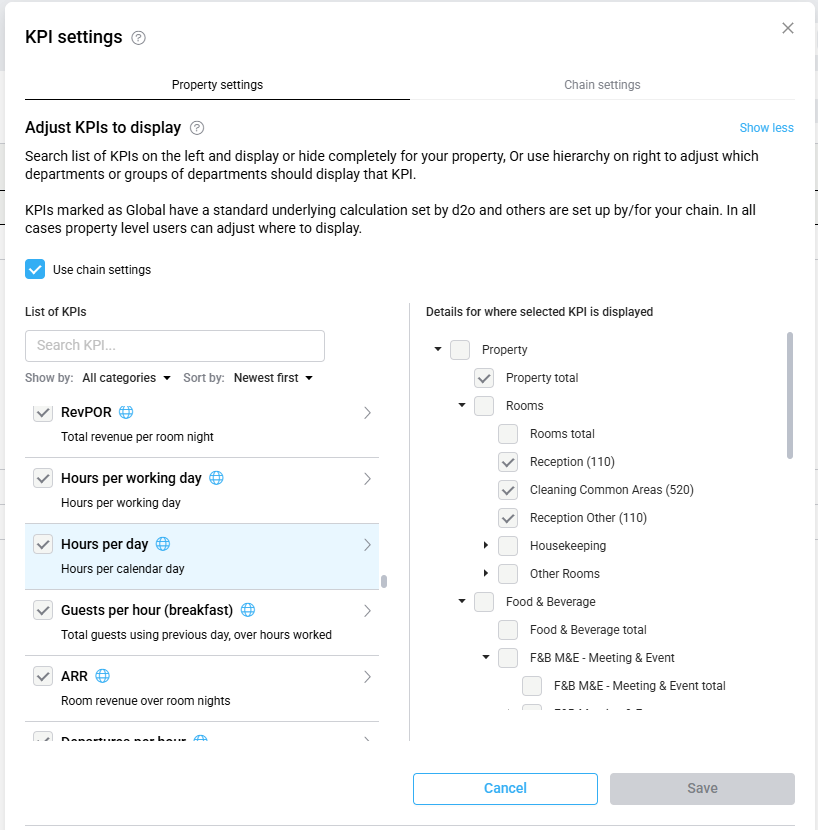
Image: Adjust KPIs to display – Property level using chain settings
Using the display setting
- Select the correct tab to work at either:
-
- Chain level, or
- The current Property level
To make changes at property level, the Use chain settings option must first be de-selected.
-
- Click on ‘Show less’ to expand the view of ‘Adjust KPIs to display’.
- Search for or select a KPI from the list on the left.
- The hierarchy on the right shows where the selected KPI is currently displayed.
- The hierarchy behaves similarly to the PMI filter menu:
-
- You can tick or untick any level.
- Changes will update the dashboard view after saving.
-
Additional Notes
- At Chain level, departments are displayed using generic Department Type names.
For example, enabling Restaurant 1 at chain level will display the property’s specific restaurant name in the Property tab. - Entries ending with “total” indicate that the KPI value is calculated using all departments within that part of the hierarchy, even if individual departments are not displayed.
- If a KPI is unticked in the KPI list on the left, it will not be displayed, even if departments remain selected in the hierarchy on the right.
Benefit
This enhancement gives chains and properties more control over KPI visibility, reduces unnecessary KPIs on property pages, and removes the need to create duplicate KPIs for different departments or groups.