
User settings brings together your account details, personal preferences, profile and learning certificates.
Navigation
From the Menu dropdown, choose Administration > Settings | Your name.
Account
Use Account to keep your personal details up to date: Name, Last name, Job title, Email.
You can change your password by entering the old one and the new one (with confirmation). This is when your domain is not setup to login with SSO.
Select Save changes after editing.
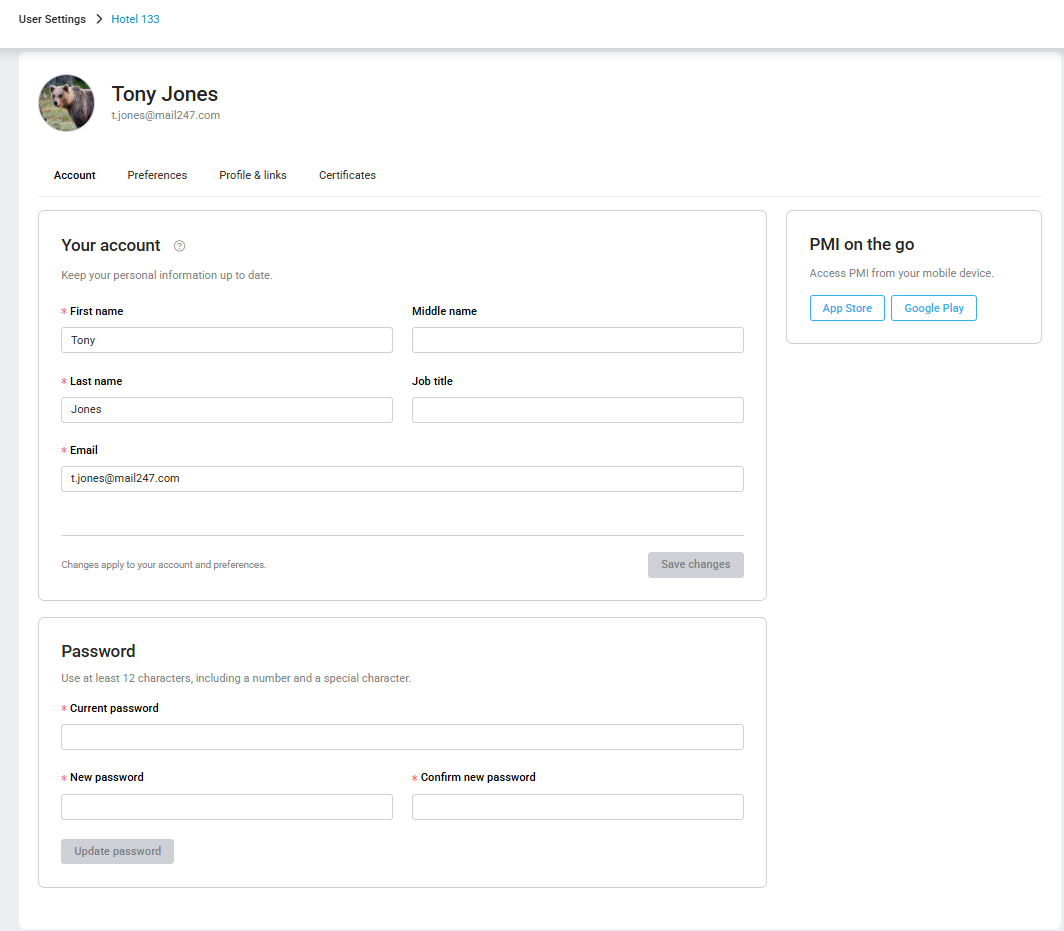
Image: Account details and login information
Preferences
Under Preferences, choose options such as your language, start page and preferred property, depending on your access. Here you can select your preference property/chain when you sign in.
Preferred property group
This is an additional group within the Benchmarking View and Portfolio Perspective where you can select which properties should be included.
Click on ‘Choose properties’ to select all the properties that you want to add to your preferred group. Only properties that you have access to will be available to choose from. ‘Save group’ after your selection.
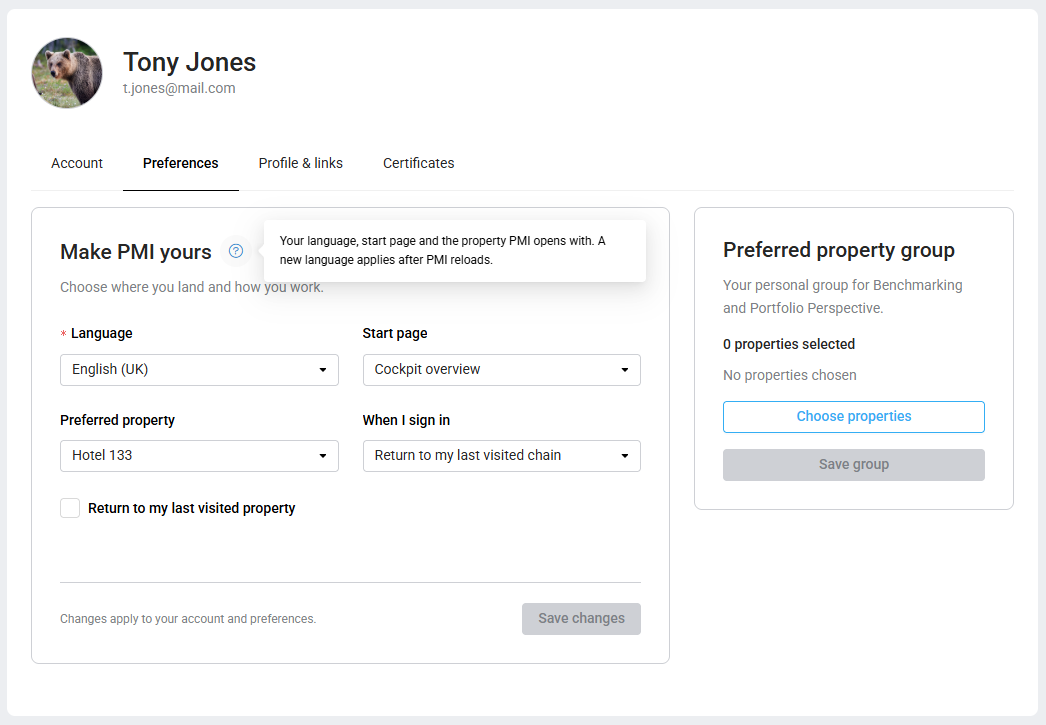
Image: Login in preferences
Add an avatar and social links
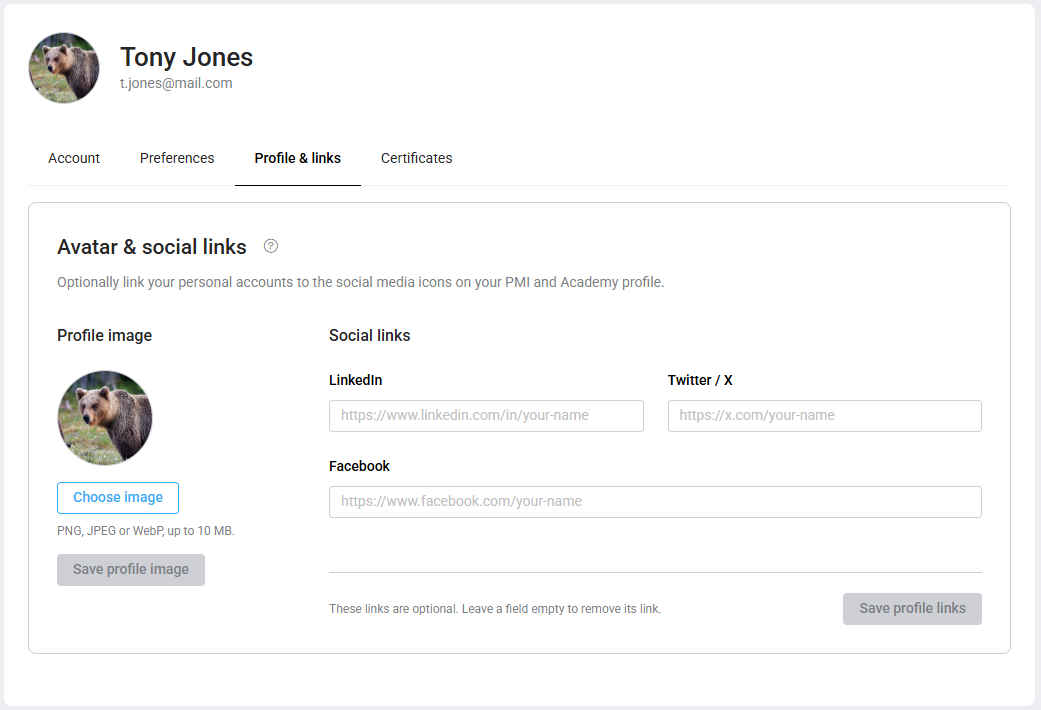
The Profile & links tab is available to all users, whether or not they have completed onboarding. Adding an avatar or social links is entirely optional.
To add a profile image:
- Select Choose image.
- Choose a PNG, JPEG or WebP image up to 2 MB.
- Select Save profile image.
You can also add links to your LinkedIn, Facebook and Twitter/X profiles. Enter the full profile address and select Save profile links. To remove a link, clear its field and save again.
Adding a social profile link does not share your certificates or publish a social media post.
Certificates
The Certificates tab is available to users who have completed PMI onboarding. If you have not gone through onboarding, this tab will not appear. You can still use the other settings and personalise your profile.
Certificates appear when they have been issued for eligible completed PMI courses.
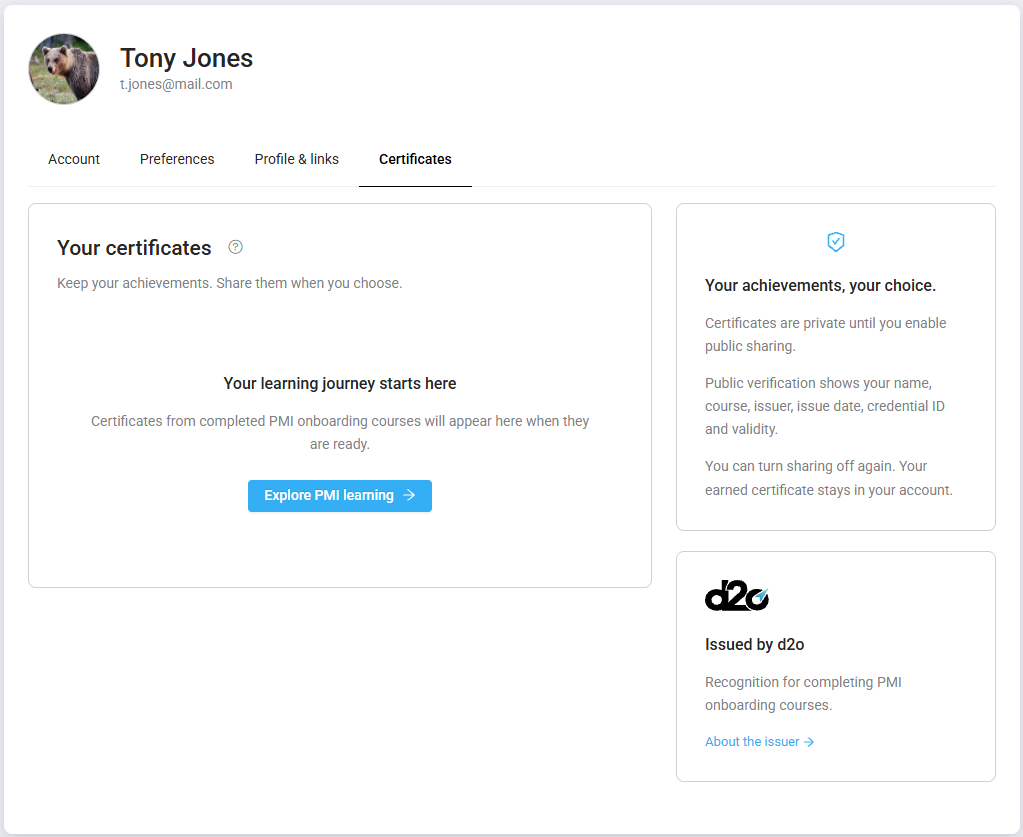
View and download your certificates
Each certificate shows its course title, recipient, issue date, credential ID and validity information.
- View certificate opens a preview within PMI.
- Download PDF opens the certificate PDF for you to save or print.
Viewing or downloading a certificate does not make it public. If the preview cannot be displayed, use Download PDF instead.
Share a certificate on LinkedIn
There are two different ways to share your achievement:
- Add to LinkedIn lets you add the certificate to your profile’s Licenses & certifications section.
- Share on LinkedIn lets you create a post about your achievement.
Select the action you want and review the certificate details. Enable public sharing when prompted, then select Continue to LinkedIn. You finish and confirm the action on LinkedIn. Nothing is added or posted automatically.
If LinkedIn does not fill in all the fields, use the certificate details shown in PMI.
How public sharing works
Certificates are private by default. Selecting Enable sharing makes the certificate and its verification details accessible through a public link. These include your name as issued, course, issuer, dates and credential ID.
You can select Turn off sharing at any time. The public verification page and its documents will no longer be available, while your private certificate remains accessible in PMI.
Turning sharing off does not remove an existing LinkedIn post or recall copies someone has already downloaded.
If a certificate is missing
If you have completed an eligible course but cannot find its certificate, contact your onboarding or adoption contact for help.