
Overview
PMI responsibility areas let you record what a person is responsible for at a hotel.
This information will be used by Task Manager to assign tasks directly to the appropriate person, such as the Head of Department (HOD) responsible for an operational area.
Responsibility areas are set for each hotel and can include operational cockpits, live forecasts, and GoGreen cockpits. Each responsibility area can have one owner per hotel.
Important: A responsibility area determines who receives tasks. It does not determine what the person can access in PMI. Access is controlled by the user’s role.
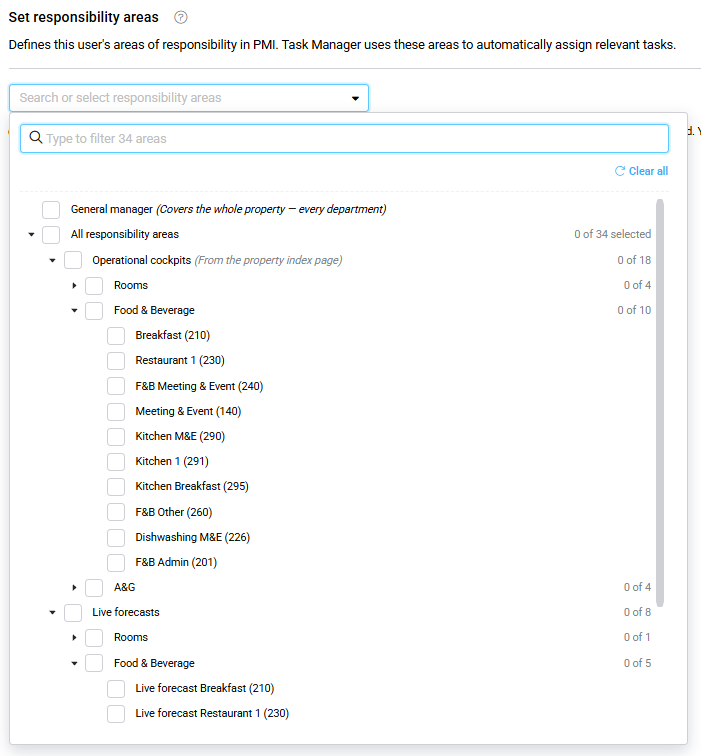
Image: General Manager and Responsible areas
Where to find responsibility areas
Responsibility areas are available when you add or edit a user at a single hotel.
Go to:
Administration → User administration
Select a hotel in the hierarchy selector, then:
- To add responsibility areas for a new user, click Add new user.
- To change responsibility areas for an existing user, find the user and click the Edit icon.
On Edit user, responsibility areas are shown in their own section.
On Add new user, they are set in the Set responsibility areas step.
Responsibility areas are only available when a single hotel is selected. At group or chain level, PMI indicates that responsibility areas are set per property.
Understand the responsibility-area structure
When you open PMI responsibility areas, you see General manager followed by All responsibility areas.
General manager
General manager is a position, not a responsibility area.
The General manager position covers the whole hotel and has its own functionality. A hotel can have only one General manager at a time.
You can:
- assign the General manager position to a user;
- hand the position over from the current General manager;
- schedule the handover for a future date using Take over on.
Until the take-over date, the current General manager remains in the position.
All responsibility areas
All actual responsibility areas are grouped under All responsibility areas.
They are divided into three sections:
Operational cockpits
Operational cockpits are grouped by division, such as Rooms or Food & Beverage.
The individual cockpits are based on the hotel’s cockpit setup.
Live forecasts
Live forecast responsibility areas are also grouped by division.
Each unit with live forecasting enabled can appear as a responsibility area.
The available areas depend on the hotel’s live forecasting configuration.
GoGreen cockpits
GoGreen responsibility areas are resources measured across the hotel, such as Electricity, Water, Waste, Chemicals, Linen.
Assign responsibility areas
To assign responsibility areas to a user:
- Open PMI responsibility areas.
- Click Search or select responsibility areas.
- Browse the tree or type in the search field to find an area.
- Select the areas the person is responsible for.
- Click outside the selector to close it.
- Save the user.
You can select:
- An individual area, such as Reception.
- A group, such as Food & Beverage, to select all areas currently available within that group.
The selected areas appear as tags below the field, and the field shows how many areas have been selected. user-responsibility (2)
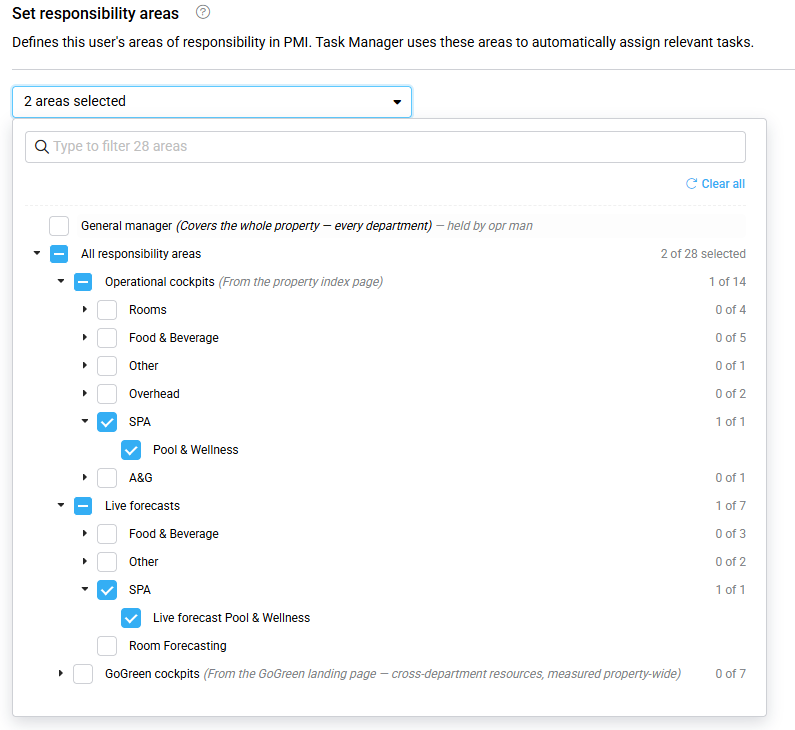
Image: Selected responsibility areas
Understand ownership
Each responsibility area can have one owner per hotel.
If an area is already assigned to someone else, PMI shows:
— held by [user]
You can still select the area, but PMI will ask you to confirm the handover.
If an area has no owner, you can assign it without a handover.
A person can own many responsibility areas, but the same area cannot be owned by two people at the same hotel.
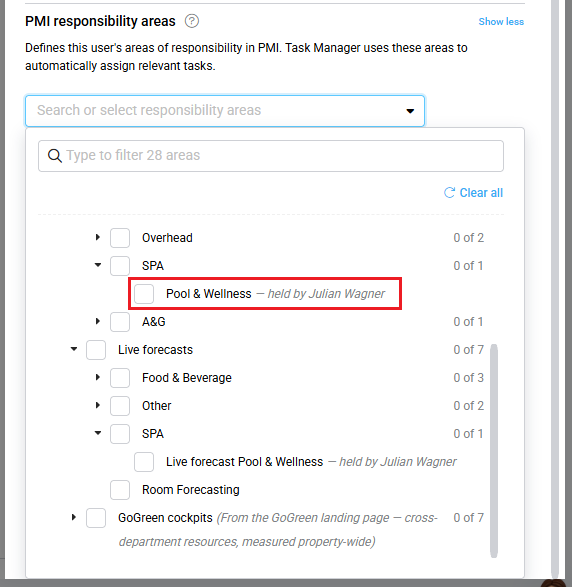
Image: Indication that an area has been assigned to another user
Hand over a responsibility area
When you select an area that someone else owns, PMI opens a Handing over window.
The window shows:
- which selected areas have no current owner;
- which selected areas belong to someone else;
- the current owner of each area;
- which areas will move to the new owner.
You can untick areas that the current owner should keep.
When you confirm the handover, the change is prepared, but nothing moves until you save the user. On Add new user, the change takes effect when you finish adding the user. On Edit user, he change takes effect when you Save.
Previous owners receive an email after the change has been saved, showing which areas they lost and who owns them now.
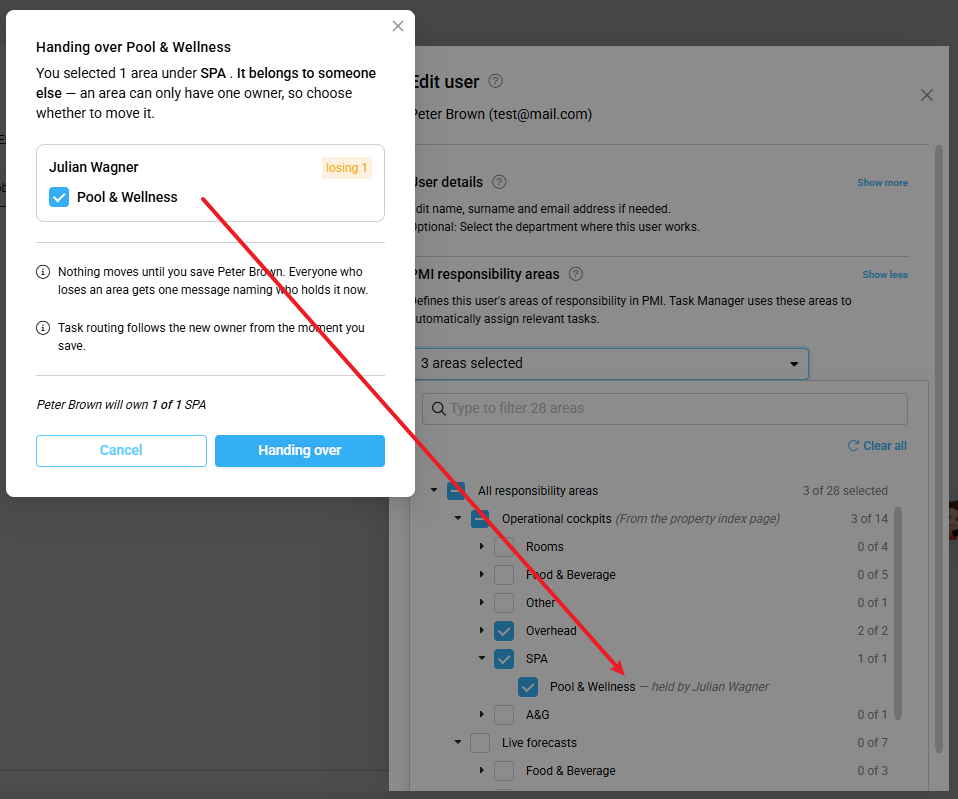
Image: Handing over popup
Remove a responsibility area
If a person is no longer responsible for an area, you can remove it by:
- unticking the area in the responsibility-area tree; or
- clicking the X on its selected-area tag.
If the area was already saved for the user, PMI asks you to confirm the removal.
Removing an area means that nobody will be responsible for it until someone else is assigned.
If another person should take over the area, assign it directly to that person instead. This keeps the area assigned to someone throughout the handover.
Responsibility areas, Works in and user roles
These three settings have different purposes.
| Setting | What it tells PMI |
|---|---|
| Works in | Where the person works — one division or department |
| Responsibility areas | What the person is responsible for and therefore which tasks they can receive |
| User role | What the person can edit in PMI |
Works in
Works in records the one division or department where the person works.
For example, a person might work in Food & Beverage or Restaurant.
You can select only one value from the list. Works in does not determine which tasks the person receives. It will make it easier to choose a responsibility area by expanding only the one Division where this person works.
Responsibility areas
Responsibility areas identify the specific areas the person is responsible for.
For example, a M&E Manager might:
- work in Meetings & Event;
- own several cockpits in Meeting & Event
The responsibility areas are what Task Manager will use when assigning tasks.
User role
The user’s role determines what they can edit in PMI.
A user can therefore be assigned a responsibility area even if their current role does not give them access to that cockpit. PMI warns you about this situation, but does not prevent you from assigning the responsibility area.
In short: Works in = where they work Responsibility areas = what they are responsible for User role = what they can access
I think this is one of the most important sections in the article and should probably have a callout/highlight in the final WordPress version.
General manager handover
General manager is handled separately from the responsibility areas.
To assign the position:
- Select General manager.
- If nobody currently holds the position, it is selected immediately.
- If someone else is General manager, PMI opens a Handing over General manager window.
- Confirm the handover.
- Set the Take over on date.
- Save the user.
The take-over date can be today or a future date. The current General manager remains in the position until the selected date.
The take-over date cannot be before the user’s Valid from date.
Suggested responsibility areas
On Edit user, PMI can show — suggested next to an unowned operational cockpit.
This means PMI has identified the person as the likely owner based on their role.
PMI makes the suggestion when only the exactly one person has the department or division manager role for that department at the hotel.
A suggestion is not automatically assigned. You must select the area for it to become part of the user’s responsibility areas.
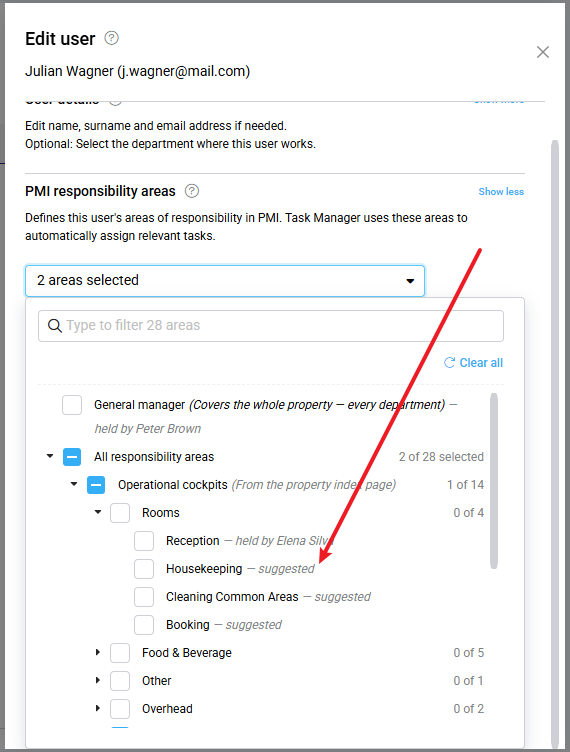
Image: Showing suggested areas based on User role
What happens when responsibility changes?
Responsibility areas are particularly useful when responsibilities change.
For example:
- a new HOD joins the hotel;
- someone is promoted;
- an employee leaves;
- someone takes over a department;
- responsibilities are redistributed between HODs.
Instead of simply changing a person’s job title, update their responsibility areas so PMI knows who is responsible for each area.
This ensures that when Task Manager assigns tasks based on responsibility, the tasks can be routed to the appropriate person.
Good to know
- Responsibility areas are set per hotel.
- A person can own many areas.
- An area can have only one owner per hotel.
- Selecting a group assigns the areas that exist in that group at that time.
- If a new cockpit or other responsibility area is configured later, it is not automatically assigned to someone.
- Deactivated users keep their responsibility areas, but they do not receive tasks while deactivated. u
- Holding a responsibility area does not give the user edit access to the related PMI data. Access remains controlled by the user’s role.