
Fast-fill lets you populate multiple planning months without entering each value individually. You can spread an amount across selected months, follow a historical pattern, or use an existing P&L formula to create monthly values.
Use Fast-fill when you want to quickly populate a range of planning values while keeping control over how the values are distributed.
Open Fast-fill
- Hover over the assumption row.
- Select the Fast-fill icon.
- The Fast-fill your monthly amounts panel opens and shows the assumption and period you are filling.
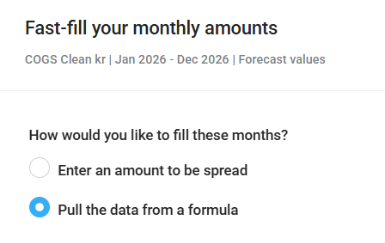
- Under How would you like to fill these months?, choose how you want to create the values.
Enter an amount to be spread
Use this option when you want to enter an amount and have PMI distribute it across the selected months.
Under Amount is for, choose:
- Total for the period – Enter the total amount and distribute it across the selected months.
- Monthly – Enter a monthly amount and use that amount for each eligible month.
If you select Total for the period, choose a Spread method:
- Even per month – Divides the amount equally across the eligible months.
- Use historic pattern – Follows the monthly pattern from historical actuals.
When you use a historical pattern, choose the history you want to use and select either
- Use same department and account
- Use different department and/or account.
When a historical pattern is used, PMI distributes the amount according to each month’s share of the selected historical year. For example, if a month represented 12% of the selected year’s actuals, 12% of the amount is assigned to that month.
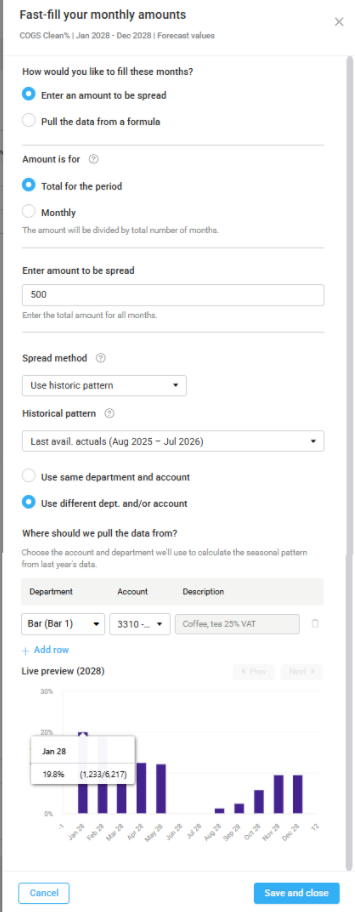
Fast-fill amount to be spread – Use historic pattern
Pull the data from a formula
When the assumption is used in a P&L formula, you can use the formula to create the monthly values.
- Select Pull the data from a formula.
- Select the baseline year.
- Select the formula you want to use from the list of available Department / Account / Description combinations.
- Review the Live preview.
- Select Save and close.
Only formulas that use the selected assumption are available.
If the formula cannot produce a value for a month, PMI fills that month with 0.
Review the Live preview
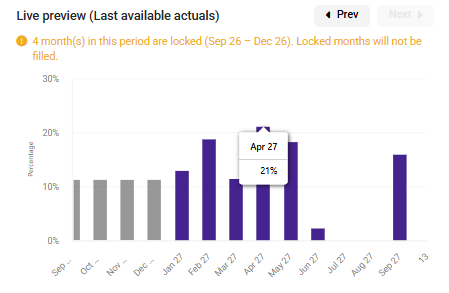
The Live preview shows how the values will be distributed before you save them.
Months that will not be filled, such as locked months, are shown differently in the preview. Hover over a month to see why it will not be filled.
Save the values
- Review the preview.
- Select Save and close.
The values are written to the series currently selected in the View switch:
- Forecast views → forecast values
- Budget views → budget values
Fast-fill can cover up to 24 months. Months that are already actuals or are locked are skipped automatically. If all selected months are locked, you cannot save until you select an editable period.
Good to know
- Fast-fill does not overwrite values in months that are not eligible for filling. This protects actual and locked periods from being changed.
- Fast-fill only updates months that are currently included in the grid.
- Fast-fill writes to either the forecast or budget series, depending on the selected view.
- For information about how PMI calculates the amounts and historical patterns, see How PMI calculates Planning assumption values.
Related articles
- How to use Planning assumptions – Learn how to create, manage, and update planning assumptions.
- How PMI calculates Planning assumption values – Understand how PMI calculates Fast-fill values and other planning assumption calculations.
- How to use constants and planning assumptions in P&L formulas – Learn how planning assumptions can be used in P&L formulas.