
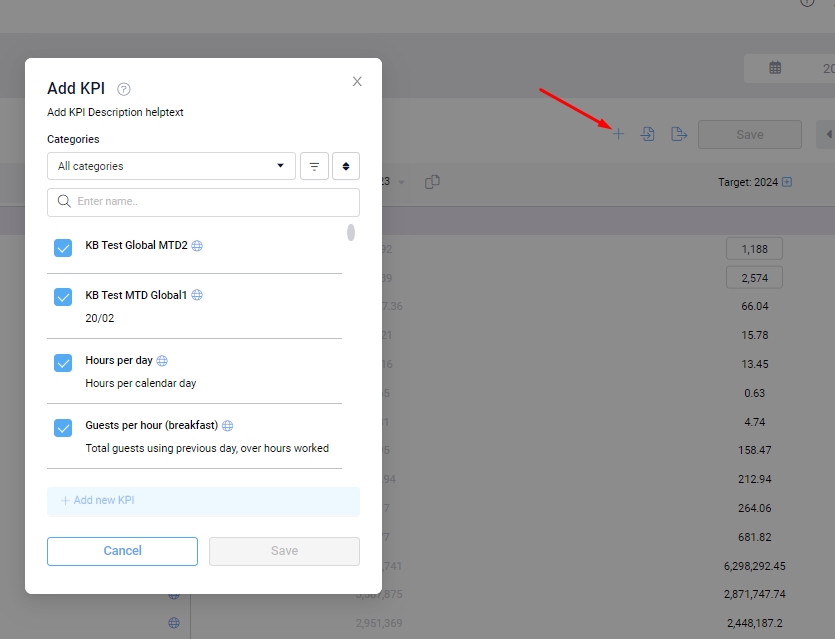
From the KPI dashboard, you are able to take a closer look at your KPIs. Click on the + sign by the Save button to open the pop up.
A blue checkmark to the left of the KPI means the KPI is active in your page.
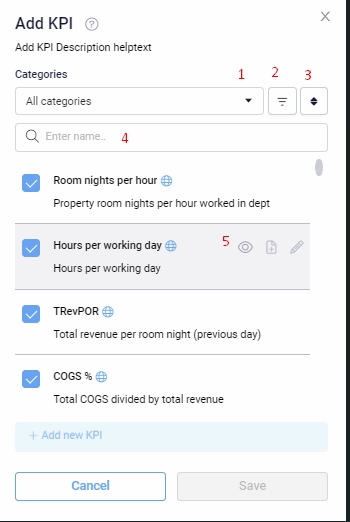
The KPIs can be filtered based on the category selected in Settings (1).
- There are several options to filter (2), and sort (3) the KPIs.
- If there is a globe beside a KPI, that means it is a global KPI, created by d2o and it will be available for every chain and property in PMI, not just your specific chain. A global KPI cannot be edited or deleted.
- Chain means that this KPI is only available for your chain.
- In the search bar, you can search for a specific KPI (4). Typing the first 3 letters will start the search, bringing up all relevant options.
- Hover over a KPI and click on the eye icon to see more details (5).
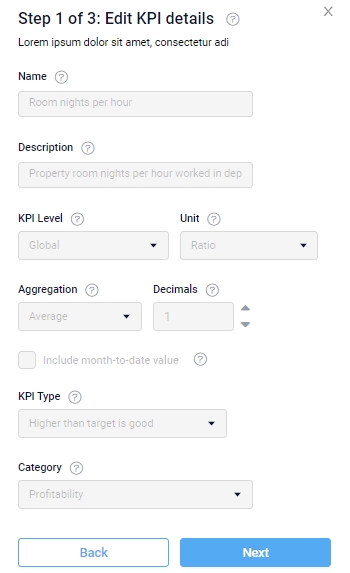
Step 1
Here you can see exactly which options were selected for this KPI. If everything is gray, no changes can be made. Select Next to go to Step 2.
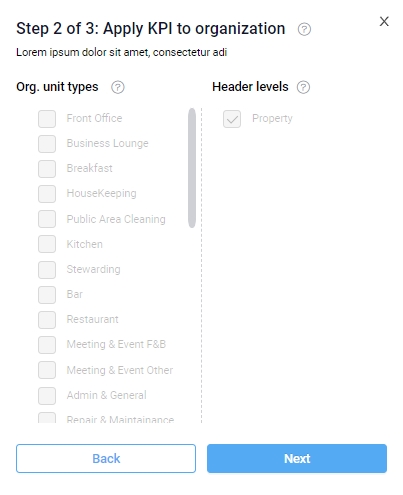
Step 2
Here you can see which organizational unit or header level the KPI has been assigned to. Open the dropdown beside the org. unit to view the specific departments. Select Next to go to Step 3.
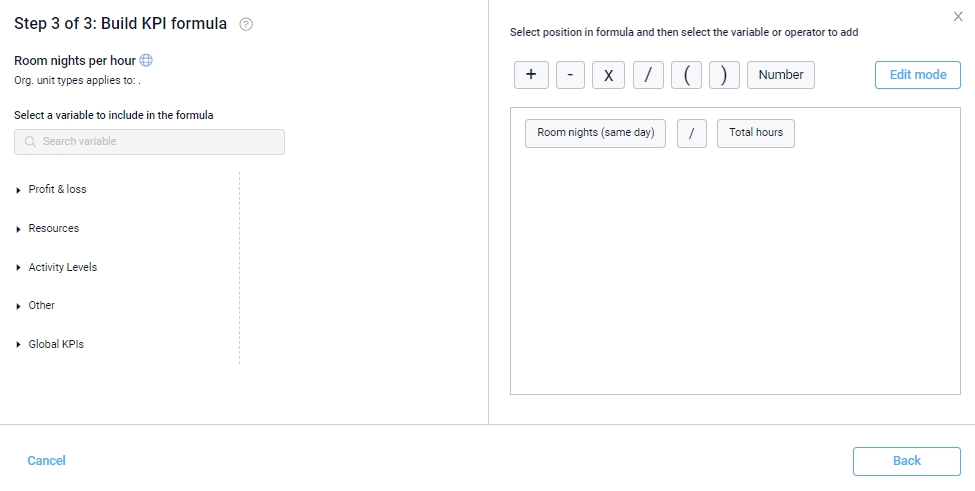
Step 3
The calculation for the KPI and what it is composed of can be seen here. Nothing can be added, edited, or moved on this screen. If the KPI has been linked to a different period or department, that will be written below the KPI.
KPis are meant to enable consistent comparisons in the chain. If any changes need to be made, please contact your HQ controller.