
Objective
By following this guide, you will be able to upload your revenue budget into PMI via the Data Upload Centre and ensure it is correctly reflected in the Budget & forecast module.
Requirements
- You must have access rights in PMI to use the Data Upload Centre.
- Ensure you have budget prepared.
- The period you want to budget for should not be locked. See video how to unlock locked period in PMI.
Estimated time to complete
This task takes approximately 10-15 minutes, depending on file readiness and upload speed.
Steps
Step 1: Access the Data Upload Centre
1. Log in to PMI.
2. Navigate to Administration in the main menu.
3. Open the Data Upload Centre.
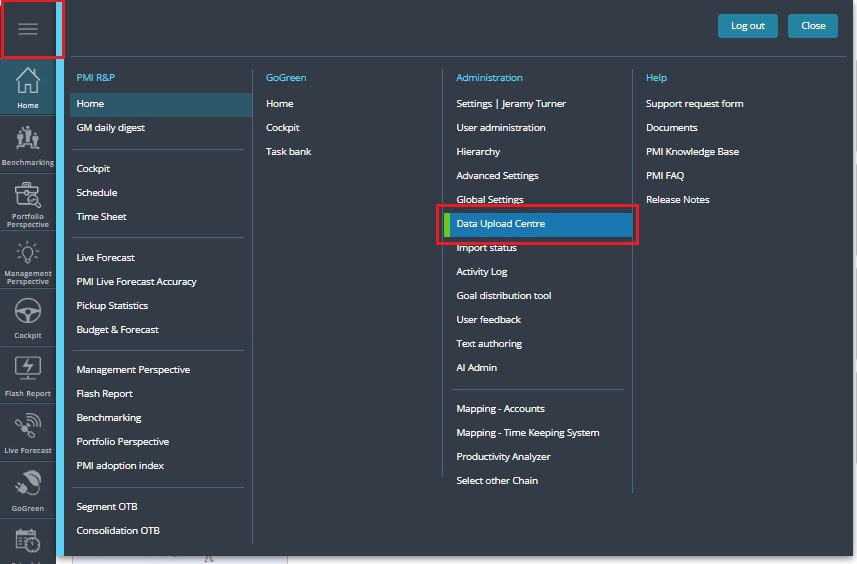
Step 2: Download the budget template
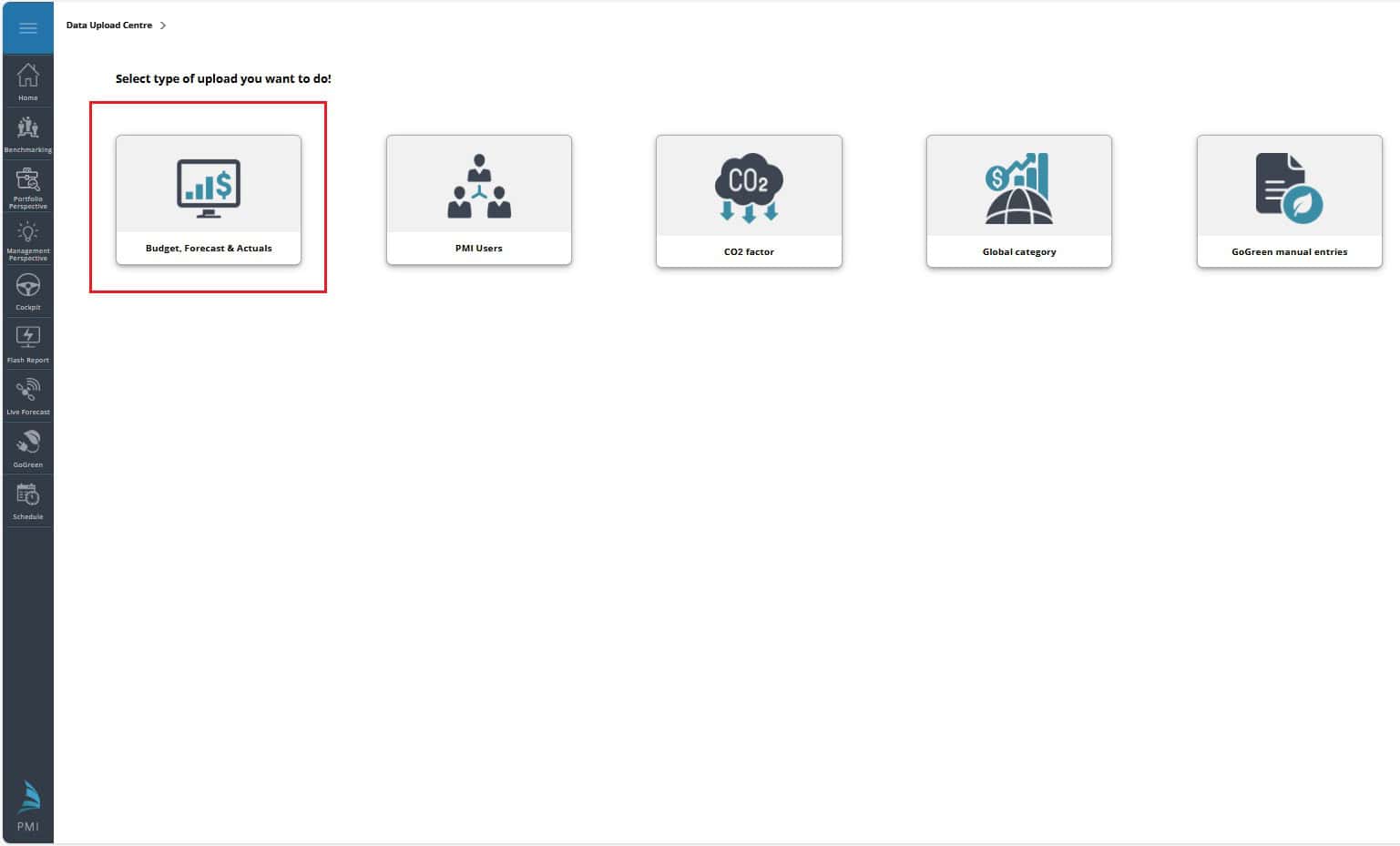
1. In the Data Upload Centre, click on Budget, Forecast & Actuals.
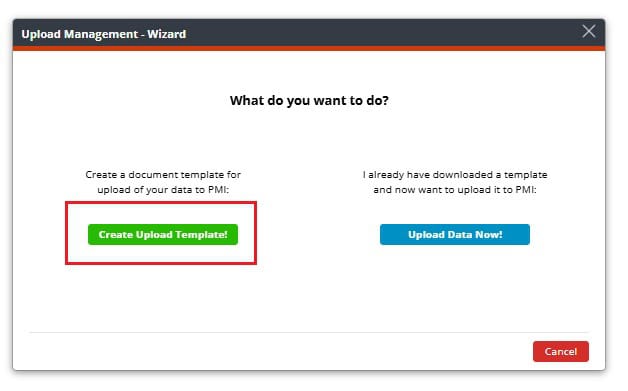
2. Click Create Upload Template.
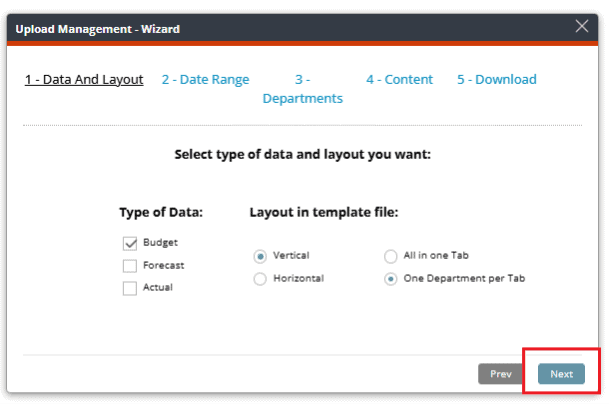
3. Select the following:
a. Type data: Budget
b. Lay-out in template file:
i. Choose between Vertical or Horizontal
ii. One Department per tab
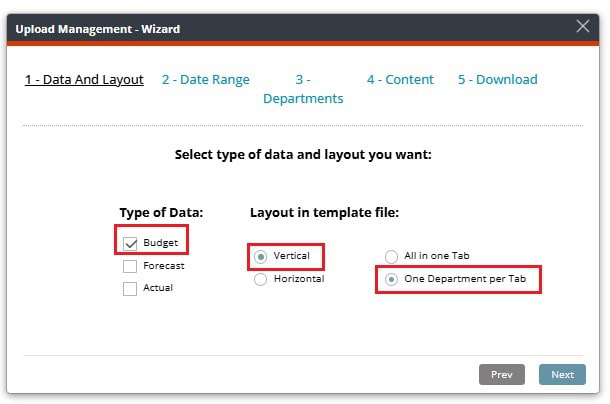
4. Click Next to continue.
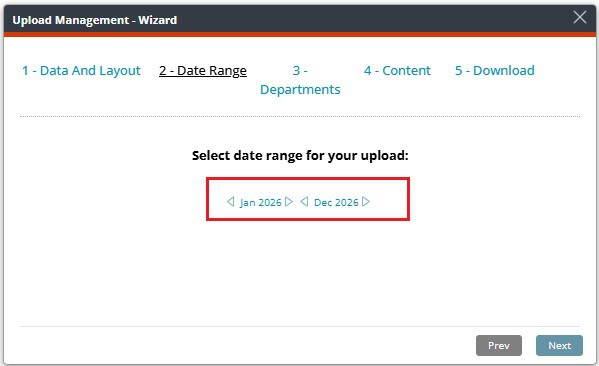
5. Select the period you want to create budget for.
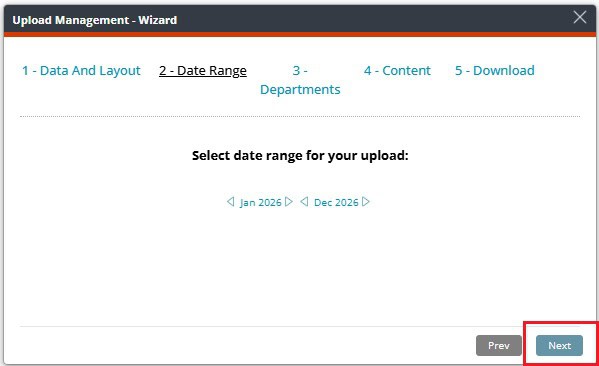
6. Click Next to continue.
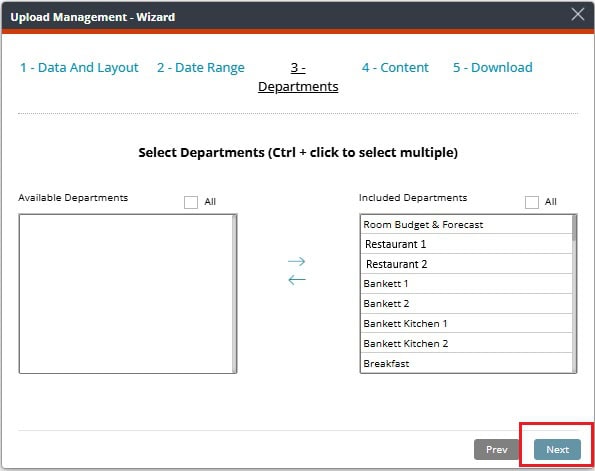
7. Select all departments and move them to the selection list using the arrow button.
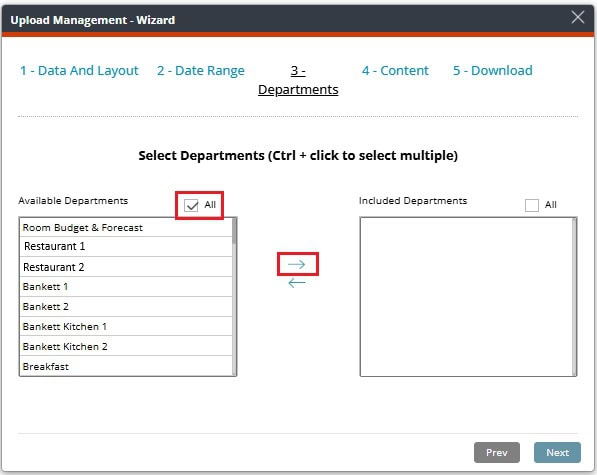
8. SelectNext to continue.
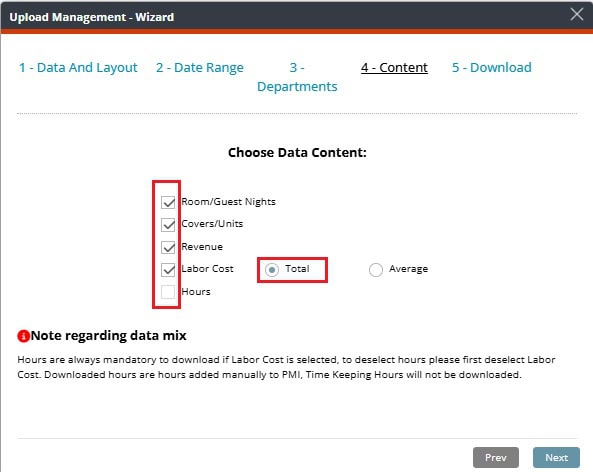
9. Choose Data Content and total.
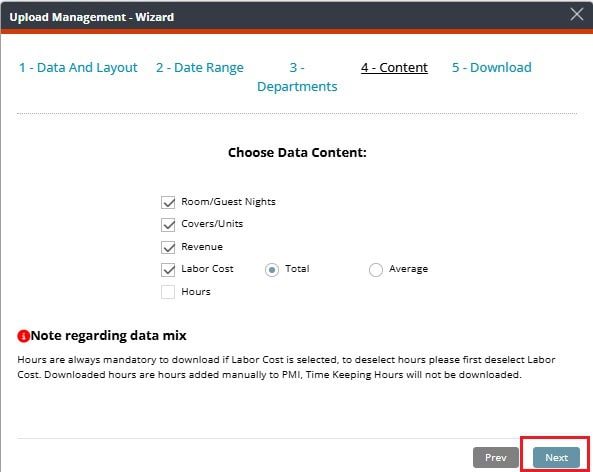
10. Select Next to continue.
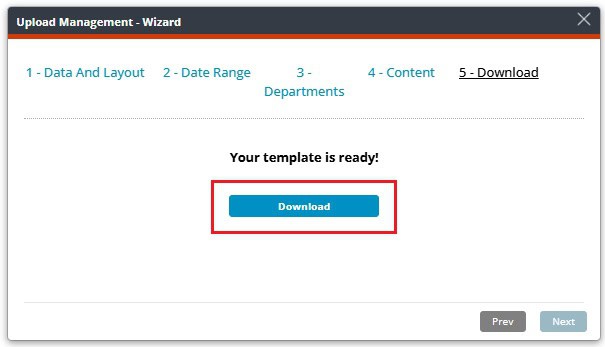
11. Select Download to save the template file.
12. Open the downloaded file.
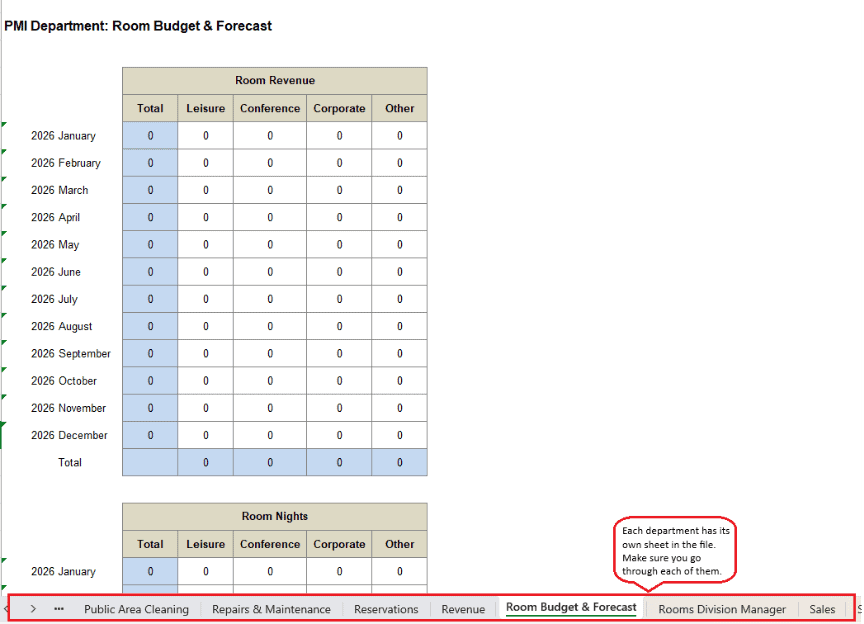
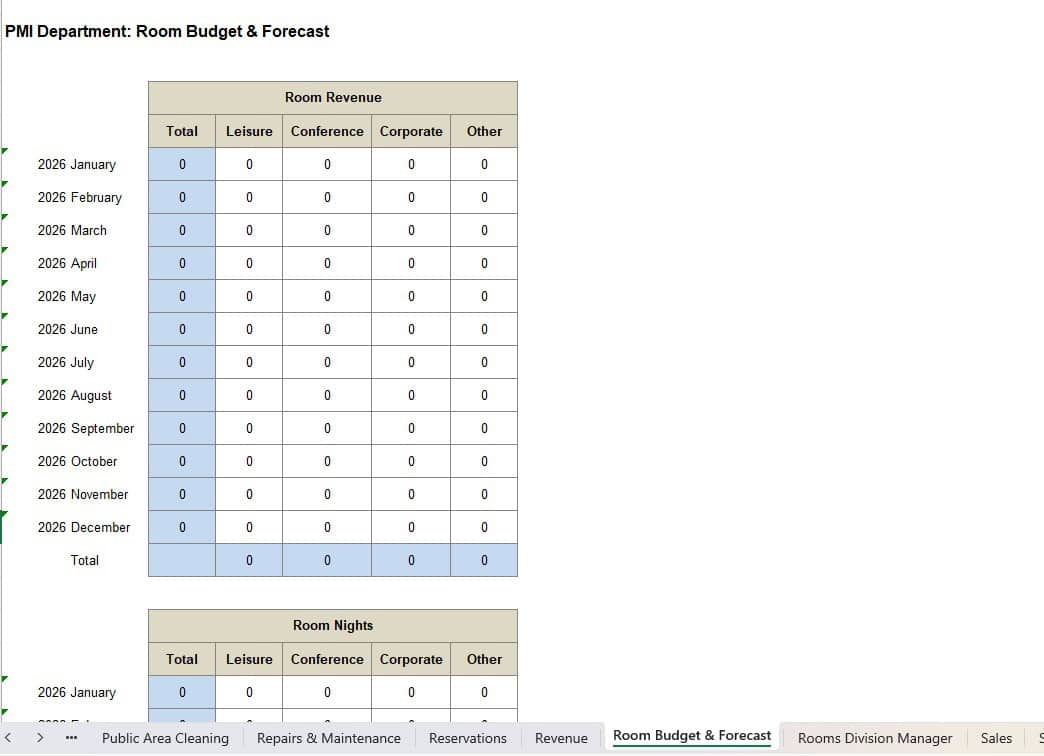
13. Fill in the white cells with budget data.
Note:
- Always work from the provided template to avoid upload errors.
- When copying from another file, paste values only (no formulas).
- Do not override the colored cells.
- Inform your d2o consultant if you want to add another department that’s not in the file.
Step 3: Upload the budget file
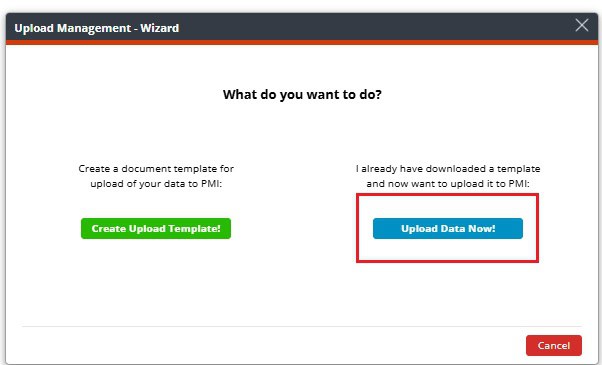
- Click Upload Data Now in the Data Upload Centre
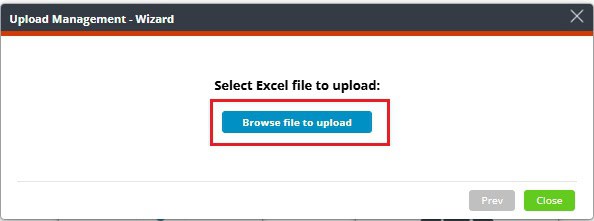
2. Upload your budget file by clicking the Browse file to upload and select your file.
3. Select Upload to submit your file.
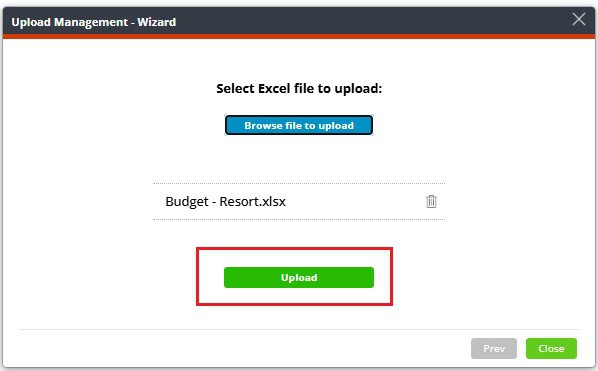
Step 4: Review uploaded data
1. Go to Budget & forecast module.
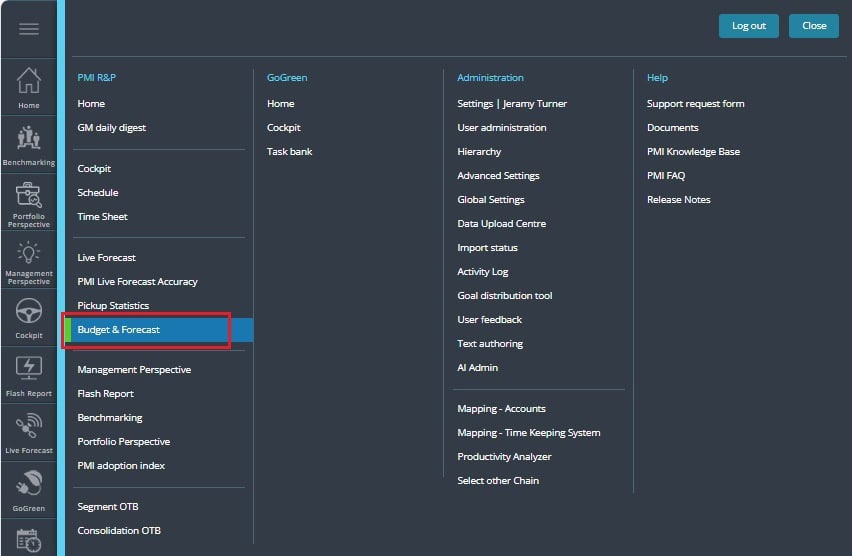
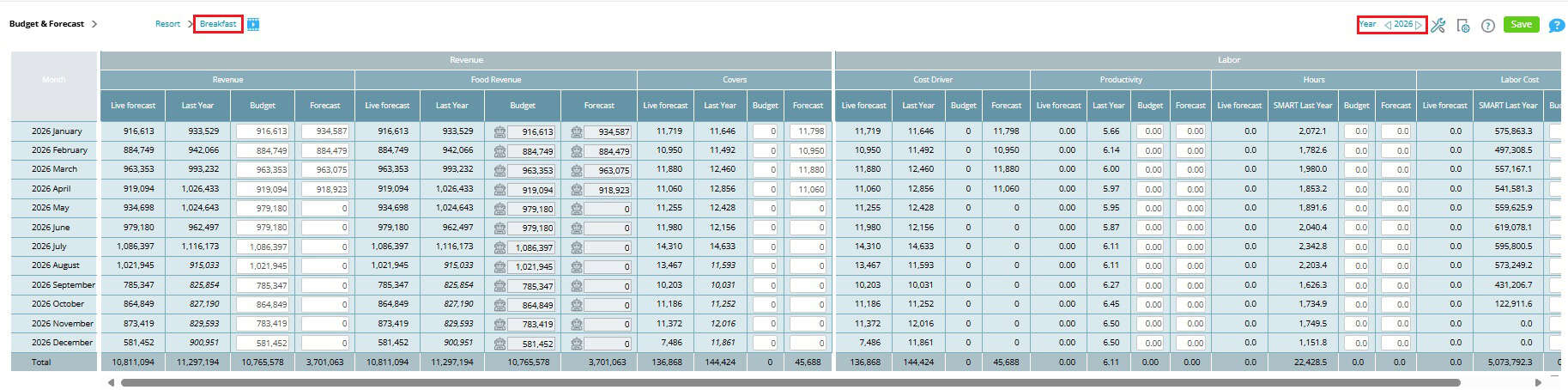
2. Select the relevant departments and periods.
3. Verify that your budget values appear correctly.
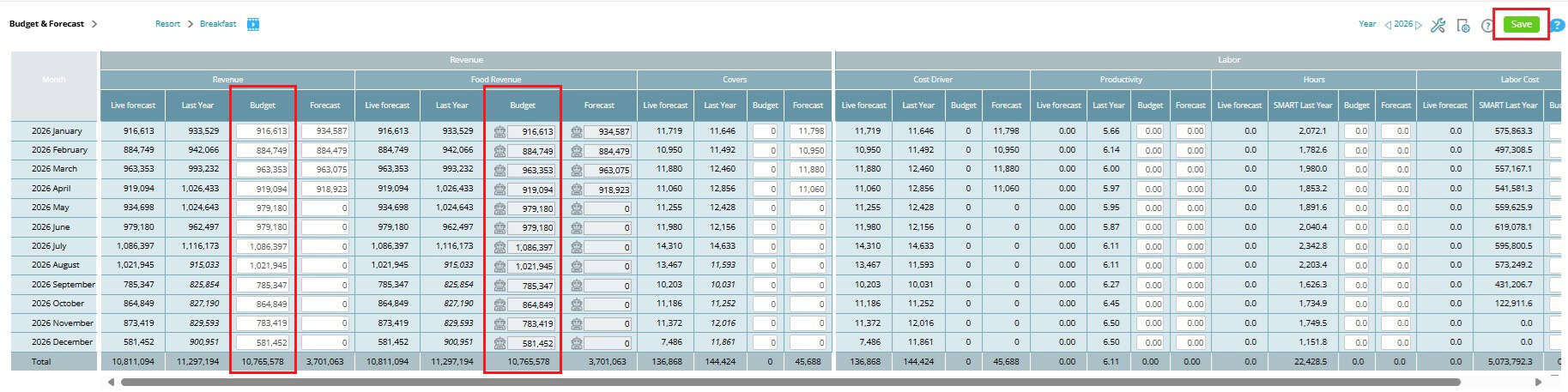
4. Make manual adjustments if required.
Expected outcome
- Your revenue budget is uploaded and visible in the Budget & forecast module.
- You can now compare uploaded budgets against Live forecast, Last year, and actuals data.
Troubleshooting
- Upload fails: Ensure you used the correct PMI template.
- Data missing: Check that you selected “Budget” as the transaction type.
- Errors in preview: Ensure that the period is not locked.
Cross references
How to enter a revenue budget in PMI using Live forecast data