
Objective
By following this guide, you will be able to enter a revenue budget in PMI using Live forecast data as the foundation.
Requirements
- You must have access rights to the Live forecast and Budget & forecast modules in PMI.
- The Live forecast should be updated and adjusted for at least the next 12 months as part of the monthly routine.
Note: The Live forecast is your operational forecast and becomes actual data once the month has passed.
Estimated time to complete
This task takes 7-10 minutes.
Steps
Step 1: Finalize Live forecast
1. Log in to PMI.
2. Go to the Live forecast module.
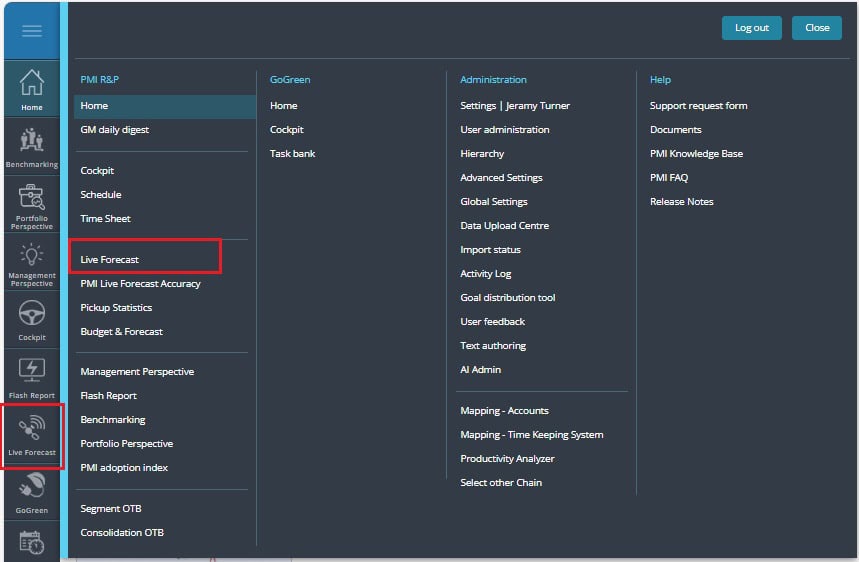
3. Review and finalize your Live forecast for at least the next 12 months.
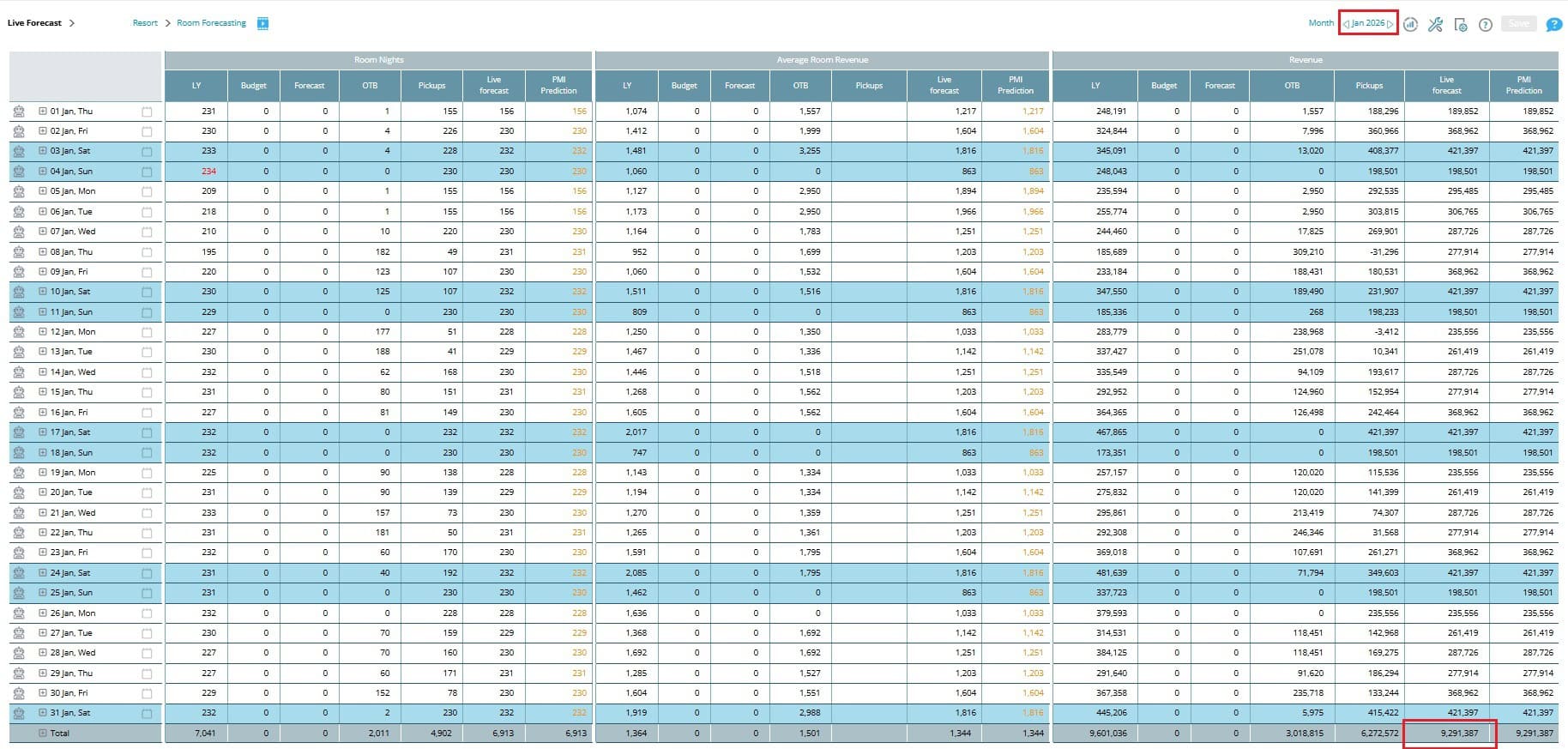
Important: Do not manipulate the Live forecast to reach your budget values. Live forecast must remain an accurate operational forecast.
Step 2: Copy Live forecast data to Budget
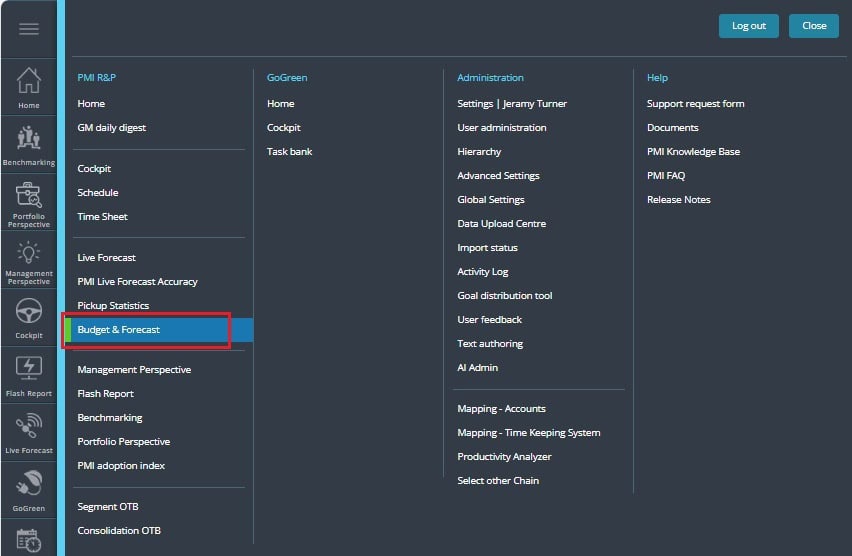
1. Go to Budget & Forecast.
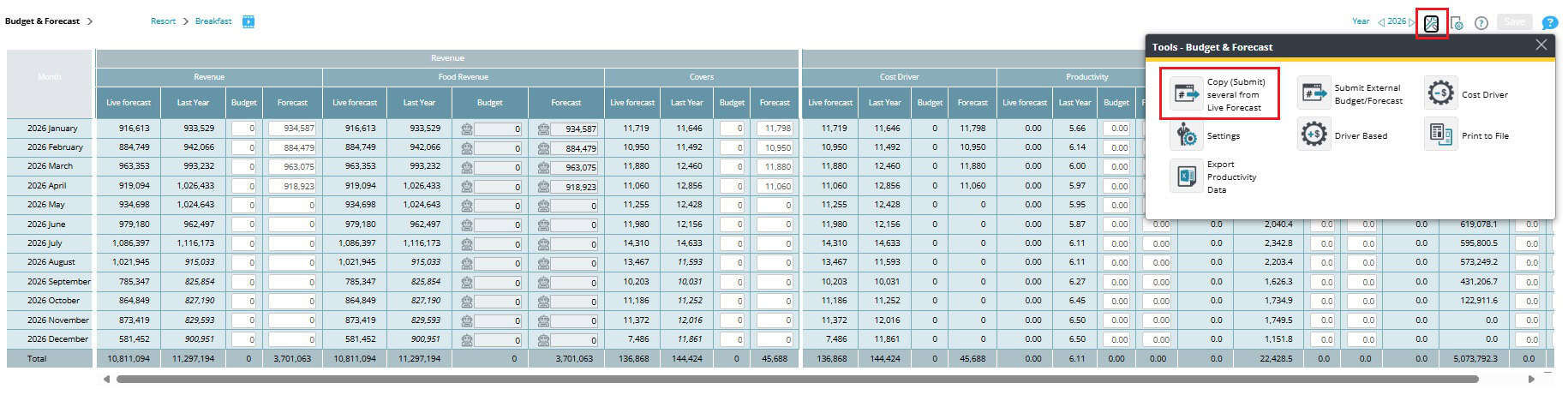
2. Click the tools icon.
3. Click Copy (Submit) several from Live Forecast.
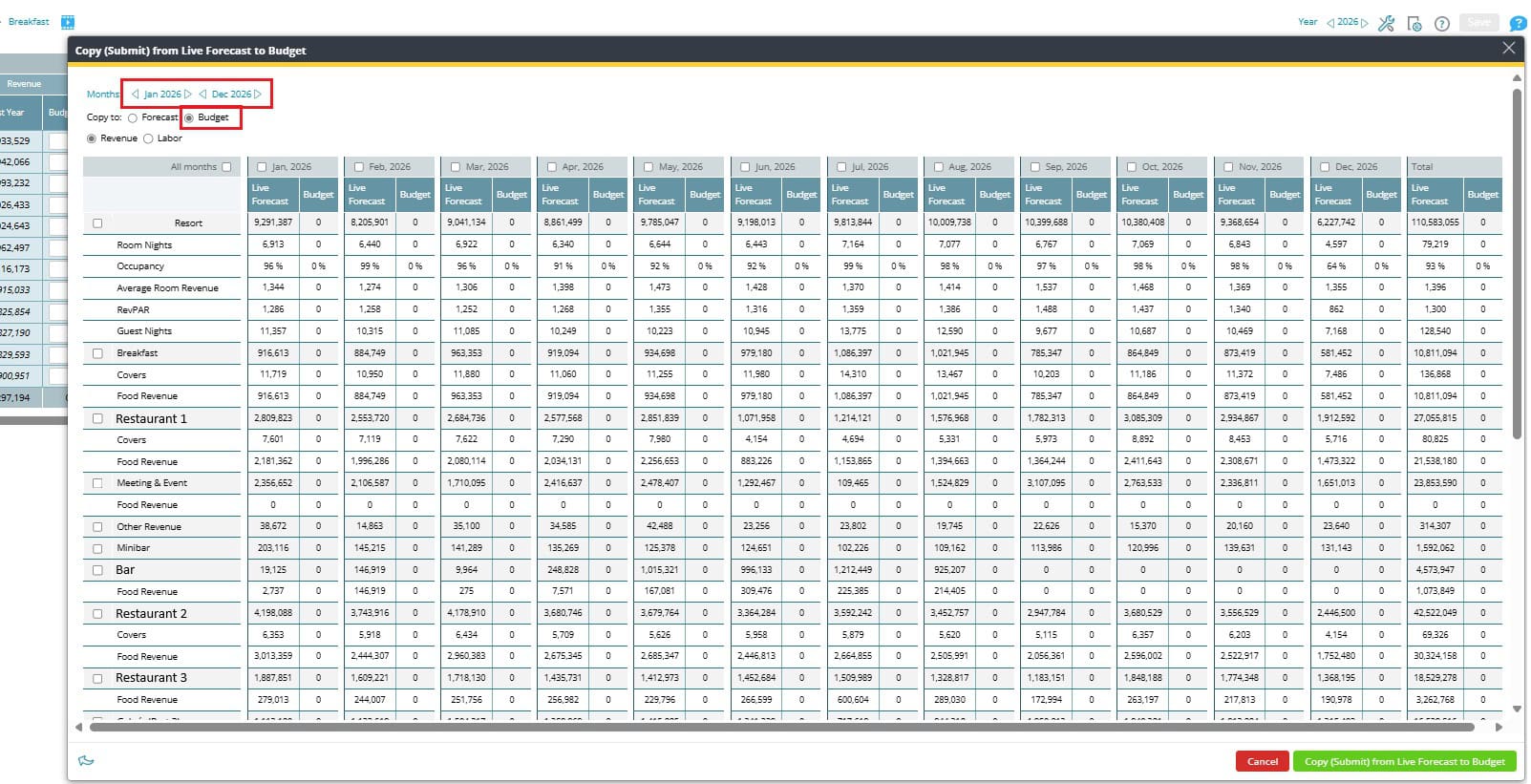
4. Choose the period.
5. Select Budget.
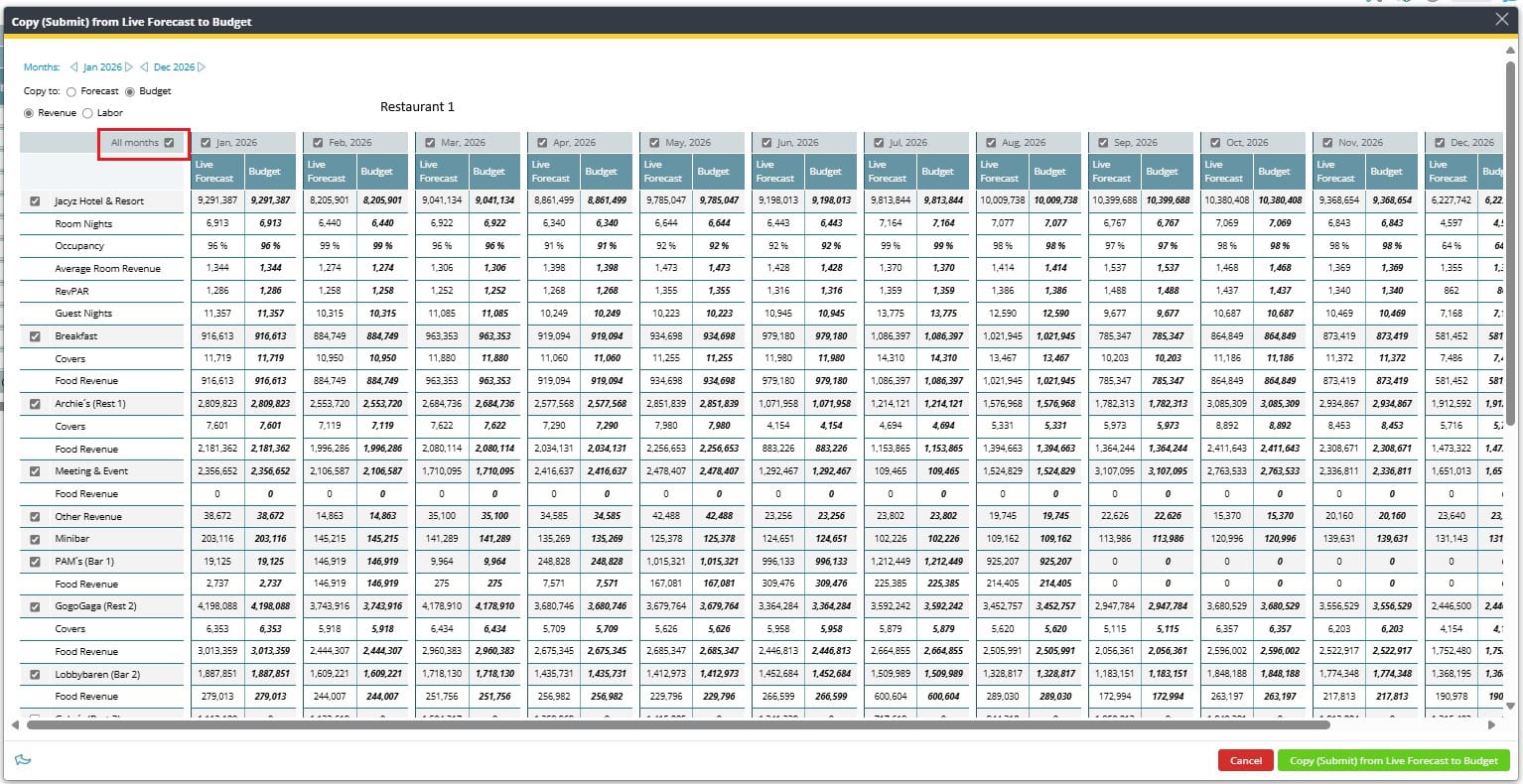
6. Select each month individually or click the All months box to include all months.
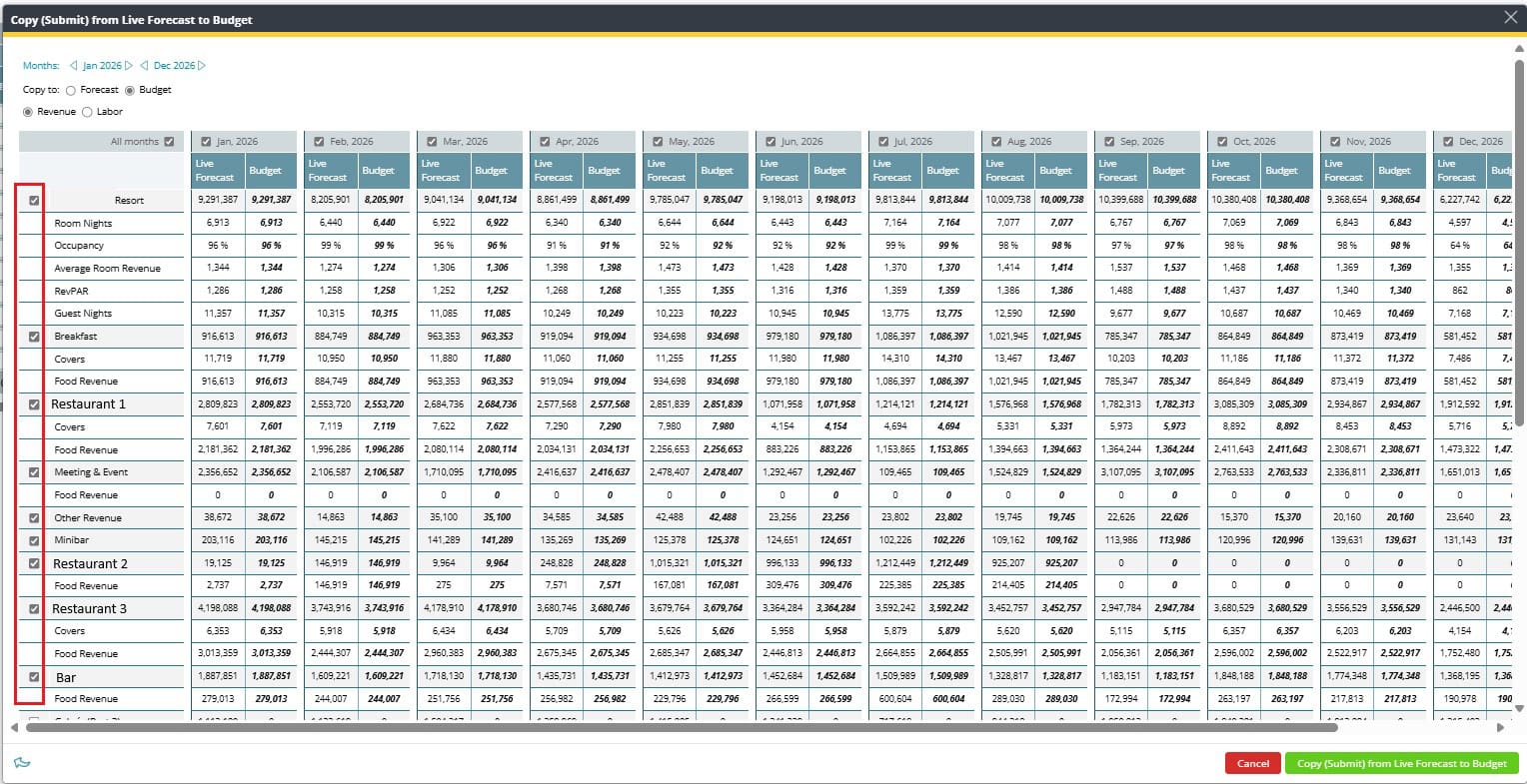
7. Select the departments you want to submit the budget for.
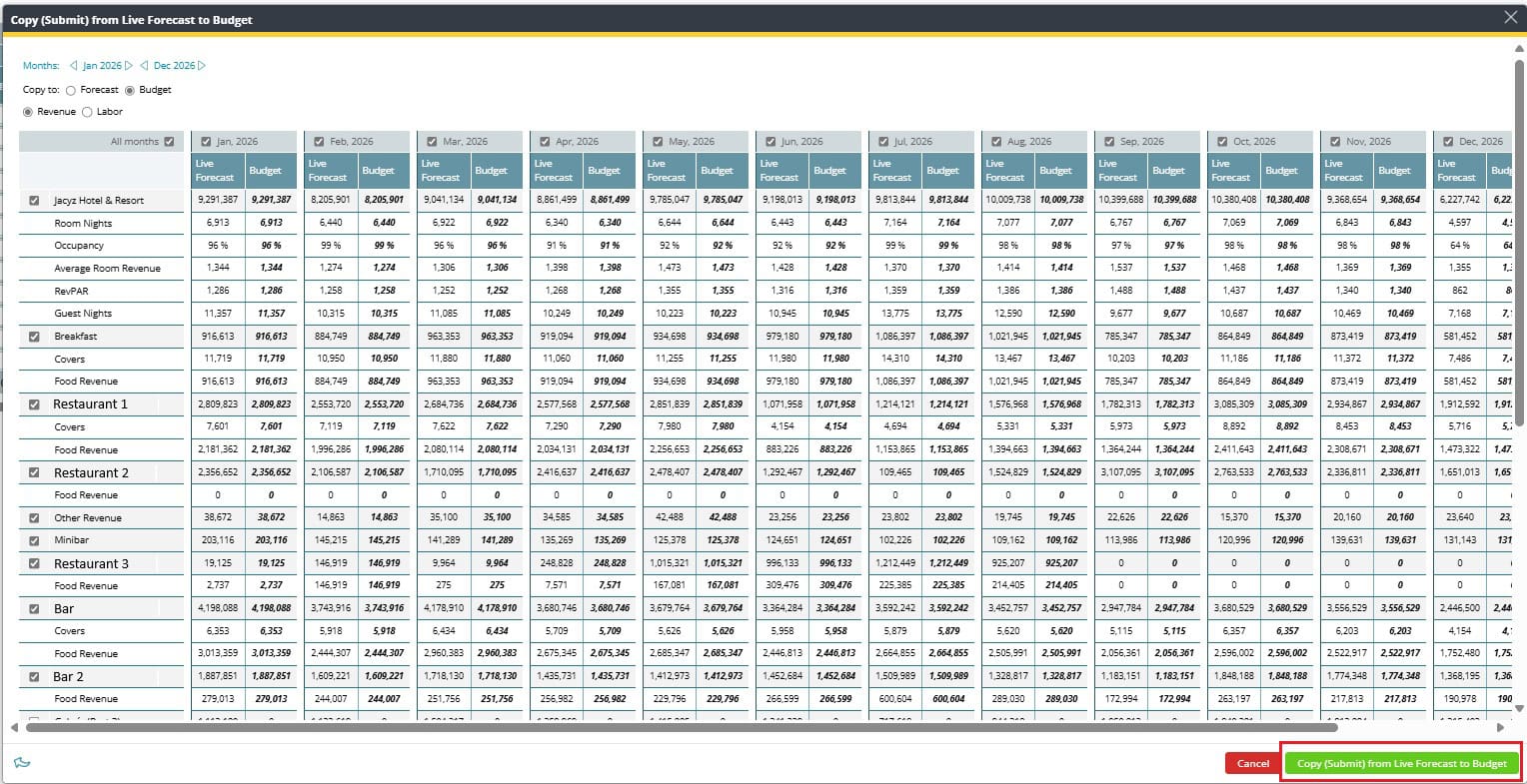
8. Click Copy (Submit) from the Live Forecast to Budget to confirm.
Step 3: Adjust budget values
1. After copying, go to Budget & forecast module.
2. Select the department and period.
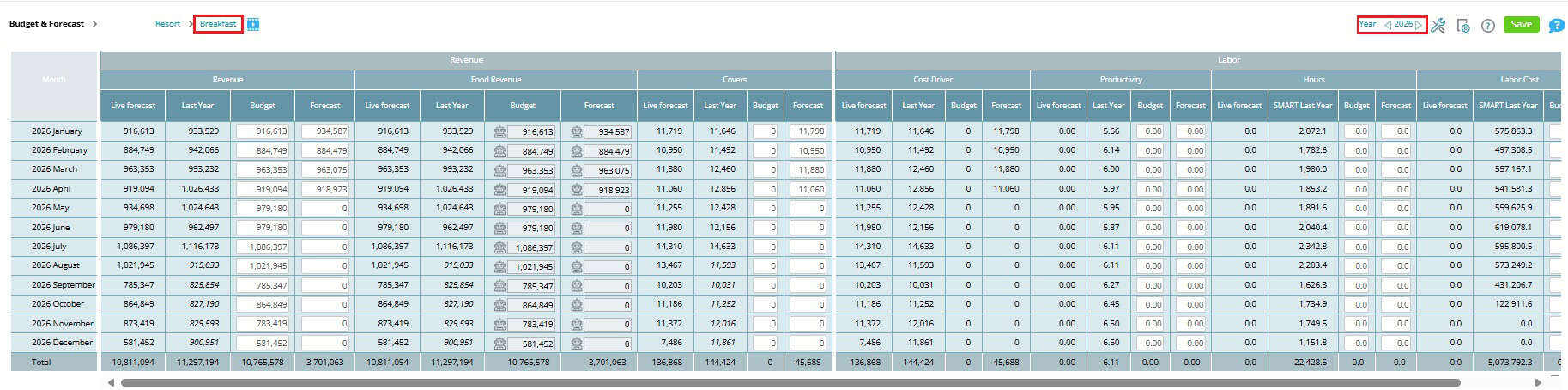
3. Review the Budget, Last year, and Live forecast columns side by side.
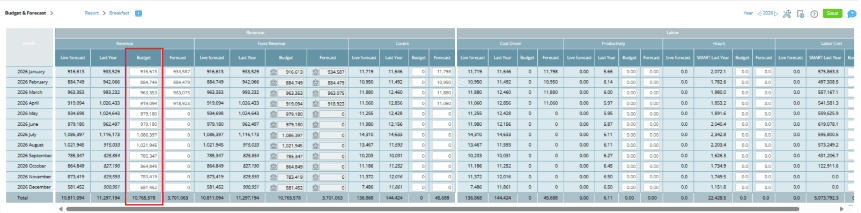
5. Adjust your Budget values as needed — these are the only values you should change.
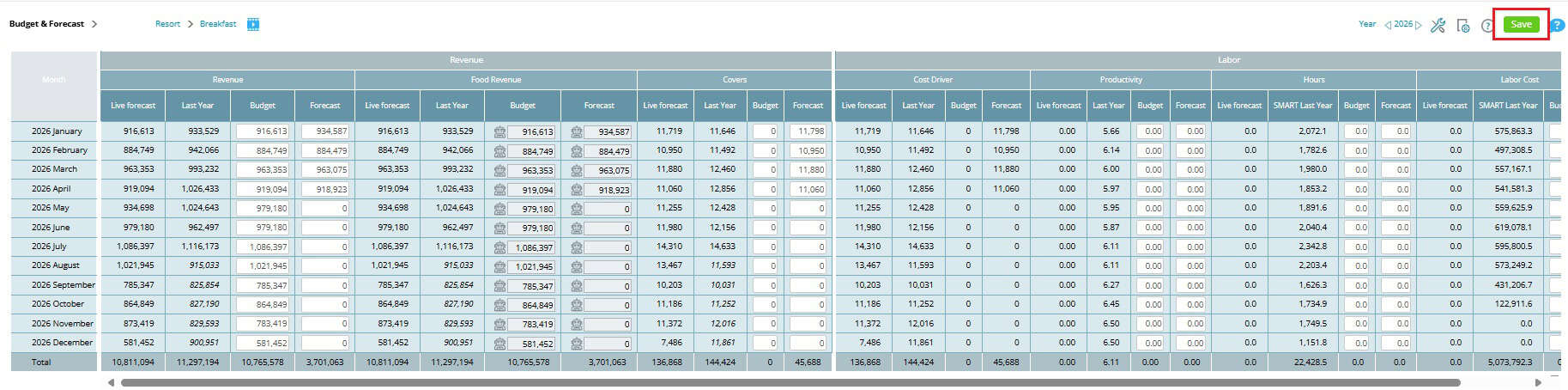
6. Click Save.
Expected outcome
- The revenue budget you entered will appear in the selected department and time period.
- It will be available for comparison against Live forecast and Last Year in the Budget & forecast module.
Troubleshooting
- My values don’t save: Make sure you’re editing the budget view.
- Wrong department or period selected: Double-check the dropdown filters before entering values.
Cross references
How to enter a revenue budget in PMI using the Data Upload Centre