
Objective
You’ll learn how to manually enter revenue budgets in PMI for specific departments and time periods.
Requirements
– You must have access rights to the Budget & forecast module in PMI.
– Know which department and period you want to enter the budget for.
Estimated Time
2 minutes
Steps
1. Log in to PMI.
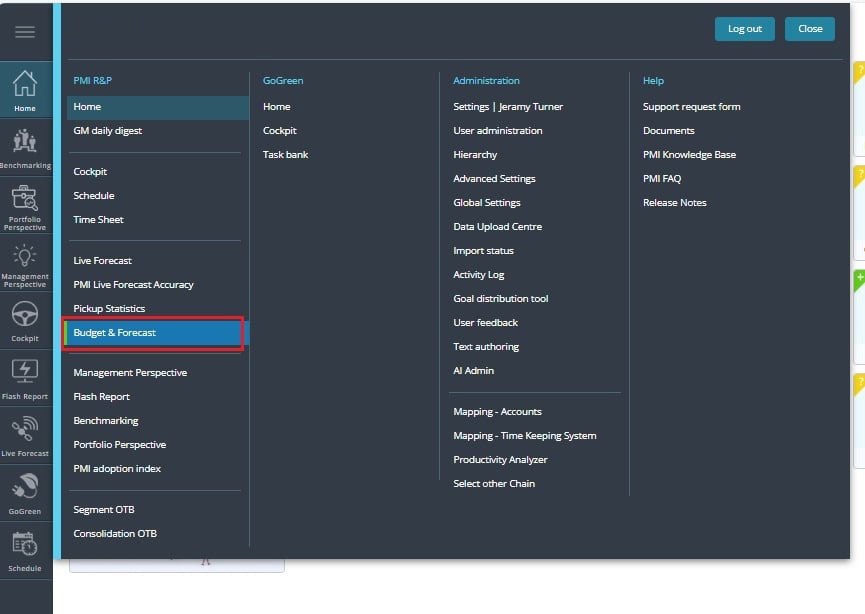
2. Go to Budget & forecast.
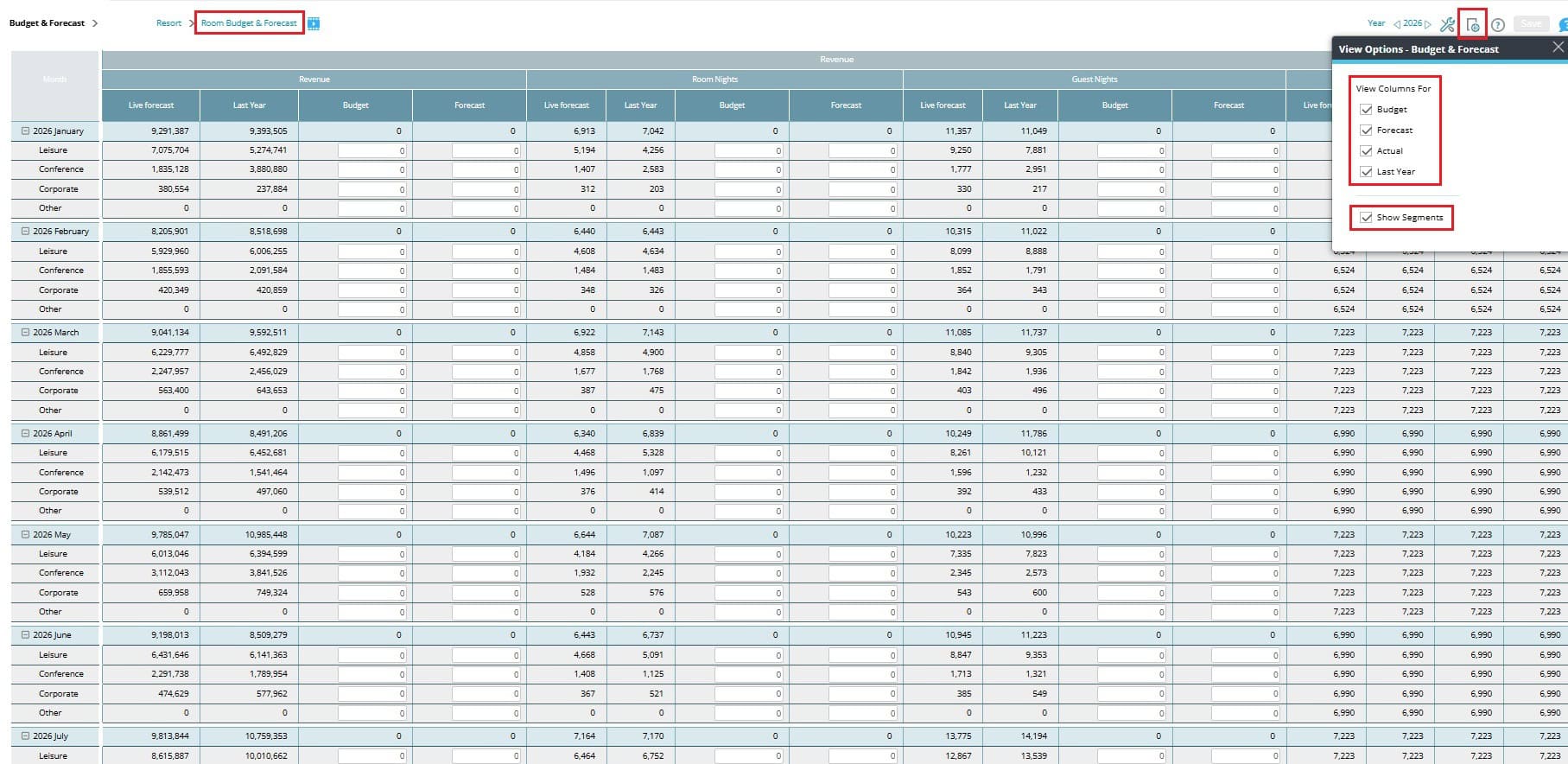
3. Select the department and period you want to edit.
Note: If segments are used, make sure they’re opened.
4. Choose which data to show in the comparison table.
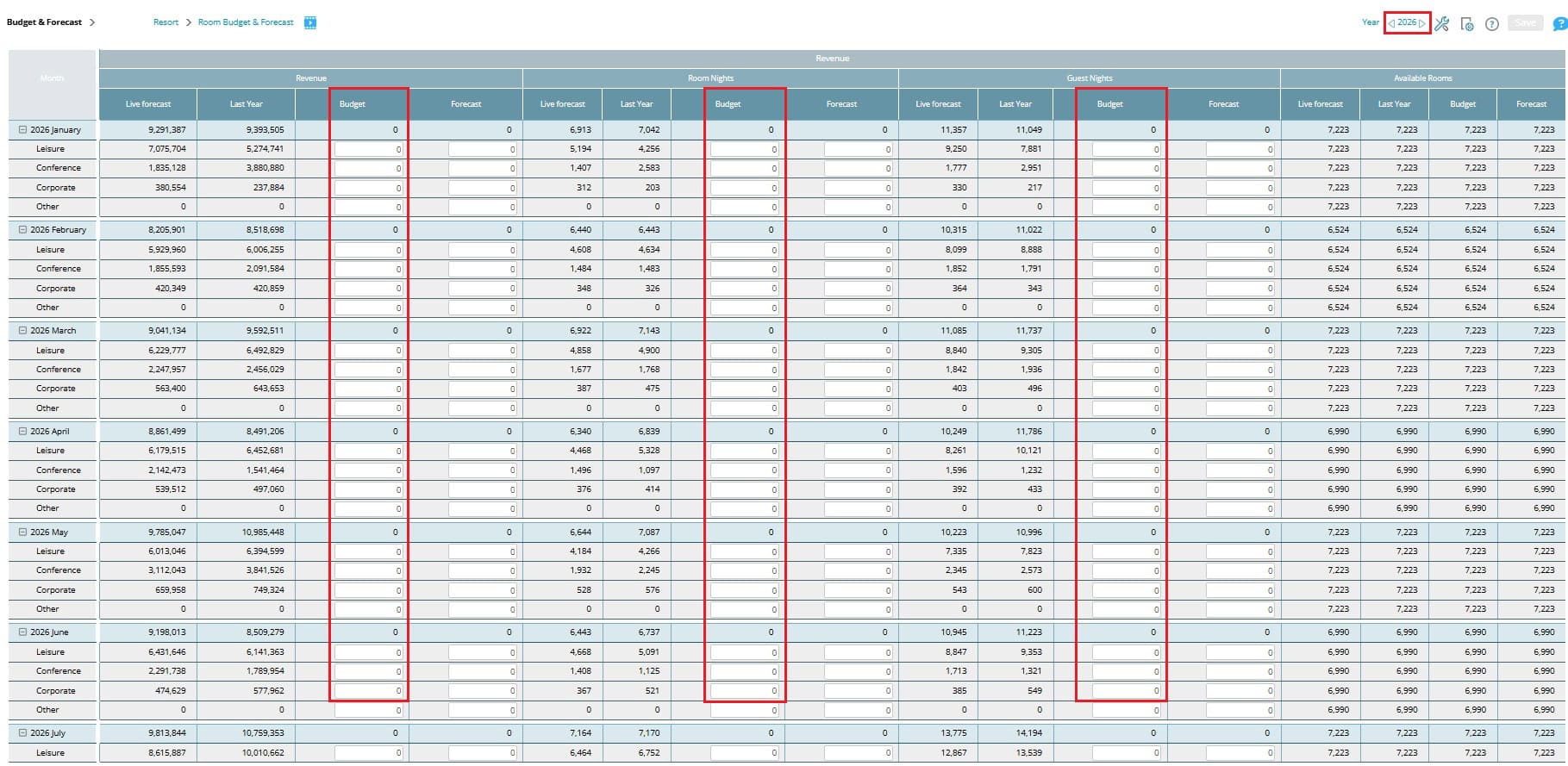
5. Click inside the budget cell for the selected period and enter the revenue amount.
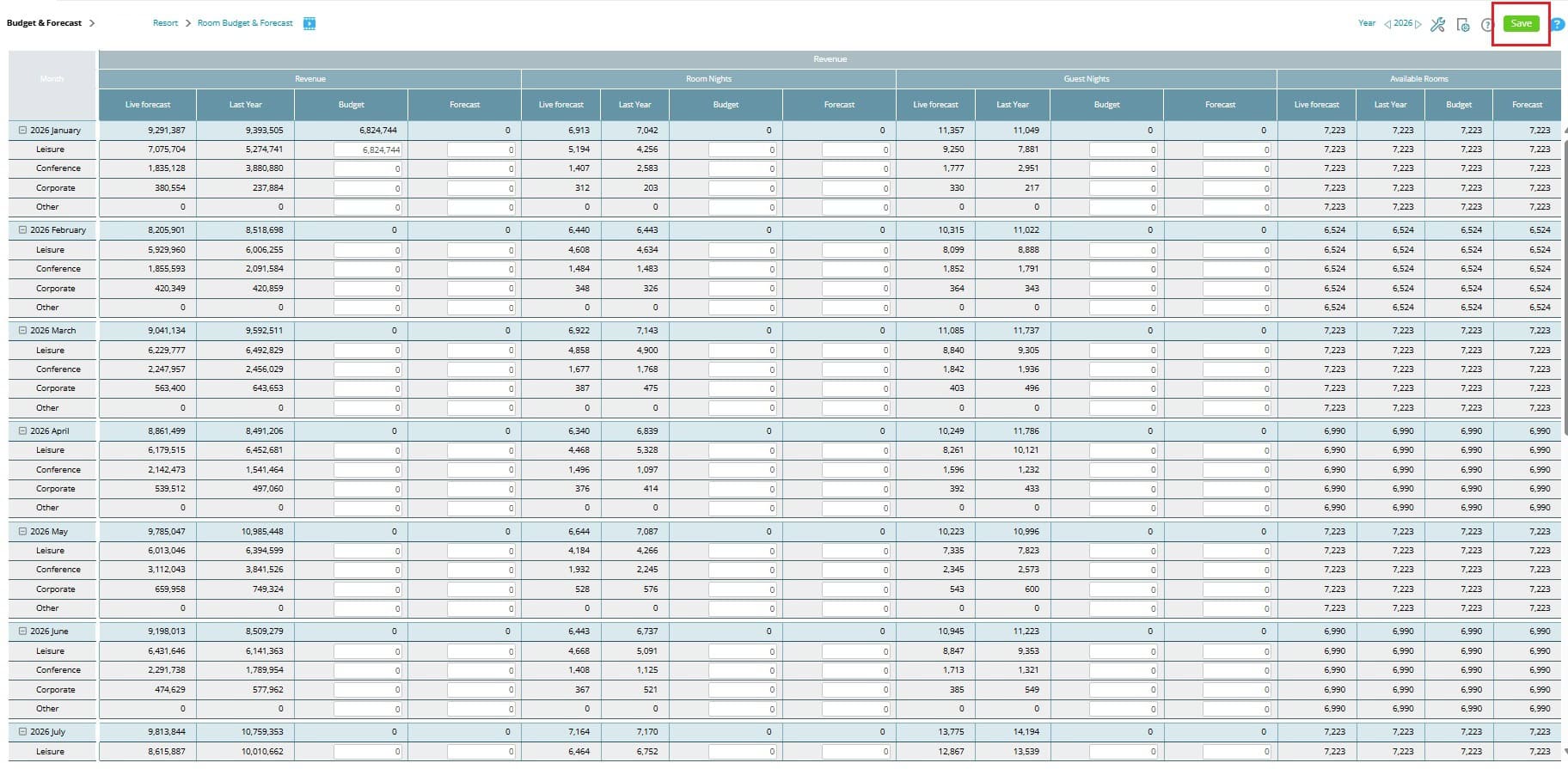
6. Click save.
Expected Outcome
– The revenue budget you entered will appear in the selected department and time period.
– It will be available for comparison against forecasts and actuals in the Budget & forecast module.
Cross references
How to enter a revenue budget in PMI using Live forecast data
How to enter a revenue budget in PMI using the Data Upload Centre