
If you do not see the option to manage scheduled reports in Opera, you need to make sure you have the correct access rights.
Follow the steps below to add reports to the schedule.
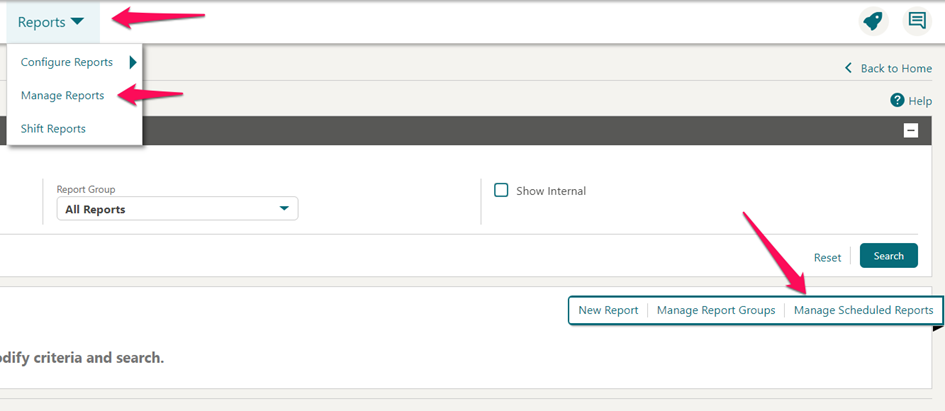
In Opera, select Reports, then Manage Reports, then Manage Scheduled Reports.
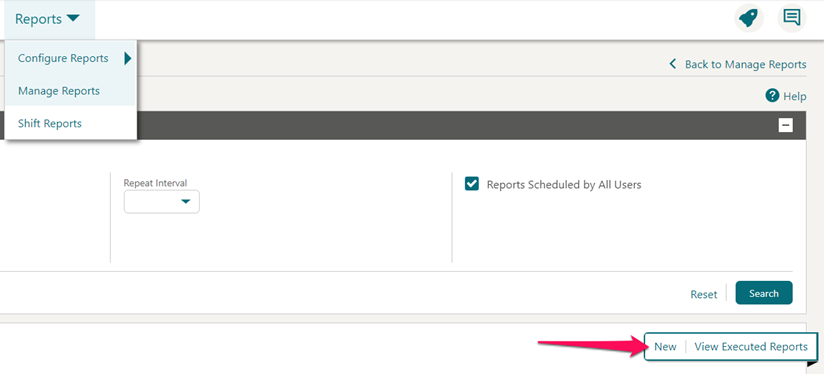
Select New to go to the scheduler.
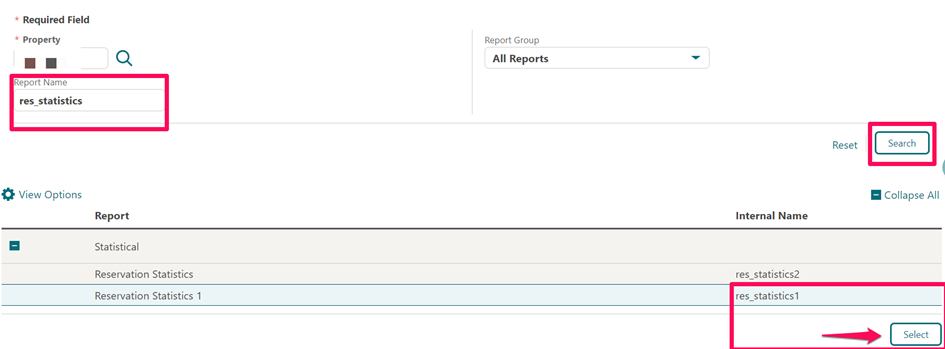
In the scheduler you need to search for the report you want to schedule.
Reservation statistics 1 – Room/guest nights
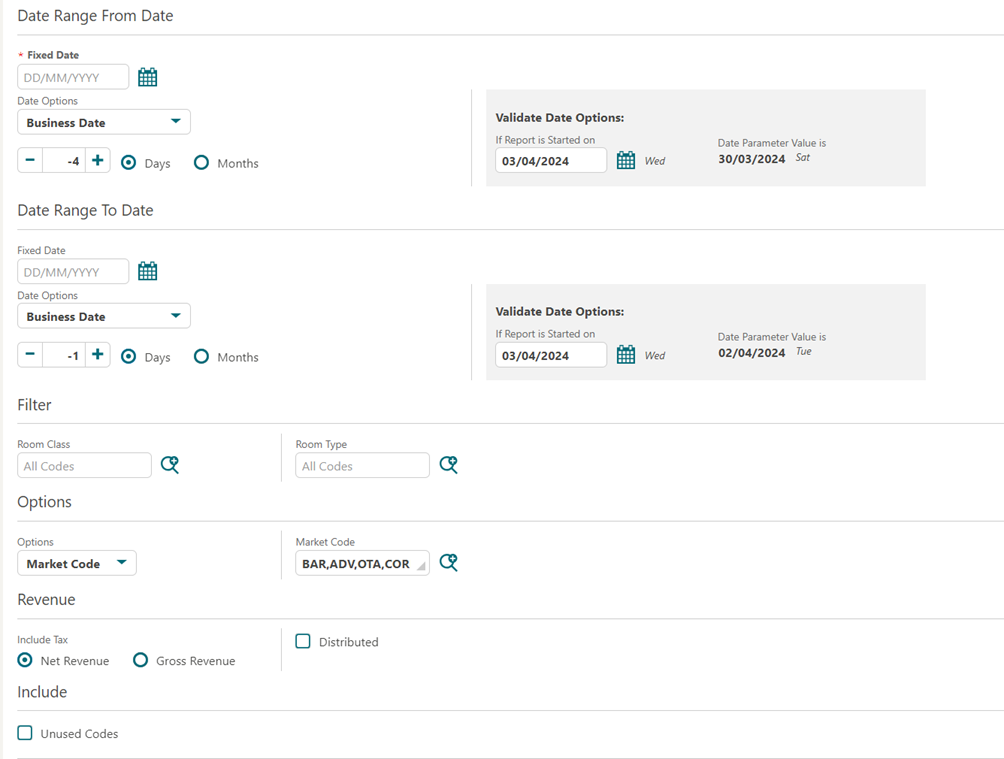
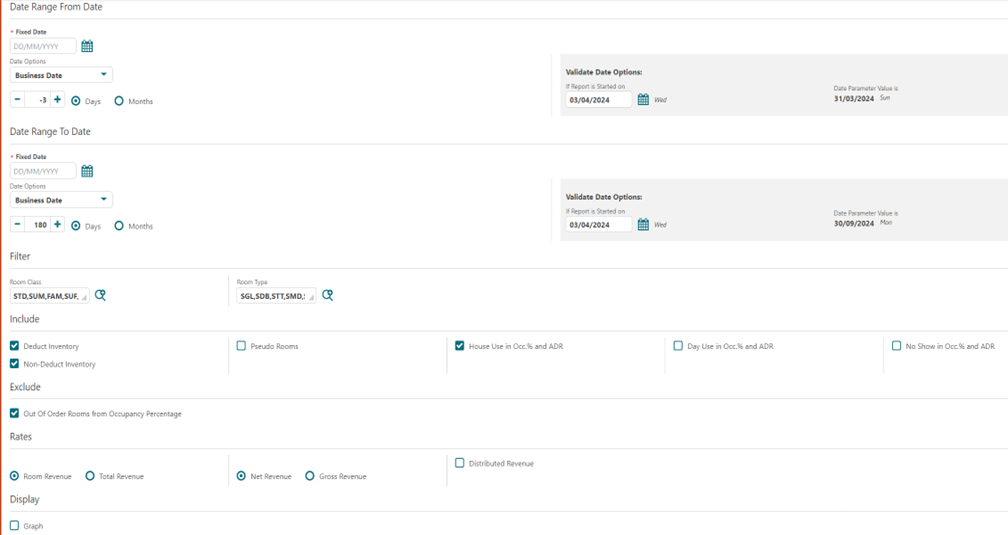
Select the Date Range, then Filter, Options and Revenue.
Report intervals and Destination
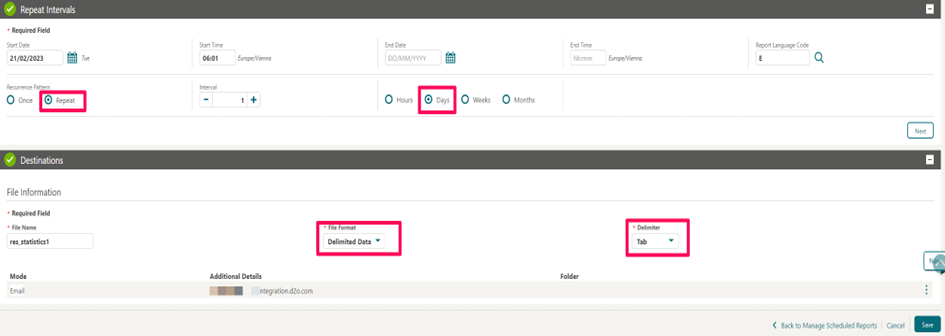
This setting is the same for all reports.
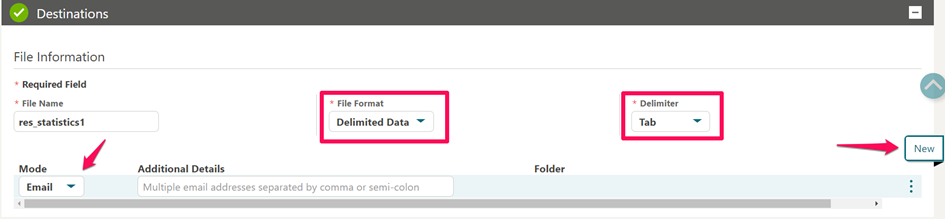
To select Mail or SFTP import click New.
Trial balance – Revenue
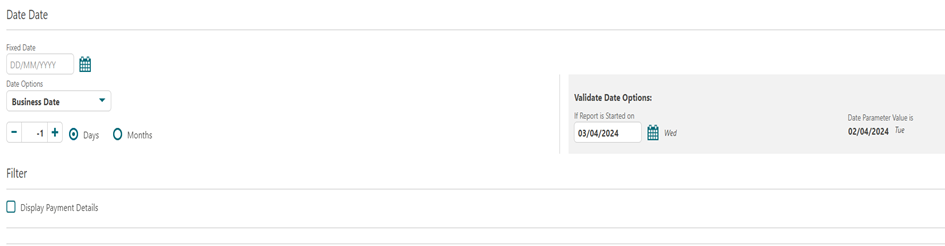
Report intervals and destination are the same as before.
Reservation forecast – Rooms OTB future
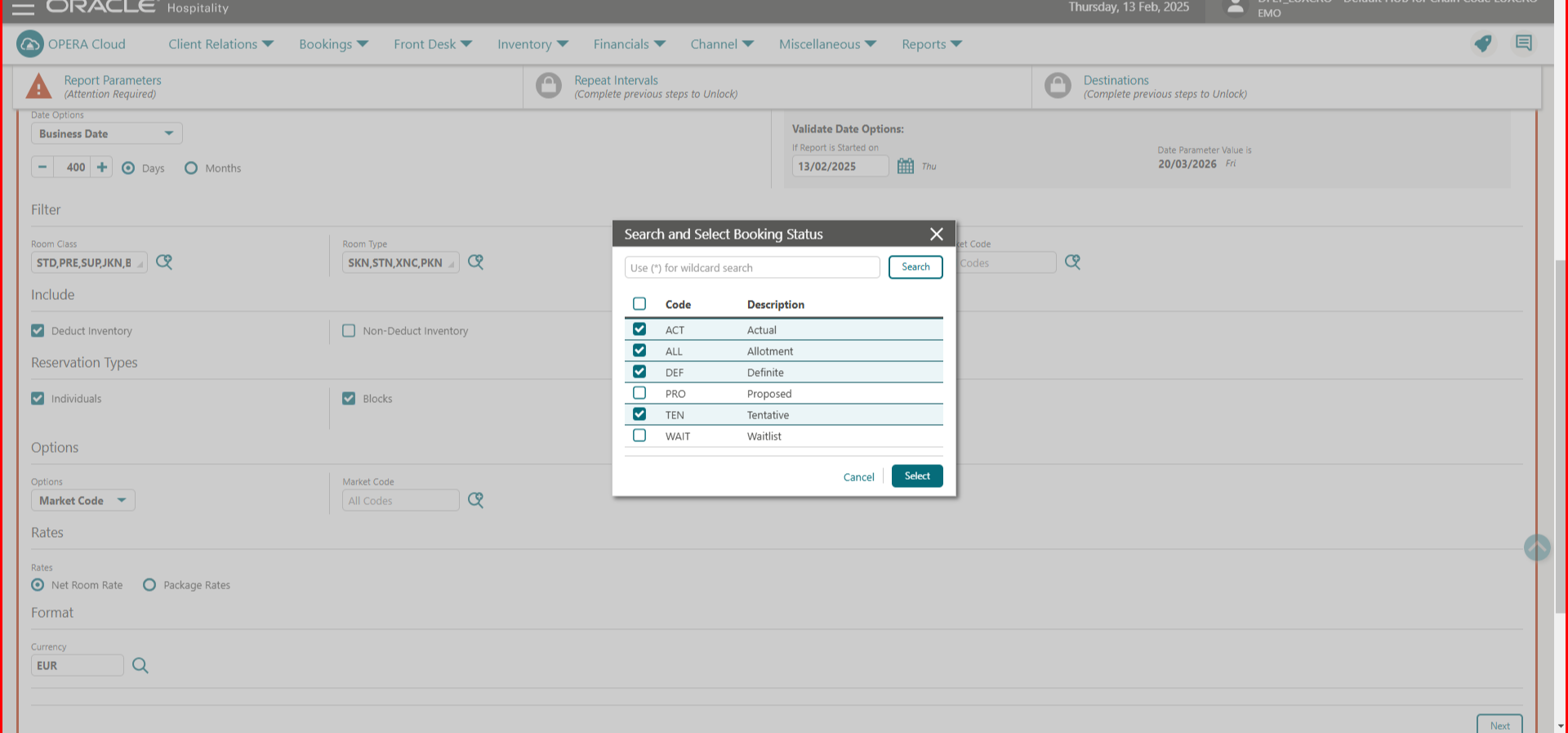
History & forecast Arr/Dep history and future
Rep_daily_forecast – M&E OTB report
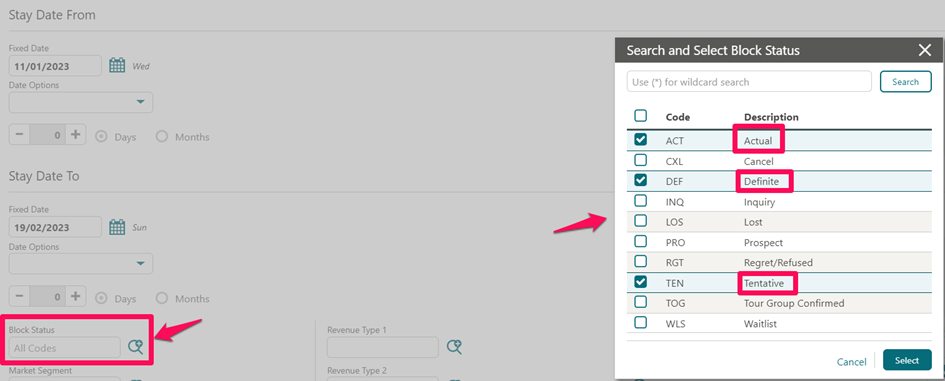
All fields that require editing have been highlighted in red.
Select 365 days of future data.
Block Status should be ACT, DEF and TEN.
Revenue Type
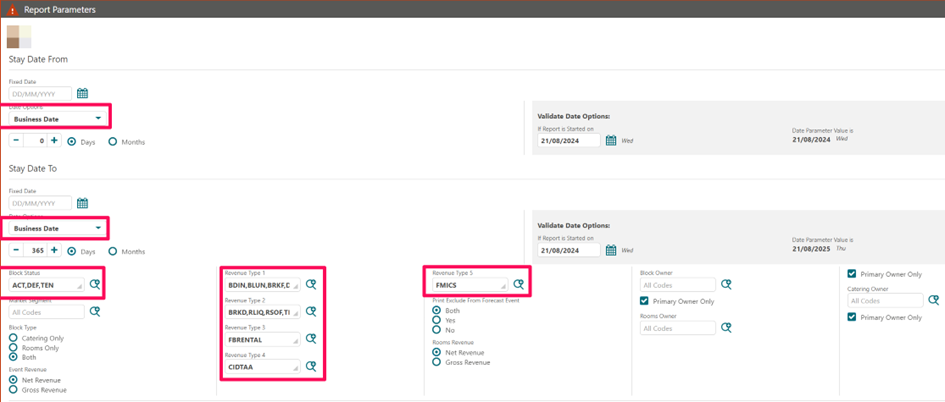
For the revenue fields the standard setup is:
-
- Revenue Type 1 – Food
- Revenue Type 2 – Beverage/Drinks
- Revenue Type 3 – Rental/Room Hire
- Revenue Type 4 – AV
- Revenue Type 5 – Misc